Your first steps after ordering
What happens after you pay: the emails you get, opening your server, getting through its firewall, signing in to VICIdial and setting up your team.
Getting started · 4 min read
Your server is paid for and building. This guide covers what happens next: the emails you get, opening your server, getting through its firewall, signing in to VICIdial and setting up your team.
What you need
- A server you have ordered. See Order your server.
- The account owner's login. Team members see less, depending on their role.
Step 1: Watch your inbox
Three emails arrive while your server is built:
- Order confirmed, with what you ordered and an Open dashboard button.
- Provisioning started, with a Watch live progress button that opens your server's page.
- Your server is ready. Its subject is your server's address followed by "is ready". It lists your admin address, your server's IP address, the admin user name, and the link your agents need.
Your password is never in an email. You reveal it yourself in the dashboard (Step 4). Every email we send you is also listed under Email logs in the sidebar.
Step 2: Open your server
- Sign in at vicifast.com. You land on your Dashboard.
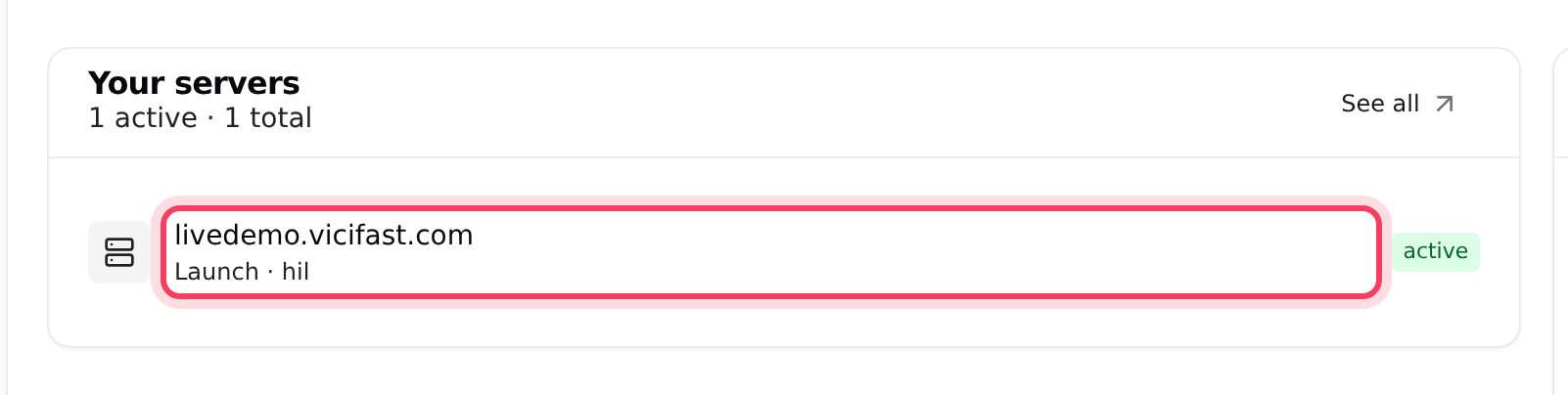
- In the Your servers card, your new server shows its status: installing at first, then active.
- Click your server's address to open its page. You can also click My Servers in the sidebar, then Manage on the server's card.
Step 3: Get through the firewall
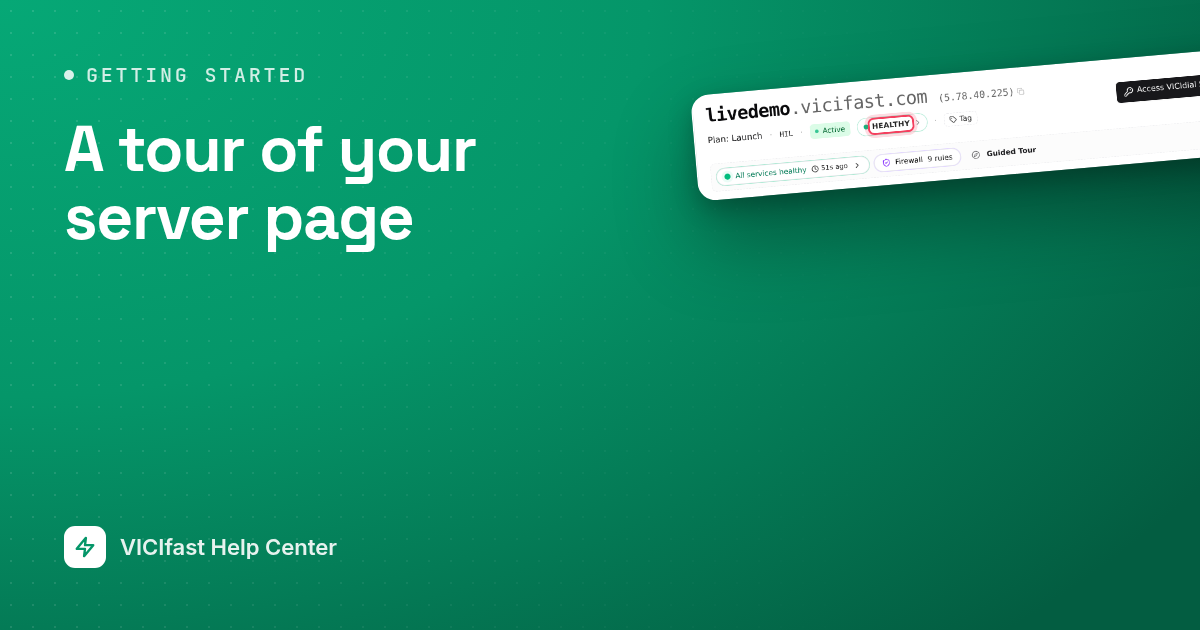
Your server ignores every internet address that hasn't been approved. For your own computer you usually don't need to do anything: the first time you open the server page in a browser session, we approve the address you are on and show a short message that your IP was whitelisted.
- If an amber banner says Your address is not approved, click Approve me.
- When all is well, the line under your server's name shows Access OK. Click it to open the Access Dialer Checklist, which also holds the link your agents need.
Approval follows the internet address, not your account. Working from home, a café or a phone hotspot means approving again: open the server page from there and click Approve me if asked.
Step 4: Sign in to VICIdial
- Click Access VICIdial Server at the top right of the server page.
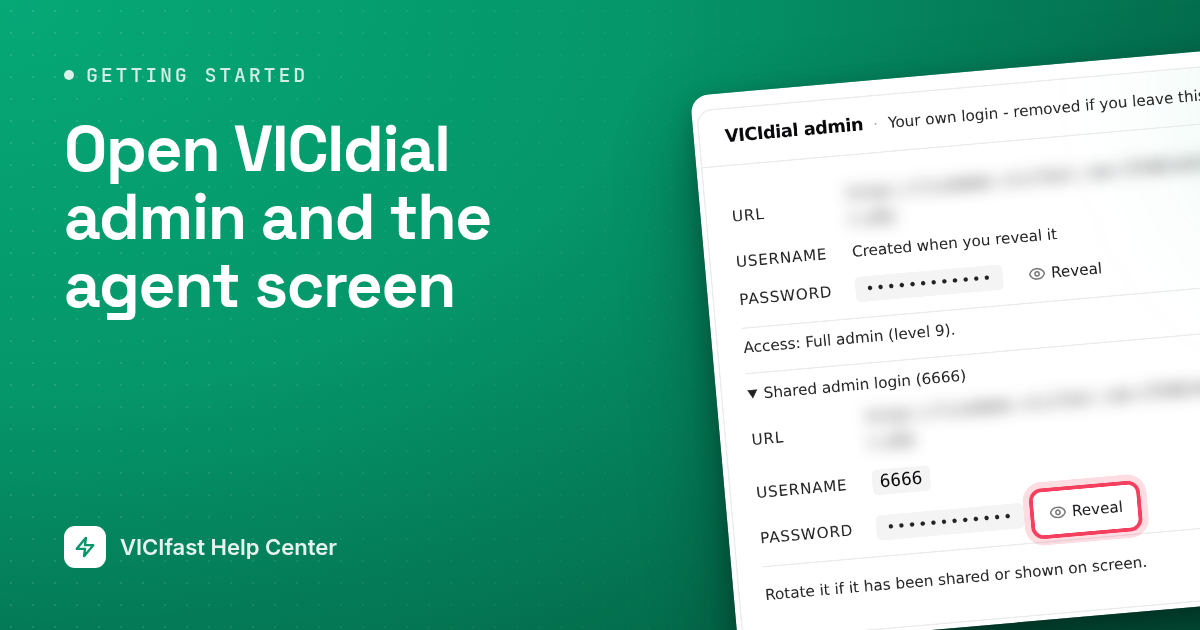
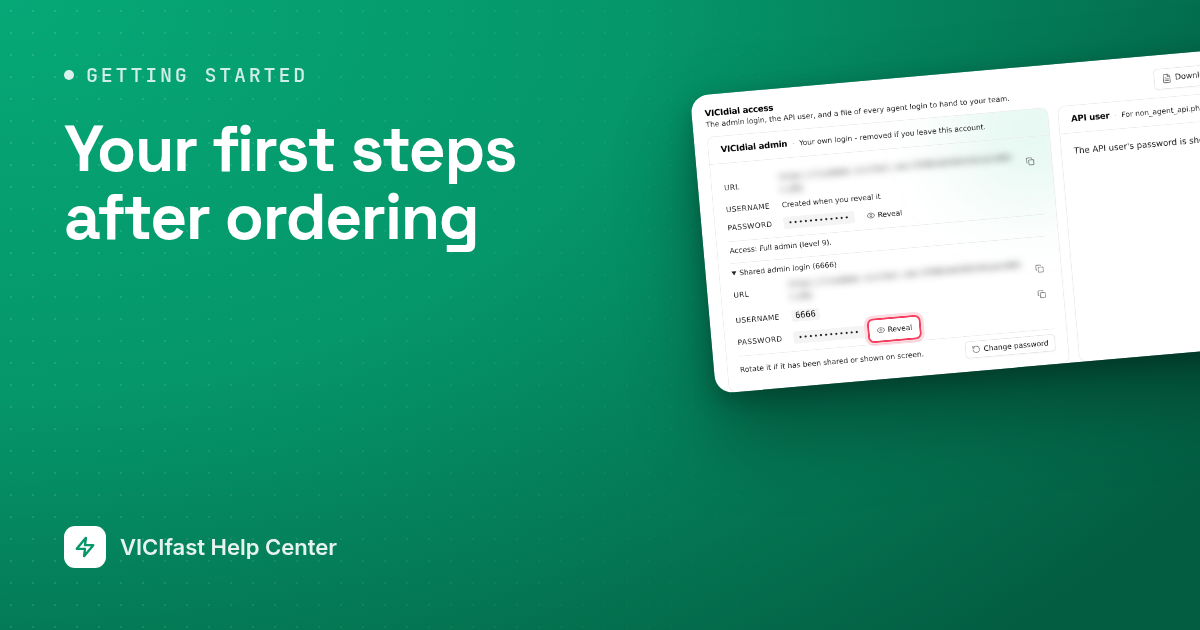
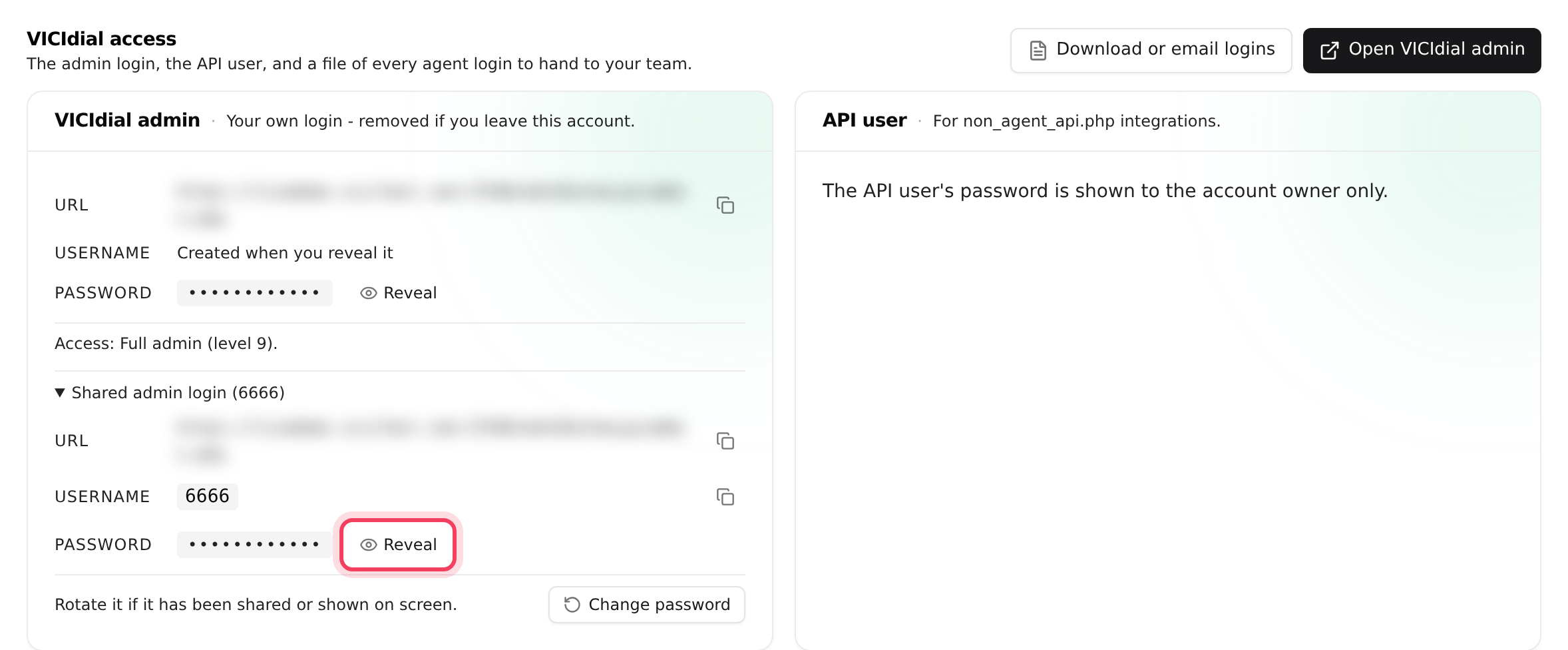
- In the VICIdial admin card, click Reveal next to Password, then Copy. Click Hide when you are done. Team members see their own VICIdial login here instead, with the shared 6666 login folded away under Shared admin login (6666).
- Click Open VICIdial admin. A new tab opens and your browser asks for a user name and password. Type 6666 and paste the password.
Step 5: Set up your team with the Setup Wizard
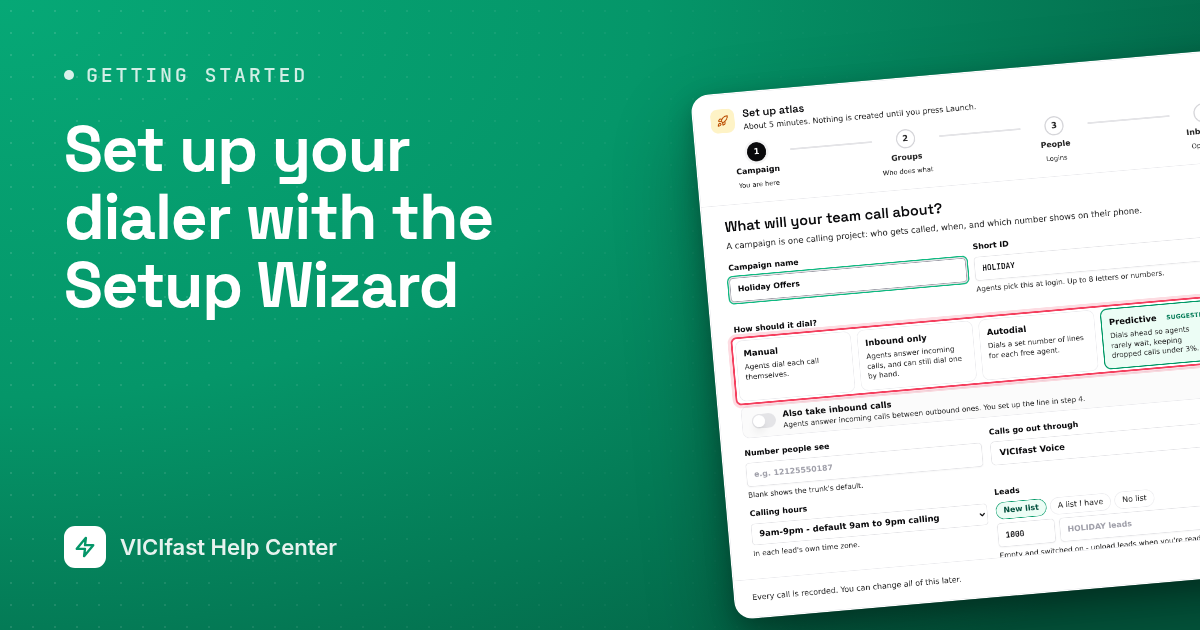
- On a brand-new server, the Setup Wizard opens by itself the first time you visit, on a page titled Let's get your team calling.
- Click Start setup to build your first campaign, user groups and agent logins. Click Not now to do it later: it stays under the Setup Wizard button in the tools strip.
The full walkthrough is in Set up your dialer with the Setup Wizard.
Step 6: Set your time zone
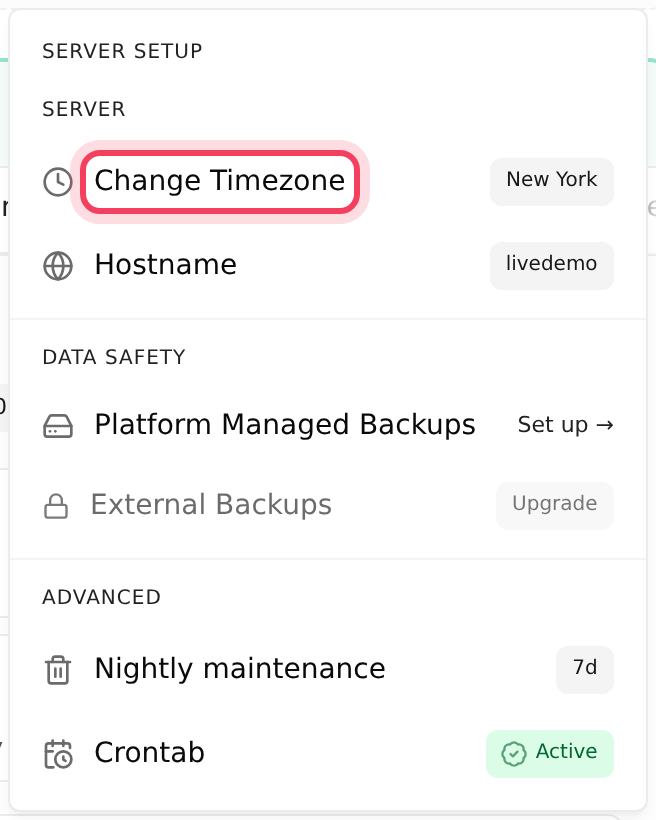
New servers start on US Eastern time (New York). If your floor works in another time zone, change it before you set calling hours and read reports.
- In the tools strip, click Configurations.
- Click Change Timezone and pick your time zone.
More in Change your server's time zone.
Step 7: Finish the setup checklist
Until your server is fully set up, your Dashboard shows Finish setting up with four items: Server running, SIP trunk connected, Leads loaded and Agent logins created. Click an unfinished item to go where you fix it.
- Phone line: use VICIfast Voice or connect your own carrier.
- Leads: see Upload leads.
- Agents: send them your agent link. See Signing in to the agent screen.
If something goes wrong
Frequently asked
- The computer you are on is not approved yet. Open your server page from that same computer and click Approve me if the banner appears, or click the Firewall chip and use Whitelist me.
- It is never emailed. On the server page click Access VICIdial Server, then Reveal in the VICIdial admin card.
- Your server is still being built. Wait until the status reads Active; the page reloads by itself when the build finishes.
- You are signed in as a team member whose role has no VICIdial access (Billing or QA reviewer). The account owner can change your role. Owners, and Admins with SSH access, see the 6666 password.
- Check your spam folder and the Email logs page in the sidebar. Everything in that email is also on your server page.
- Each agent has to approve their own address first, using your agent link (Access OK, then Your agent link). See An agent can't reach the login page.