Your firewall: who can reach your dialer
Only addresses you allow can reach your dialer. How agents let themselves in, how to allow an office by hand, and how to block countries.
Your server & troubleshooting · 5 min read
Your dialer turns away everyone it does not know. Only addresses you allow can reach it. This keeps strangers away from your agent and admin login pages. This page shows how your agents get in, how to let an office in by hand, and how to keep unwanted traffic out.
What you need
- You are the account owner, or a team member with the Firewall permission.
- The server is Active.
How people get in
- Agents let themselves in. You send them one link. They sign in with their normal VICIdial username and password, and the address of the computer they are on is allowed.
- You allow an address yourself, for example your office.
- Your phone carrier is let in automatically.
Call audio is never blocked, so a call in progress keeps its sound. When you, the account owner, open your server page, the address you are using is allowed with full access automatically. The first time, you see Whitelisted your IP with the address.
Step 1: Open the firewall
- In the sidebar, click My Servers, then open your server.
- In the strip under the server name, click the Firewall chip. It shows how many rules you have and, once we can read it from your server, how many agent addresses are approved.
- The VICIfast Firewall window opens. The first time, a short guided tour may start. Click Instructions at any time for a plain summary of who gets in.
If the chip is amber and says no agent can reach the dialer, you have agent logins but no agent has let themselves in yet. Do Step 2.

Step 2: Send your agents the link
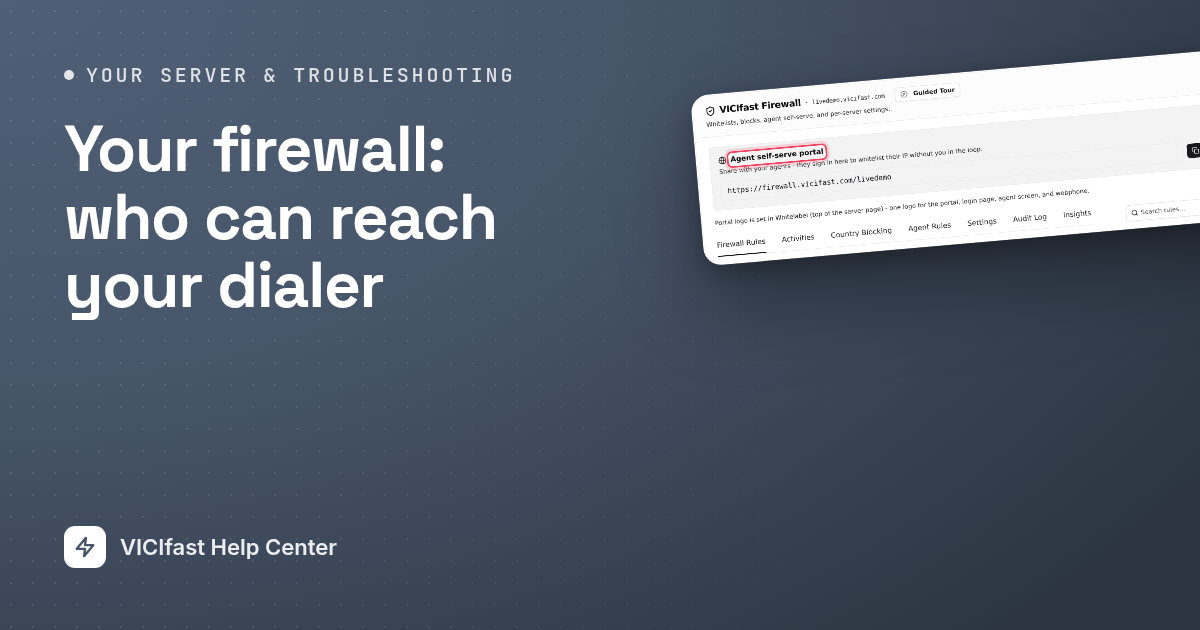
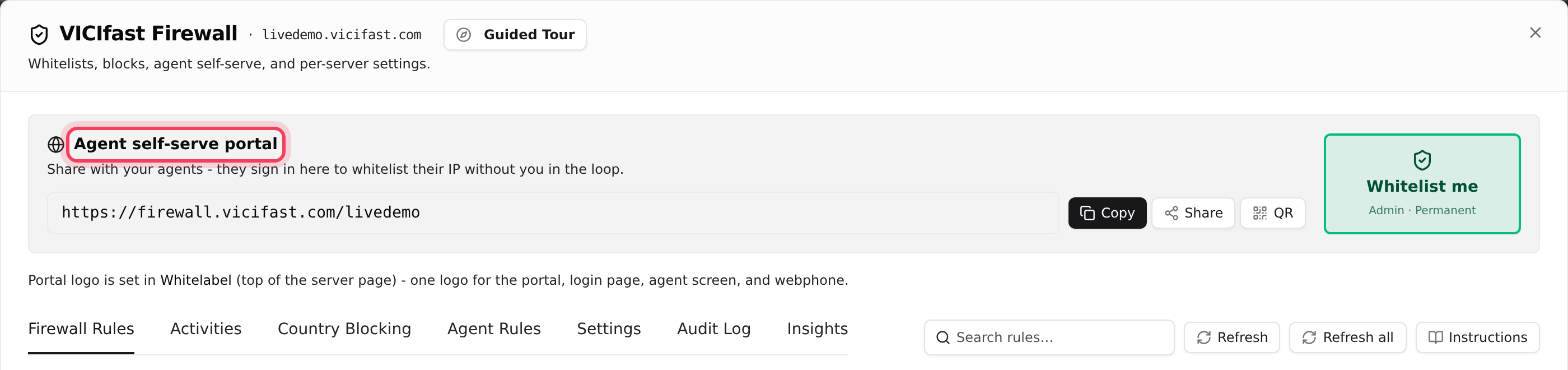
- At the top of the window, find Agent self-serve portal.
- Click Copy and paste the link into your team chat, or click Share. Click QR to show a code agents can scan with a phone. As the account owner, you also find this link under Your agent link when you click the Access OK chip next to your server's status.
- Each agent opens the link and signs in with their VICIdial username and password. Their address is then allowed for the time set in Settings (24 hours unless you change it).
Agents need to do this again when their internet changes, for example new Wi-Fi or a router restart. The VICIfast mobile app does it for them. Your managers (VICIdial user level 7 and up) get full access when they use the link.
Step 3: Allow an office or a person by hand
Use this for an office with a fixed address, or an agent who cannot use the link.
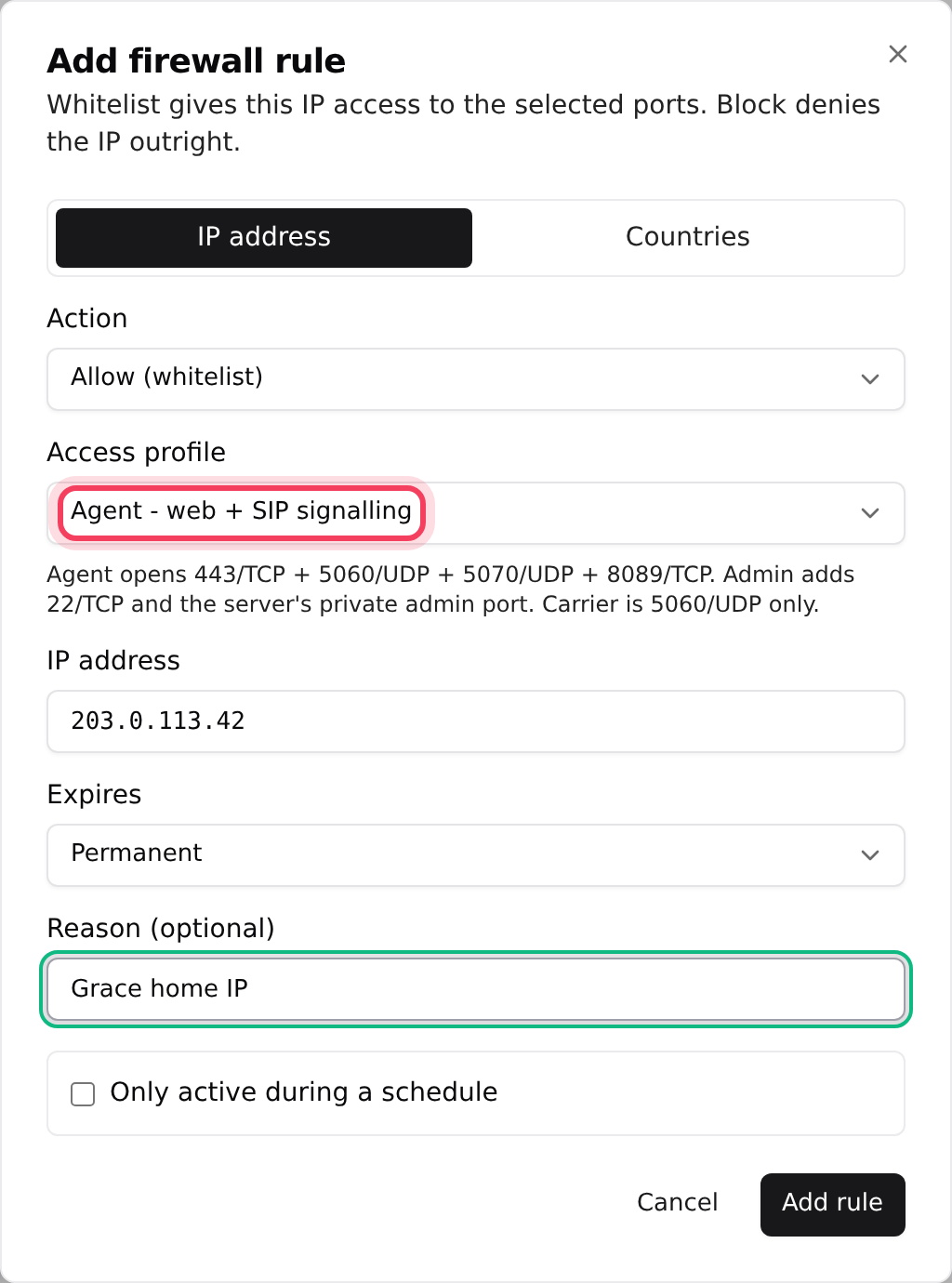
- On the Firewall Rules tab, click Add rule.
- In Action, pick Allow (whitelist).
- In Access profile, pick Agent - web + SIP signalling for agents (agent screen, phone and webphone), Carrier - SIP signalling only for a phone carrier, or Admin - full (web + SIP + SSH) for yourself (everything, including VICIdial admin).
- Type one IP address, for example 203.0.113.42. Ranges are not accepted.
- Choose when it Expires: Permanent, or in 24, 48 or 72 hours or 7 days. Add a Reason (optional) such as "Grace home IP".
- Optional: tick Only active during a schedule to allow it only on certain days and hours.
- Click Add rule. It reaches your server within seconds.
If the dialog shows IP address and Countries at the top, you can also let a whole country in on a schedule (up to 5 countries per rule), for example a night shift abroad. That opens only the agent screen and webphone, and you must tick the box confirming you understand who can reach your login pages.
Step 4: See who tried to sign in
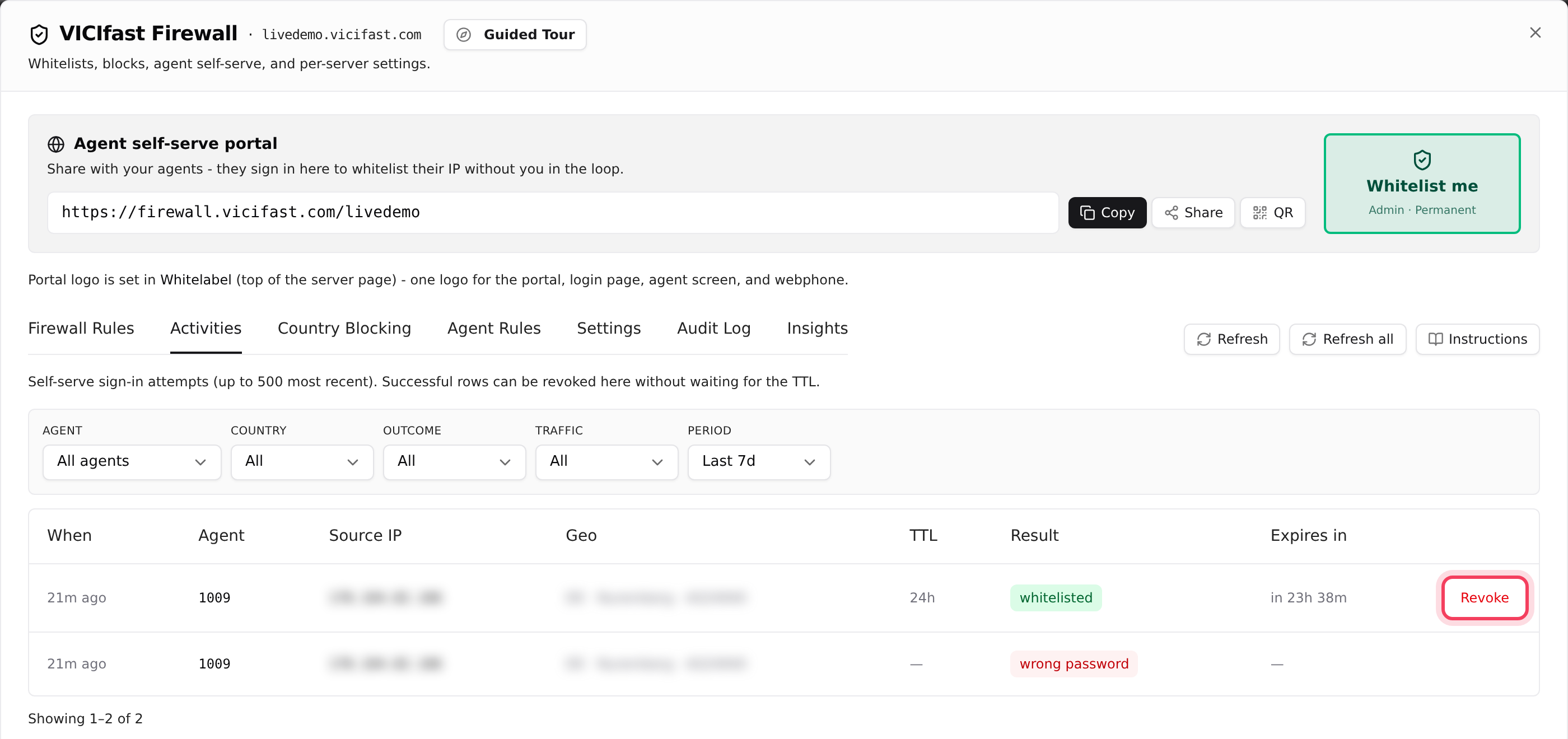
- Click the Activities tab. Every attempt on the agent link is listed, newest first, with the agent, address, location and Result.
- Use the filters (Agent, Country, Outcome, Traffic, Period) to find one person.
- Results you will see: whitelisted, wrong password, wrong code, captcha shown, rate limited and account disabled.
- To cut off an agent at once, for example a lost laptop, click Revoke on their whitelisted row.
Step 5: Keep unwanted traffic out
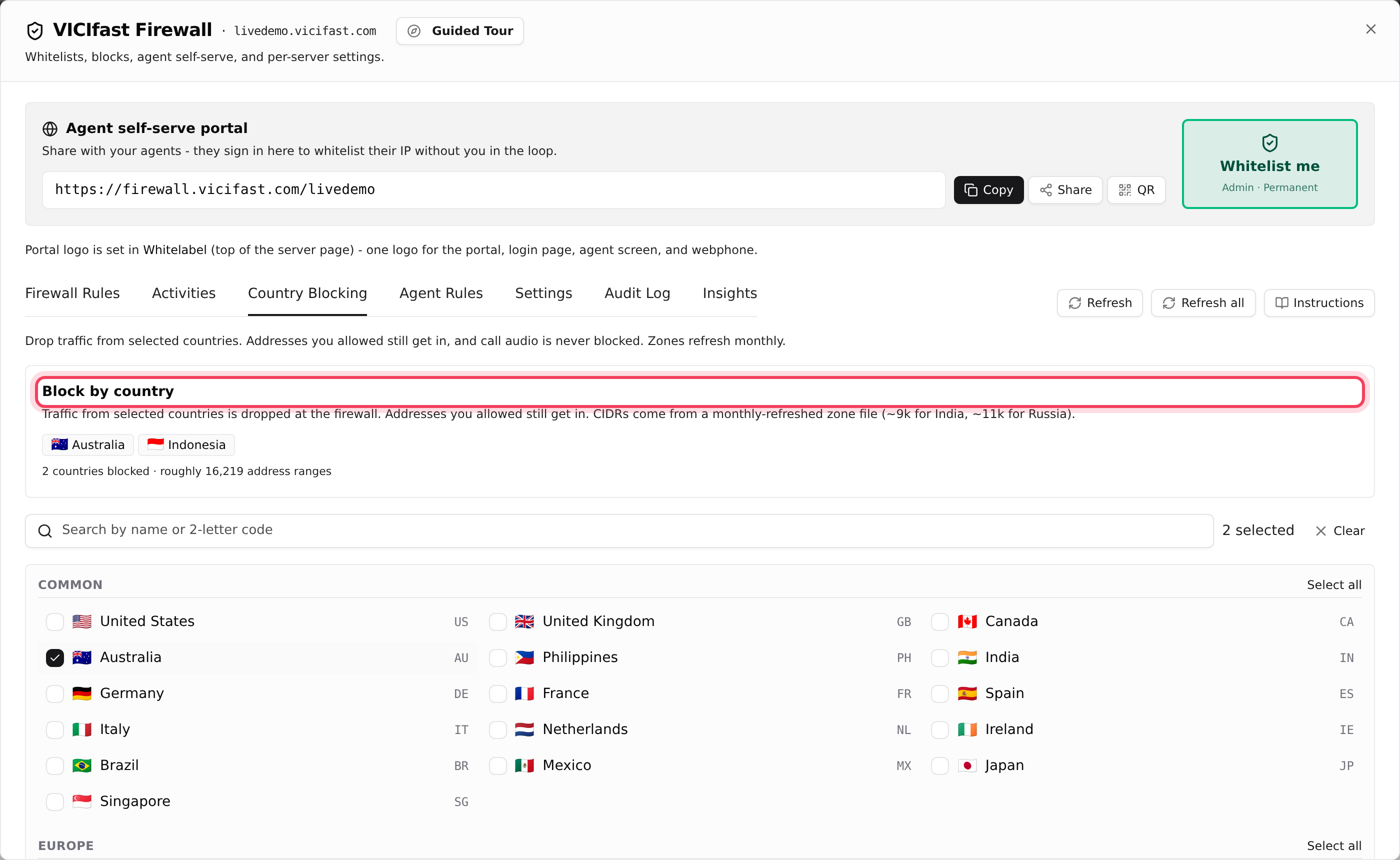
- Click the Country Blocking tab. Search for a country or click it in the list. Each continent has Select all.
- Click Save in the yellow bar that appears.
- To block one address, use Add rule and pick Block (blacklist).
Addresses you allowed still get in, even from a blocked country, and call audio is never blocked. Blocking an address does not stop an agent with a working VICIdial login: signing in through the link allows them again. To keep a person out, also disable their VICIdial user.
Step 6: Check the settings
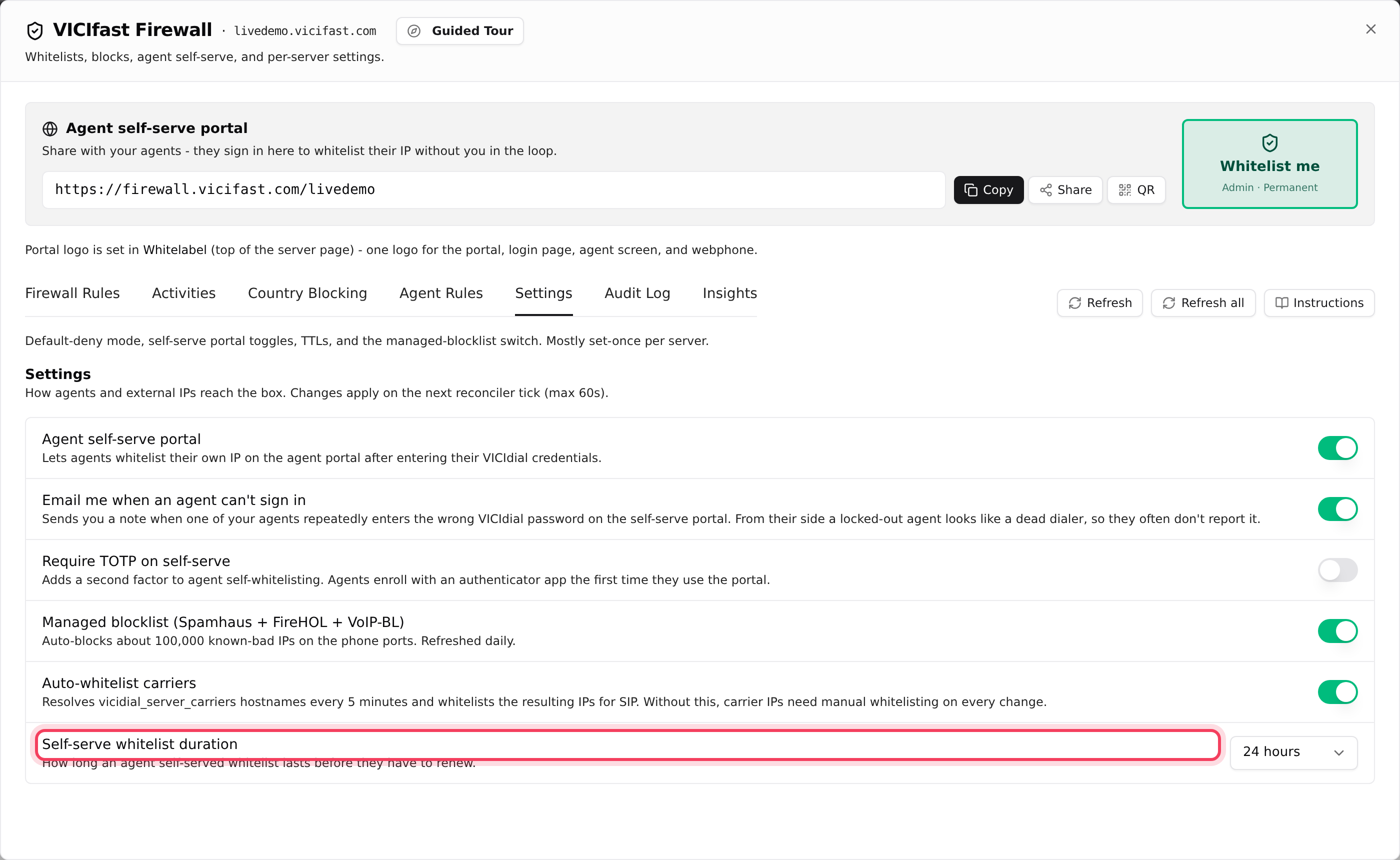
Click the Settings tab. Each switch saves the moment you change it.
- Agent self-serve portal (on): lets agents use the link.
- Email me when an agent can't sign in (on): emails you when an agent keeps typing the wrong password on the link.
- Require TOTP on self-serve (off): agents also type a 6-digit code from an authenticator app. To set one up for an agent, go to Agent Rules, click Enroll agent, type their VICIdial username and click Generate secret. Hand over the secret and the 10 backup codes; they are shown only once.
- Managed blocklist (on): keeps about 100,000 known-bad addresses off your phone connections.
- Auto-whitelist carriers (on): lets your carriers in and re-checks their addresses every 5 minutes.
- Self-serve whitelist duration: how long an agent stays let in, from 24 hours to 7 days.
The Audit Log tab lists every firewall change and who made it. Insights shows whether the firewall on your server is in step, with a Reconcile now button.
If something goes wrong
Frequently asked
- Type one address only. For many people, send them the agent link instead. For a whole country on a schedule, use the Countries option in Add rule.
- Their computer is not let in, or their internet changed. Ask them to open the agent link and sign in again, then check their row on the Activities tab. See "An agent can't reach the login page".
- Allowed addresses win over blocks, and signing in through the agent link allows the address again. Disable the agent's VICIdial user as well.
- New rules are not reaching your server right now. We keep retrying. If it stays for more than 10 minutes, chat with support.
- Go to Settings and switch Agent self-serve portal on. Agents can use the link again straight away.
- On Agent Rules, open the agent and remove their enrollment, then enroll them again with Enroll agent.