Signing in to the agent screen
How to start your shift: let your computer in, sign in to the agent screen, pick your queues and get your headset working.
For your agents · 3 min read
This is how you start your shift. You do it in your web browser, and it takes about a minute.
What you need
- Your user ID and password. Your manager gives you these.
- Two links from your manager: your company's agent link (to let your computer in) and the agent screen address. The agent screen address ends in /agc/vicidial.php.
- A computer with a headset and an up-to-date web browser.
Step 1: Let your computer in
Your dialer only talks to computers it knows. Do this the first time, and again whenever your internet changes (new Wi-Fi, a different office, or after your router restarts).
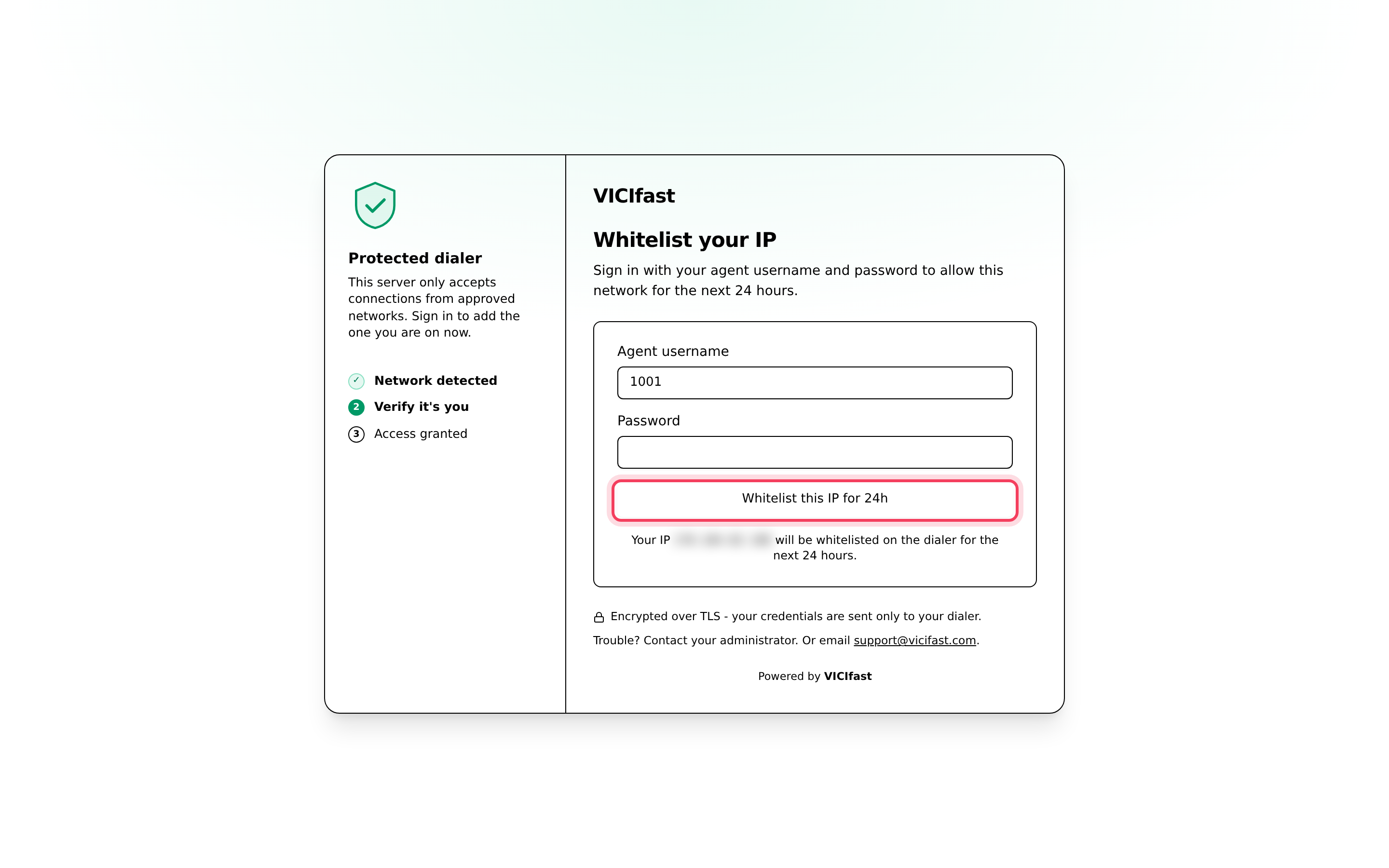
- Open your company's agent link.
- Type your user ID in Agent username and your Password.
- If it asks for an Authenticator code, type the 6-digit code from your authenticator app.
- Click Whitelist this IP for 24h. The number of hours depends on your company's settings.
- When it says You're connected, click Continue now. The agent screen opens.
If it says Your IP is whitelisted, your computer is already in. Just open the agent screen.
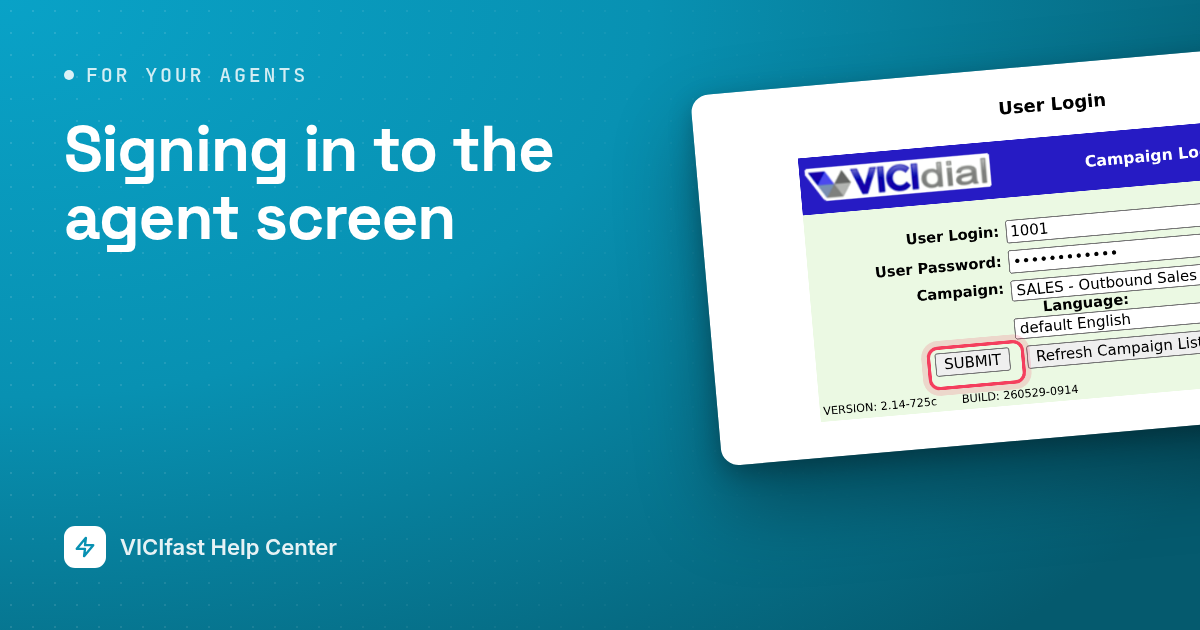
Step 2: Sign in to the agent screen
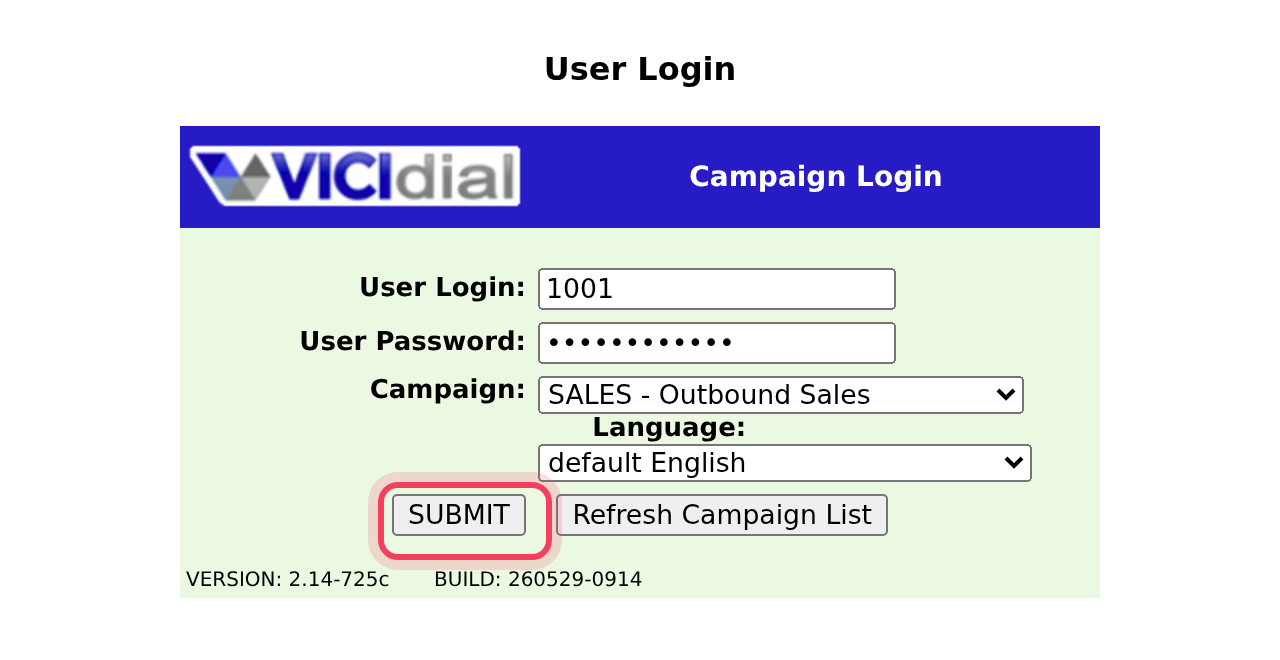
- Open the agent screen address. Bookmark it for next time.
- In User Login, type your user ID.
- In User Password, type your password.
- Click the Campaign list and pick your campaign. The list fills in once your user ID and password are right.
- Click SUBMIT.
Step 3: Pick your queues
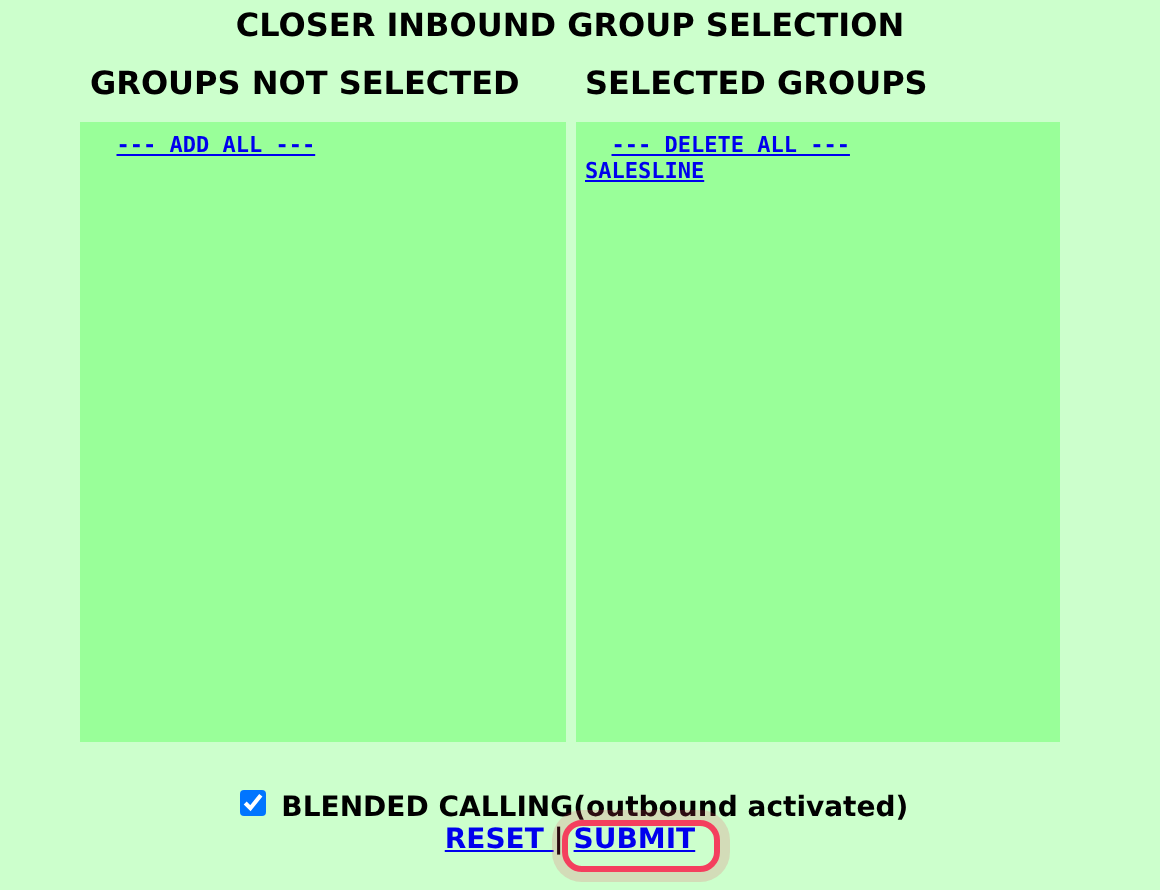
If your campaign takes incoming calls, a box called CLOSER INBOUND GROUP SELECTION opens.
- Under GROUPS NOT SELECTED, click each queue you should answer. It moves to SELECTED GROUPS. Your manager tells you which ones.
- If you also make outbound calls, tick BLENDED CALLING(outbound activated) if you see it.
- Click SUBMIT.
No box? Your campaign has no incoming queues. Carry on.
Step 4: Get your headset working
- The first time, your browser asks to use the microphone. Click Allow.
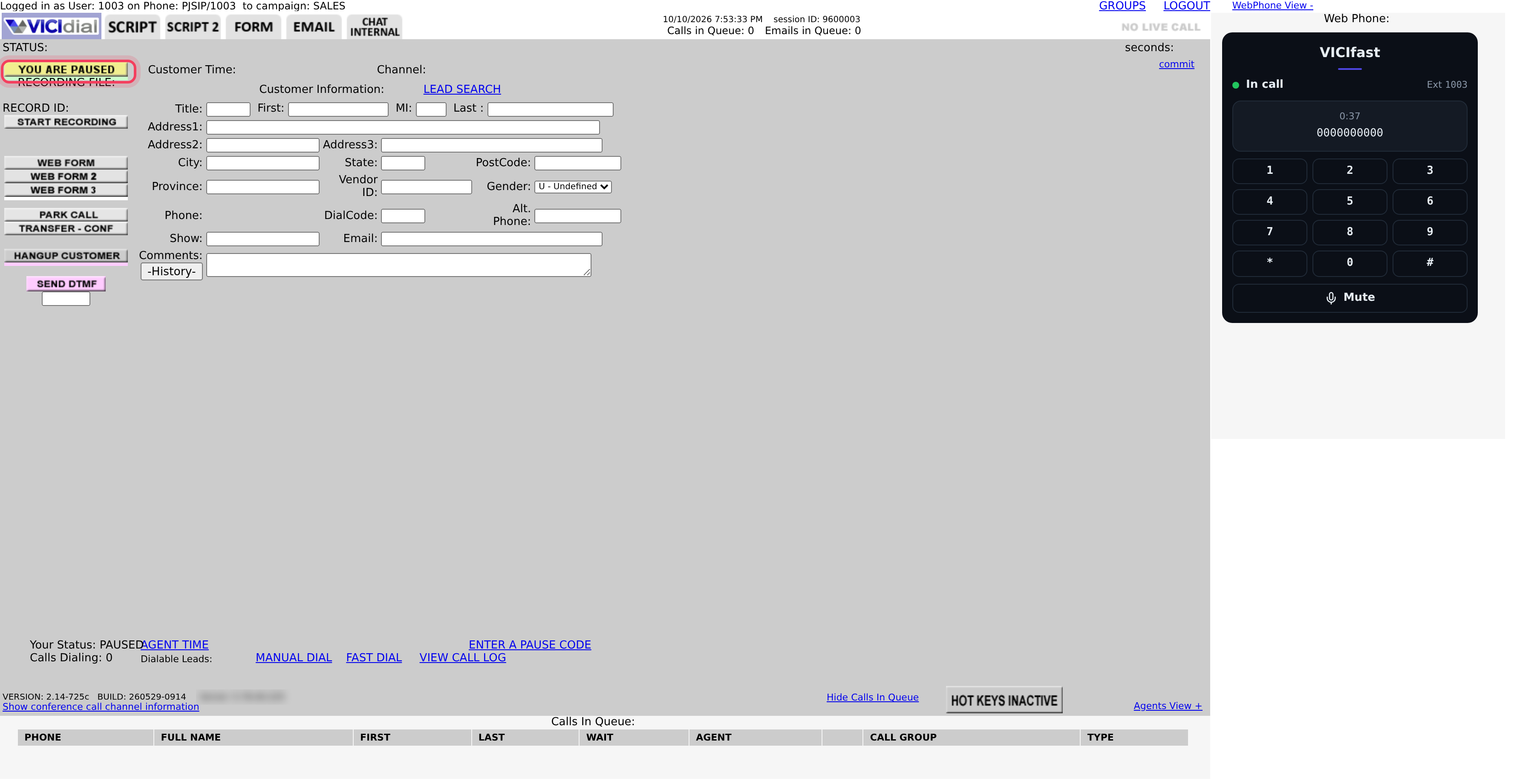
- Look at the phone on the right of your screen. It says Connecting…, then Ready, and a few seconds after you sign in it says In call with your extension (for example Ext 1003). Your phone is working. It stays In call all shift, between calls too: it is your line to the dialer.
- If you see Enable microphone, click it and allow the microphone.
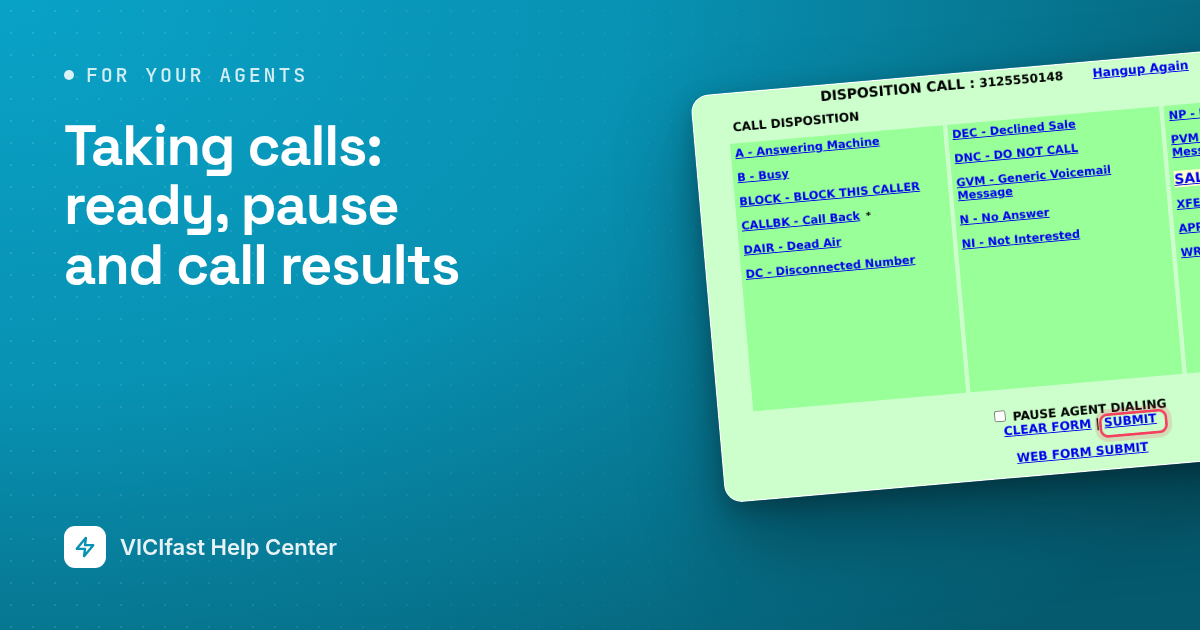
You start paused. The button on the left says YOU ARE PAUSED. When you are ready for calls, see Taking calls: ready, pause and call results.
When your shift ends
- Finish your last call and save its result.
- Pause.
- Click LOGOUT at the top of the screen.
If something goes wrong
Frequently asked
- Your computer isn't let in yet, or your internet changed. Do Step 1 again with your company's agent link, then reload.
- Check your user ID and password with your manager. They can reset your password.
- Your network only has a newer kind of address the dialer can't use. Switch to another Wi-Fi or network and try again.
- Your user ID or password is wrong, or you aren't allowed on any campaign yet. Check with your manager.
- Your phone didn't connect. Check the phone says Ready and the microphone is allowed, then click Call Agent Again.
- Click the lock icon in your browser's address bar, allow the microphone for this site, then click Enable microphone on the phone.
- Pause, then click GROUPS at the top of the screen, pick your queues and click SUBMIT.