Change your server's time zone
Set your dialer's clock to the time zone your call center works in, so call times, reports and calling hours line up with your day.
Your server & troubleshooting · 2 min read
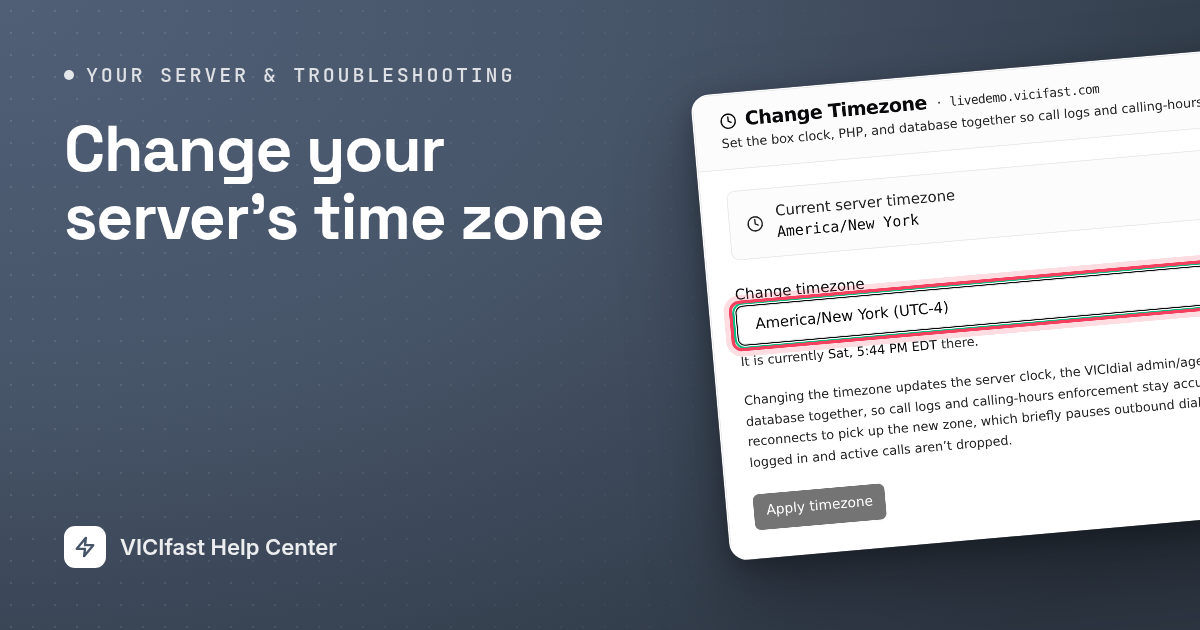
Your server has its own clock and time zone. It decides the time stamped on every call, where "today" starts and ends in your reports, and how the dialer works out each lead's local time for calling hours. New servers start on US Eastern time (New York). Change it if your call center works in another time zone.
What you need
- You are the account owner, or a team member with the Server settings permission.
- The server is running.
- A quiet moment: outbound dialing pauses for about a minute while the change is applied.
Step 1: Open Change Timezone
- In the sidebar, click My Servers, then open your server.
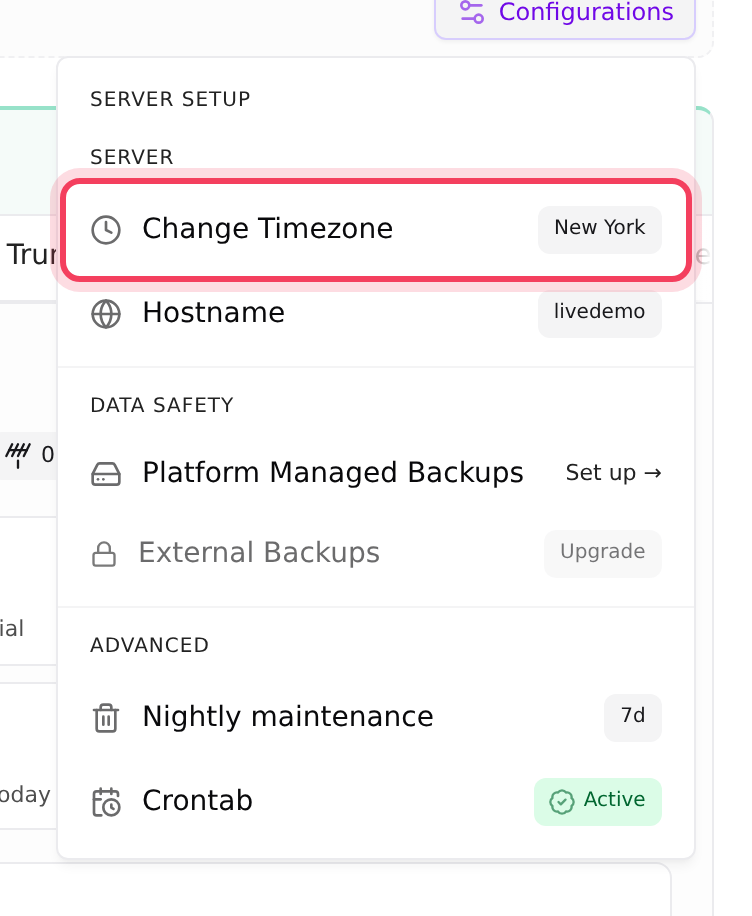
- Click Configurations. Under Server, the Change Timezone row shows the current zone, for example New York.
- Click Change Timezone.
Step 2: Pick the new time zone
- At the top you see Current server timezone.
- Open the Change timezone list. Zones are grouped by region and show their offset, for example America/Chicago (UTC-5).
- Pick the city zone for your area. Under the list you see what time it is there right now, to check you picked the right one.
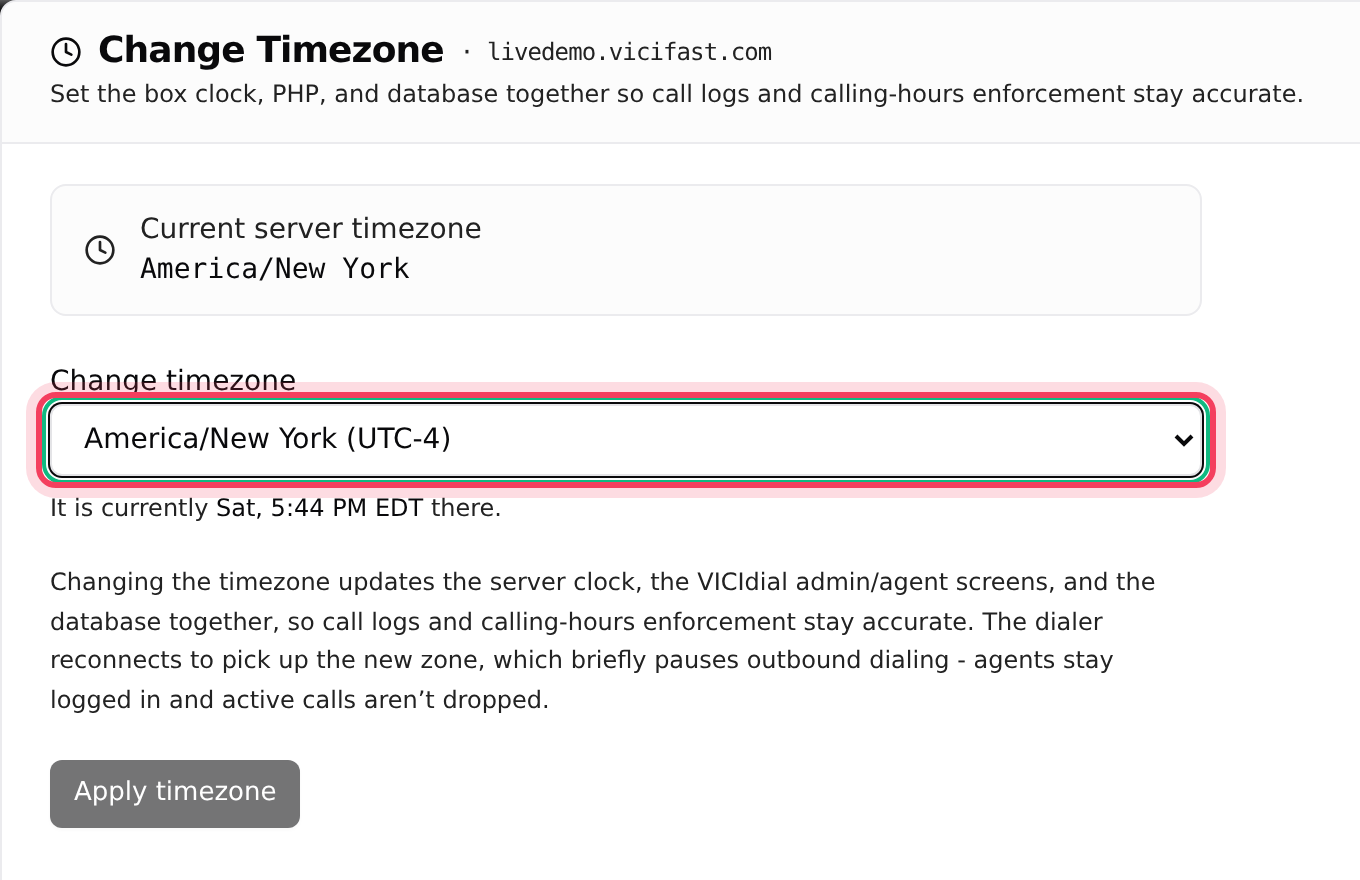
Pick a city zone, such as America/Chicago or Europe/London, rather than a fixed offset. City zones follow daylight saving time for you.
Step 3: Apply it
- Click Apply timezone.
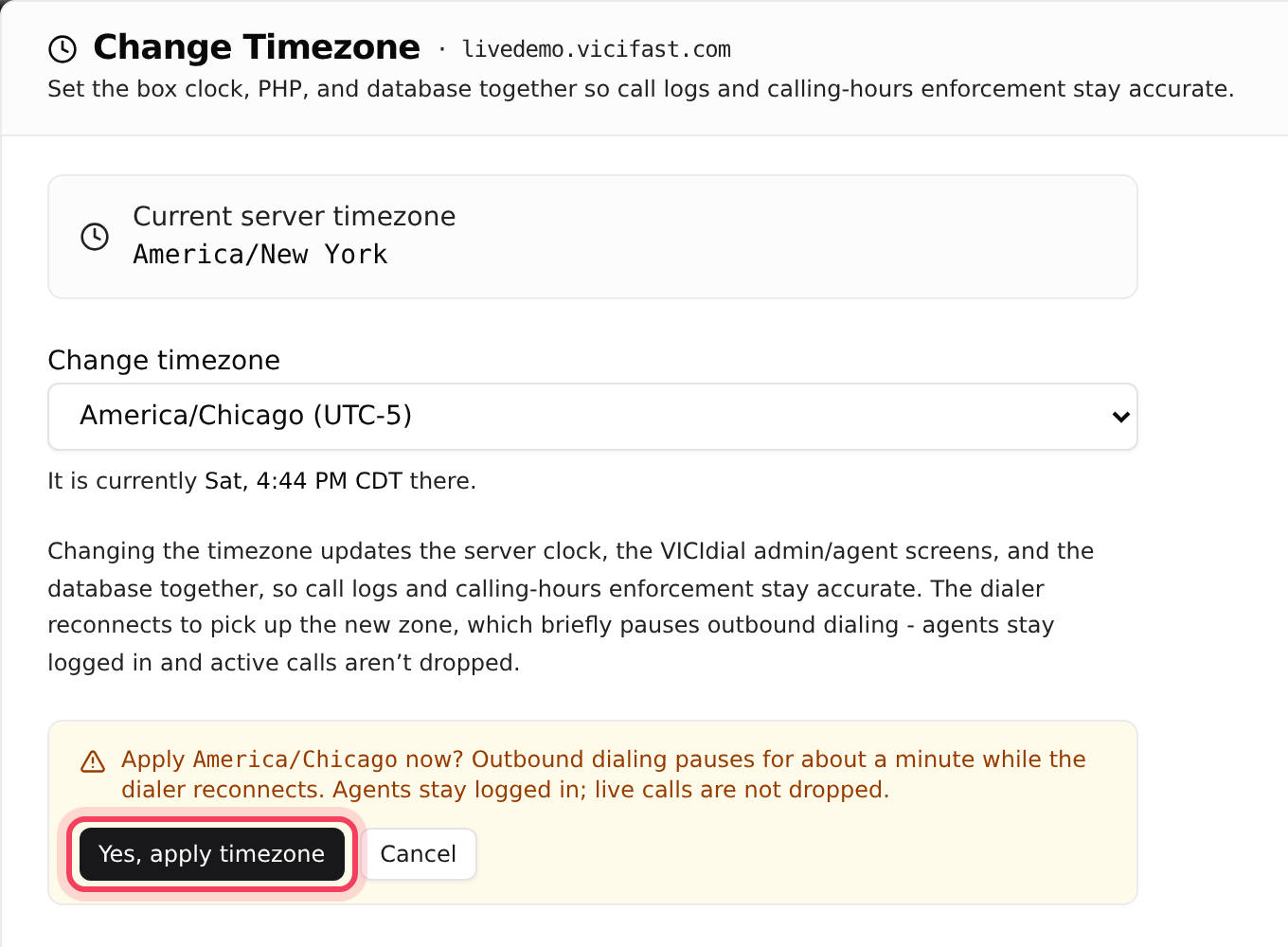
- Read the yellow box: outbound dialing pauses for about a minute while the dialer reconnects. Agents stay logged in and live calls are not dropped.
- Click Yes, apply timezone.
You see "Timezone set to" your new zone, and that it is being applied on your server now. After about a minute, the dialer is back to normal.
What changes, and what does not
- Changes: the server clock, the times in VICIdial admin and on the agent screen, the times stamped on calls from now on, and the time the dialer uses to work out calling hours for each lead.
- Changes: reports on your server page count each day in the server's time zone, so "today" in Floor and Reports starts at midnight in the new zone.
- Does not change: calls already made keep the times they were stamped with.
- Does not change: your own Timezone in Settings. That one only controls how dates and times are shown to you in the dashboard.
Change the time zone outside your calling hours. Outbound dialing pauses for about a minute, and agents waiting for calls will see a short gap.
If something goes wrong
Frequently asked
- Pick a zone that is different from the current one first. If the panel says "The server must be running to change its timezone", wait until the server is Active.
- Your role can only view this server. Ask the account owner to give you the Server settings permission, or to make the change.
- Nothing was changed on the server. Wait a moment and click Apply timezone again. If it keeps failing, chat with support.
- Your dashboard shows times in your own time zone from Settings. Change it there if you want them to match.
- Reports now count the day from midnight in the new zone. Days before the change keep the times their calls were stamped with.