Open VICIdial admin and the agent screen
Where your VICIdial admin login lives, how to sign in to VICIdial admin, and how your agents get to the agent screen.
Getting started · 4 min read
This guide shows where your VICIdial admin login lives, how to sign in to VICIdial's own admin screens, and how your agents reach the agent screen. Most daily work happens in your dashboard tabs, but some settings only live in VICIdial admin.
What you need
- To see the admin (6666) password: you are the account owner, or a team member with the Admin role and SSH access. Other team members get their own VICIdial login instead.
- Your computer's address approved. This happens automatically when you open your server page.
Step 1: Open the VICIdial access panel
- Click My Servers in the sidebar, then Manage on your server's card.
- Click Access VICIdial Server at the top right. The VICIdial access panel opens below the tools strip.
Your browser remembers that you left it open. Click the button again to fold it away.

Step 2: Reveal the admin password
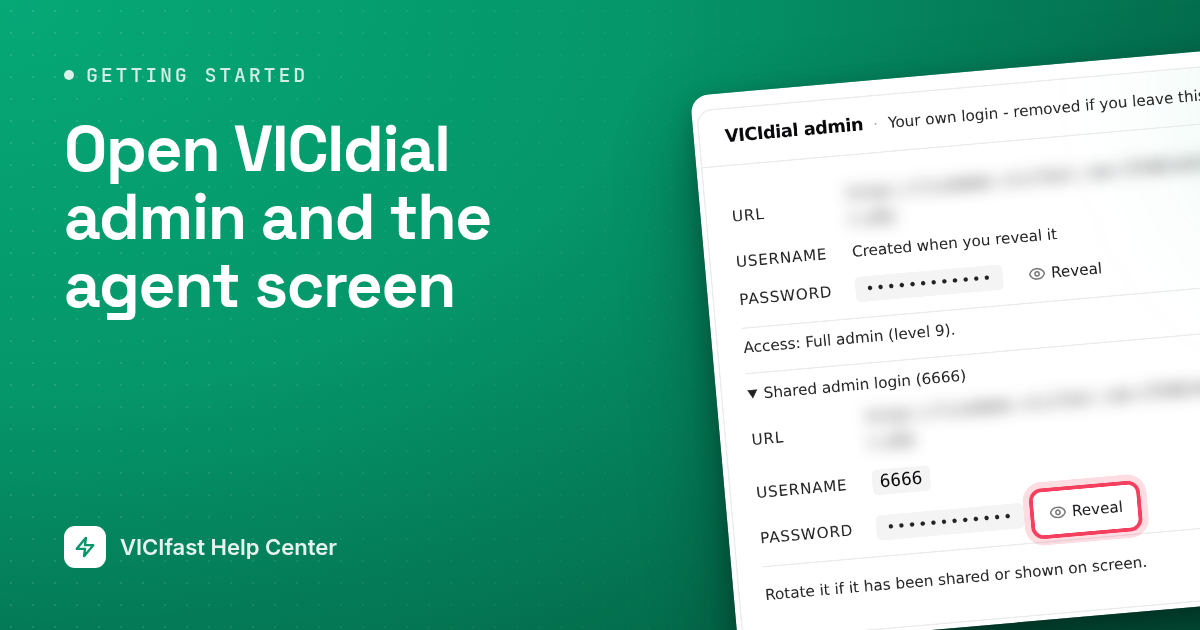
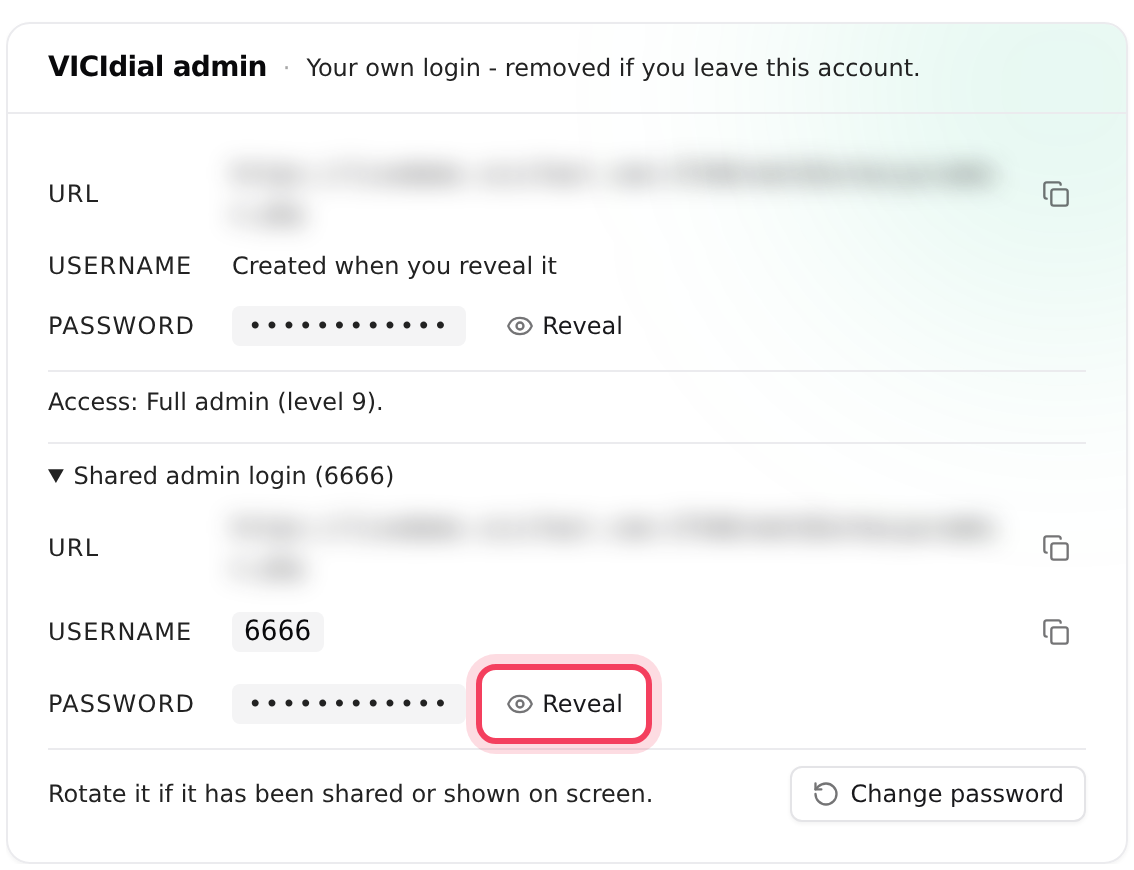
- The VICIdial admin card has three rows: URL, Username (6666) and Password. Team members see their own VICIdial login here instead, with the shared 6666 login folded away under Shared admin login (6666).
- Click Reveal next to Password, then Copy.
- Click Hide when you are done.
The small copy buttons copy the URL and user name too. Every reveal is recorded.
Step 3: Sign in to VICIdial admin
- Click Open VICIdial admin, or the URL in the card. VICIdial admin opens in a new tab.
- Your browser asks for a user name and password. Type 6666 and paste the password.
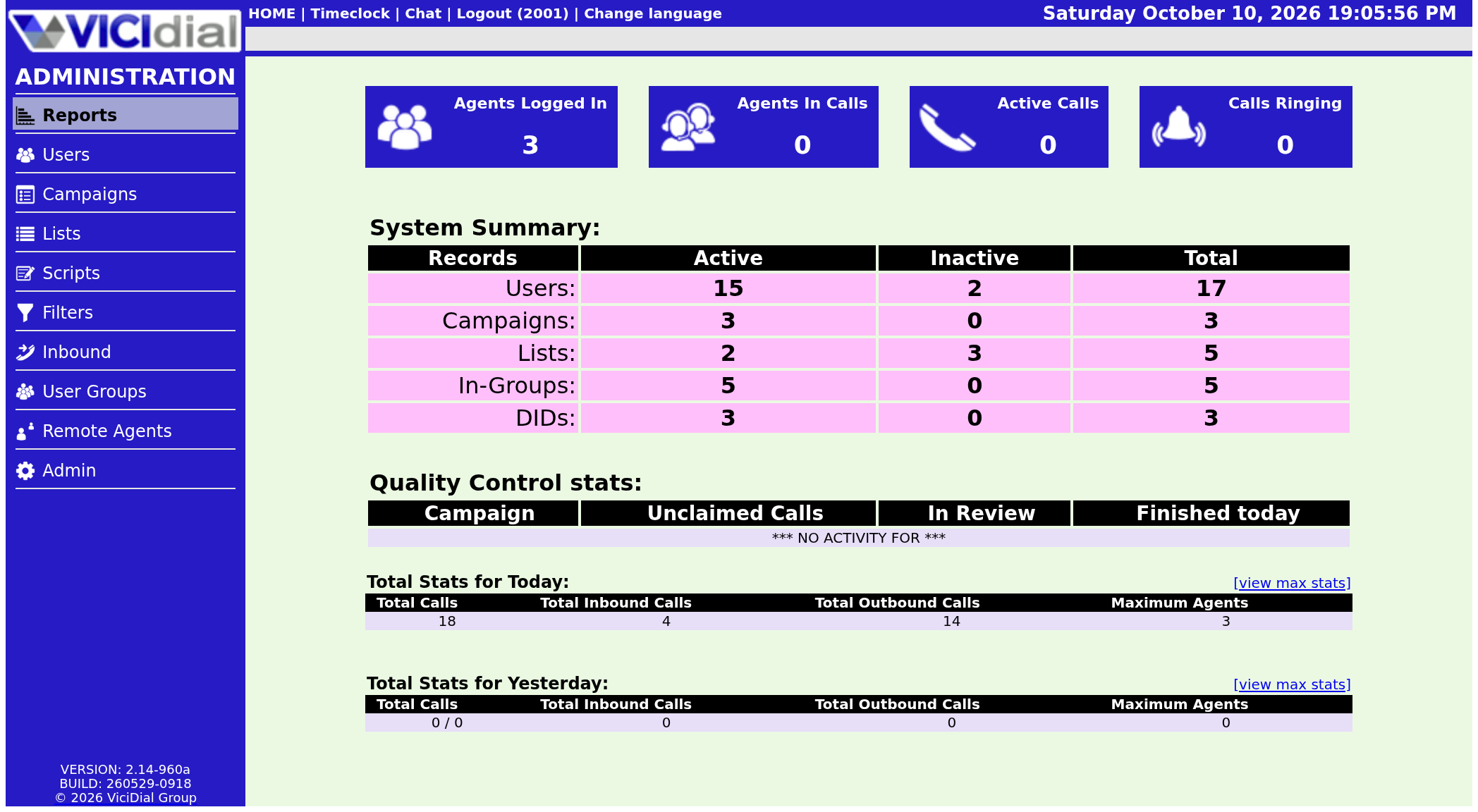
- The VICIdial admin home page opens.
The address has a random port and path on purpose, to keep strangers out. Bookmark it.
Step 4: Send your agents their link
Your server ignores addresses it doesn't know, so each agent first approves their own computer with your agent link.
- Click Access OK in the line under your server's name. The Access Dialer Checklist opens.
- Under Your agent link, click Copy and send the link to your agents. It is also in your server-ready email.
- The agent opens the link, types their Agent username and Password, and clicks Whitelist this IP for …h. The button shows how many hours the approval lasts.
- They are then taken straight to the agent screen.
Approval follows the internet address. Working from home, a café or mobile data means opening the link again, so agents should keep it handy.
Step 5: Sign in to the agent screen
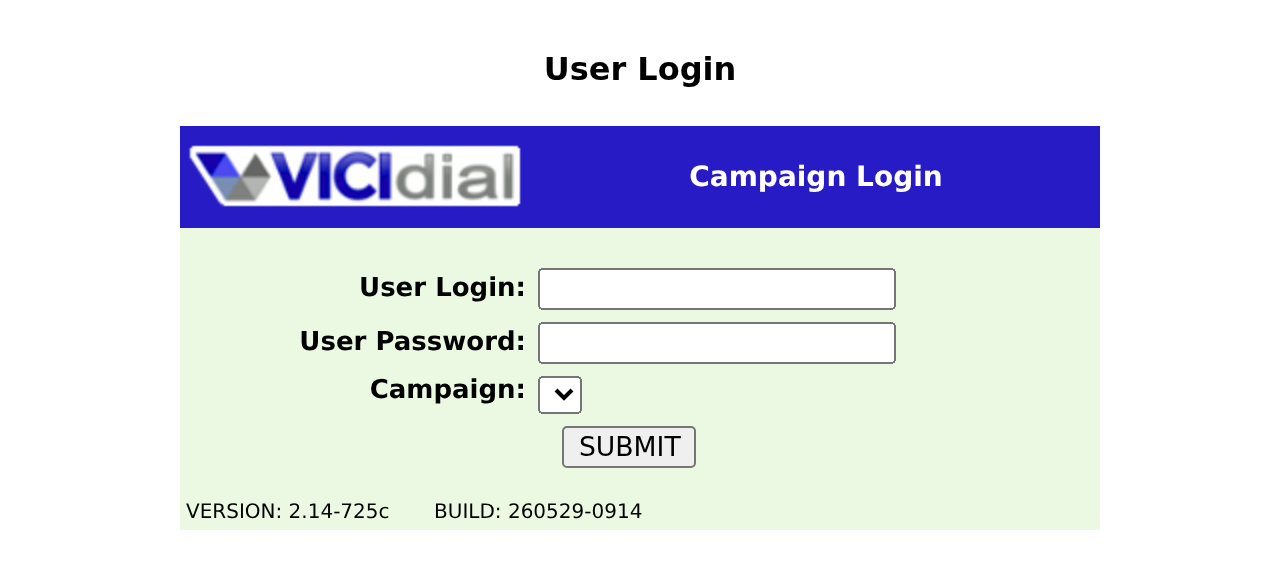
The agent screen is at your server's address followed by /agc/vicidial.php, for example https://livedemo.vicifast.com/agc/vicidial.php.
- The agent types their login and password, picks the campaign, and signs in.
- If the browser asks to use the microphone, the agent allows it. The phone runs inside the browser and connects by itself.
- Agents start paused. They click YOU ARE PAUSED when they are ready for calls (on the newer VICIfast screen, Resume).
Agents created in your dashboard or by the Setup Wizard don't need a separate phone login. More in Signing in to the agent screen.
Step 6: Hand out every login in one file (optional)
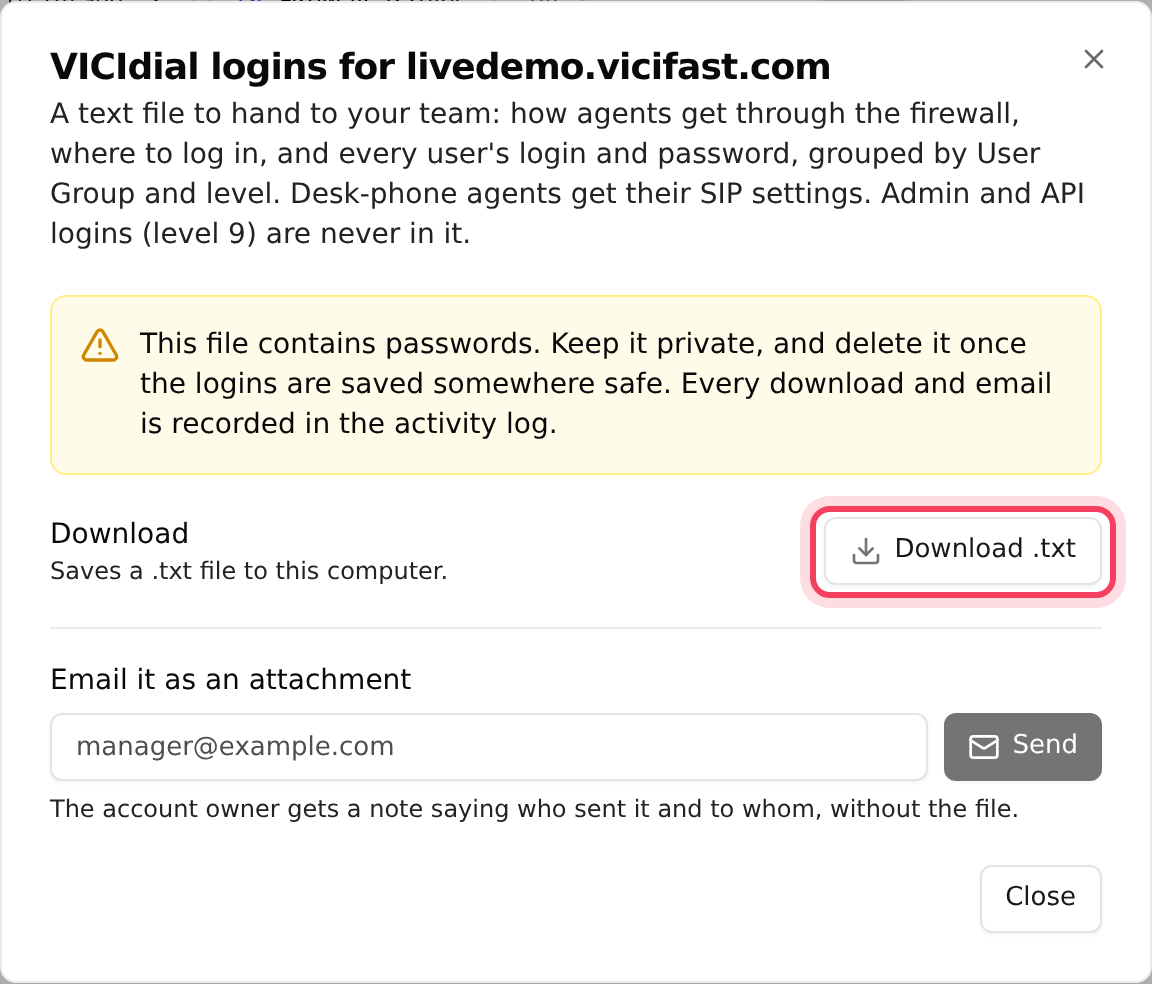
- In the VICIdial access panel, click Download or email logins.
- Click Download .txt, or type an address under Email it as an attachment and click Send.
The file explains how agents get through the firewall and where to log in, then lists every user's login and password, grouped by user group. Admin and API logins are never in it. When you email it, the account owner gets a note saying who sent it and to whom. Every download and email is recorded in the activity log.
The API user
The API user card is for software that connects to VICIdial, such as a CRM or a lead vendor, not for people. It shows the Endpoint, Username and Password. Only the account owner can see this password.
If something goes wrong
Frequently asked
- Your current address isn't approved. On the server page click Approve me if the banner shows, or click the Firewall chip and use Whitelist me. Then try again.
- Billing and QA reviewer roles have no VICIdial access. Ask the account owner to change your role.
- Team members get their own VICIdial login, made the first time they click Reveal and removed when they leave the account. Admins with SSH access also find the shared 6666 login under Shared admin login (6666).
- They haven't approved their address, or they are on a new network. Send them your agent link again. See An agent can't reach the login page.
- On the Users tab, click the Reset password icon on their row (the new one is shown once), or use Download or email logins to get their current password.
- That agent's phone isn't linked to their login, which is common after moving from another server. On the Users tab, a banner says the phone autologin is broken: click Fix Autologin.