An agent can't reach the login page
The agent screen just spins for one agent? Their internet address is almost always not approved. Six checks, from the agent link to passwords and authenticator codes.
Your server & troubleshooting · 5 min read
Your dialer only answers internet addresses you have approved. Anyone else gets no answer at all: the page spins and times out, with no error. So when an agent says "the dialer is down" but you can open it, the cause is almost always their address. Work through these checks in order.
What you might see
- The agent screen or login page spins and never loads for the agent, but it works for you.
- It worked yesterday, or at the office, but not today or from home.
- Your server page shows Agents blocked, or the Firewall chip says "no agent can reach the dialer".
- You got an email titled "Agent 1003 can't sign in to atlas.vicifast.com".
What you need
- You are the account owner, or a team member allowed to manage the firewall. The Access OK chip and its checklist show for the account owner only.
- The agent's user ID, for example 1003 (Aisha Khan), and roughly when they tried.
Check 1: Has the agent let their computer in?
Each agent lets their own computer in through your agent link. Approval belongs to the internet address, not the person, so a new Wi-Fi, a phone hotspot or a router restart means doing it again. Approvals also run out after the time set in the firewall settings (24 hours unless you changed it).
- On your server page, click the Access OK chip next to the status (it says Agents blocked when no agent has an approved address). The Access Dialer Checklist opens. If a banner says Your address is not approved yet instead, click Approve me first.
- Under Your agent link, click Copy and send the link to the agent.
- The agent opens it, types their user ID in Agent username and their Password, and clicks Whitelist this IP for 24h (the hours match your setting).
- When it says You're connected, they click Continue to the agent screen now and the agent screen opens.
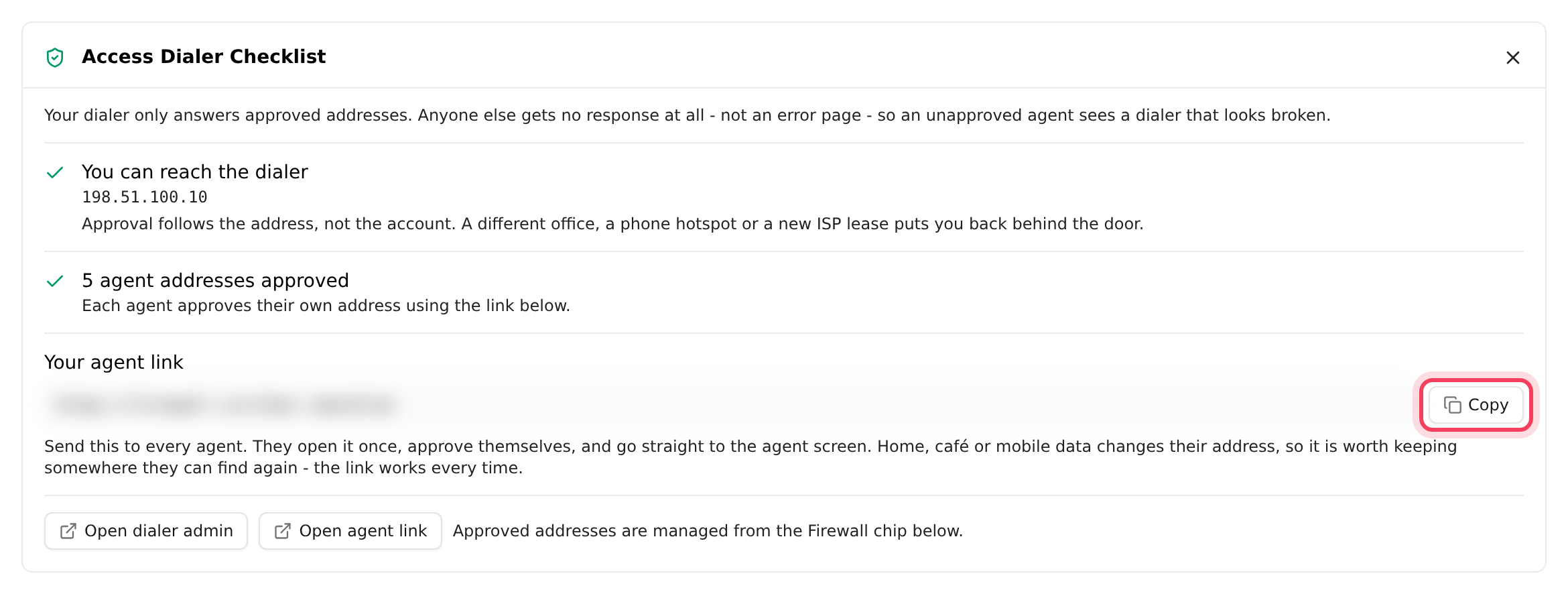
Most cases end here. The link never changes, so agents can bookmark it. Their steps are in Signing in to the agent screen.
Check 2: See what happened when they tried
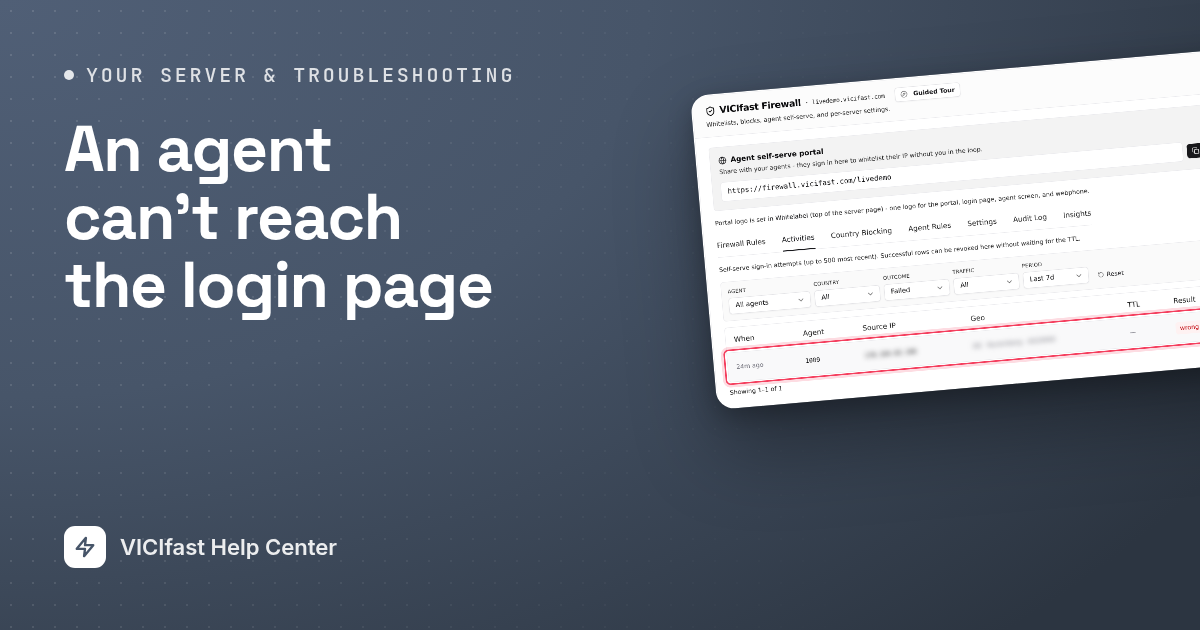
- Click the Firewall chip in the strip under your server's name. The VICIfast Firewall window opens.
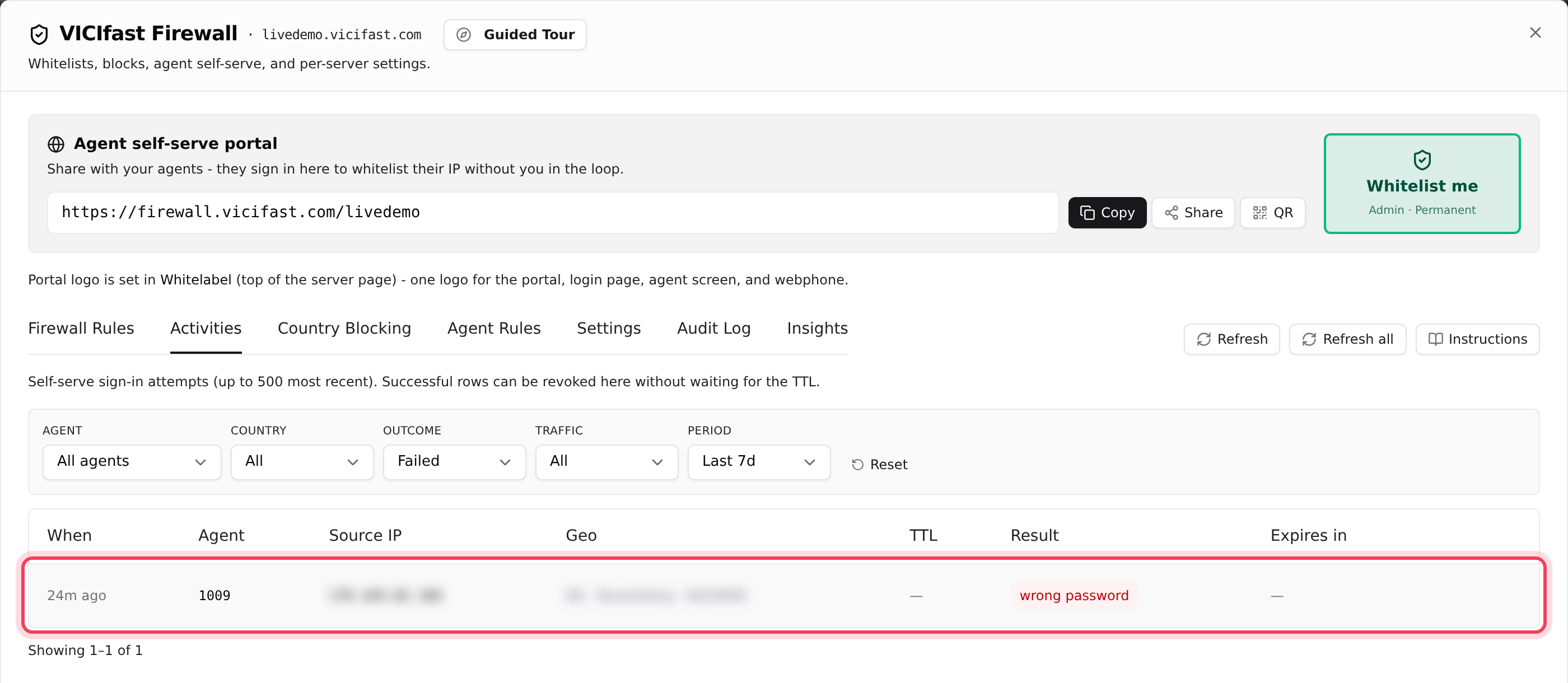
- Click the Activities tab. Pick the agent under Agent, or set Outcome to Failed.
- Read the Result column and match it below.
- whitelisted: it worked. If the page still won't load, their address has changed. Compare Source IP with Your IP on the agent link page.
- wrong password: the user ID or the password is wrong. See Check 3.
- account disabled: the agent's login is switched off. See Check 3.
- MFA needed or wrong code: an authenticator code is missing or wrong. See Check 4.
- captcha shown or rate limited: too many wrong tries from that address. The agent completes the challenge, or waits an hour.
- box unreachable or platform offline: the agent link could not reach your server. See Check 6.
No row at all for that agent? They haven't used the agent link yet. Send it again (Check 1).
Check 3: Fix the password or a switched-off login
- Click the Users tab, then the Users pill. Find the agent, for example 1003.
- If the Status switch on their row is off, their login is switched off. Turn it on.
- Click Reset password (the circular arrows) on their row and confirm. The new password is shown once. Copy it for the agent.

After three wrong passwords within an hour, you get an email titled "Agent 1003 can't sign in to" your server, at most once a day per agent. Turn these off with Email me when an agent can't sign in on the firewall's Settings tab.
Check 4: Authenticator codes (only if you turned them on)
If Require TOTP on self-serve is on, agents also type a 6-digit authenticator code.
- In the VICIfast Firewall window, click Agent Rules.
- The TOTP column says enrolled, not enrolled or locked.
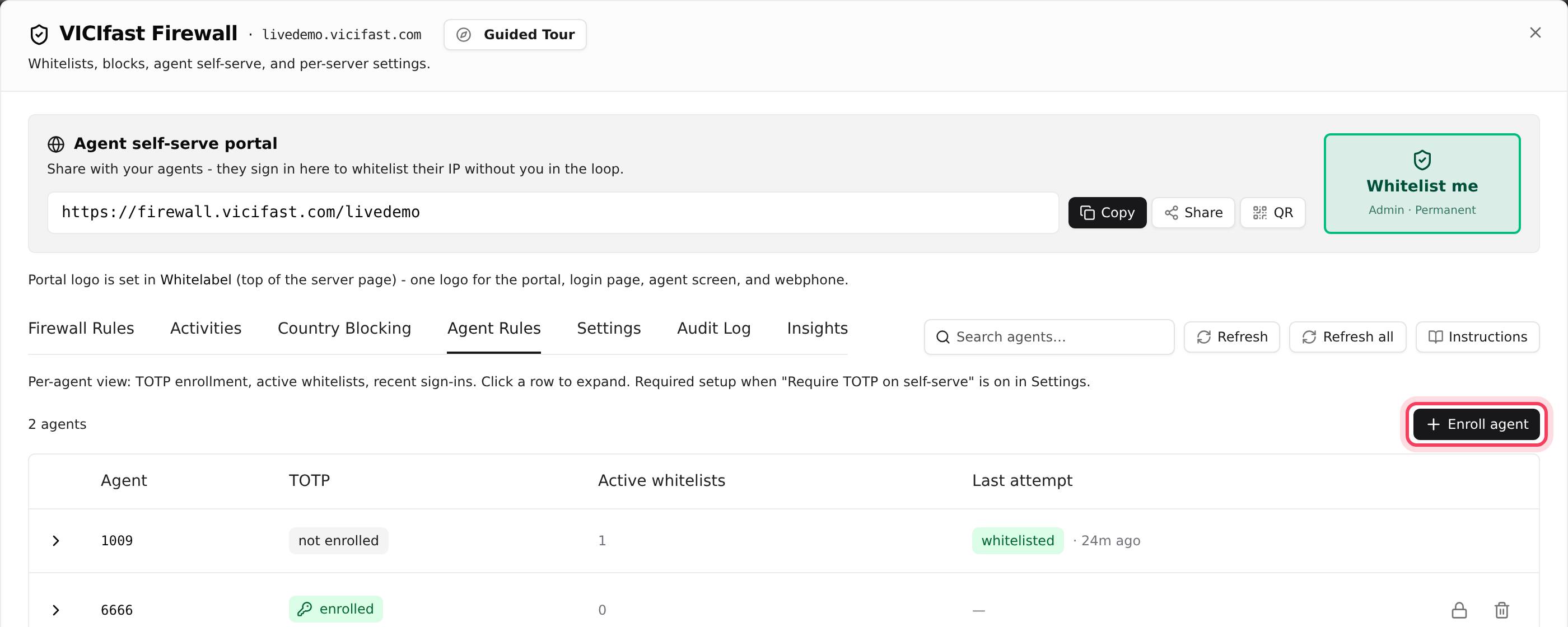
- not enrolled: the agent clicks First time? Set up authenticator on the agent link, or you click Enroll agent and hand them the secret and backup codes, shown once.
- locked, or a lost phone: click the bin icon (Remove TOTP enrollment), then enroll them again.
Check 5: Is the agent link switched on?
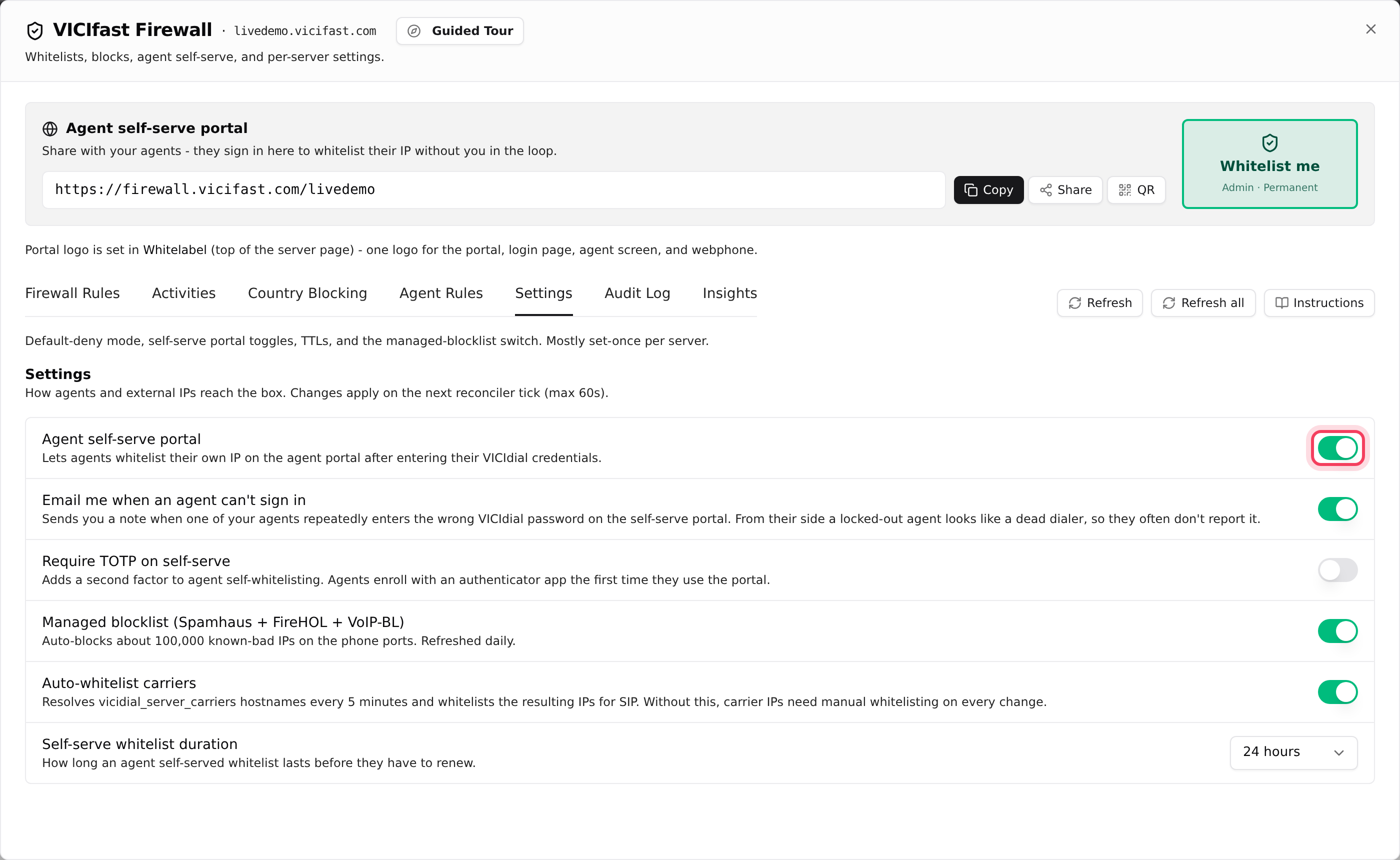
- In the VICIfast Firewall window, click Settings.
- Agent self-serve portal must be on. When it is off, the window says "Agent self-serve is off." and the agent link answers "Could not whitelist this IP."
- Self-serve whitelist duration sets how long each approval lasts: 24 hours, 48 hours, 72 hours or 7 days.
Check 6: The agent's network, or the server
- "We could not determine your IPv4 address": the agent's network only offers a newer kind of address the dialer can't use. They switch network, for example to mobile data, and try again.
- VPNs and hotspots change the address often, and each change needs the agent link again. The VICIfast Phone mobile app does this by itself.
- "Your dialer is temporarily unreachable. Try again in a minute.": check your server says Active and the services chip says All services healthy. If not, click the chip.
The login page opens, but sign-in fails
Then the firewall is fine. If the Campaign list stays empty, the password is wrong or the agent's group has no campaign: check Allowed campaigns on the Users tab's User Groups pill. See Signing in to the agent screen.
Still stuck? Send us this in the chat
Click Chat with support in your account menu (top right), or the chat bubble, and include:
- Your server's name, the agent's user ID, and when they last tried (with your time zone).
- The address shown as Your IP on the agent link page.
- What the agent link said, word for word, and their row from the Activities tab.
If something goes wrong
Frequently asked
- Each approval lasts the Self-serve whitelist duration, 24 hours unless you changed it. The agent opens the agent link again, or you choose a longer time on the firewall Settings tab.
- Your own address isn't approved. Click Approve me on the banner at the top of your server page, or Whitelist me in the firewall window. Both add your current address with admin access.
- Yes. Addresses you or your agents allowed are checked before country blocks, so an agent who uses the agent link still gets in.
- Signing in through the agent link allows their address again, and allowed wins over blocked. To keep a person out, switch off their login on the Users tab.