API Studio: let lead vendors send you leads
Give a lead vendor or web form one URL to send leads to, map their fields to yours, and watch every request arrive.
Advanced · 3 min read
API Studio gives a lead vendor, a web form or any other system one web address (URL) to send leads to. VICIfast turns what they send into a lead on your dialer. Their computers never need to reach your server, so you don't open your firewall to addresses that keep changing, and nobody outside VICIfast gets your dialer's login. Use it when you buy leads or collect them on a website.
What you need
- You are the account owner. Team members don't see API Studio.
- A running server, with the list the leads should go into.
- One real example of what the vendor sends (JSON, or form fields). Ask them for a sample.
Step 1: Create an endpoint
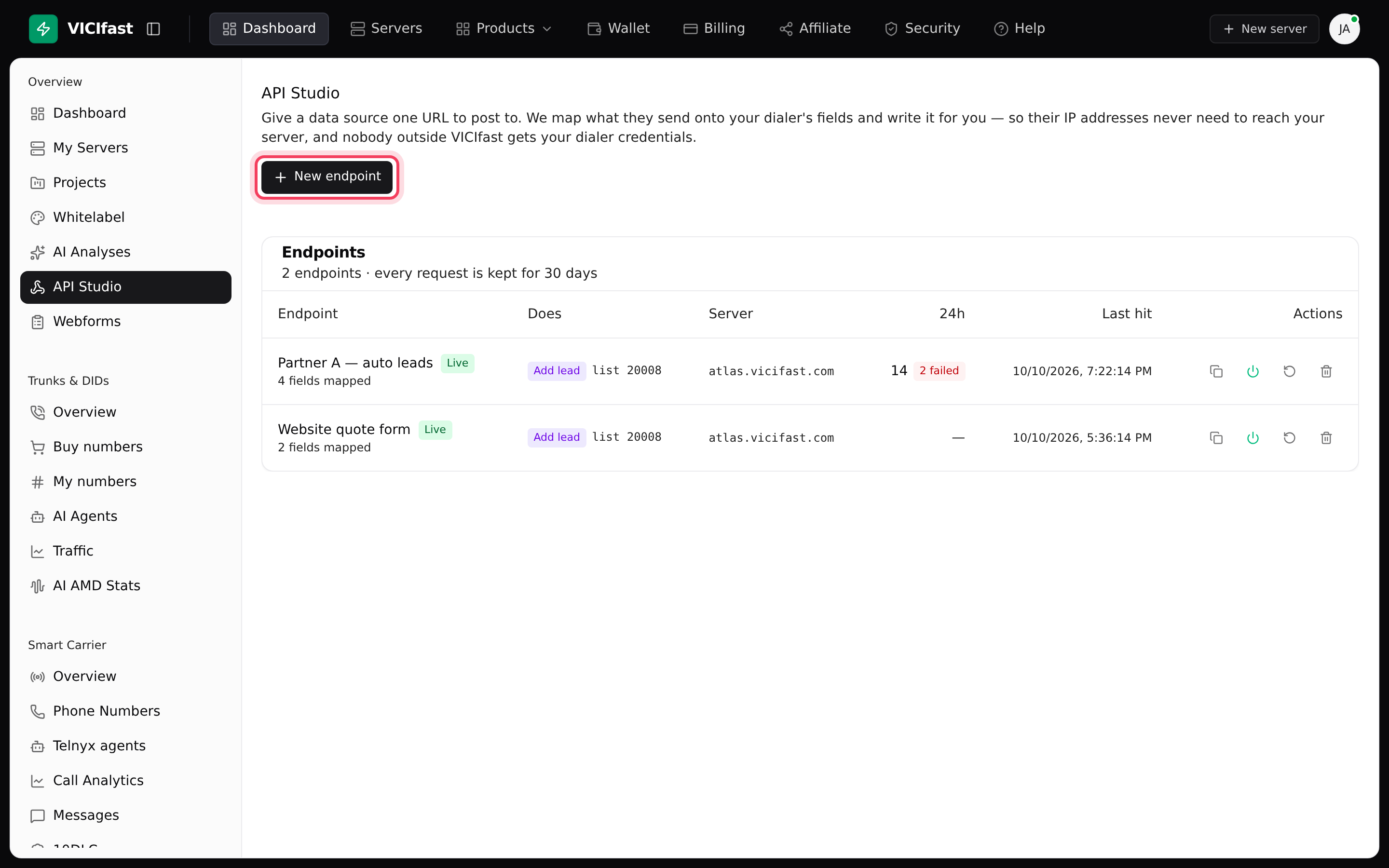
- Click API Studio in the sidebar.
- Click New endpoint.
Step 2: Choose where it writes
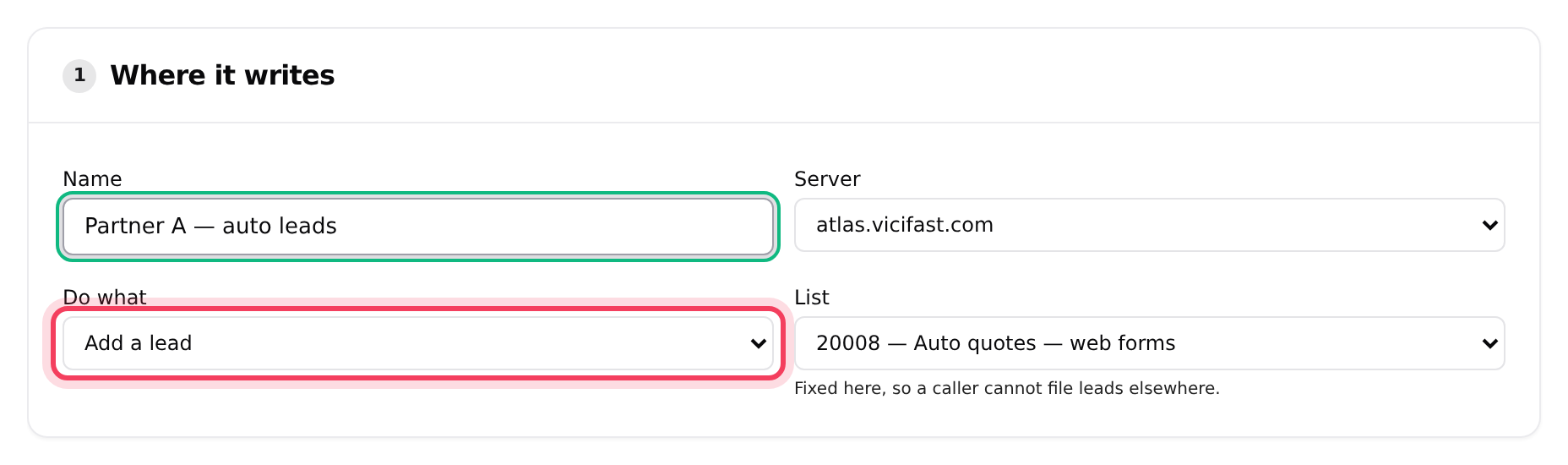
- Under Where it writes, give it a Name, for example "Partner A — auto leads".
- Pick the Server.
- Under Do what, pick the job: Add a lead, Update a lead, Schedule a callback, Move a lead up the dial queue, Look up a lead, Add to DNC or Remove from DNC.
- For Add a lead, choose the List. It is fixed here, so a sender can't file leads anywhere else.
Step 3: Paste what they send
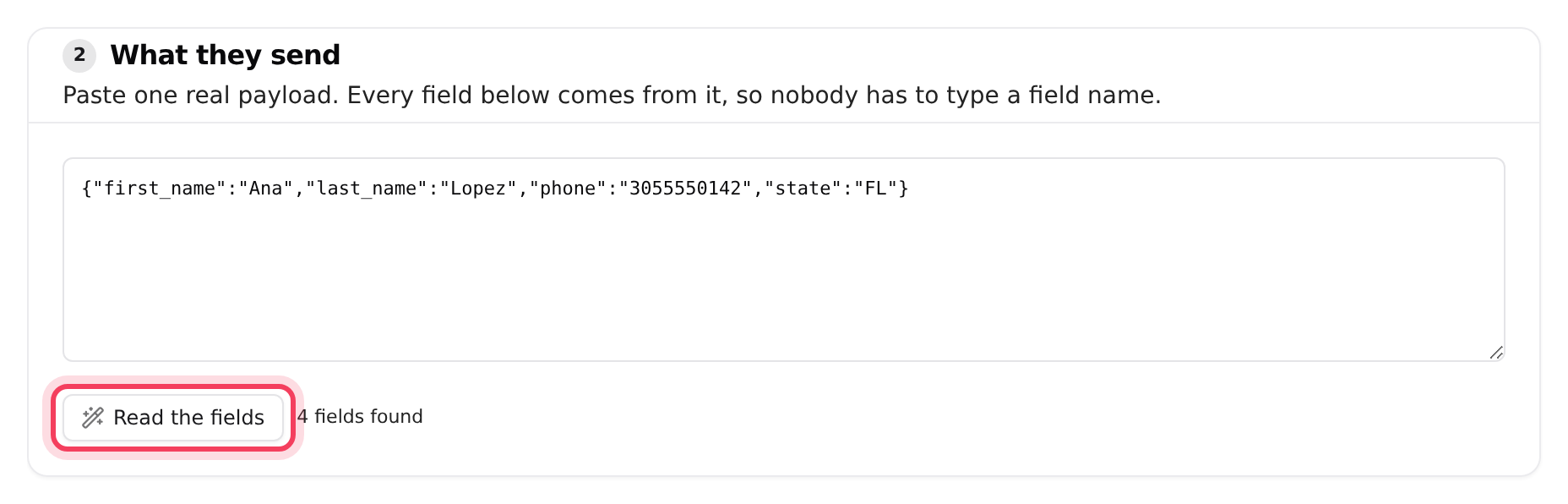
- Under What they send, paste one real sample from the vendor.
- Click Read the fields. It shows how many fields it found.
Step 4: Match their fields to yours
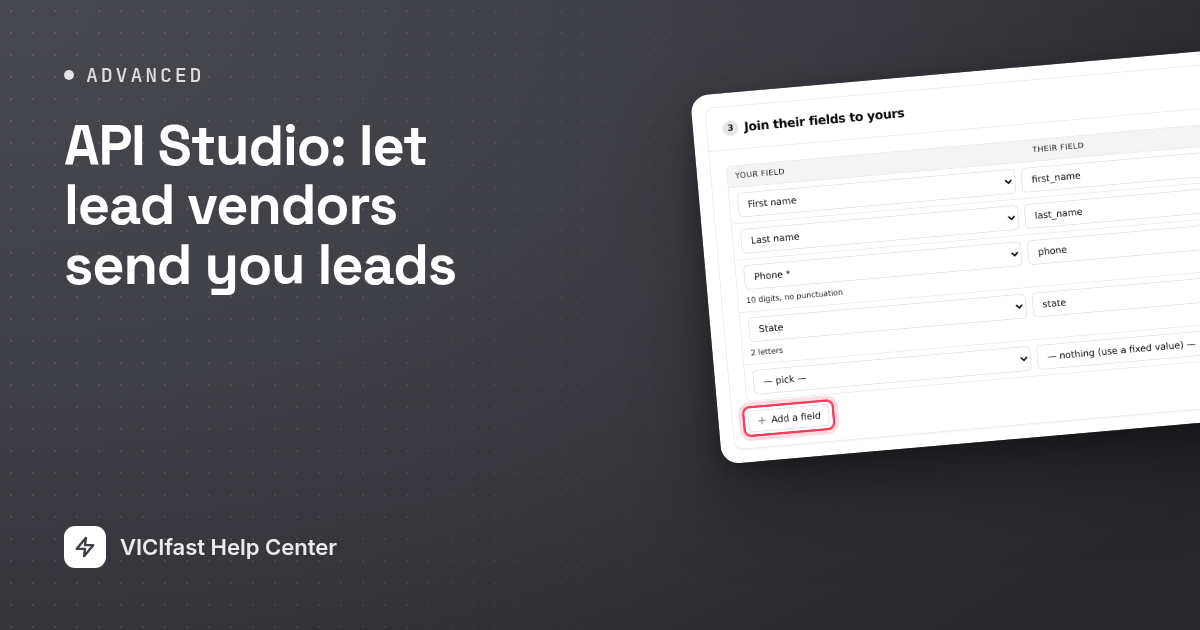
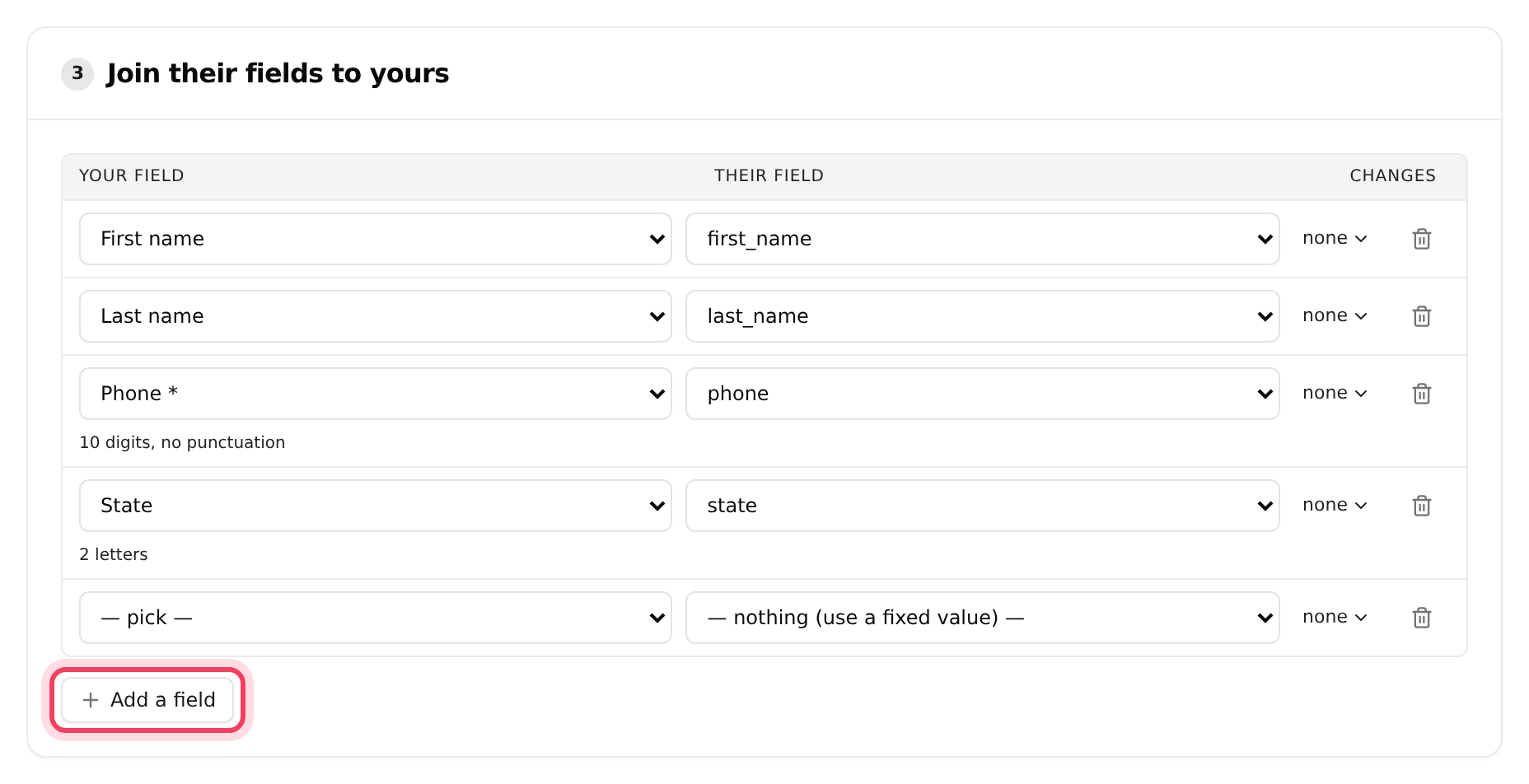
- Under Join their fields to yours, check the rows. On a new endpoint, Read the fields already joins the fields whose names match yours, such as first_name or phone.
- For anything it didn't match, click Add a field, then pick Your field (for example the phone number) and Their field from the sample. Use Changes to tidy a value on the way in.
- Under Check it, click Preview what gets sent. It writes nothing. A value shown as "empty" means that field found nothing in the sample.
Step 5: Settings, then create
- For Add a lead, Duplicates decides what happens to a number you already have: Allow duplicates, Skip if already in this list, Skip if already in the campaign or Skip if anywhere on the dialer.
- Most per minute caps how many requests are accepted each minute (120 to start). Above that, the sender is told to slow down and your dialer is left alone.
- Only these IPs (optional): leave it empty if the vendor's addresses change.
- Optional: Send it on (optional) forwards every delivered lead to another system, such as your CRM, after the vendor has had their answer.
- Click Create endpoint. Post to this URL shows the address. Click Copy and give it to the vendor. They send to it with POST.
Treat the URL like a password: anyone who has it can send leads to your list. If it leaks, give the endpoint a new URL: on the list, click the circular-arrow button on its row ("New URL" when you point at it). The old one stops working at once.
Step 6: Check what arrives
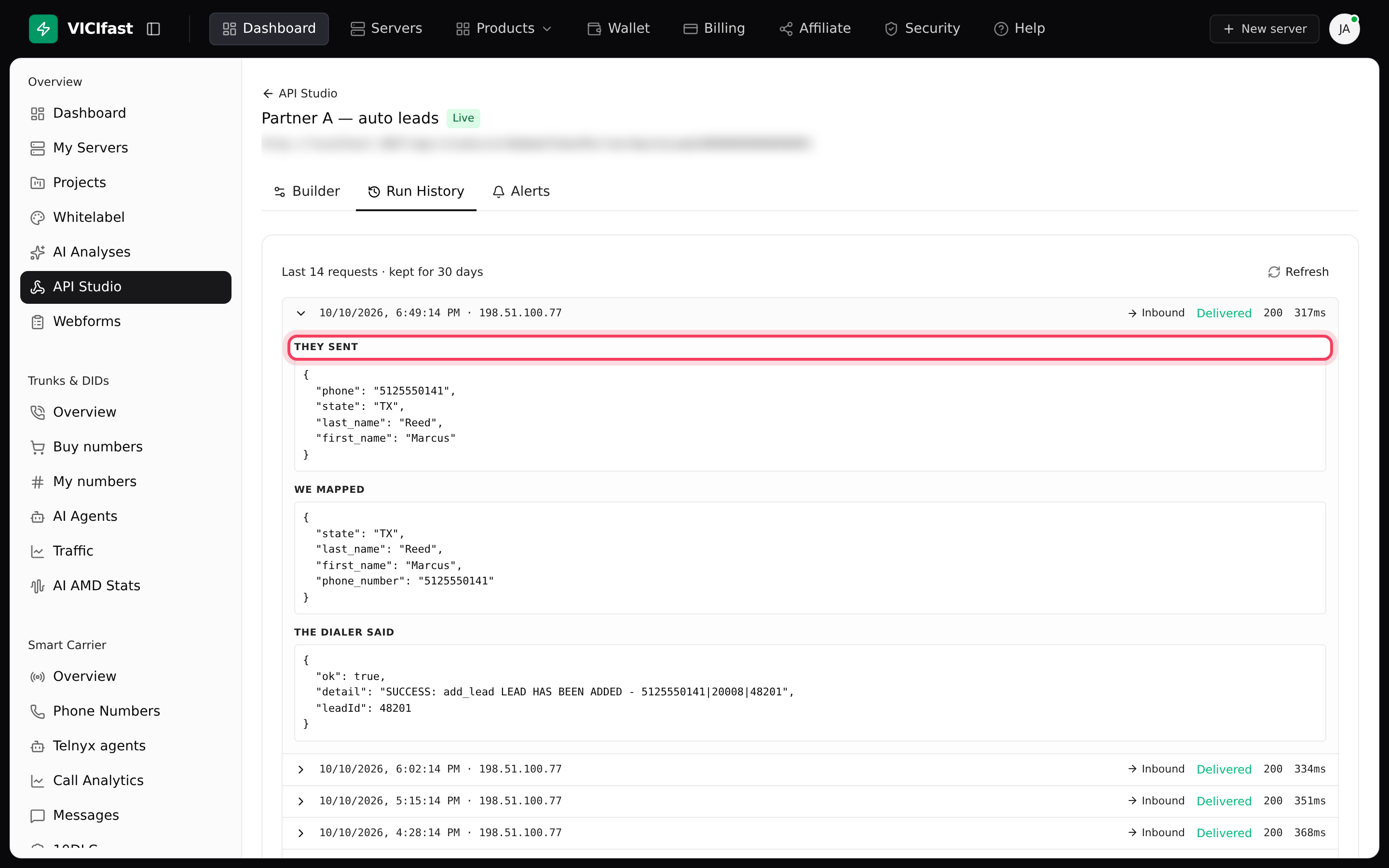
- Open the endpoint and click Run History. Each request shows Delivered, Retrying, Failed, Nothing mapped, Rejected or Rate limited.
- Open a request to see They sent, We mapped and The dialer said. Requests are kept for 30 days.
- On Alerts, switch on Tell me when it starts failing (one email to the account owner, at most 3 a day) and Daily digest (a summary at 08:00 UTC). Click Save.
To stop an endpoint for a while, use the power button on its row (Live becomes Paused). The trash button deletes it; anything still sending to it then fails.
If something goes wrong
Frequently asked
- The URL is wrong, the endpoint is paused or deleted, or you gave it a new URL. Check the endpoint is Live and send them the current URL.
- They sent more than your Most per minute. Raise the number in the Builder tab, or ask them to send more slowly.
- They sent from an address that is not in Only these IPs. Add it, or empty the box.
- The phone number field matched nothing in what they sent. Check Join their fields to yours against a fresh sample.
- Your dialer could not be reached when the lead arrived. Retrying requests are sent again by themselves; check your server is running.