Calls failing on your phone line
Your dialer places calls but they don't connect. Check the campaign's line, the line's status, a test call, diagnostics, your VICIfast Voice account and the server's services.
Your server & troubleshooting · 5 min read
Use this when your dialer places calls but they don't connect: they end straight away, the carrier refuses them, or your phone line (trunk) shows an error. Work through the checks in order.
What you need
- Your server page: click My Servers in the sidebar, then your server.
- The account owner, or a team member allowed to use the server's Trunks tab. Some fixes below are for the account owner only.
Start here: what do you see?
- A red box on your server page says a campaign is dialing into nothing: Check 1.
- A line on the Trunks tab says Failed or Disabled: Check 2.
- Calls fail, but nothing on the page looks wrong: Checks 3 to 5.
- No calls at all, on any line: Check 6.
Check 1: Is the campaign pointed at a phone line?
- Look near the top of your server page for a red box that says, for example, SALES is dialing into nothing. It means the campaign's calls never leave your server.
- If you are the account owner, click Use followed by the line's name next to the campaign, for example Use VICIfast SIP. It takes about a minute to land.
- No button? The box tells you what to fix on the Trunks tab. See My campaign isn't dialing.
Check 2: Is the line on and working?
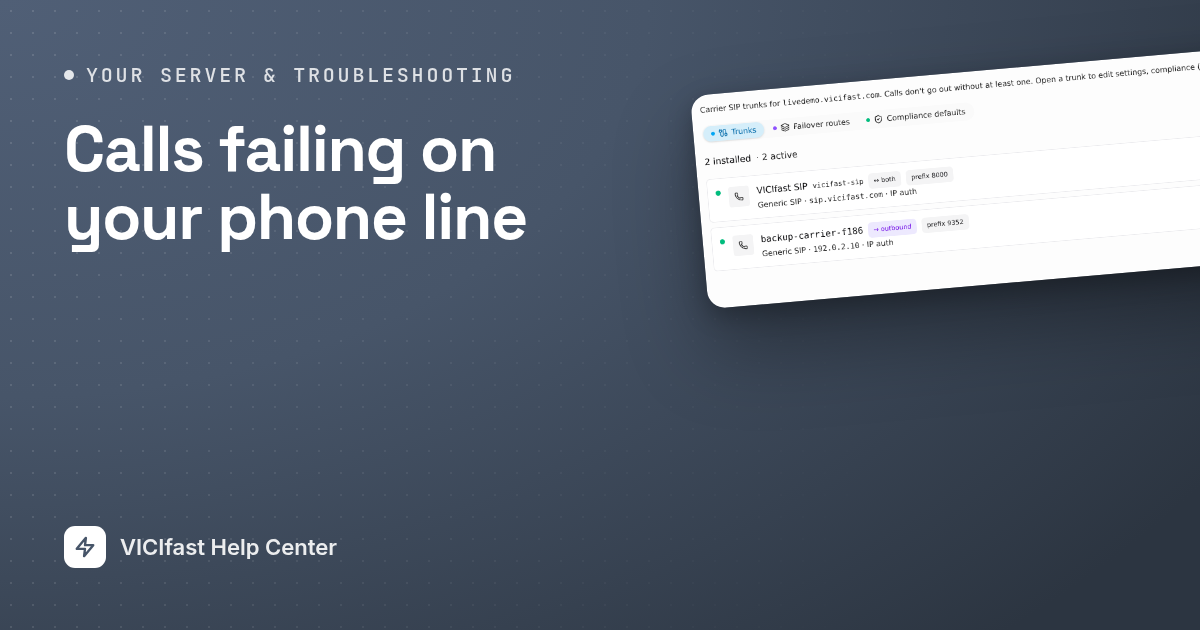
- Click the Trunks tab. A line that is on and working has a green dot next to its name, for example VICIfast SIP.
- Disabled: the switch on the right of the line is off. Switch it on.
- Installing or Applying…: wait. The list refreshes by itself.
- Failed: read the red error under the line's name, then click Retry.
- If you are the account owner, click Update config. If it says Your server is running an older trunk configuration., click Apply to this server. Calls in progress are not dropped.
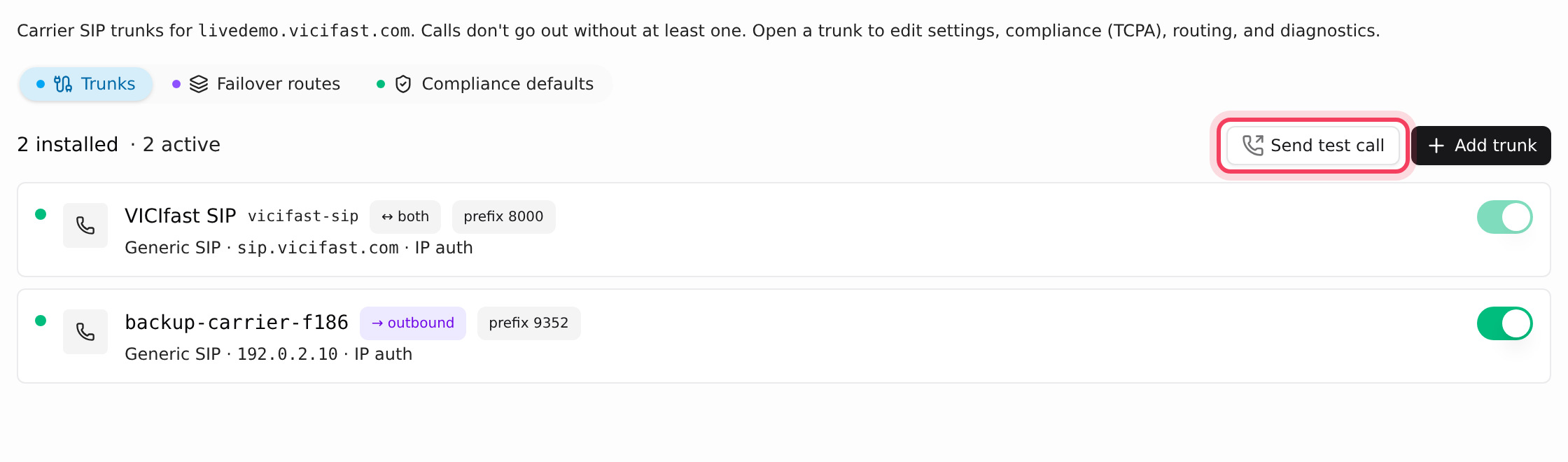
We manage the VICIfast SIP line for you, so you can't switch it off or change its settings. That is normal.
Check 3: Send a test call
- On the Trunks tab, click Send test call.
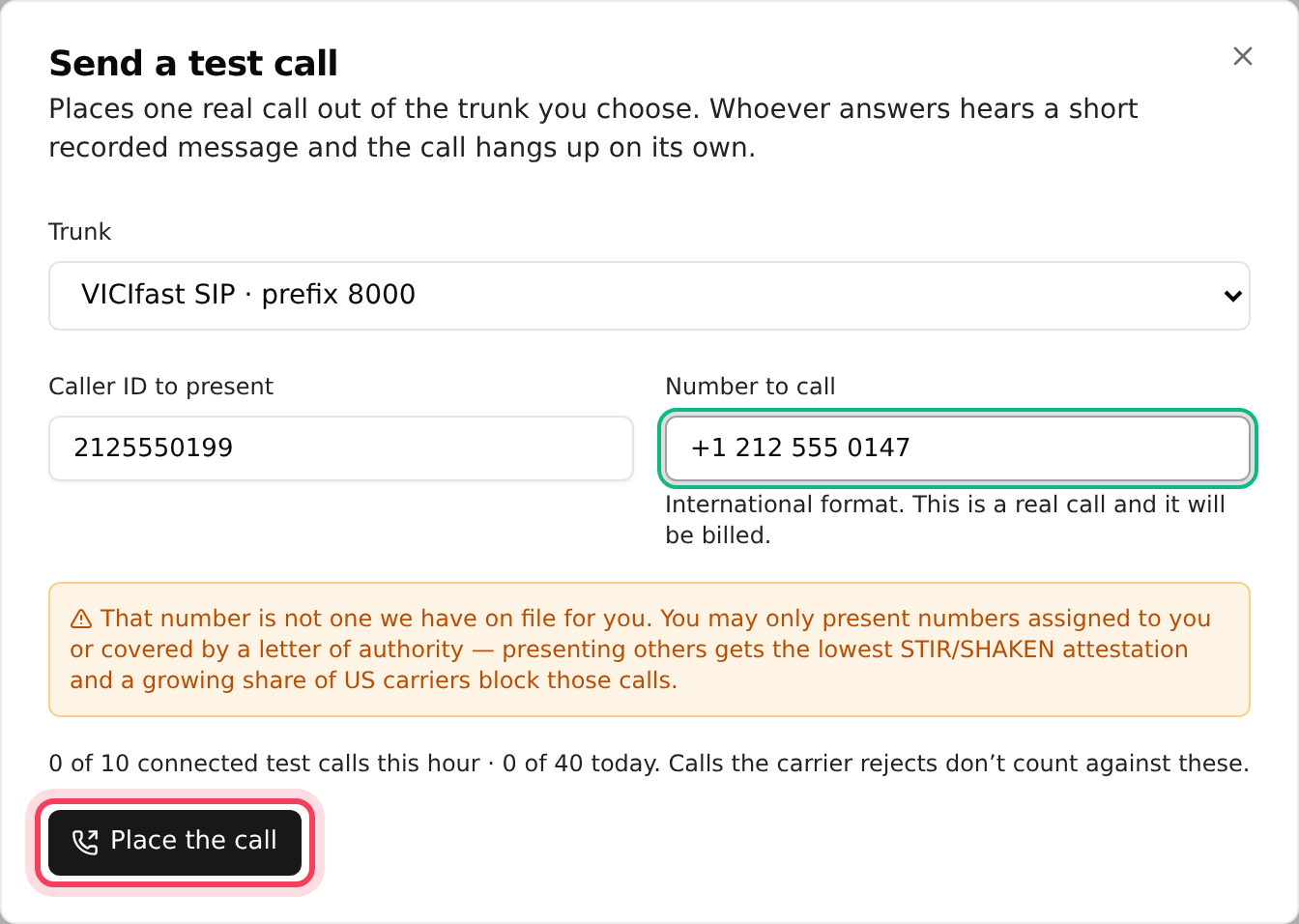
- Pick the Trunk. Type a Caller ID to present that you own (your numbers are suggested as you type) and your own mobile in Number to call, in international format. It is a real call and it is billed. If the caller ID is not one of your numbers, a yellow box says That number is not one we have on file for you. Carriers often block calls that show a number you don't own.
- Click Place the call. The result shows when the call ends:
- Answered: the line works. If campaign calls still fail, see Check 1, or your caller ID in Check 5.
- Busy or Cancelled before answer: normal. The line is fine.
- Carrier refused — usually caller ID or permissions: present a caller ID you own. See Caller ID and caller ID groups.
- Carrier wants credentials we did not send: the login details on your own carrier's line are wrong. See Check 4.
- Carrier says that number does not exist: check the number. If every number gets this, ask your carrier what format it expects.
- Carrier unavailable — no route for this number: the carrier can't reach that number, or your account with it has a problem. Ask your carrier (or us, on VICIfast Voice).
Check 4: Run the line's diagnostics
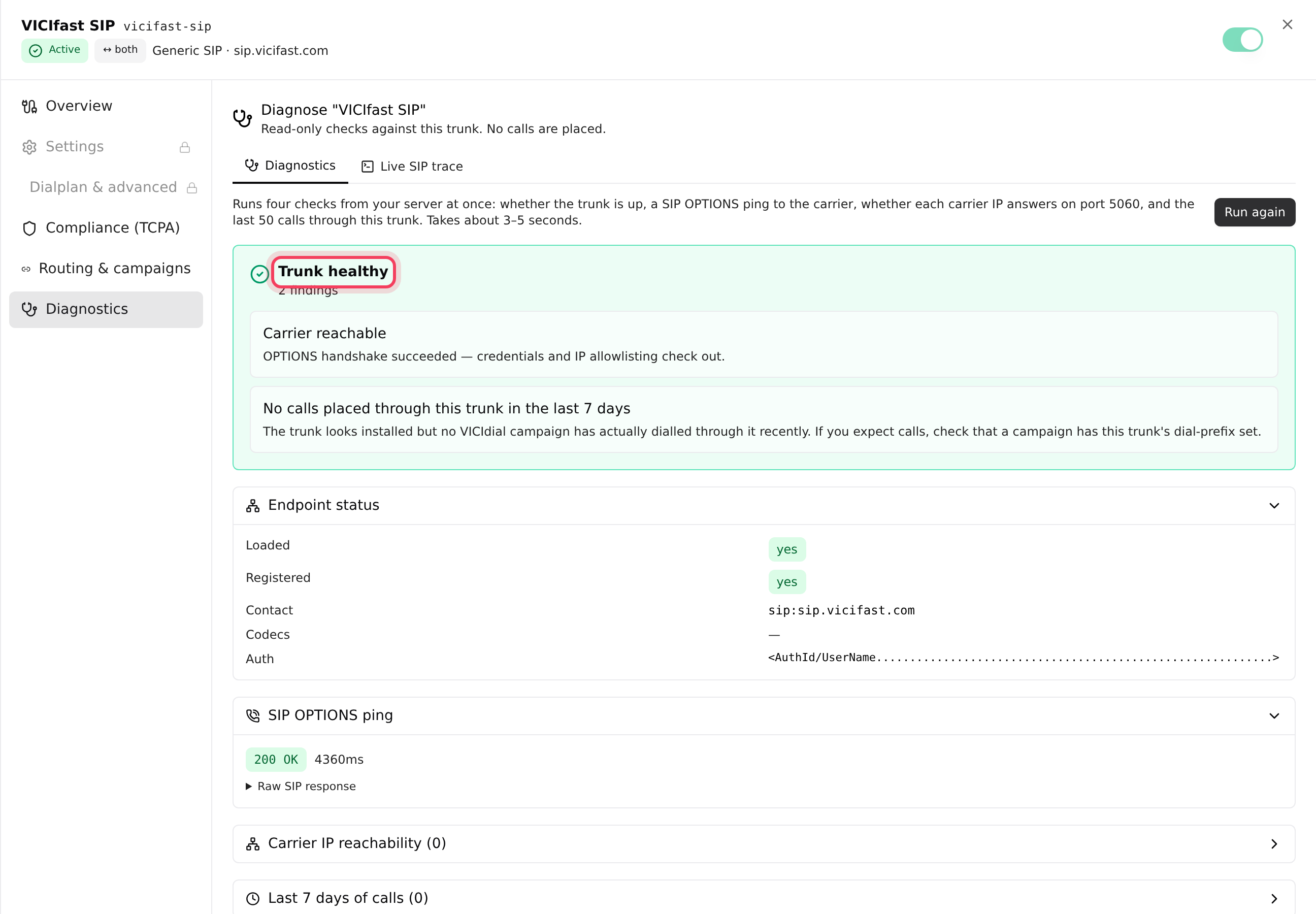
- On the Trunks tab, click the line to open it, then click Diagnostics on the left.
- Click Run diagnostics. These are read-only checks and no calls are placed.
- Read the result at the top: Trunk healthy, Trunk has warnings or Trunk needs attention. Each finding below it says What to do:.
Findings you may see on your own carrier's line:
- Carrier does not recognise this server: give your carrier your server's IP address for its allow-list. See Your server's IP address.
- Carrier rejected authentication: open the line's Settings, type the carrier password again and click Save settings.
- Carrier did not respond: the carrier may be down, or the address on the line is wrong. Check with your carrier.
Check 5: On VICIfast Voice, check your account and traffic
Skip this if you only use your own carrier. These pages are for the account owner.
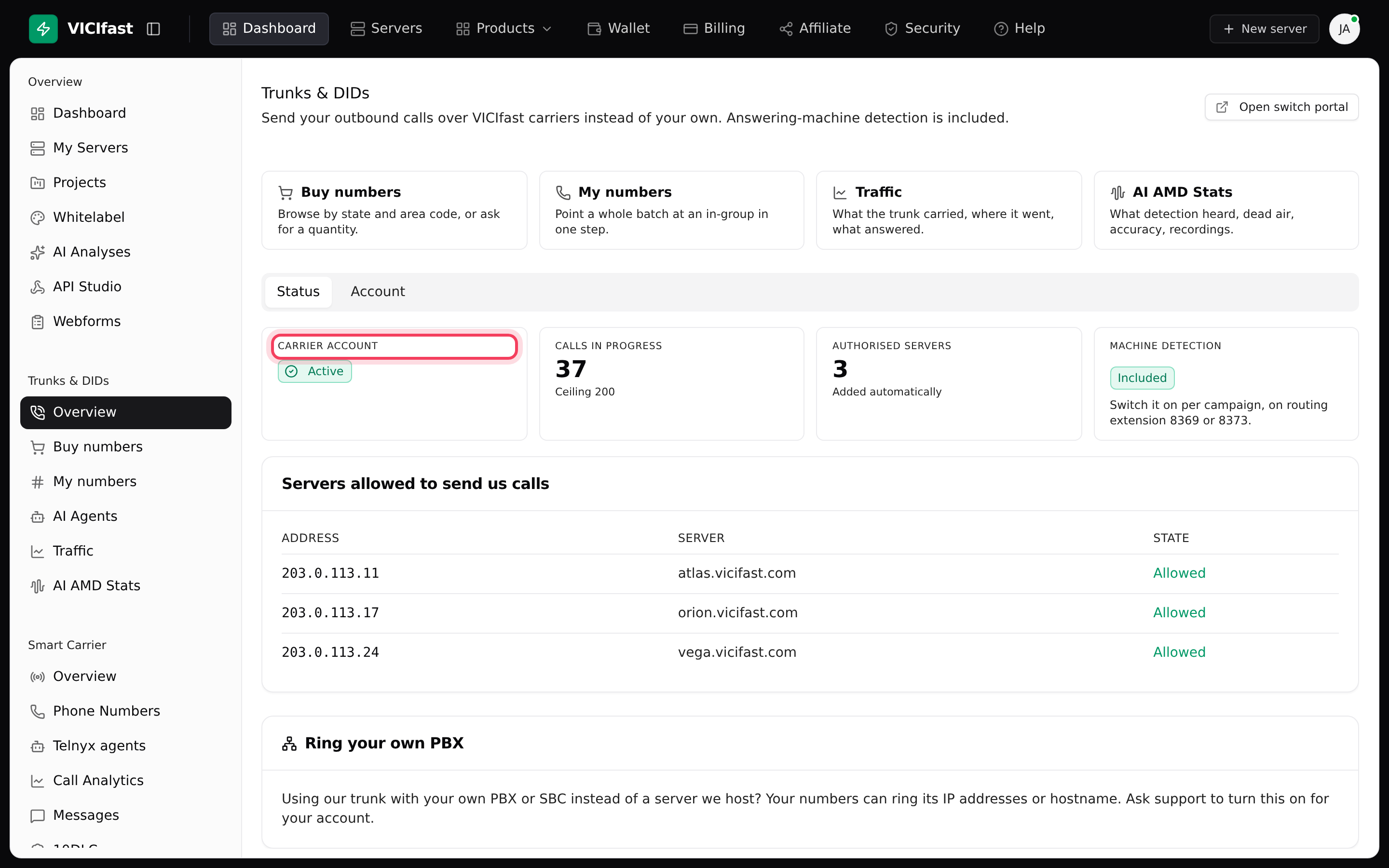
- In the sidebar, under Trunks & DIDs, click Overview. On the Status tab, Carrier account should say Active, and your server should say Allowed under Servers allowed to send us calls. Calls from a server that isn't listed are refused.
- Compare Calls in progress with its ceiling. Calls past it are refused, not queued. Chat with us to raise it.
- In the sidebar, click Traffic, then the Why calls fail tab. How calls ended lists every outcome. In Outcomes over time, a new colour appearing is usually the start of a problem.
- The Caller ID tab shows numbers with a Falling answer rate: a caller ID people stop answering is often labelled as spam. Destinations shows Carrier responses. More in Read your phone line traffic.
Check 6: Is the phone system running?
- At the top of your server page, the services chip should say All services healthy. If it says how many are up instead, for example 4 of 5 services up, click it to open Server Health.
- Under Services, Asterisk (the part that places and takes calls) and VICIdial should say Running. If one says Failed or Stopped, click Restart next to it if you see it; otherwise chat with us.

Have more than one line? A failover route tries the same call on your next line when the first can't connect it. See Backup routes when a line fails.
Still failing? What to send us in the chat
Click the chat bubble, or Chat with support in your account menu, and send:
- Your server's name, the line's name and the campaign ID, for example SALES.
- When calls started failing, with your time zone.
- Your test call's result and the diagnostics result.
- One number that failed.
Don't paste passwords or your carrier's login details into the chat.
If something goes wrong
Frequently asked
- It only shows once a line that sends calls out is switched on and installed. Switch the line on, wait for Installing to finish, or click Retry on a failed line.
- The line has not finished installing. Wait a minute, or click Retry if the line says Failed.
- There is a limit per hour and per day. Calls the carrier rejects don't count. Try again later.
- Adding a line lets your carrier's address through the firewall, and Auto-whitelist carriers (firewall Settings) re-checks it every 5 minutes. If your carrier also calls from other addresses, click the Firewall chip, then Add rule, and add each one as Allow (whitelist) with Carrier - SIP signalling only.
- Your VICIfast Voice account is not taking calls right now. Chat with support to find out why and what to do.