Calls with no sound or one-way sound
A call connects but the agent, the customer or both hear nothing. Find out where the sound stops and fix it, starting with the most common causes.
Your server & troubleshooting · 5 min read
Use this when a call connects but someone hears nothing: the agent, the customer, or both. Start with the check that matches what you hear, and work down the list.
What you need
- Your server page: click My Servers in the sidebar, then your server.
- For Checks 1 and 2, the agent who has the problem, at their computer.
- For AI AMD Stats: the account owner, with a VICIfast Voice line.
Start here: who hears nothing?
- One agent hears nothing, or customers can't hear one agent: Checks 1 and 2.
- Customers answer and hear silence for a few seconds: Check 3.
- Agents get calls with nobody on the line: Check 4.
- Everyone, on every call: Checks 5 and 6.
Check 1: Is the agent's phone connected?
Every agent has a phone built into the agent screen. It carries the sound; the agent screen's buttons do the dialing and hanging up.
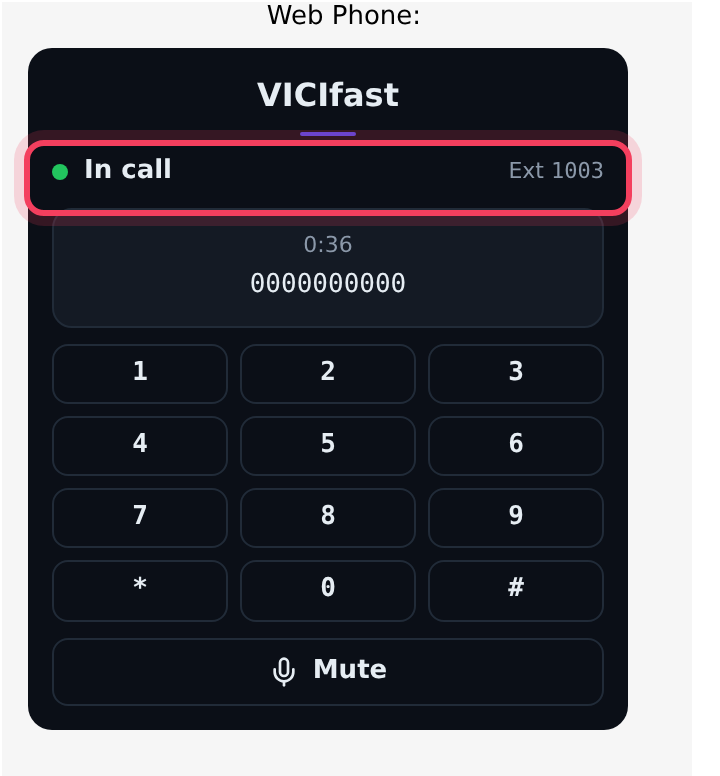
- Ask the agent to look at the phone on their agent screen. Once they are signed in it should say In call, with their extension next to it (for example Ext 1003), the whole time, between calls too.
- Connecting…, Reconnecting… or Registration failed means it is not connected. Most often the agent's internet address is no longer let through your firewall: approvals last for the Self-serve whitelist duration in the firewall's Settings, and end when the agent's internet changes. The agent opens your agent link, signs in again, then reloads the agent screen.
- If the agent screen says No one is in your session, the phone did not join. When the phone says Ready, click Call Agent Again; it then says In call.
- Still no phone? On your server's Users tab, look at the agent's Phone column. If it says no phone, tick the agent and click To webphone.
Check 2: Microphone, mute and headset
- The first time, the browser asks to use the microphone and the agent must allow it. If the phone shows Enable microphone, or says Microphone blocked, the agent clicks the lock icon in the browser's address bar, allows the microphone for this site, then clicks Enable microphone.
- While the phone says In call, its button should say Mute. If it says Unmute, the agent is muted: click it.
- With more than one headset or speaker plugged in, the phone shows lists to choose from. Pick the headset the agent is wearing.
Check 3: Customers hear silence after they say hello
Two things keep a customer waiting in silence after they answer.
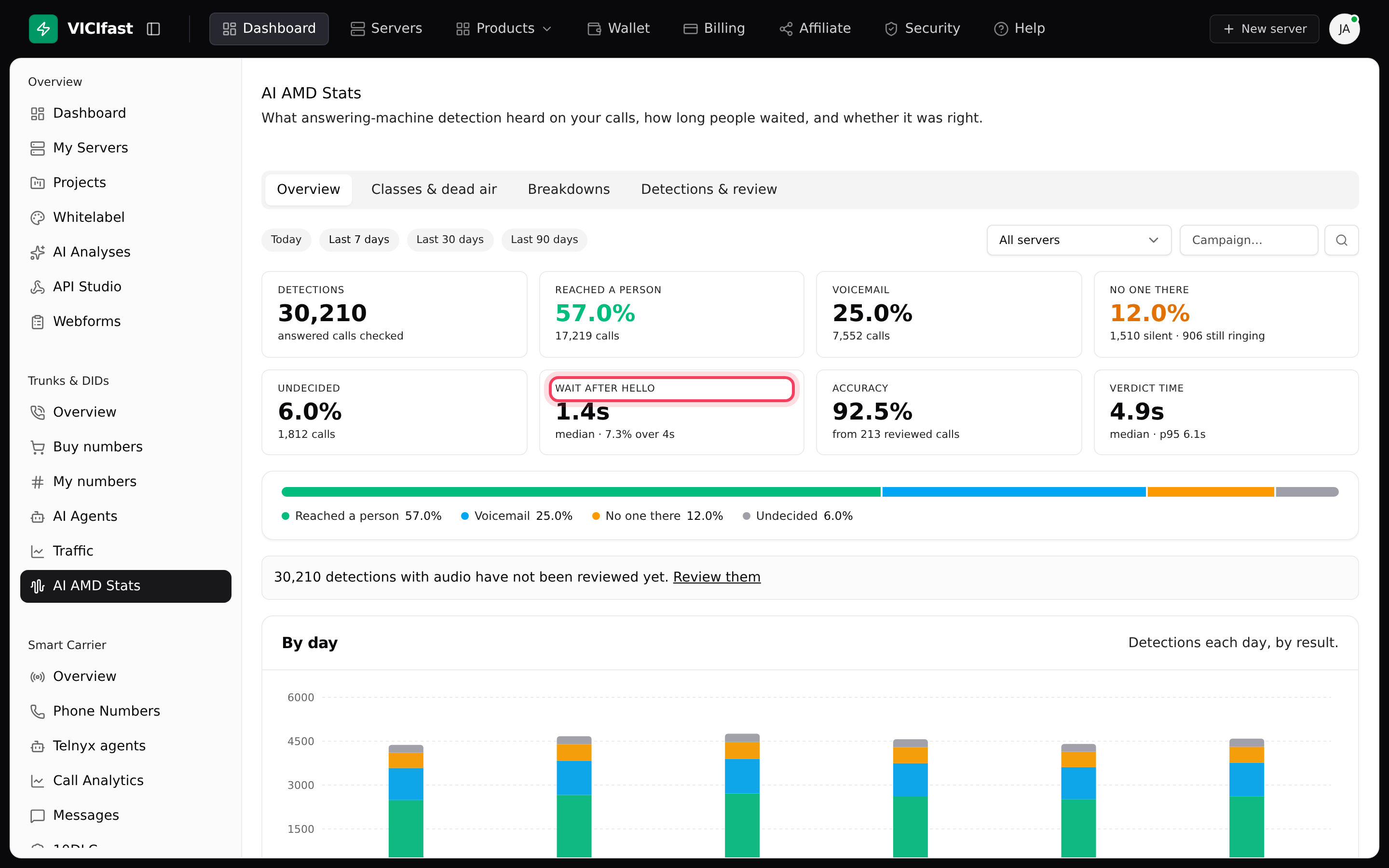
- Answering-machine detection is listening. In the sidebar, under Trunks & DIDs, click AI AMD Stats and look at Wait after hello. Past 4 seconds many people hang up, so the card turns amber. On your own carriers, the Immediate mode on the server's AI AMD tab decides faster. See Answering-machine detection (AI AMD).
- No agent was free, so the call was dropped. On the campaign's DNC & Drop Actions tab, Drop action decides what the customer hears: Play safe-harbor message or Hangup silently. See Dialing speed and dropped calls.
Check 4: Agents get calls with nobody on the line
These are usually answering machines, or people whose sound never arrived.
- Check the campaign uses detection. On the Campaigns tab, click the campaign, for example SALES, open the AMD / Wrap-up tab and check Answering machine detection is on.
- If you use AI AMD on your own carriers, open the server's AI AMD tab. Under Calls with no audio (no sound reaches the server for 10 seconds), choose Hang up as a machine. Agents stop getting these calls, but the occasional real person whose sound arrived late is lost.
- On AI AMD Stats, No one there shows the share of calls with nobody on the line.
Check 5: Listen to the recording
New campaigns record every call on your server, so a recording shows which voices reached it.
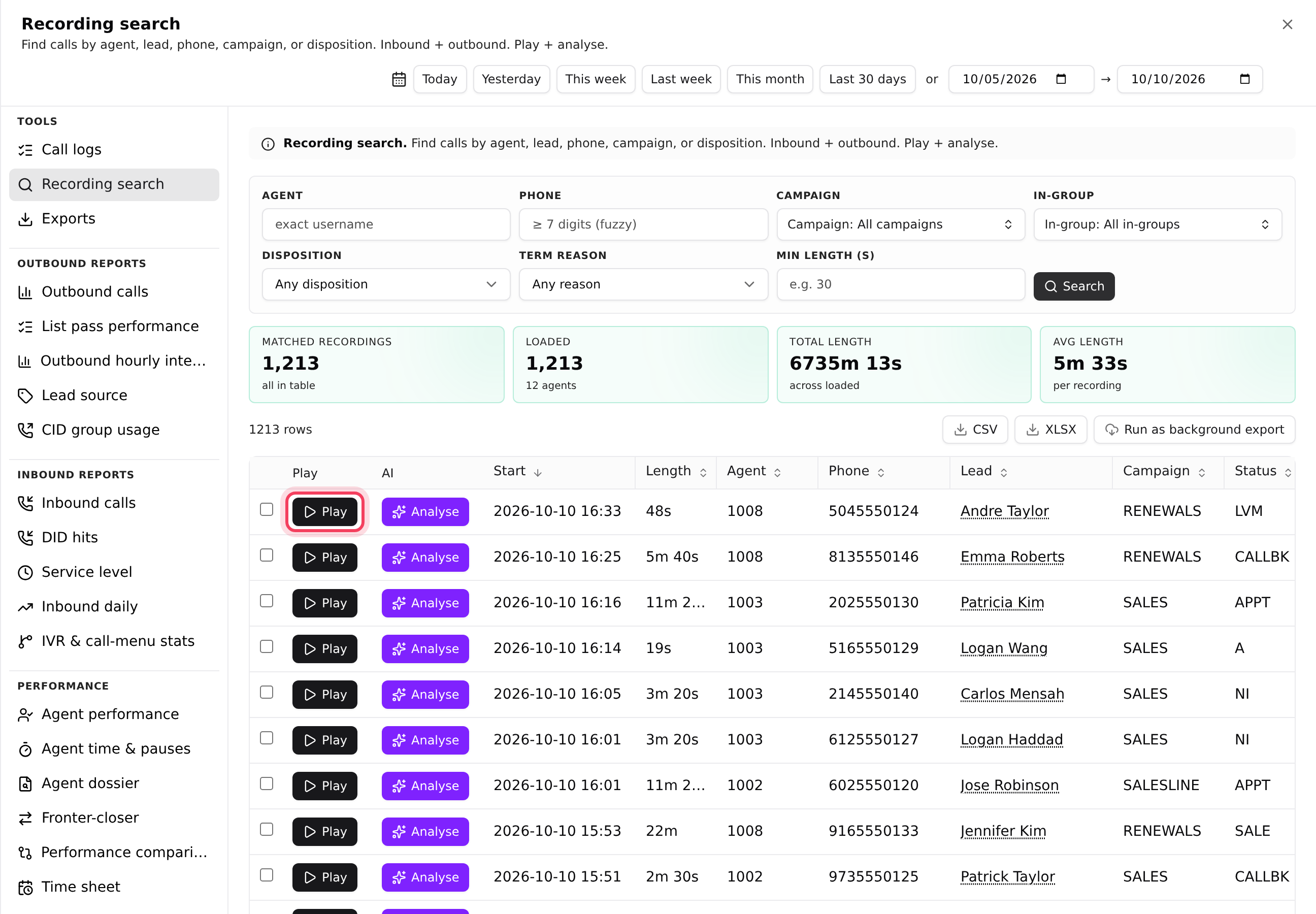
- On your server, click the Reports tab. Under Tools, click Recording search.
- Find the call by date, Agent or Phone, and click Play.
- Whatever is missing from the recording never reached your server. The agent is missing: go back to Checks 1 and 2. The customer is missing: their sound was lost on the phone line, so go to Check 6.
- Both voices are there but someone still heard nothing? The sound was lost on its way out: to the agent's headset (Check 2), or to the customer over the phone line (Check 6).
Check 6: Send a test call
This tests your phone line on its own, without campaigns or agents.
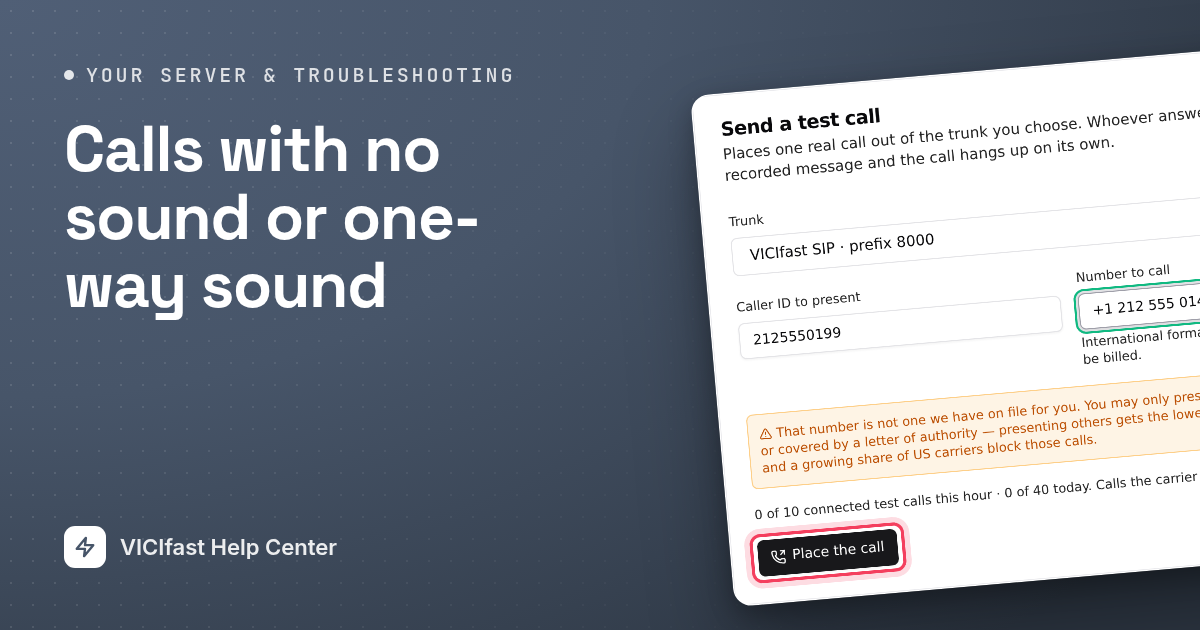
- On your server, click the Trunks tab, then Send test call.
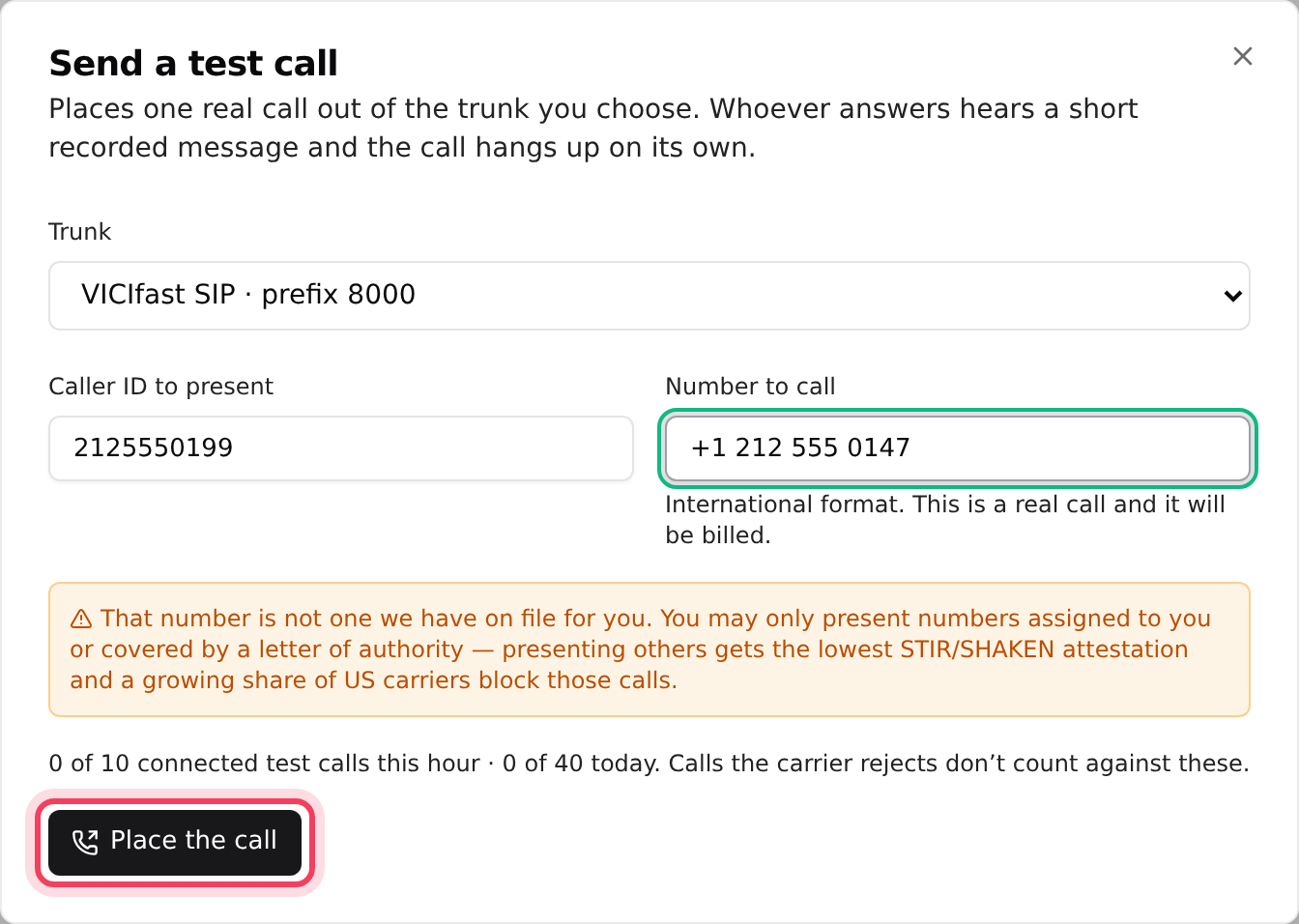
- Pick the Trunk. Type a Caller ID to present that you own, and your own mobile in Number to call, in international format. It is a real call and it is billed. If the caller ID is not one of your numbers, a yellow box says That number is not one we have on file for you. Carriers often block calls that show a number you don't own.
- Click Place the call and answer your mobile. You should hear a short recorded message, then the call hangs up by itself.
- If the result says Answered but you heard nothing, the line connected and the sound went missing. Tell us in the chat, with the time of the test.
Still no sound? What to send us in the chat
Click the chat bubble, or Chat with support in your account menu, and send:
- Your server's name, and whether it is one agent or everyone.
- One call that had the problem: the time (with your time zone), the agent's user ID and the number called.
- Who heard nothing (the agent, the customer, or both), and which voices are on the recording.
- The result of your test call.
If something goes wrong
Frequently asked
- The phone lost its connection, for example when the internet dropped. It reconnects by itself, and the agent can click the button to try straight away. If it keeps failing, see Check 1.
- The customer may have hung up. On the Floor tab, an agent still on a call the customer ended shows as "on a dead call". The agent clicks HANGUP CUSTOMER and saves the result.
- Click the services chip at the top of your server page to open Server Health. If it lists alerts such as memory or disk running low, chat with support. If only one agent is affected, the problem is on their side: their internet or computer.
- It appears once AI AMD is connected and On, and it only covers your own carriers. Calls on VICIfast Voice use VICIfast's own detection.