Backup routes when a line fails
Give a campaign two or more phone lines in order, so calls move to the next line when the first one can't connect them.
Phone lines, numbers & caller ID · 3 min read
If your server has more than one phone line (trunk), a failover route lets a campaign use them in order. Each call goes out on the first line. If that line cannot carry the call, the same call is tried on the next line. Set one up so a problem with one carrier does not stop your floor.
What you need
- At least two outgoing phone lines switched on for this server, for example your VICIfast Voice line (listed as VICIfast SIP) and a line from your own carrier. See Connect your own SIP carrier. Lines that only receive calls cannot be used.
- You must be the account owner, or a team member allowed to change this server's Trunks tab.
How a failover route works
- A route is a list of 2 to 8 lines in the order you choose.
- Each call starts on line 1. If line 1 cannot carry it, for example because the line is down or the carrier refuses the call, the call is tried on line 2, and so on.
- A busy number, or a call that rings and nobody answers, is a real answer, so it is not tried again on another line. The call ends there with its result, the same as without a route.
- Only campaigns you link to the route dial through it. Other campaigns keep their own line.
Step 1: Open Failover routes
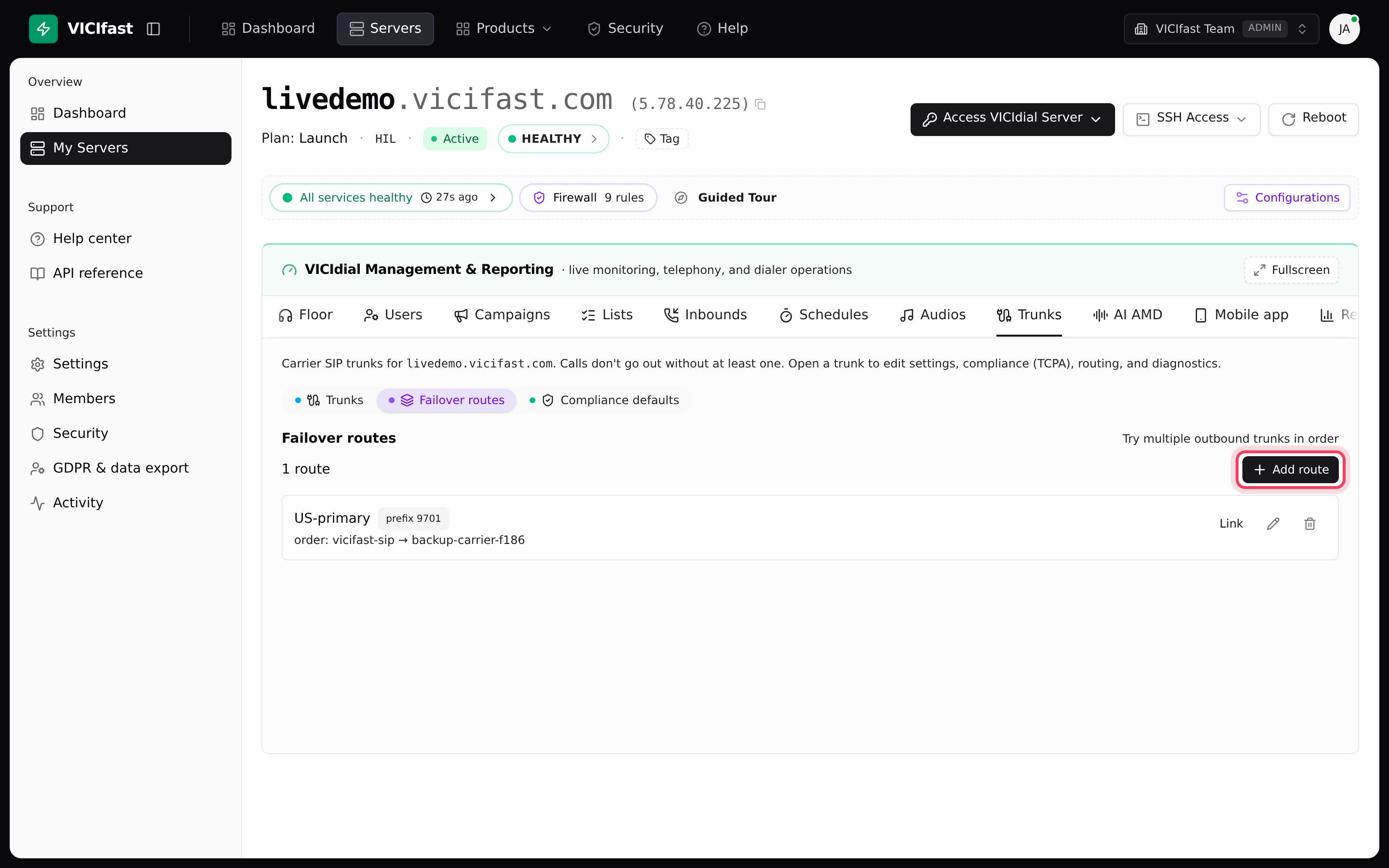
- In the sidebar, click My Servers, then click your server.
- Click the Trunks tab.
- Click Failover routes, next to Trunks and Compliance defaults.
- If you see "Add at least 2 outbound or bidirectional trunks before creating a failover route.", add another line first.
Step 2: Create the route
- Click Add route.
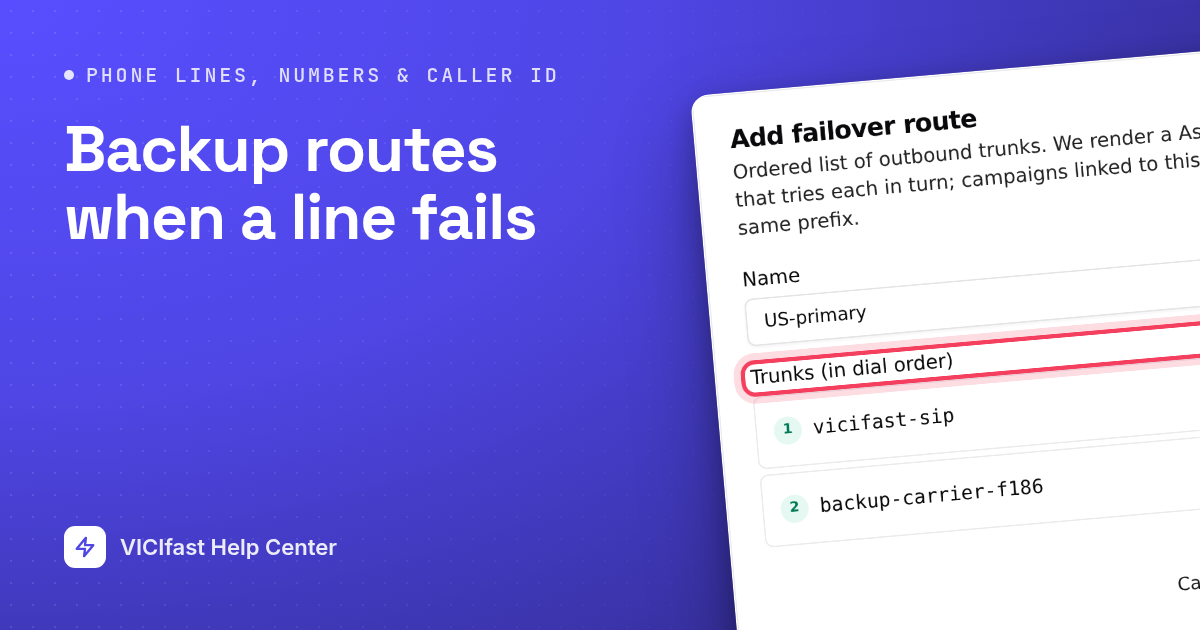
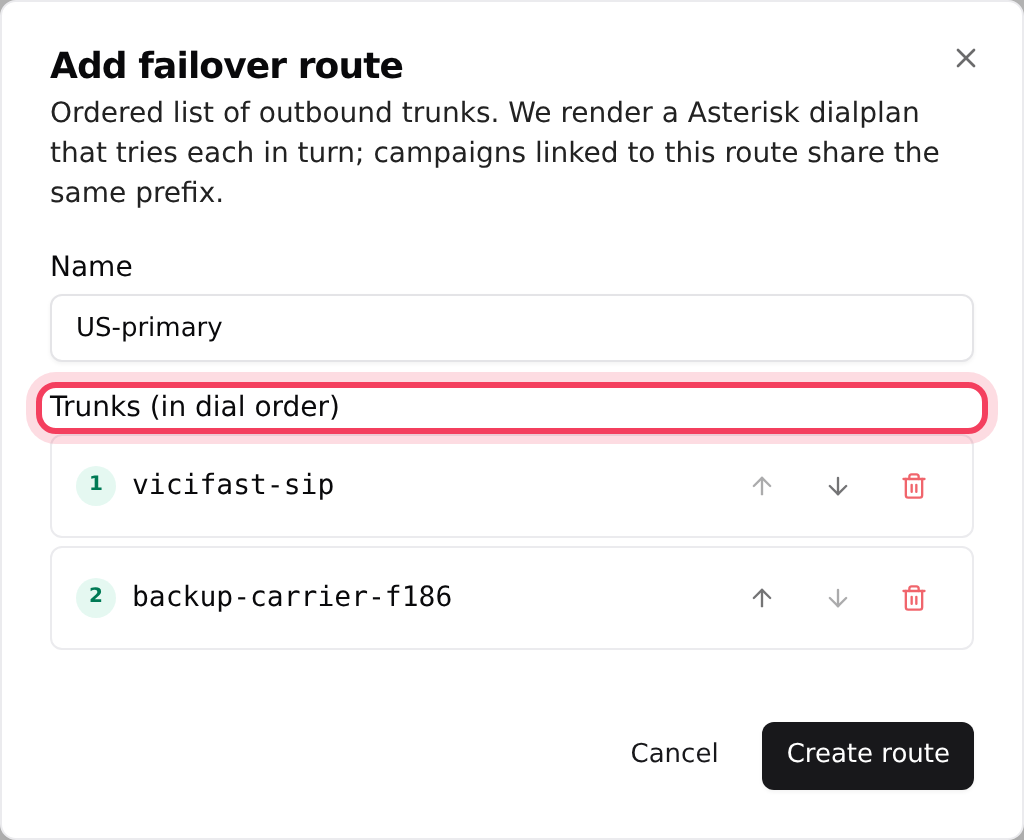
- In Name, type something you will recognise, such as US-primary. Use 2 to 40 letters, numbers, spaces, dashes or underscores.
- Under Add a trunk, click the lines in the order you want them tried. Lines show by their short name, for example vicifast-sip for your VICIfast Voice line. They appear under Trunks (in dial order), numbered 1, 2 and so on.
- Use the up and down arrows to change the order, or the bin to take a line out.
- Click Create route. You see "Route created - applying…" and the route appears in the list.
Step 3: Link your campaigns
- On the route's row, click Link.
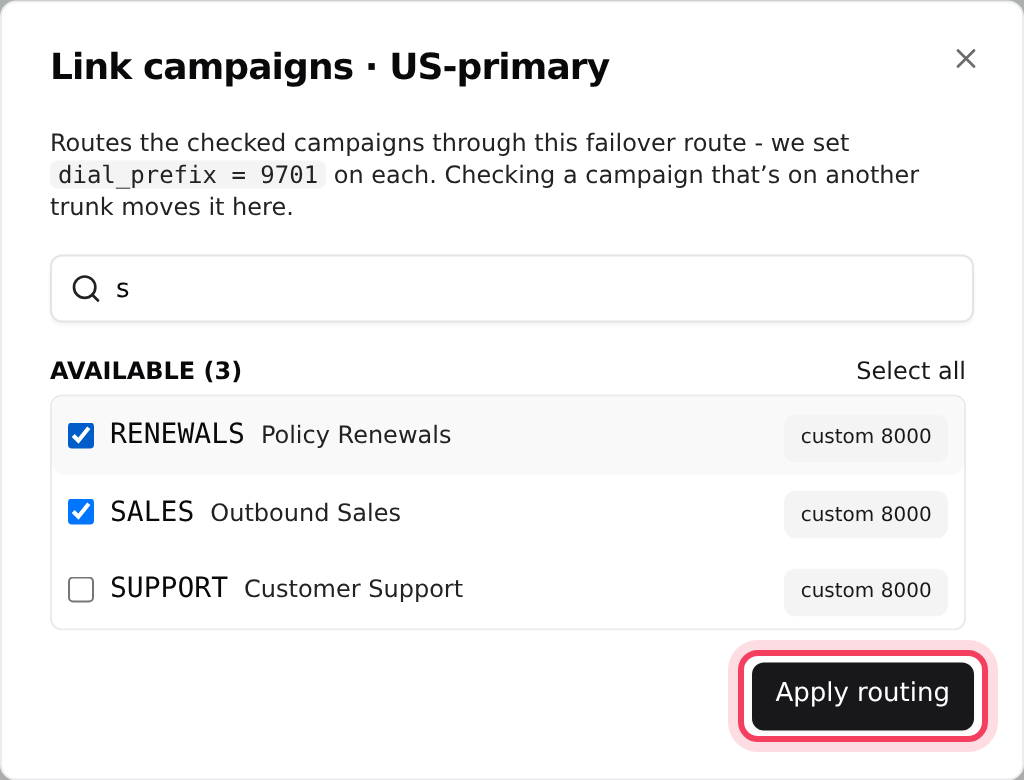
- In the Link campaigns window, tick the campaigns that should dial through this route. Next to each campaign you see how it dials today: on and a line’s name, custom and a dial prefix (for example custom 8000), or unrouted. Ticking a campaign moves it to this route.
- Click Apply routing. You see "Routing updated - applying…".
The route's row now shows its order (for example vicifast-sip → backup-carrier) and the linked campaigns. Nothing else in the campaigns needs to change.
Step 4: Change or remove the route later
- Click the pencil on the route's row to rename it or change the order. Linked campaigns stay linked.
- To see which routes a line belongs to, click the line on the Trunks list and open Routing & campaigns.
- To remove a route, click the bin on its row and confirm. Its campaigns are unlinked from it.

After you delete a route, link its campaigns to a single line straight away (on that line's Routing & campaigns section), so they have a line to dial out on.
If something goes wrong
Frequently asked
- This server has fewer than two outgoing lines switched on. Add a line from your own carrier, or switch on a line that is off, then try again.
- A route needs a first line and at least one backup. Click a second line under Add a trunk.
- Use 2 to 40 characters: letters, numbers, spaces, dashes and underscores only. Brackets and other symbols are not allowed.
- That is normal while line 1 connects your calls: the route only moves to the next line when the first one cannot. If you expected the campaign to use the route, check it is listed as linked on the route's row.
- Your team role cannot change this server's Trunks tab. Ask the account owner to change it, or to give you that permission.