Backups and restore
Turn on daily backups of your leads, settings and recordings, download a backup any time, copy backups to your own storage, and get data back.
Your server & troubleshooting · 4 min read
Backups keep a copy of your dialer: campaigns, lists and leads, agents, settings and call recordings. This page shows how to turn on daily backups, grab a backup whenever you want one, copy backups to your own storage, and get your data back.
What you need
- You are the account owner. Team members with the Server settings permission can see the backup status but cannot buy add-ons or download a backup.
- For daily backups: the Platform 7-Day Backup add-on.
- For copies to your own storage: a plan that includes External Backups.
Step 1: See what you have
- In the sidebar, click My Servers, then open your server.
- Click Configurations. Under Data safety you see Platform Managed Backups and External Backups.
- Each row says Active when it is on, Set up → when your plan includes it but it is not set up, or shows a lock and Upgrade when your plan does not include it.
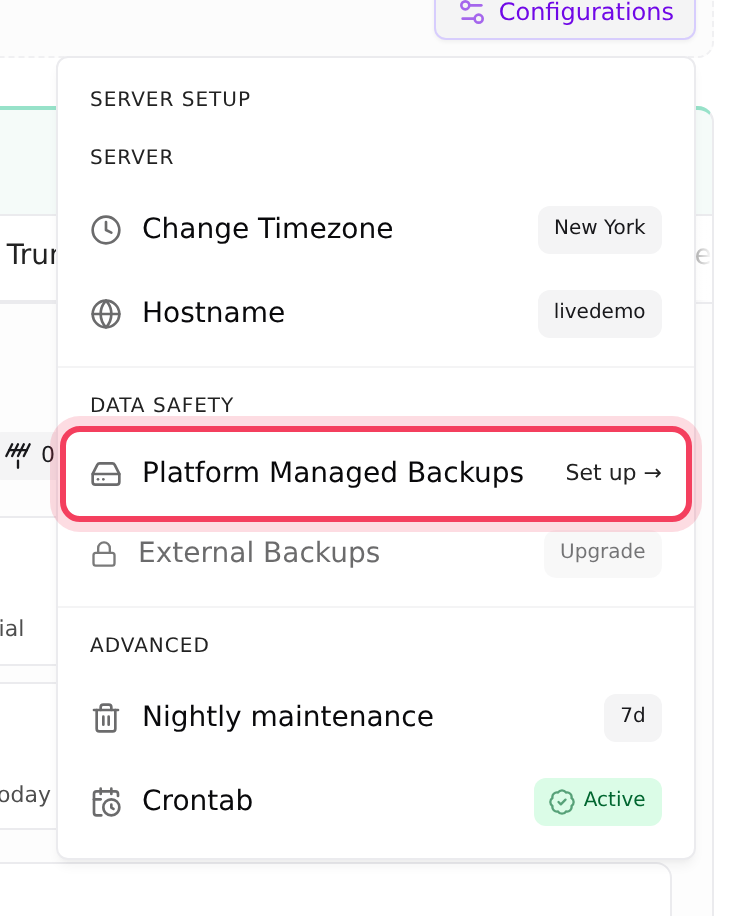
Step 2: Turn on daily backups
- Click the ⋮ button (More server actions) at the top right of the server page, then Manage addons.
- Under Available, find Platform 7-Day Backup and click Add now.
- You see what you pay today (prorated) and On every renewal after that. Click the Pay button to confirm. On a wallet account it pays from your wallet.
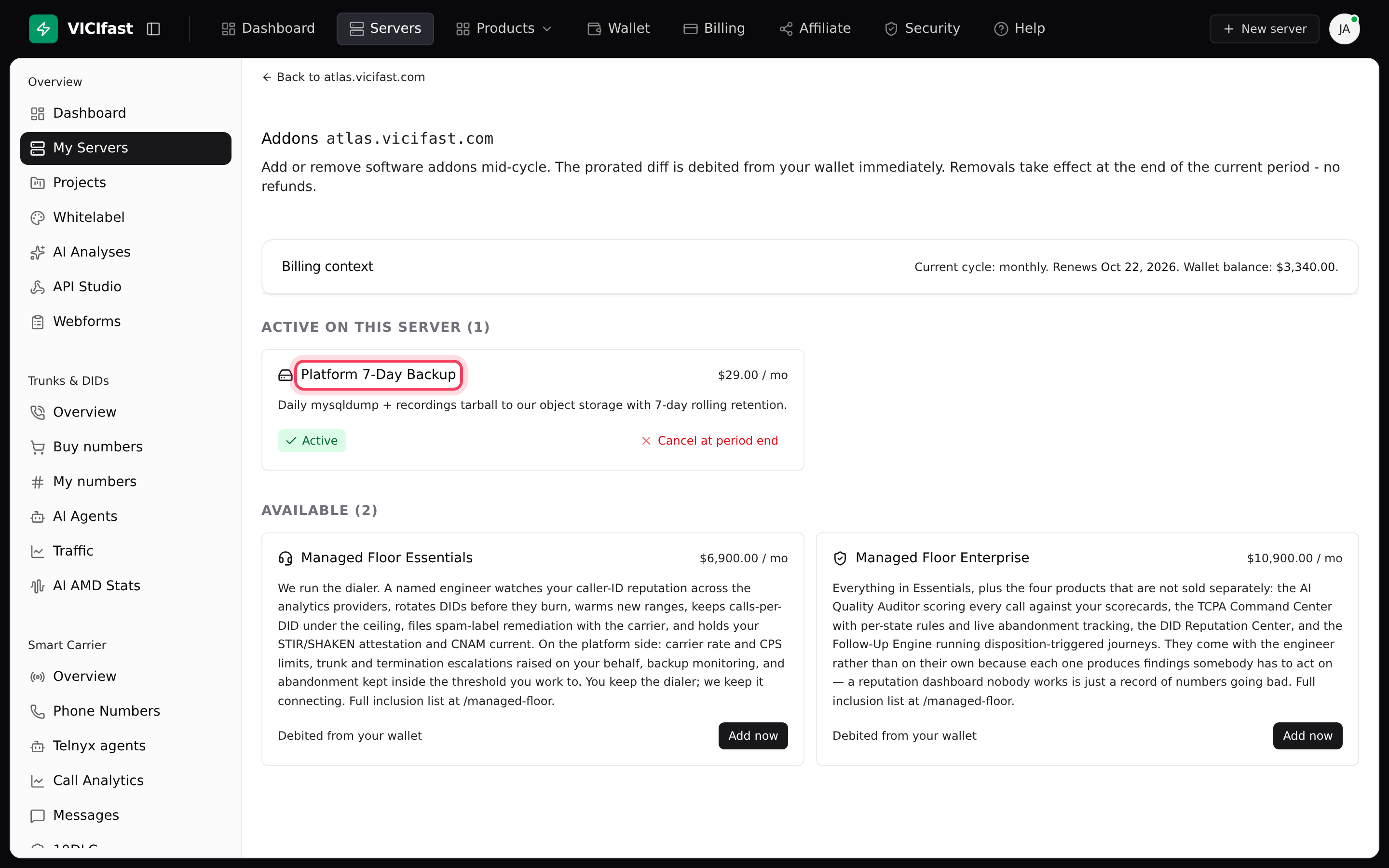
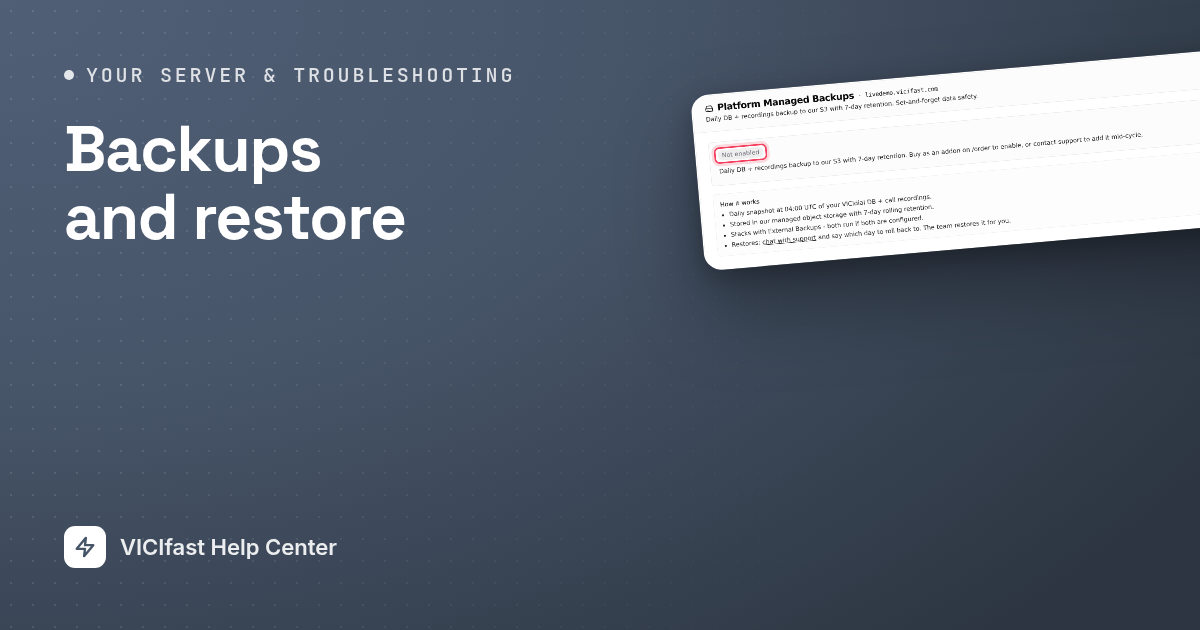
Once it is on, there is nothing to set up. Every day at 04:00 UTC we back up your VICIdial database and your call recordings and keep the last 7 days. After each backup we email you a download link, with a subject like "scheduled backup for atlas.vicifast.com is ready". The link works for 7 days.
To check on it, open Configurations, then Platform Managed Backups. You see Enabled and the Latest backup with its time and size. Until the add-on is on, it says Not enabled.
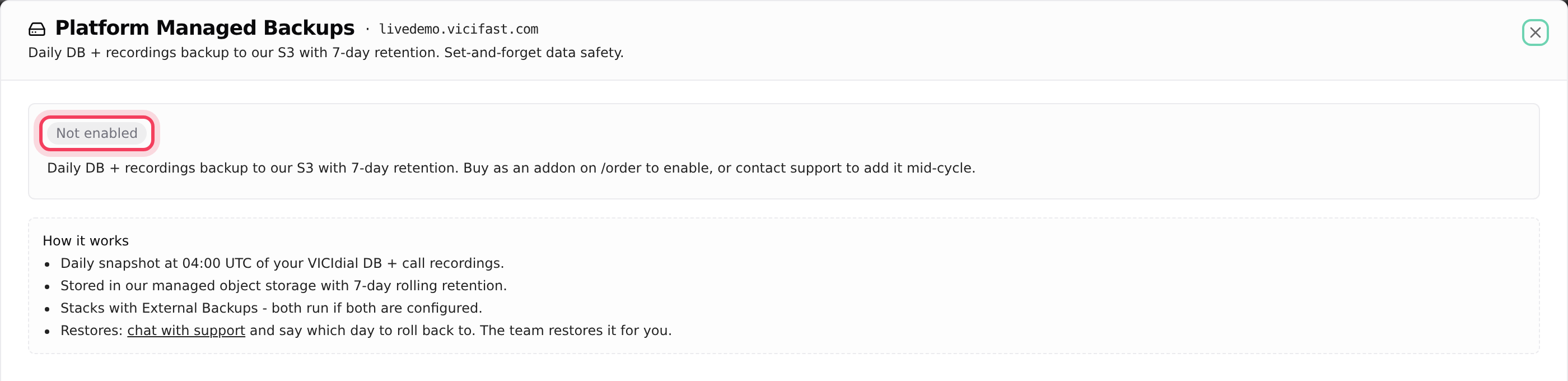
Step 3: Download a backup right now
You do not have to wait for the daily backup. The download sits inside the factory reset window, and opening that window does not reset anything.
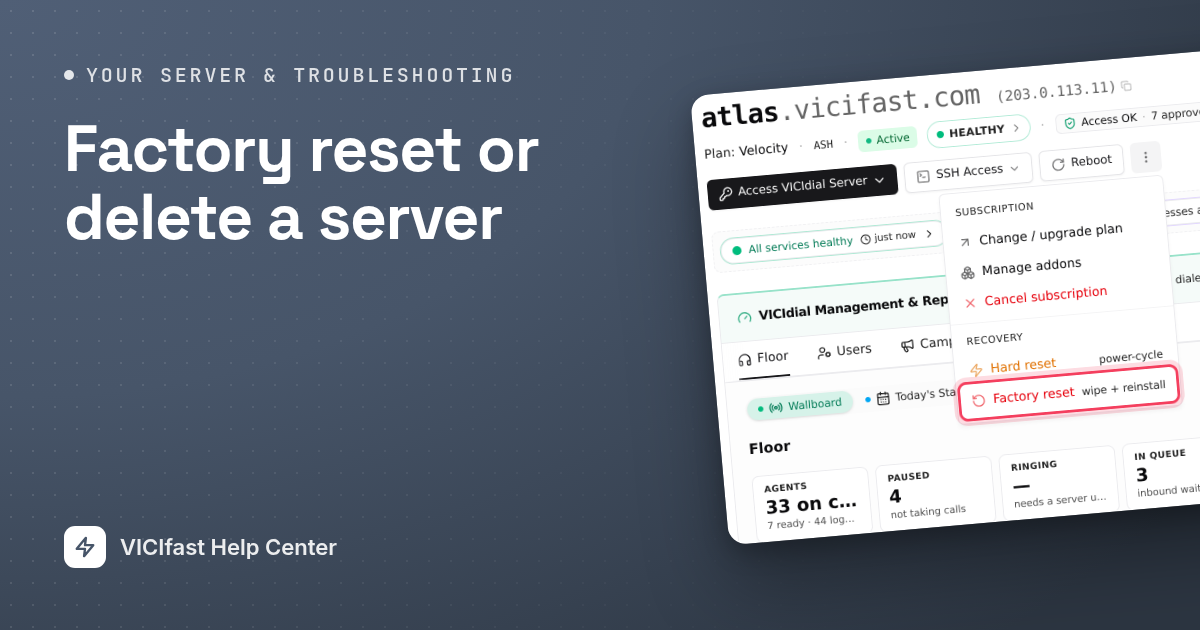
- Click ⋮ (More server actions), then Factory reset.
- On the left, under Download a backup, switch Include call recordings on if you want them. It is off by default because recordings can be very large.
- Click Download backup. You see Backup queued.
- Click Cancel to close the window. Nothing was reset.
We email you a download link that works for 7 days. The database arrives within a few minutes; recordings can take 5 to 30 minutes. You can do this up to 3 times an hour per server.
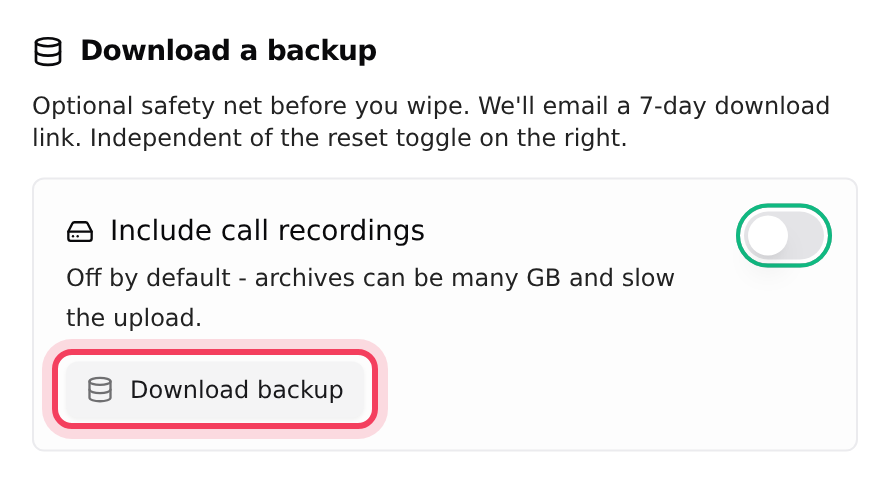
Step 4: Copy backups to your own storage
If your plan includes it, every backup we take for this server can also be copied to storage you own, such as Backblaze B2, Wasabi, Cloudflare R2, MinIO or AWS S3. Our copies are deleted after 7 days; yours are kept for as long as you like.
- Click Configurations, then External Backups.
- In Destination type, pick S3-compatible (B2 / Wasabi / R2 / MinIO / AWS).
- Fill in Label, Endpoint URL, Region, Bucket and, if you like, Prefix (optional) (a folder inside the bucket).
- Paste the Access key ID and Secret access key from your storage provider. Use a key that can only write to this one bucket.
- Leave Enabled on and click Save destination.
After the next backup, the panel shows Connected and Last success with a time. If the copy fails, the error shows there. To stop copying, click Disconnect; our own backups carry on.
Step 5: Get your data back
There is no restore button, on purpose: a restore replaces everything on your server with the older copy. To restore, chat with support. Tell us the server and which day you want back (any of the last 7 days with Platform 7-Day Backup). Your server keeps the same address and IP afterwards.
If something goes wrong
Frequently asked
- The first daily backup runs at the next 04:00 UTC after you add Platform 7-Day Backup. Check again the next day.
- Links work for 7 days. Click Download backup again for a fresh copy, or chat with support if you need an older day.
- You can start up to 3 backups per server per hour. Wait a little and try again.
- SFTP copies are not available yet. Change Destination type to S3-compatible and save again.
- Your plan does not include copies to your own storage. Clicking the row takes you to the plans.
- Check your spam folder, then look in Email logs in the sidebar under Support. It lists every email we sent you.