How to modify an existing VICIdial script
Modifying a VICIdial script is straightforward from the Scripts list - click the script's modification link and update any field except the Script ID. Use the Preview Script link to confirm changes before they go live.
Finding the script you want to change
Go to the VICIdial admin panel and click SCRIPTS in the left-side menu. You will see a list of all scripts in the system, each showing its Script ID, Script Name, and a link to the modification page. Click that modification link to open the edit form for any script.
What you can change
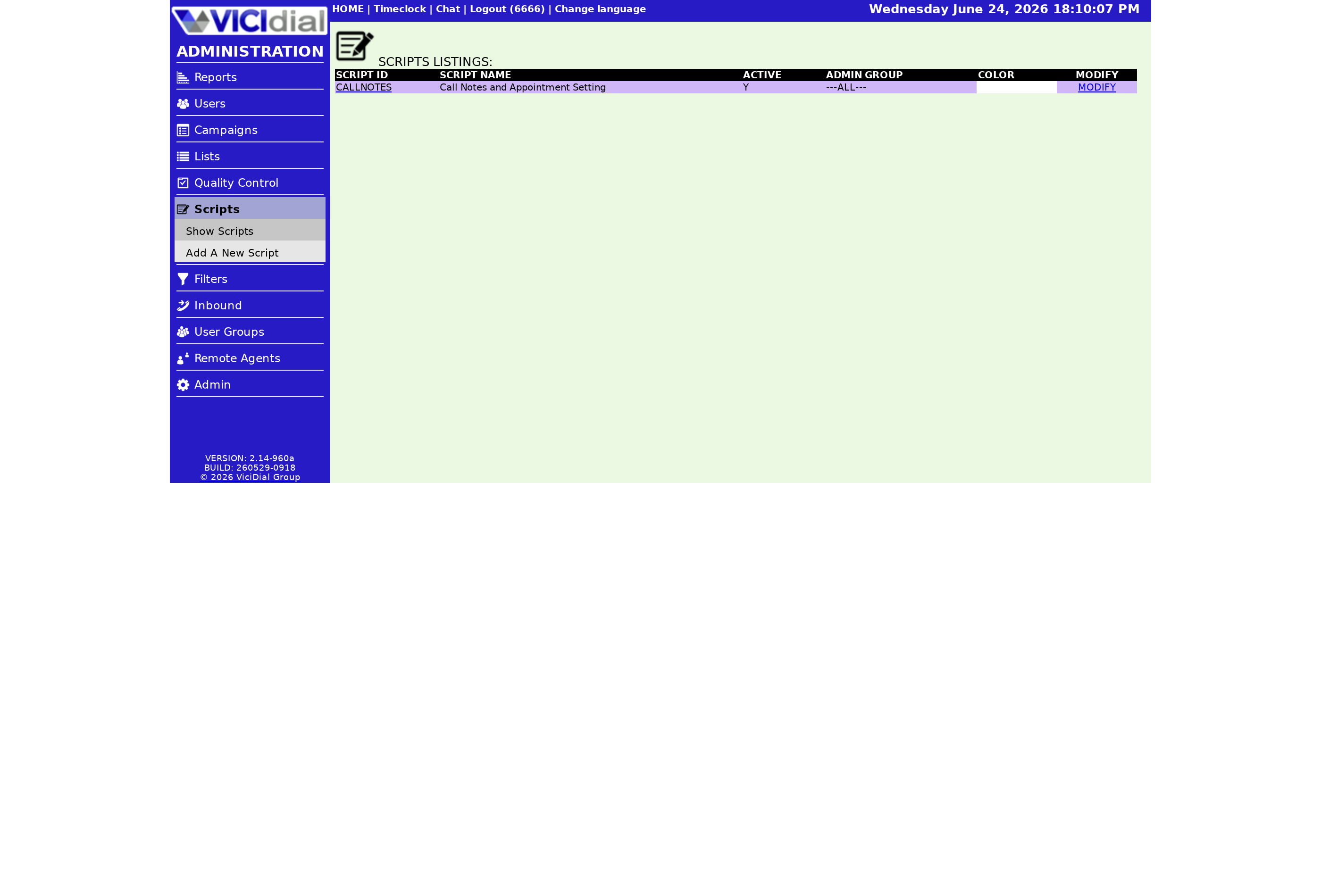
From the modification page you can update every field except the Script ID. The Script ID is fixed at creation and cannot be edited - if you need a different ID, you must delete the script and recreate it. Every other field is fair game:
- Script Name - update the display title (2–50 characters, no spaces or punctuation).
- Script Comments - add or update internal notes, up to 255 characters.
- Admin User Group - change which User group has admin access to view the script.
- Active - toggle the script on or off. Setting Active to N removes it from the selectable list when configuring a Campaign without deleting it.
- Script Color - change the background color of the script panel agents see during a call.
- Script Text - revise the script body, update dynamic field tokens, change HTML, or swap out an iframe URL.
Previewing before you save
The modification page includes a Preview Script link. Clicking it shows you what the Agent script will look like in the agent screen with sample data filling the dynamic --A--field--B-- tokens. This is the fastest way to catch formatting errors or broken token names before the script goes live.
Always preview after updating the Script Text, especially if you added new dynamic fields or changed HTML formatting. A broken token will display as raw text on the agent screen, not the lead's actual data.
Modify flow overview
flowchart TD
  A[Open Scripts list] --> B[Click modification link]
  B --> C[Edit Script Name, Text, Color, Active, etc.]
  C --> D[Click Preview Script]
  D --> E{Script renders correctly?}
  E -- No --> F[Fix Script Text or token errors]
  F --> D
  E -- Yes --> G[Save changes]
  G --> H[Changes live on agent screen immediately]
When modification is not enough
If the only thing you need to change is the Script ID itself, modification will not help - that field is locked. Your only path is to delete the existing script and create a new one with the correct ID. Any Campaign or inbound group that referenced the old script ID will need to be updated to point to the new one.
For a full explanation of why this constraint exists, see why you cannot rename a VICIdial Script ID after creation.
Scripts fit into a broader agent screen setup. The VICIdial agent screen configuration guide covers how scripts relate to the rest of the interface.
Managing multiple scripts across campaigns takes time. If you want a hosted environment where that overhead is handled for you, see pricing.
Related from VICIfast
- A white-label webphone on your own domainYour logo, your colours, your subdomain - served to your agents.
- Configure VICIdial without the 1998 adminCampaigns, users, dispositions, and schedules on a single modern screen.
- VICIdial Without the Ops - 18 chapters, freeArchitecture, sizing, storage and cost. No email wall on the contents.
About VICIfast
We run VICIdial servers for call centres, so you don’t have to. You get the dialer set up, secured and kept running — we handle the server, the updates and the backups. Bring your own phone carrier; we never resell minutes. From $49 a month per server.
Questions? Call +1 636 556 0022 and talk to someone who runs dialers.
Citing this article
VICIfast Engineering. “How to modify an existing VICIdial script”. VICIfast LLC, June 24, 2026. Retrieved from https://vicifast.com/blog/how-to-modify-a-vicidial-script
Have questions?
Related posts
You might be interested in
VICIfast newsletter
Liked this? Get the next one in your inbox.
We ship the kind of stuff you just read - concrete, numbers-first, no drip. One email when a new post goes live. Unsubscribe in one click.
Comments
No comments yet - be the first.