VICIfast
Feature · Setup Wizard

Setup Wizard.

The VICIfast Setup Wizard turns a fresh VICIdial server into a call center your team can log in to. Answer five questions - what you call about, how your team is organised, who is on it, and whether you take inbound calls - and it creates the campaign, lead list, user groups, logins with browser phones and inbound line in VICIdial for you. Nothing changes until you press Launch, and everything it builds stays editable in VICIdial afterwards.
See pricing

7-day free trial · Cancel anytime · Pay with card or USDT

How it works

How to set up VICIdial with the Setup Wizard

Five screens take a new VICIdial server to a team that can log in and take calls. The wizard only reads your server until you press Launch, so you can look around, change your mind and close it at any point.

  1. 1Campaign
  2. 2Groups
  3. 3People
  4. 4Inbound
  5. 5Launch

Step 1 · Campaign

How do you set up a VICIdial campaign?

Give the campaign a name and a short ID, choose how it dials, set the caller ID, the trunk and the calling hours, and attach a lead list.

A campaign is one calling project: who gets called, when, and which number shows on their phone. The short ID is what agents pick on the VICIdial login screen.

Four dial methods cover most floors. Manual: agents dial each call. Inbound only: agents answer incoming calls and can still dial by hand. Autodial: a set number of lines for each free agent. Predictive: dials ahead so agents rarely wait, while keeping dropped calls under 3%. Switch on “Also take inbound calls” for a blended campaign.

Calling hours run in each lead’s own time zone, so a 9am start never rings a lead before 9am where they live. For leads, start a new empty list that is switched on and ready for an upload, attach a list you already have, or skip it for now.

What it sets up in VICIdial

  • The campaign, with its dial method and call recording on
  • Caller ID and the trunk calls go out through
  • Calling hours in each lead’s local time
  • A new lead list, or the one you picked
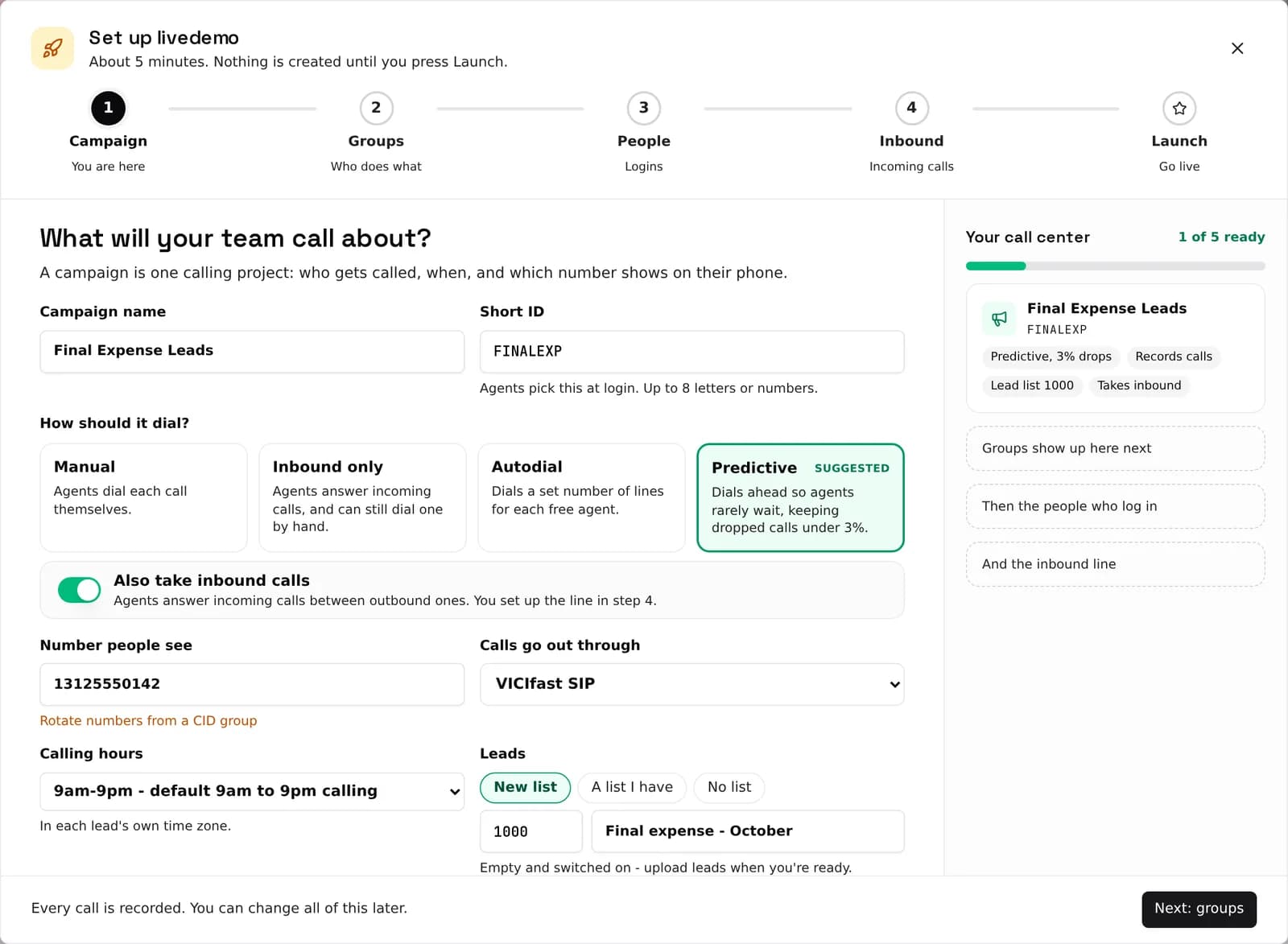
VICIdial Setup Wizard step 1: campaign name and short ID, dial method (Manual, Inbound only, Autodial, Predictive), caller ID, trunk, calling hours and lead list
Step 1 of the Setup Wizard, on a real VICIfast server.

Step 2 · Groups

How should you organise VICIdial user groups?

Put people with the same job in one group: agents take the calls, supervisors see reports, and managers run the dialer and change settings.

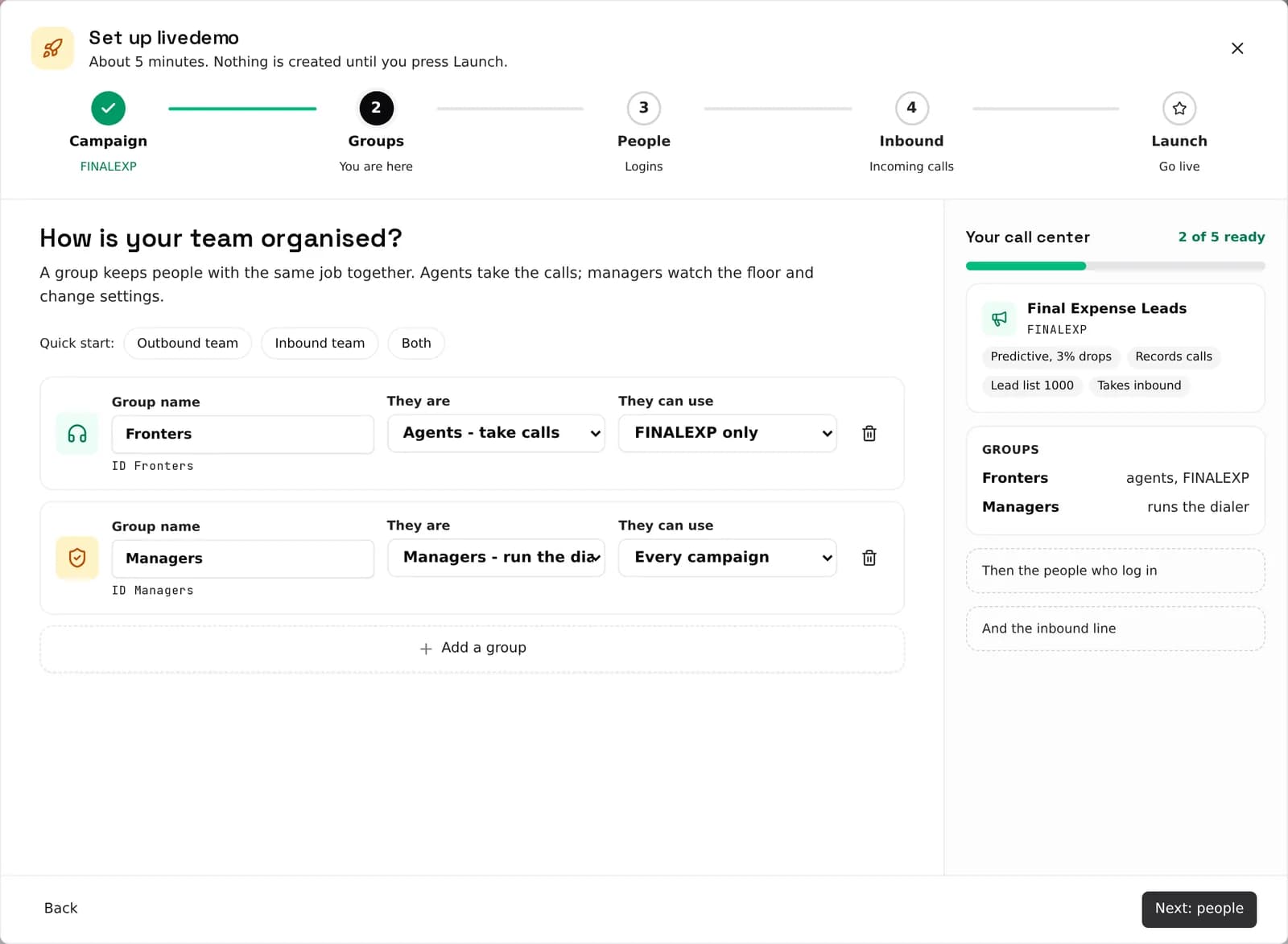
Pick a quick start - outbound team, inbound team, or both - and the wizard lays out the groups for you. Rename them, add more, or change what each one is.

For each group, choose whether its people can use only this campaign or every campaign. The wizard writes that into the group itself, which is what puts the campaign on the agent’s login screen. On a hand-built VICIdial server, a group that is not allowed the campaign is the usual reason an agent sees an empty campaign list.

What it sets up in VICIdial

  • One user group per role
  • The campaigns each group is allowed to use
  • The right permissions for agents, supervisors and managers
VICIdial Setup Wizard step 2: user groups for fronters and managers, each set to agents, supervisors or managers, with the campaigns they can use
Step 2 of the Setup Wizard, on a real VICIfast server.

Step 3 · People

How do you create VICIdial agent logins?

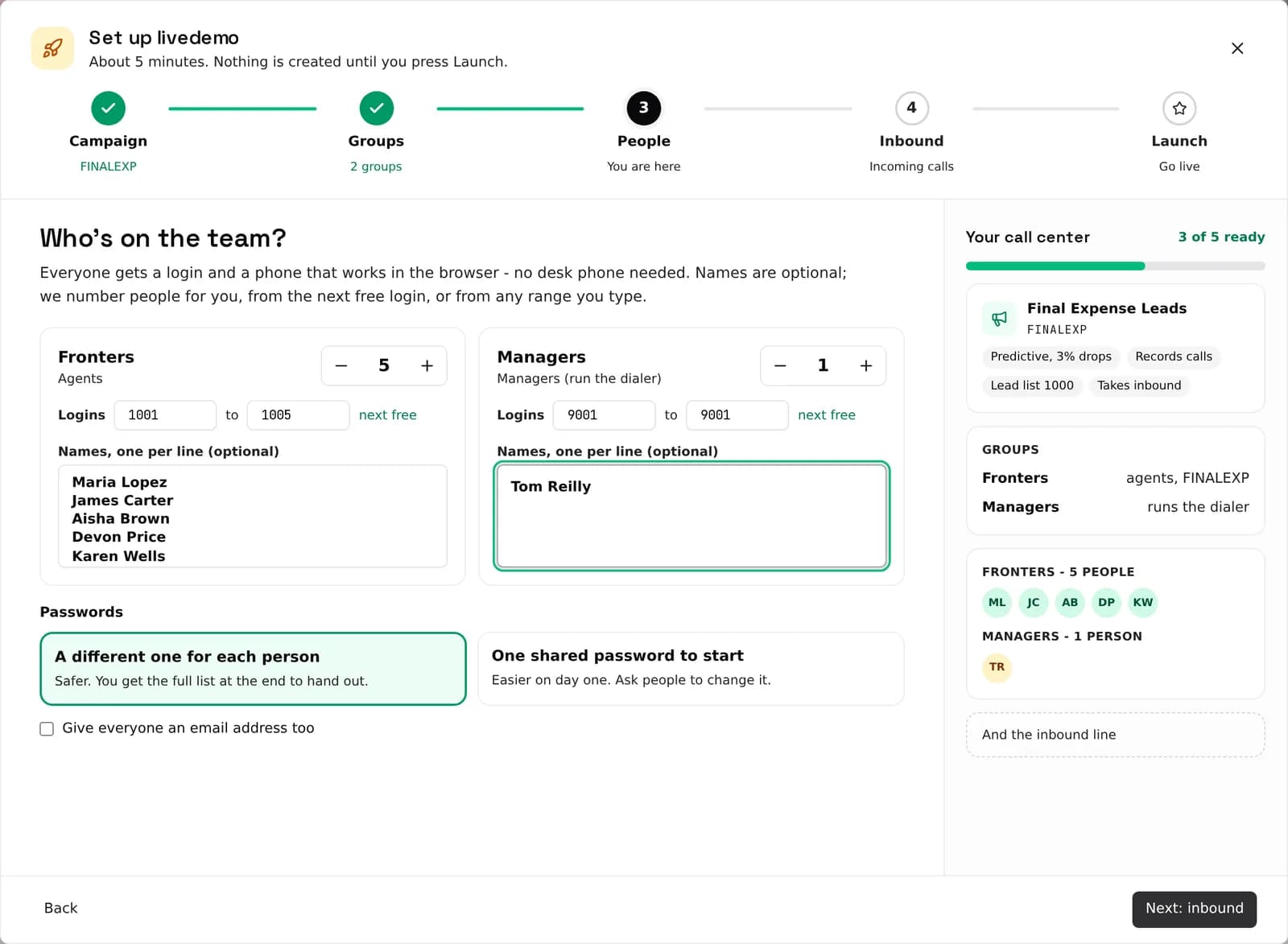
Set how many people each group has. The wizard numbers their logins, gives each person a phone that works in the browser, and sets their passwords.

Logins are numbered from the next free one, or from any range you type. Names are optional: paste one per line and they appear on the agent screen and in reports.

Choose a different password for each person (safer, and you get the full list at the end to hand out) or one shared password to start. You can also give everyone an email address. Nobody needs a desk phone or a softphone install: the phone lives in the VICIdial agent screen.

What it sets up in VICIdial

  • A VICIdial user for each person, at the right user level
  • A browser phone for each login
  • Passwords, plus a list of logins you can download
VICIdial Setup Wizard step 3: agent logins numbered from the next free login, names one per line, and a different password for each person
Step 3 of the Setup Wizard, on a real VICIfast server.

Step 4 · Inbound

How do you route inbound calls in VICIdial?

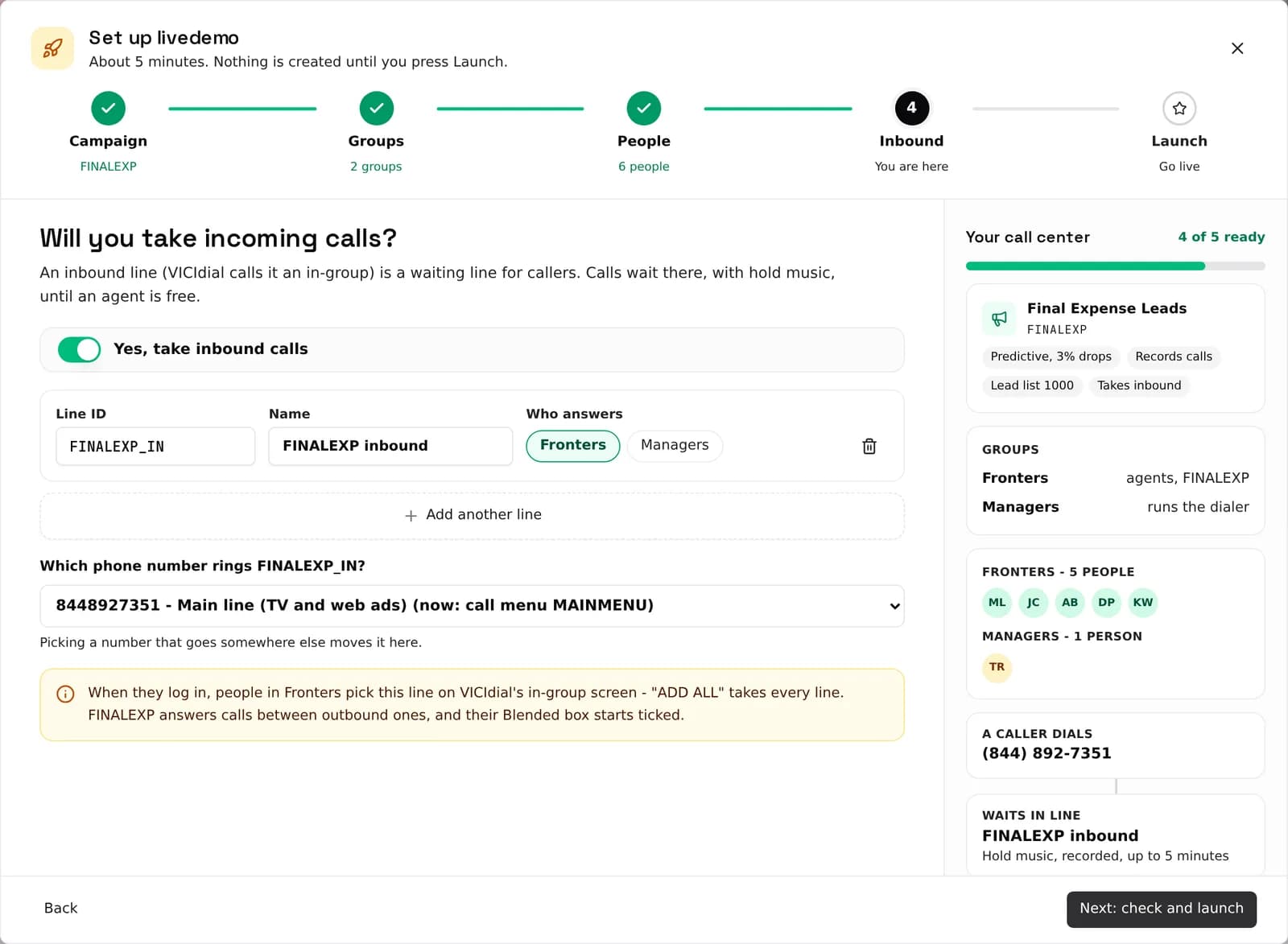
Create an inbound line (VICIdial calls it an in-group), choose which groups answer it, and pick the phone number that rings it.

An inbound line is a waiting line for callers. A caller dials your number, waits in line with hold music, and the first free agent picks up. The wizard shows that path as you build it.

Choose who answers, add more lines if you need them, and pick which phone number rings each one. Picking a number that already goes somewhere else moves it to the new line. When agents log in, they pick their lines on VICIdial’s in-group screen, and on a blended campaign they take inbound calls between outbound ones.

What it sets up in VICIdial

  • An in-group with hold music, recorded
  • The groups that answer it
  • Your phone number (DID) routed to it
VICIdial Setup Wizard step 4: an inbound line (in-group) answered by the fronters group, with a phone number routed to it
Step 4 of the Setup Wizard, on a real VICIfast server.

Step 5 · Launch

What happens when you press Launch?

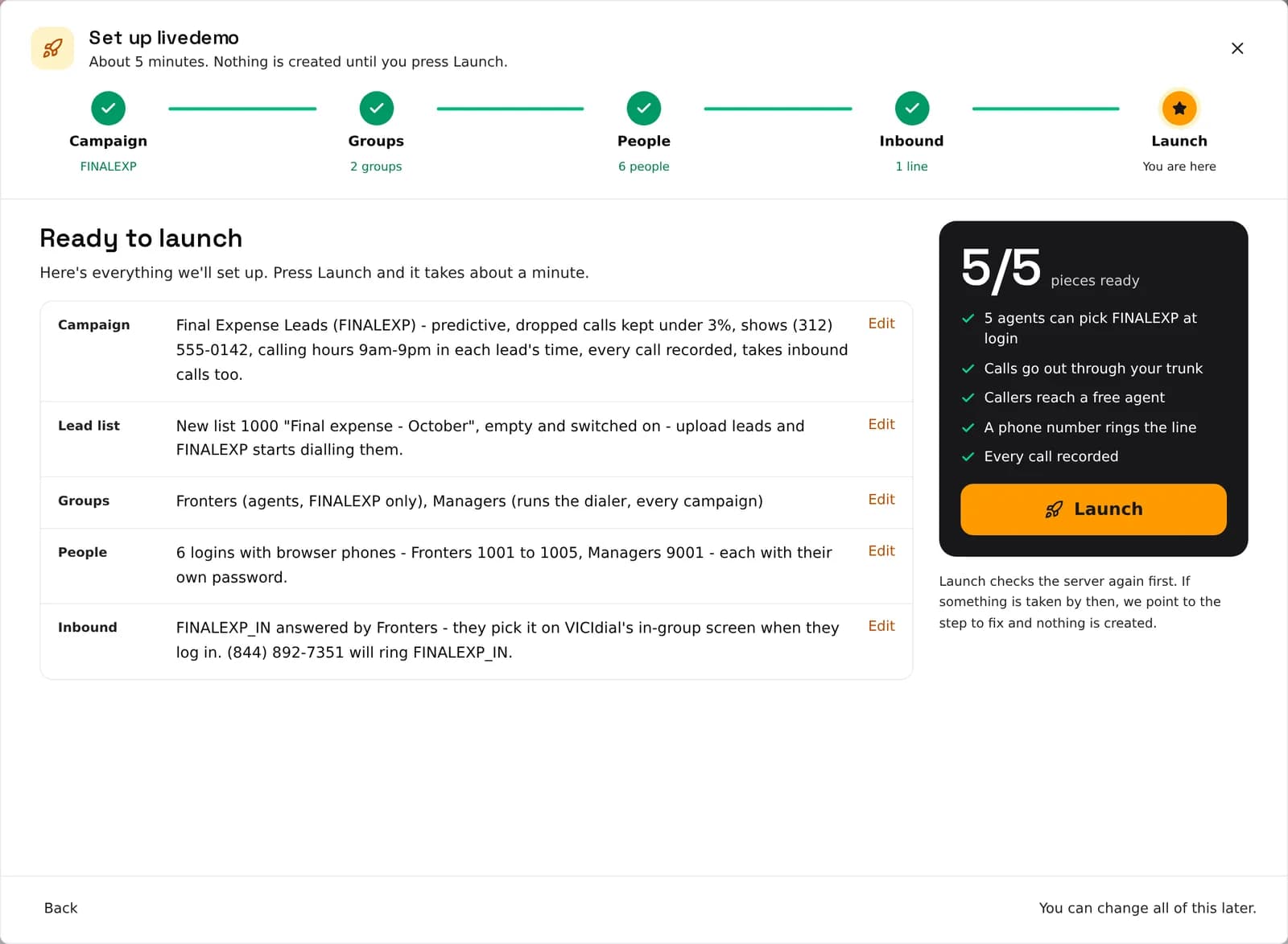
The wizard checks your server again, then builds everything as small steps you can watch. It usually takes about a minute.

Before Launch, the Ready to launch screen lists everything in plain English, with an Edit link on each part: the campaign, the lead list, the groups, the people and the inbound line. A score shows how many pieces are ready.

Launch reads the server first. If an ID was taken since you started, it points you to the step to fix and nothing is created. If a step fails during the build, retry it without redoing what already worked. At the end you get every login and password to download or hand out.

What it sets up in VICIdial

  • Everything above, built in the right order
  • A step you can retry if something fails
  • Every login and password, ready to hand out
VICIdial Setup Wizard Ready to launch screen: a plain-English summary of the campaign, lead list, groups, people and inbound line, five of five pieces ready
Step 5 of the Setup Wizard, on a real VICIfast server.
40smedian deploy time
99.94%fleet uptime · last 30d
6regions live
Auditedevery state change

What you get

The full setup wizard surface, end-to-end.

Every card below is a shipped capability. Hover for emphasis; click any matching feature for the deep page.

A campaign that can dial on day one

Name it, pick how it dials (Manual, Inbound only, Autodial or Predictive), the caller ID people see, the trunk calls go out through, and calling hours kept in each lead's own time zone. Start a new empty lead list or attach one you already have.

User groups that actually let people in

Agents, supervisors who see reports, managers who run the dialer. The wizard sets which campaigns each group may use, so the campaign shows up on the agent login screen. In a hand-built VICIdial setup, a missing allowed-campaign is the usual reason agents see an empty list.

A login and a browser phone for everyone

Logins are numbered from the next free one, or from any range you type. Add names if you like. Pick one password each or a shared one to start, and download the full list at the end to hand out. No desk phones and no softphone installs.

An inbound line routed to the right people

The wizard creates the in-group (VICIdial's waiting line for callers), chooses who answers it, and points a phone number at it. Callers hear hold music until an agent is free. On a blended campaign, agents take inbound calls between outbound ones.

A plain-English check before anything changes

The Ready to launch screen lists every piece in one place: campaign, lead list, groups, people and inbound line, with an Edit link on each. Launch reads the server again first, and if something was taken in the meantime it points you to the step to fix.

A build you can retry

Launch builds the call center as a series of small steps you can watch. If one fails, retry it without redoing what already worked. Close the browser halfway and the wizard offers to carry on next time.

No tab-hunting through the VICIdial admin

You don't create the campaign, user group, users, phones, in-group and DID one by one across a dozen admin screens, in the right order, with matching IDs. The wizard does the order for you.

No lock-in to the wizard

Everything it builds is an ordinary VICIdial campaign, user group, user, phone, in-group and DID. Change any of it later in the VICIfast dashboard or in VICIdial's own admin screens.

FAQ

Questions worth answering

About five minutes to answer the questions. After you press Launch, building everything takes about a minute.

No. The wizard only reads your server until you press Launch. You can close it at any point and nothing has changed.

Yes. It reads what is already there, numbers new logins from the next free one, and lets you attach an existing lead list or trunk. If an ID you picked gets taken before you launch, it stops and tells you which step to change.

No. Every login the wizard creates comes with a phone that works in the browser, inside the VICIdial agent screen.

Manual, Inbound only, Autodial (a set number of lines per free agent) and Predictive, which keeps dropped calls under 3%. Every other VICIdial dial method is on the campaign's Dialing tab once it exists.

The owner of the server. It opens by itself the first time you open a new server, and the Setup Wizard button on the server page opens it any time after that.

Yes. It creates normal VICIdial objects, so you can edit campaigns, groups, users and in-groups in the VICIfast dashboard or in VICIdial admin.

Set up your call center in five steps.

Start the 7-day trial. The Setup Wizard opens the first time you open your new server: campaign, groups, people, inbound line, launch. Your team can log in about five minutes later.

All features