Using VICIfast Phone (for agents)
Take your calls on an Android phone: install the app, sign in, pick your queues, take calls and save the results.
For your agents · 3 min read
VICIfast Phone lets you work from your Android phone instead of a computer. Calls ring on the phone, even when it is locked, and you save the result of each call in the app. It is free for your company.
What you need
- An Android phone with Android 8.0 or newer. The iPhone app is coming soon.
- Your company code, username and password. The app says the company code is in the welcome email from your supervisor. If you don't have it, ask your manager.
- A headset is best. Mobile data or Wi-Fi both work.
Step 1: Install the app
- On your phone, open vicifast.com/downloads.
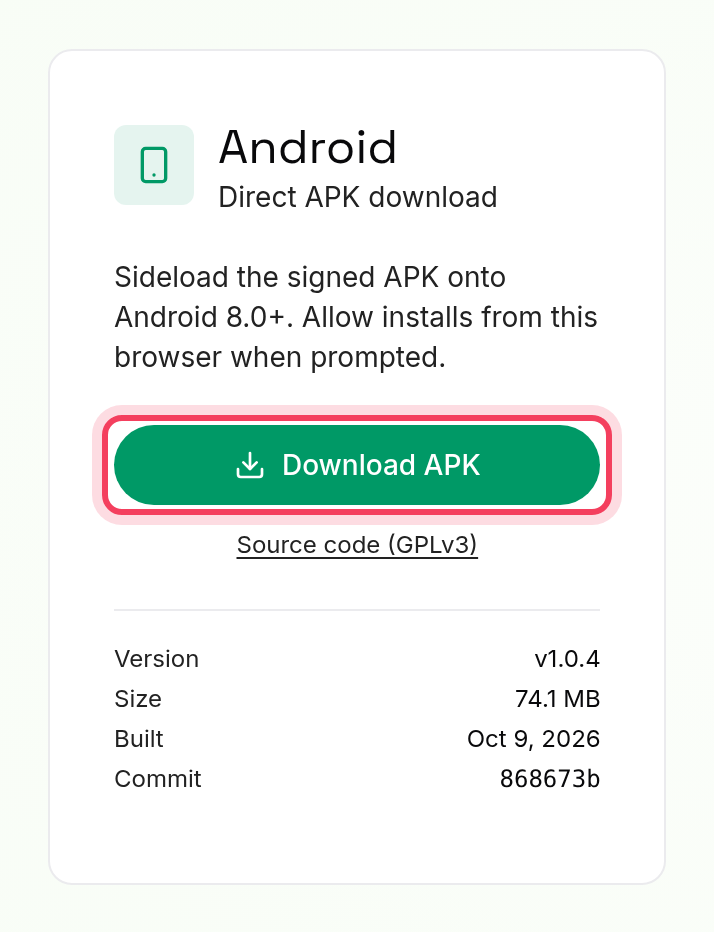
- Under Android, tap Download APK.
- Open the downloaded file. If Android asks, allow installs from your browser, then tap install.
Step 2: Sign in
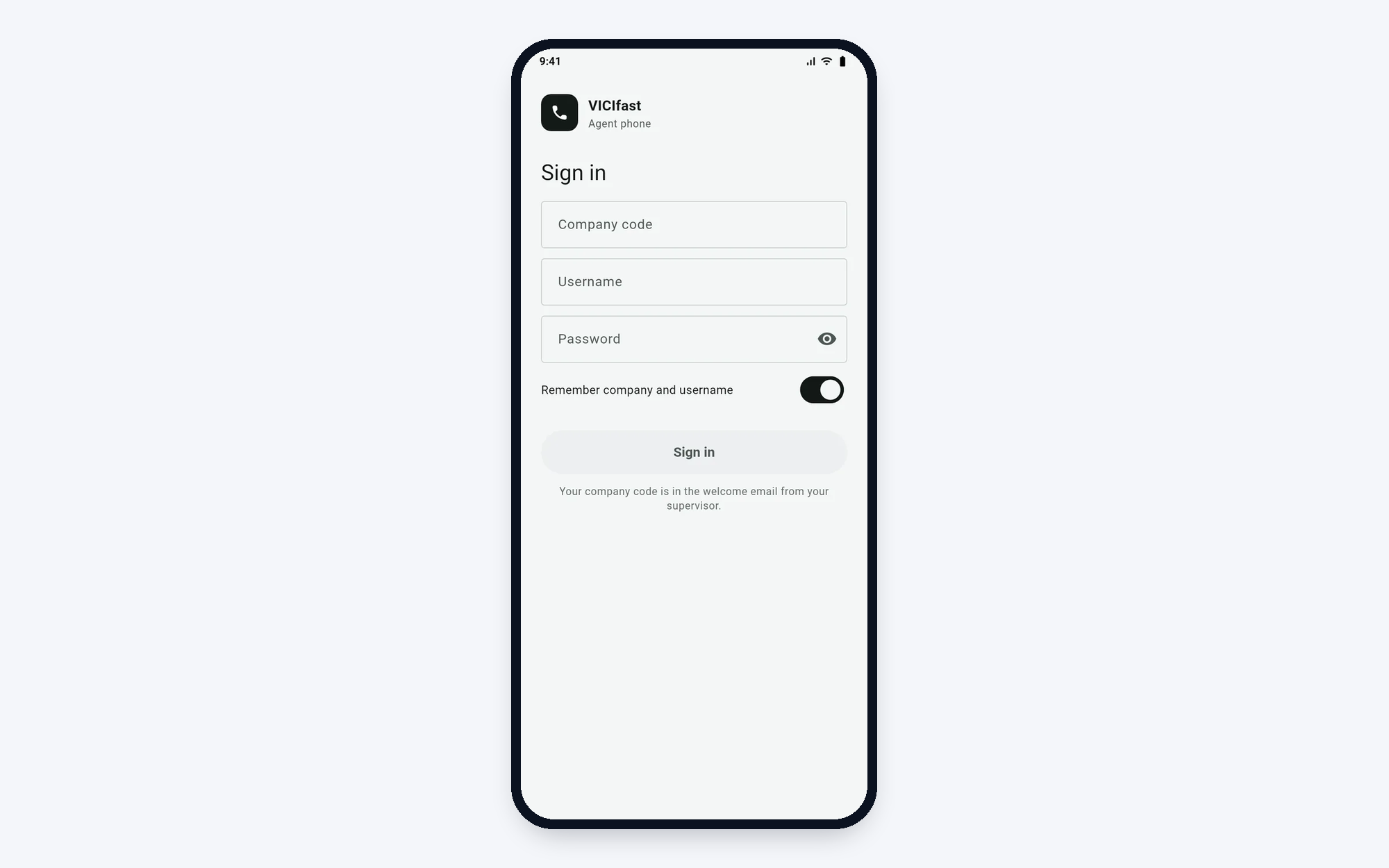
- Open VICIfast Phone.
- Type your Company code, Username and Password.
- Leave Remember company and username on so next time you only type your password.
- Tap Sign in. If the app asks for Your code, type the 6-digit code from your authenticator app and tap Verify.
Signed in on a computer too? The app asks if you want to move your session to the phone. Tap Continue here to switch. You can only be signed in in one place.
Step 3: Set up the phone and start your shift
- On Phone setup, tap Allow next to Microphone. It is the only one you must allow. Notifications, Calls on lock screen and Unrestricted battery make sure calls reach you all shift, so allow them too. Tap Continue.
- On Start your shift, pick your Campaign.
- Under Queues, tap each queue you answer. The app remembers them for next time.
- Tap Start shift.
Step 4: Get ready and take a break
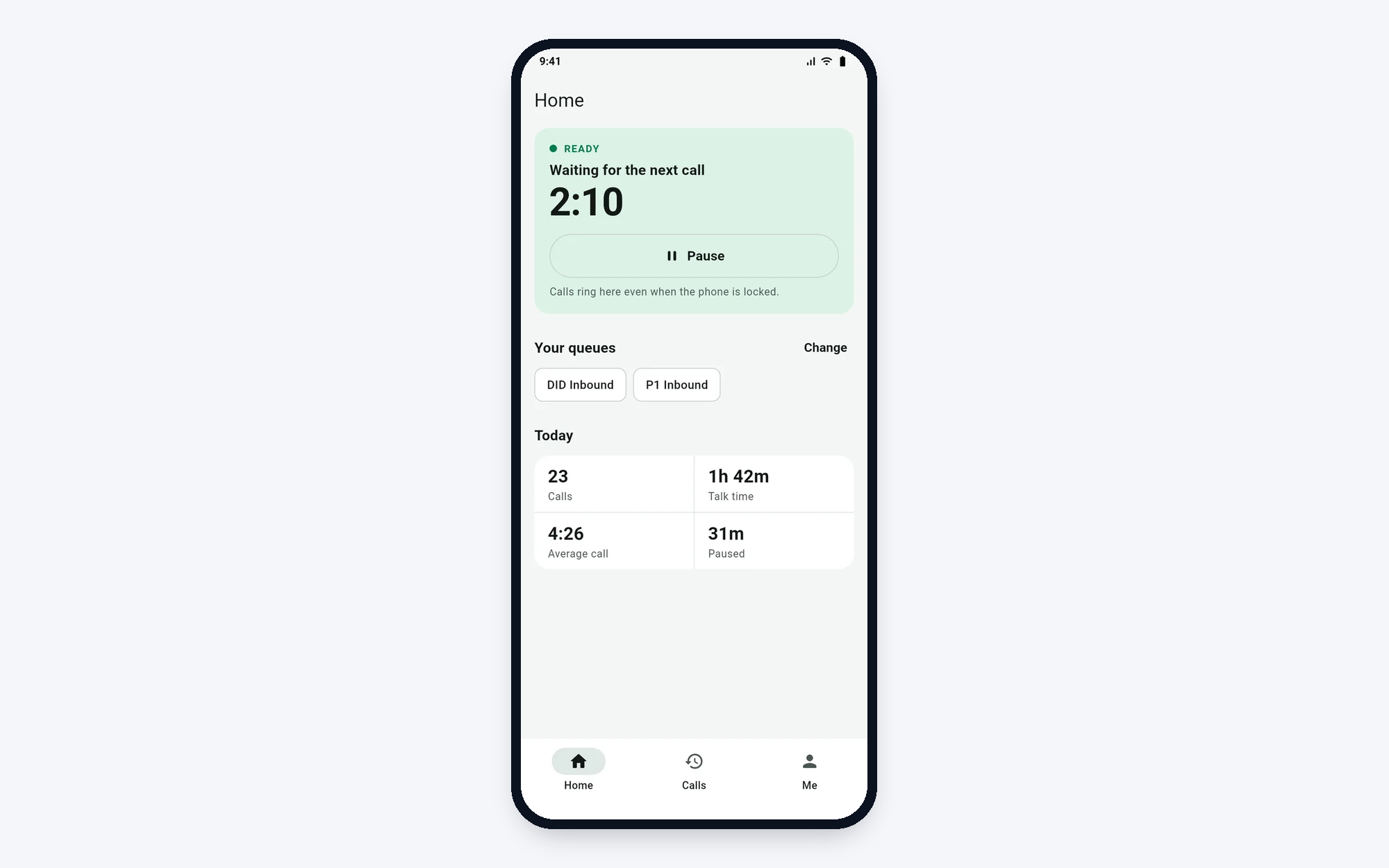
- On Home, tap Go ready when you want calls. The card turns green and says Ready and Waiting for the next call.
- To take a break, tap Pause and pick a reason. Your supervisor sees it.
- While paused, tap Change reason to change it, or Go ready to take calls again.
Home also shows your queues (tap Change to switch) and today's numbers.
Step 5: Take a call
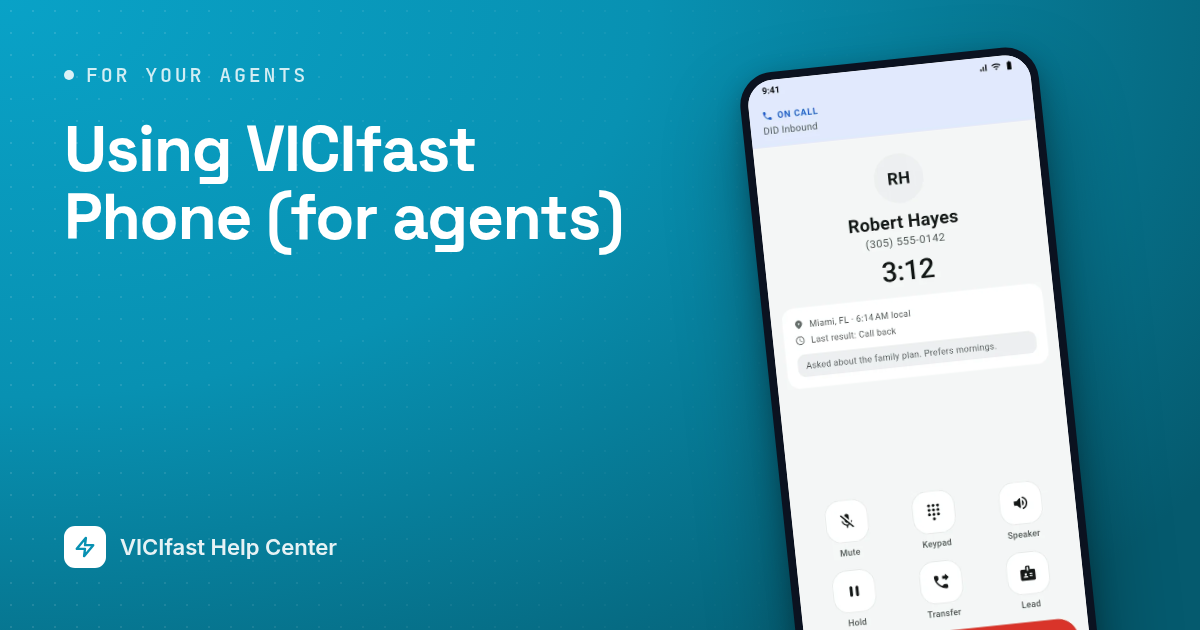
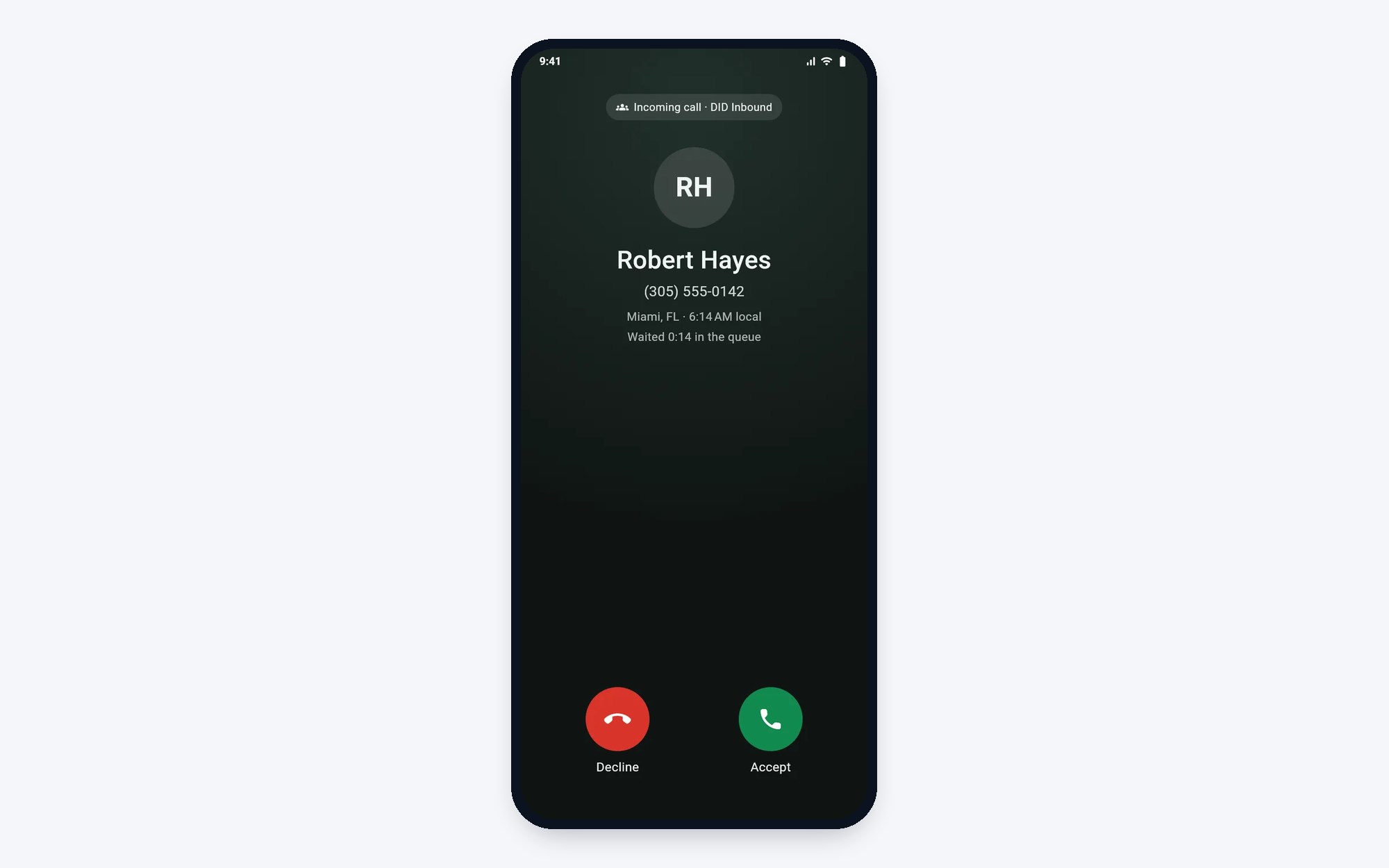
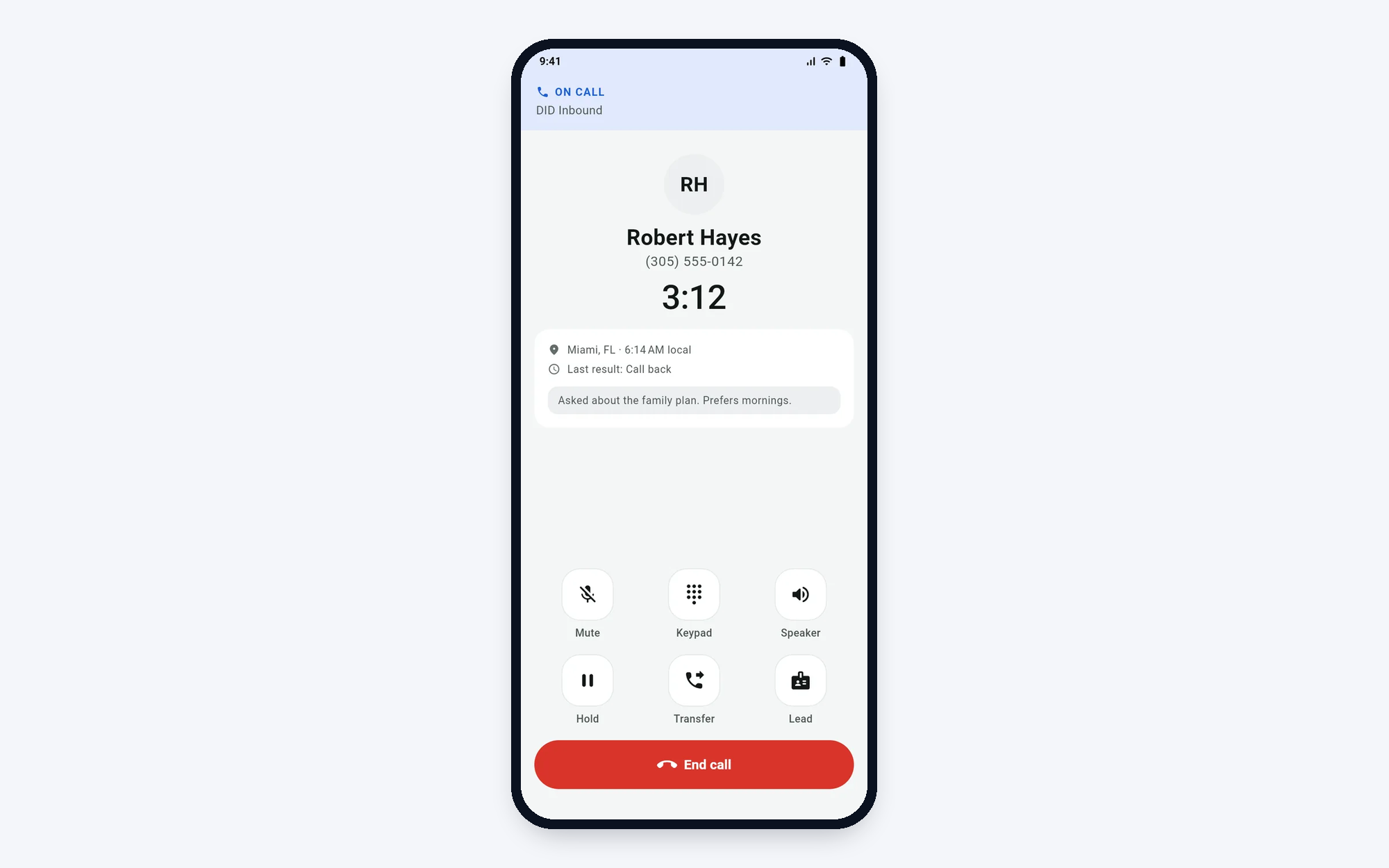
- When a call comes, you see who it is and which queue it came from. Tap Accept.
- During the call you have Mute, Keypad, Speaker, Hold, Transfer and Lead (the customer's details and notes).
- Tap End call when you're done.
To pass the call on or add a third person, tap Transfer. See Transferring a call and 3-way calls.
Step 6: Save the result
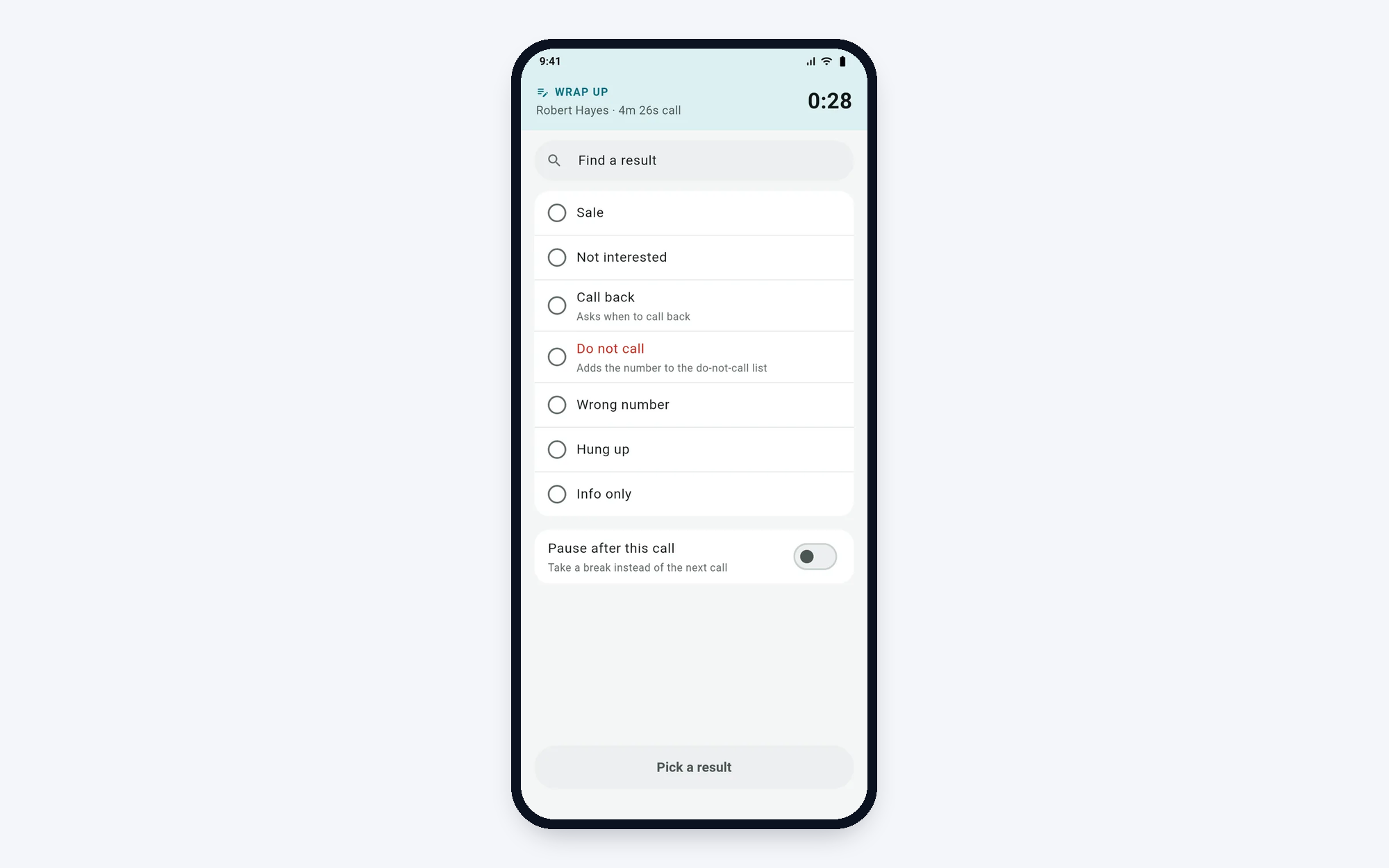
- After the call, the Wrap up screen lists the results. Tap the one that matches. Use Find a result if the list is long.
- Want a break after this call? Switch on Pause after this call.
- Tap Save and go ready (or Save and pause).
A callback result asks for a time. See Scheduling and taking callbacks. A do-not-call result asks you to confirm first, because the number won't be called again by any campaign.
Calls and Me
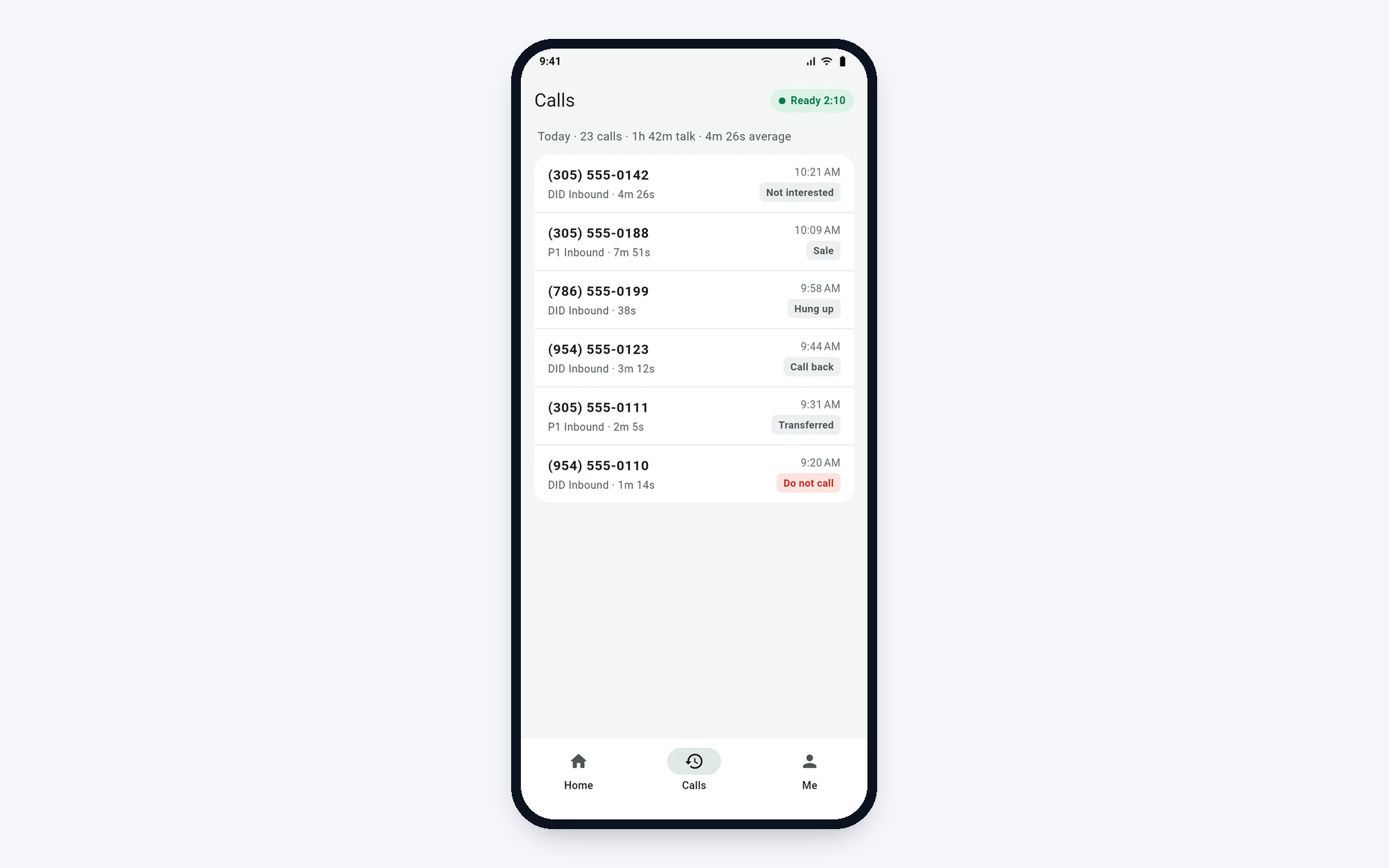
- Calls: today's calls with their results. Tap one for the details.
- Me: change your campaign or queues (Change campaign or queues), check your Phone line and Phone setup, pick light or dark, update the app, and Sign out at the end of your shift.
If something goes wrong
Frequently asked
- Check the code with your manager and type it again.
- Check them with your manager. They can reset your password.
- Switch to another Wi-Fi, or turn Wi-Fi off and use mobile data.
- You won't get calls until it's back. Check your internet and tap Retry. On Me, you can tap Phone line to reconnect.
- Tap Fix on the "Finish phone setup" card, or open Me, Phone setup, and allow Calls on lock screen and Unrestricted battery.
- You can only use one phone at a time. Sign in again on the phone you want to use.
- Open Me and tap the update. Do it on a break: calls can't ring while the installer is open.