Hot keys: save a call result with one key
Let agents hang up and save a call's result by pressing one number key. Set hot keys per campaign in the dashboard, and add VICIdial's voicemail and alternate-number keys in VICIdial admin.
Advanced · 5 min read
A hot key lets an agent end a call and save its result by pressing one number key, instead of clicking HANGUP CUSTOMER, picking a result and clicking SUBMIT. On a busy outbound floor those seconds add up. This guide covers setup, what agents do, and the extra keys only VICIdial admin offers.
How hot keys work
- Each campaign can have up to nine hot keys, on the number keys 1 to 9. Each key is tied to one call result (disposition), for example 1 for SALE and 4 for NI.
- During a live call, the agent switches hot keys on and presses a number. The call is hung up and saved with that result in one go, and the agent moves on to the next call.
- Hot keys only work while a call is live. Pressing a number while paused does nothing.
The technical part: hot keys are stored per campaign in VICIdial (the vicidial_campaign_hotkeys table), and the agent screen loads them when the agent signs in to the campaign.
What you need
- You are the account owner, or a team member allowed to make changes on the Campaigns tab.
- The results you want on keys already exist. See Call results (dispositions).
- For Step 4: your VICIdial admin login. See Open VICIdial admin and the agent screen.
Step 1: Add hot keys to a campaign
- Open your server from My Servers and click the Campaigns tab.
- Click your campaign, for example SALES, and open the Hot Keys tab.
- Click Add hot key. In the first box pick a key from 1 to 9. Keys another row already uses are marked "(taken)".
- In the second box (Pick a status…) pick the result. The list has VICIdial's built-in results and the campaign's own ones, marked "(custom)".
- Repeat for each key, then click Save hot keys. You see "Hot keys saved".
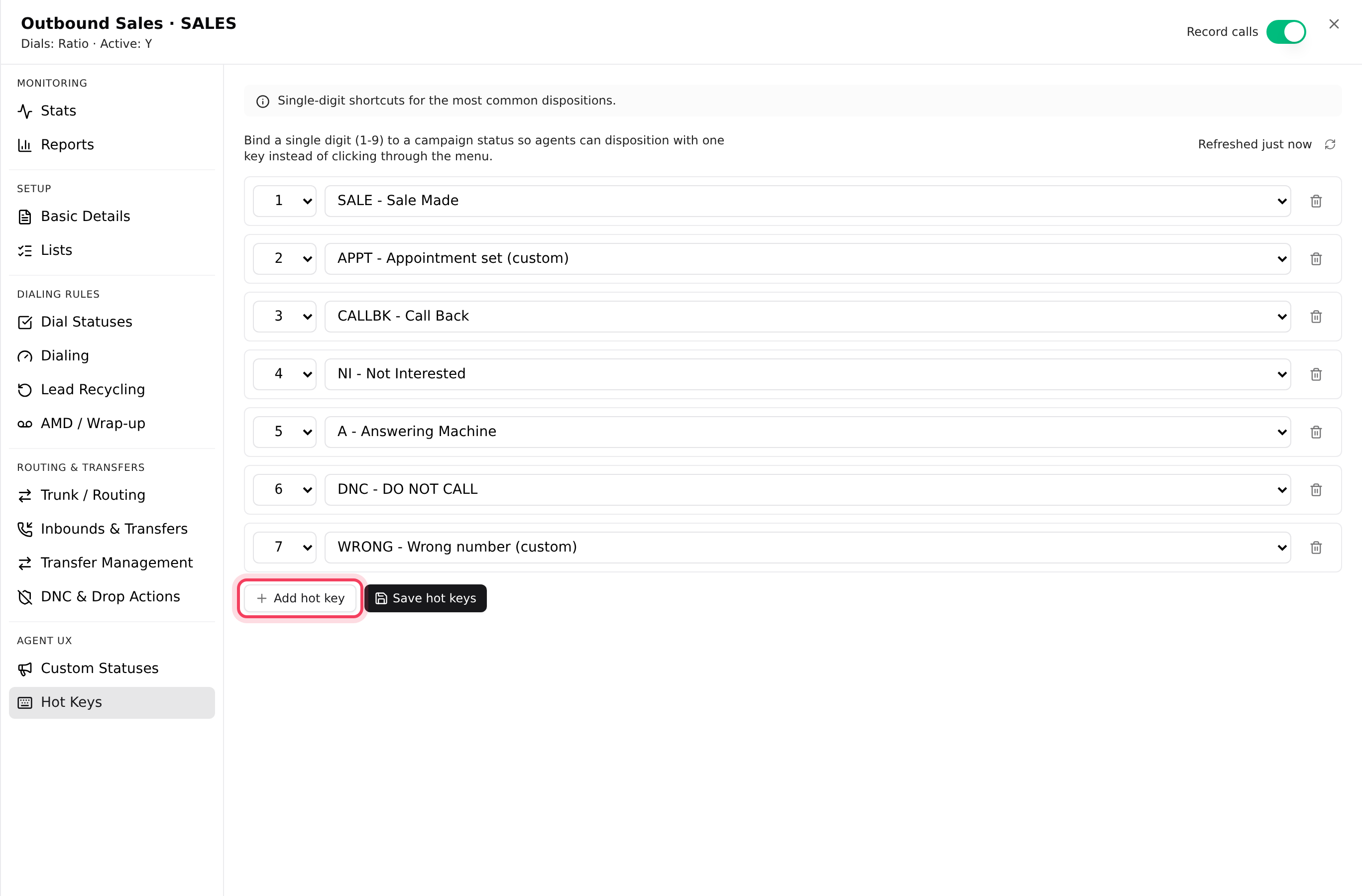
Agents who are signed in get the new keys the next time they sign in to the campaign. Copying a campaign with Clone copies its hot keys too.
Step 2: Check each agent may use hot keys
Hot keys are also switched on or off per agent. Agents you create on the Users tab, in bulk, or with the Setup Wizard have them on.
Agents created in VICIdial admin start with hot keys off, because that is VICIdial's own default. Agents brought over from another VICIdial server keep the setting they had there. To switch them on:
- On your server, click the Users tab, then the pencil (Edit) on the agent’s row.
- Switch on Hot keys and click Save.
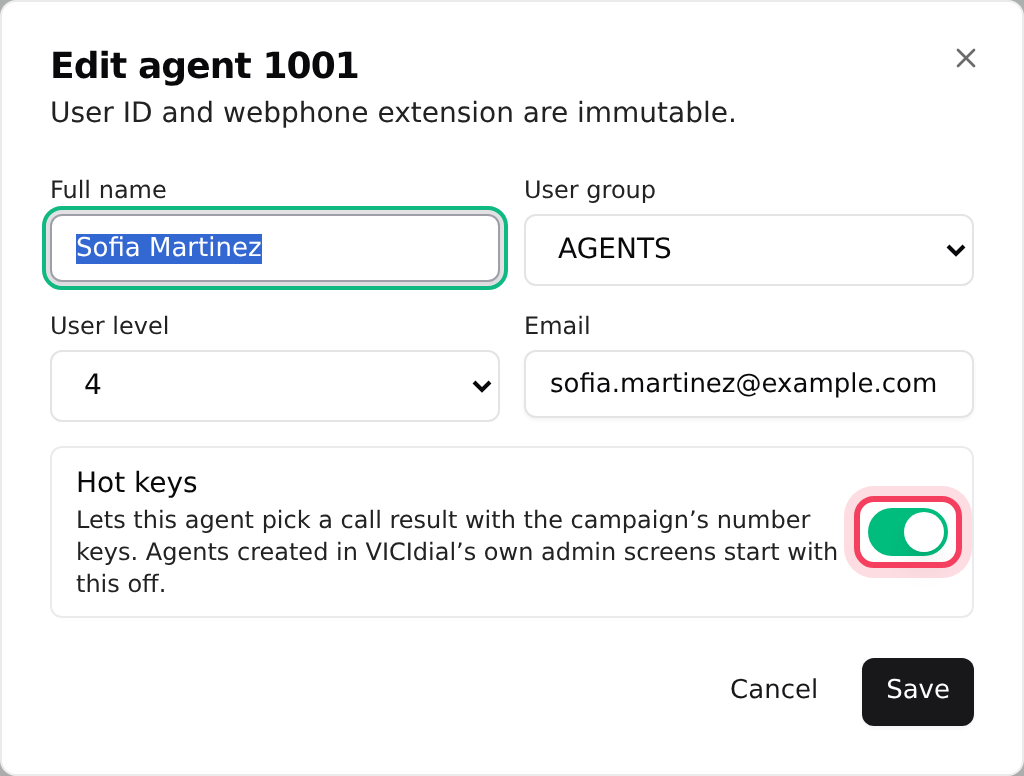
The same setting is HotKeys Active on the agent’s page in VICIdial admin, if you prefer to change it there.
Step 3: What your agents do
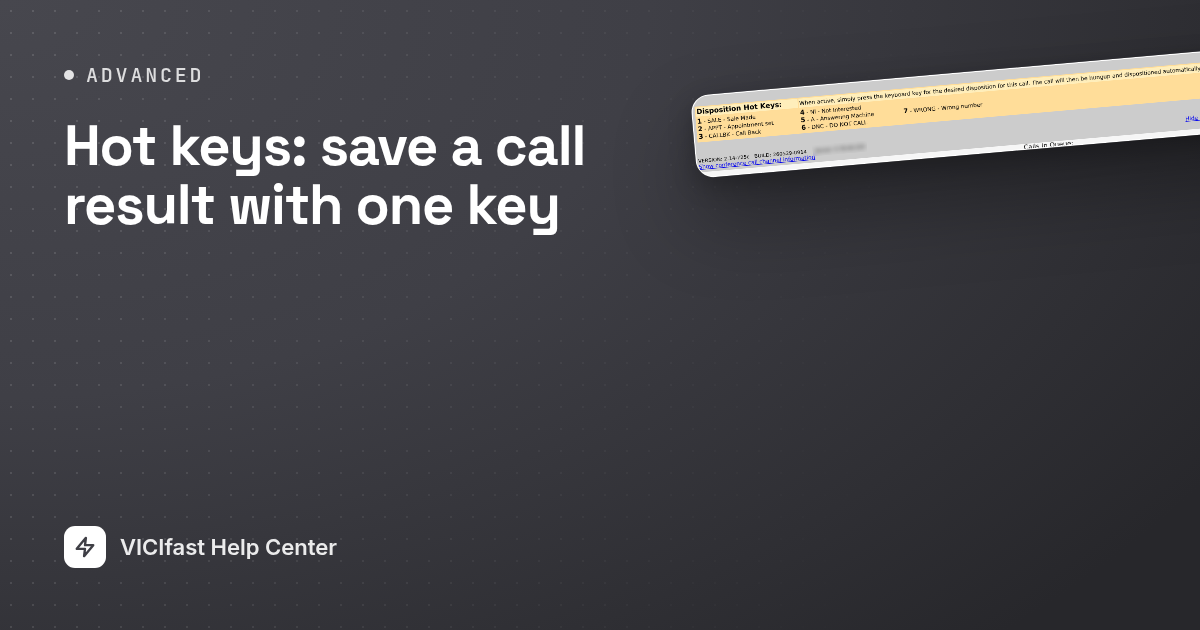
On the classic agent screen, the HOT KEYS INACTIVE button sits at the bottom right. It only shows when the campaign has hot keys and the agent is allowed to use them.
- While a call is live, the agent rests the mouse pointer on HOT KEYS INACTIVE. It changes to HOT KEYS ACTIVE and the Disposition Hot Keys: panel lists the keys.
- Keeping the pointer there, the agent presses the number. The call hangs up, the result shows for a moment, and it is saved.
- Moving the pointer off the button switches hot keys off again.

On the newer VICIfast screen, the agent clicks Hot keys once instead. It reads Hot keys on until they click it again, and each key shows as a small chip with its number and result.
Want a short pause after a hot-key call? VICIdial's wrap-up timer is skipped after a hot key unless you turn it on: in VICIdial admin, open the campaign, click Detail and set Wrap Up After Hotkey to ENABLED. The timer itself is Wrap-up seconds on the campaign's AMD / Wrap-up tab in the dashboard.

Step 4: Extra hot keys from VICIdial admin (optional)
VICIdial admin has its own hot-key screen with six special actions. They are not call results, so the dashboard list does not offer them.
- In VICIdial admin, click Campaigns, then HotKeys in the menu, then MODIFY HOTKEYS next to your campaign.
- Under ADD NEW CUSTOM CAMPAIGN HOT KEY, pick a Hotkey and a Status, then click ADD.
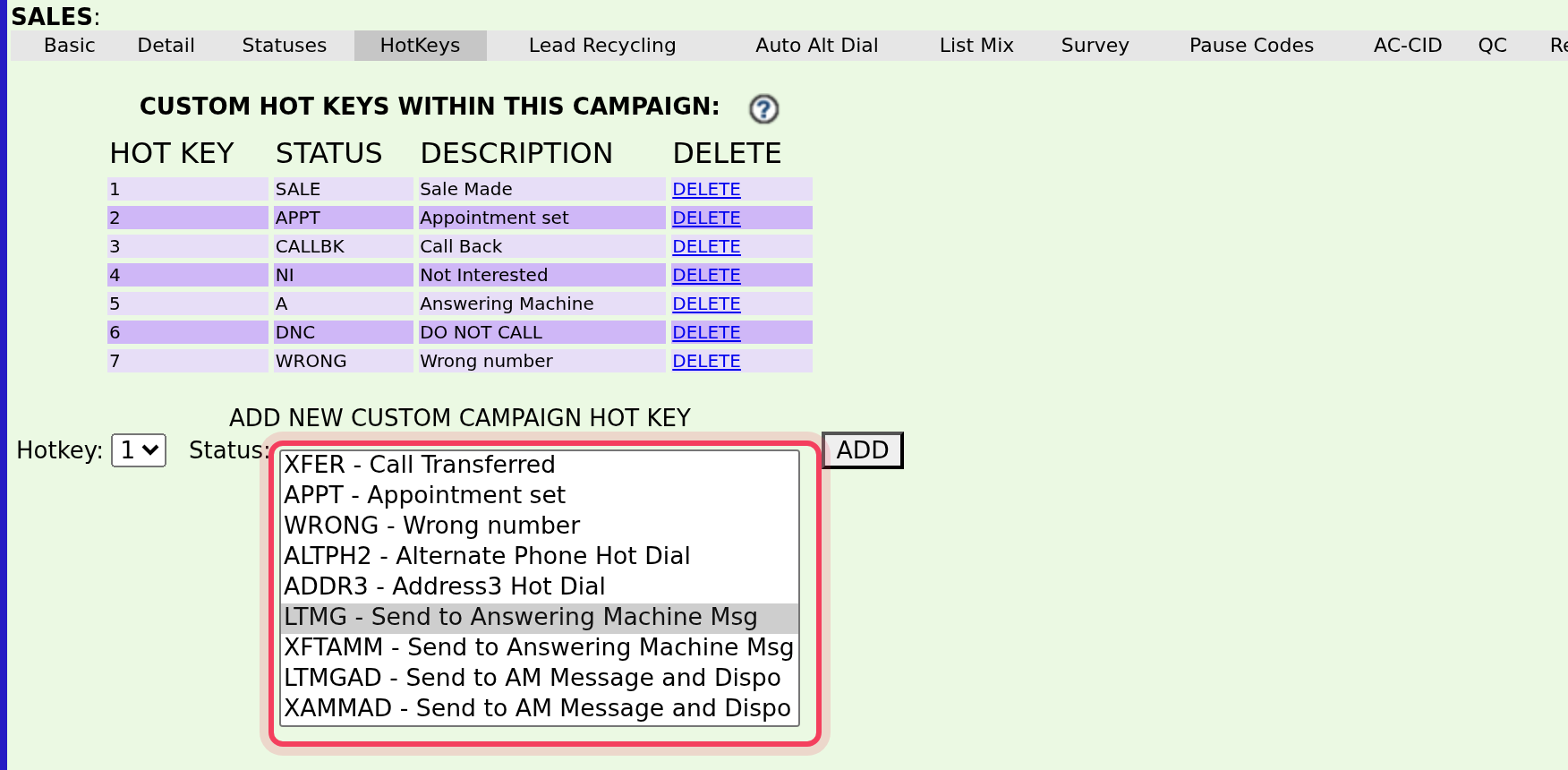
The special actions:
- LTMG and XFTAMM ("Send to Answering Machine Msg"): for when an answering machine picks up. The call goes to the campaign's answering-machine message, which plays to the machine, and the agent's result screen opens as usual.
- LTMGAD and XAMMAD ("Send to AM Message and Dispo"): the same, and the call is saved straight away with that code as its result, so the agent is free at once.
- ALTPH2 ("Alternate Phone Hot Dial") and ADDR3 ("Address3 Hot Dial"): hang up and call the same lead's alternate phone number, or the number kept in its Address3 field. They only work on campaigns with Manual Alt Num Dialing switched on in the campaign's Detail view.
The message the voicemail keys play is the campaign's Answering Machine Message in VICIdial admin. In the dashboard it is Answering machine message on the AMD / Wrap-up tab. See Answering-machine detection (AI AMD).
If something goes wrong
Frequently asked
- The campaign has no hot keys yet, or the agent's HotKeys Active setting is 0. Add keys on the campaign's Hot Keys tab, and for agents created in VICIdial admin switch on Hot keys in Edit agent on the Users tab (Step 2). Then the agent signs out and back in.
- Hot keys only work during a live call, and only while they are switched on: on the classic screen the pointer must rest on HOT KEYS ACTIVE. They also can't be switched on while the TRANSFER - CONF panel is open.
- That result has a minimum or maximum call length, and this call is outside it. Pick the result from the normal result screen, or change the limits on the result.
- The agent screen loads hot keys when the agent signs in to the campaign. Ask them to sign out and back in.
- It is one of VICIdial's special actions, such as LTMG, added in VICIdial admin. It still works. Delete the row if you don't want it.