Do-not-call lists and state calling rules in VICIdial admin
Paste many numbers into your do-not-call list, take a number off, block an area code, see who added a number, and add stricter calling hours for some US states.
Advanced · 5 min read
The dashboard covers everyday do-not-call (DNC) work: the switches on each campaign, and adding leads to the list from the Leads pill (see Do-not-call and TCPA screening). A few jobs need VICIdial's own admin screens: pasting a long list of numbers, taking a number off, blocking a whole area code, seeing who added a number, and stricter calling hours for some US states. This guide covers them.
What you need
- Your VICIdial admin login. See Open VICIdial admin and the agent screen.
- Removing numbers needs a login that is allowed to delete from DNC lists. The admin login (6666) is. A team member's own VICIdial login loses that right when their access does not include the Lists tab.
How the lists work
Your server has one list that all campaigns can share, which VICIdial calls the internal DNC list (SYSTEM_INTERNAL). Each campaign can also have a list of its own. A campaign only checks a list when its switch is on: Use internal DNC and Use campaign DNC on the campaign's DNC & Drop Actions tab. When an agent saves a result marked DNC, the number is added for you.
The technical part: the check happens when the dialer moves leads into its dialing queue (the hopper), a minute or so before they are dialed. A lead whose number is on the internal list gets the status DNCL, and on the campaign list DNCC, and is never dialed. The numbers live in the vicidial_dnc and vicidial_campaign_dnc tables and must match the lead's phone number exactly.
Step 1: Open the DNC page
- In VICIdial admin, click Lists in the left menu.
- Click Add DNC Number.
Step 2: Add many numbers at once
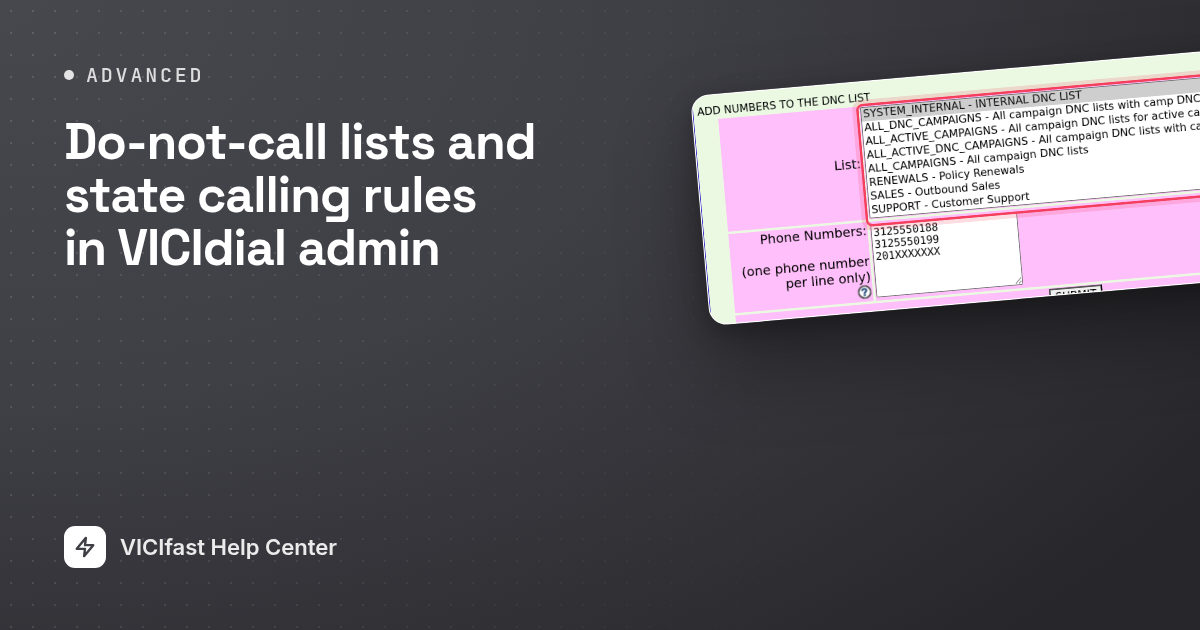
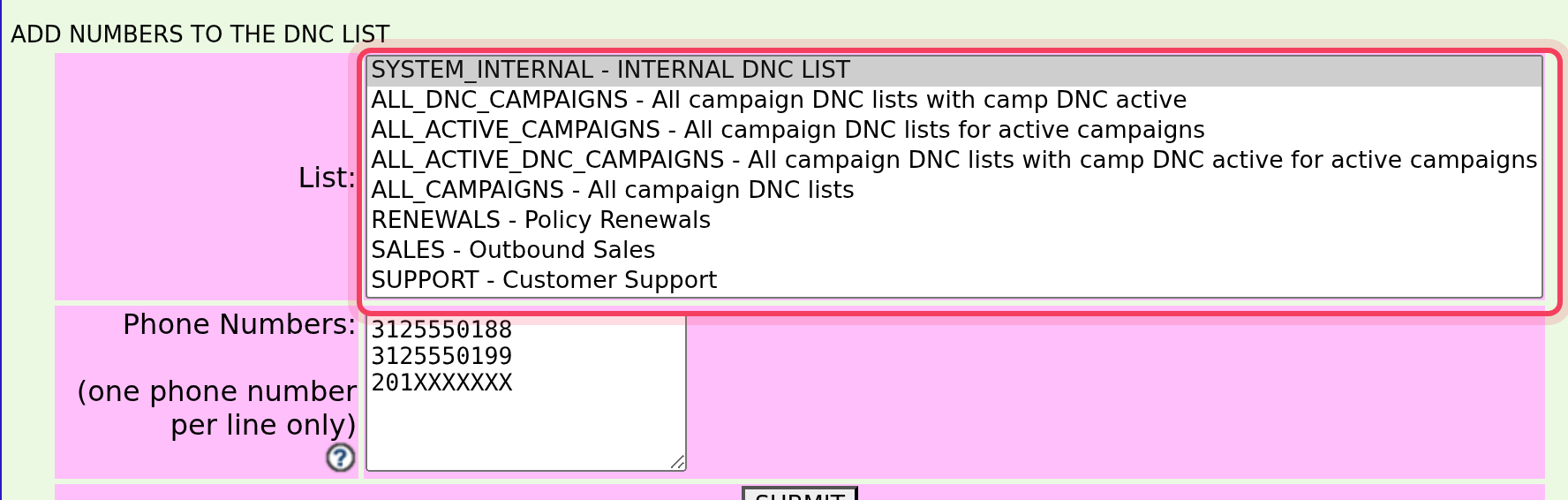
- In List, pick where the numbers go. SYSTEM_INTERNAL - INTERNAL DNC LIST applies to every campaign that uses the internal list. A campaign's name, such as SALES - Outbound Sales, adds them to that campaign's own list only. The ALL_ choices add them to many campaign lists at once, for example ALL_CAMPAIGNS - All campaign DNC lists.
- In Phone Numbers, paste the numbers, one per line, digits only. Write them the way your leads store them: for US and Canadian numbers that is 10 digits, without the 1 in front.
- Click SUBMIT. A number that is already on the list is reported as a duplicate and skipped.
Step 3: Take a number off the list
Signed in with a login that may remove numbers, such as 6666, the same page also lets you delete numbers instead of adding them. Pick the list the number is on, paste the number and click SUBMIT.
Leads that were already marked DNCL or DNCC keep that status. If one of them may be called again, change its status, for example back to NEW, on the lead. See Find, edit or add a lead.
Step 4: See who added a number
At the bottom of the same page, DNC LOG SEARCH takes a Phone Number and shows when the number was added, and by whom. Use it when a customer asks why they were, or were not, called.
Step 5: Block a whole area code
- On the DNC page, add an entry made of the 3-digit area code followed by seven X's. For example, 201XXXXXXX blocks every number in area code 201.
- In the dashboard, open the campaign's DNC & Drop Actions tab and set Use internal DNC (or Use campaign DNC, for an entry on the campaign's list) to Yes + area-code DNC. Click Save N changes.
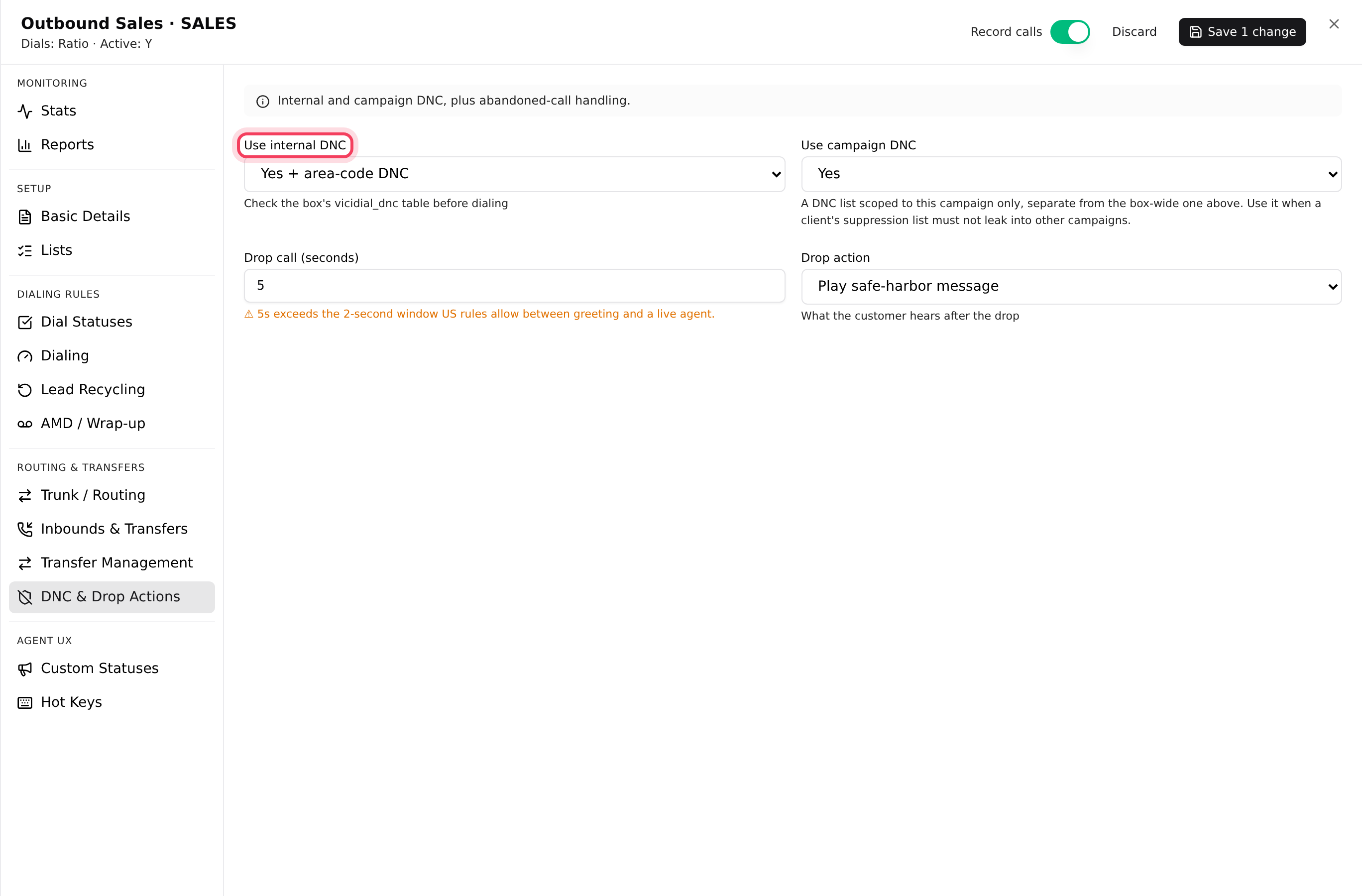
Area-code blocks only work for numbers in the US and Canada. VICIdial calls this setting AREACODE.
Step 6: Add stricter calling hours for some states
A campaign's calling hours apply to every lead in the lead's own time zone (see Calling hours, shifts and holidays). Some US states allow fewer hours, or no calls on Sundays. VICIdial can add a per-state rule on top of a call time.
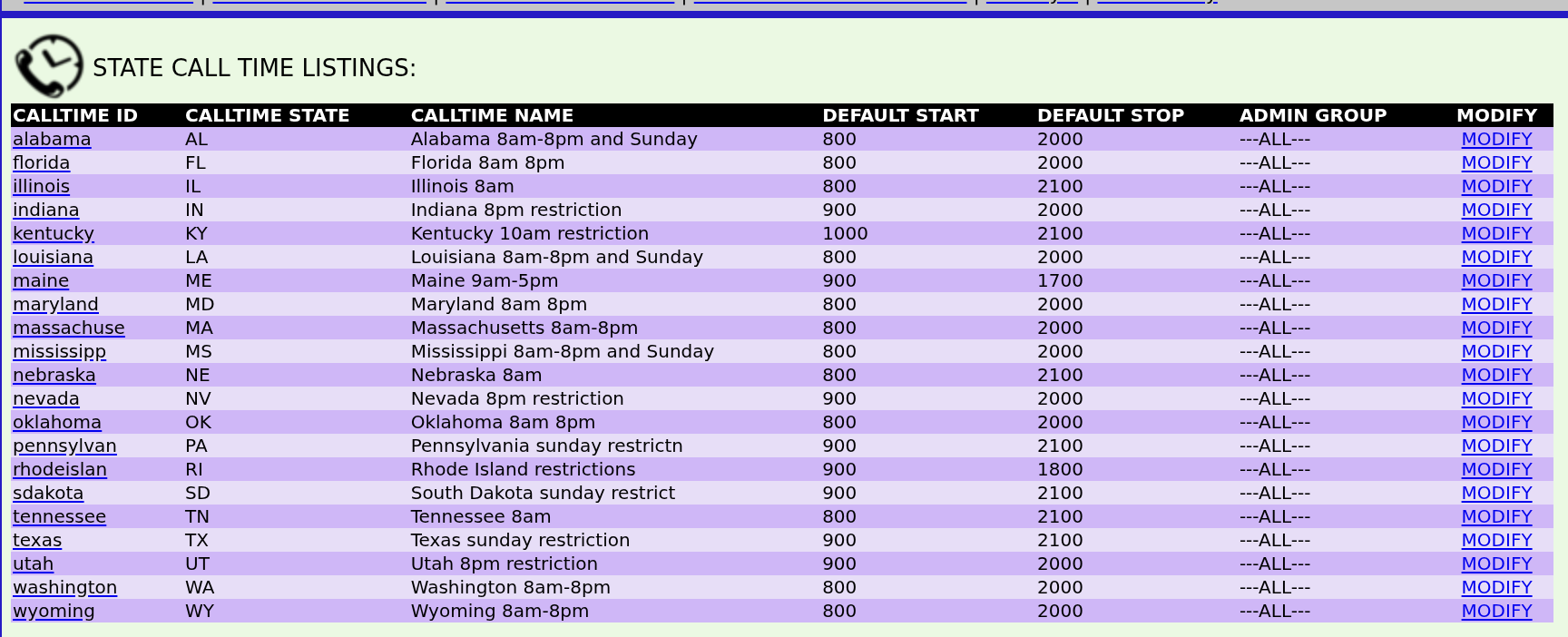
- In VICIdial admin, click Admin, then Call Times, then Show State Call Times. Your server comes with 21 ready-made rules, for example texas - Texas sunday restriction.
- Click MODIFY on a rule to see its hours, and check them against the current law for that state. These are VICIdial's built-in examples, not legal advice.
- Click Show Call Times and open the call time your campaigns use, for example 9am-9pm.
- Pick the rule in Add state call time rule: and click the SUBMIT next to it. Repeat for each state.
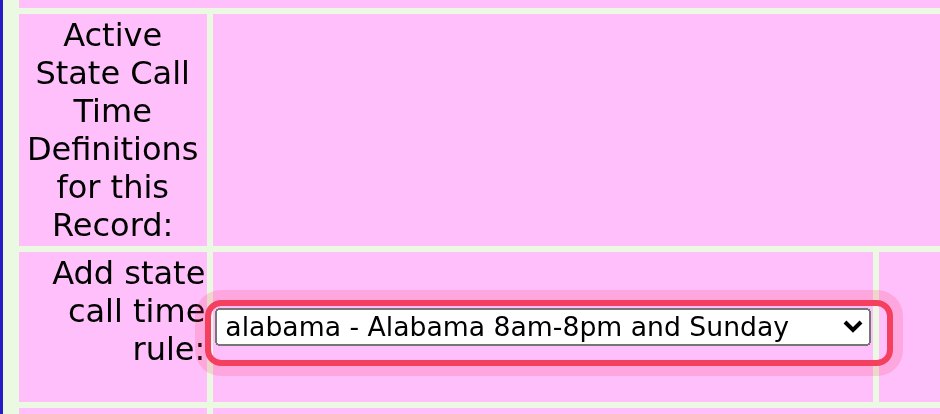
A state rule only works for leads whose state field holds the two-letter code, such as TX. The dashboard's Schedules tab doesn't show these rules, but saving a call time there keeps them.
Opt-outs from your website
If people opt out on a web form, an API Studio endpoint set to Add to DNC puts each number on your list as it arrives, with no VICIdial login in the form. See API Studio.
If something goes wrong
Frequently asked
- Check three things. The number must match the lead's number exactly, so 10 digits without the 1 for US numbers. The campaign must have Use internal DNC (or Use campaign DNC) switched on for the list you used. And a lead that was already in the dialing queue when you added the number may still be dialed once.
- Your login isn't allowed to delete from DNC lists, so the page only adds. Use the 6666 admin login, or ask the account owner.
- Set Use internal DNC to Yes + area-code DNC on the campaign, and make the entry the area code plus seven X's, for example 201XXXXXXX.
- The rule must be added to the call time the campaign actually uses, and the leads need the two-letter state code in their state field.
- No. Scrub your files against it before you upload them, and keep the internal list for your own opt-outs.