Taking calls: ready, pause and call results
Your everyday routine: get ready for calls, take a break, end a call and save what happened.
For your agents · 3 min read
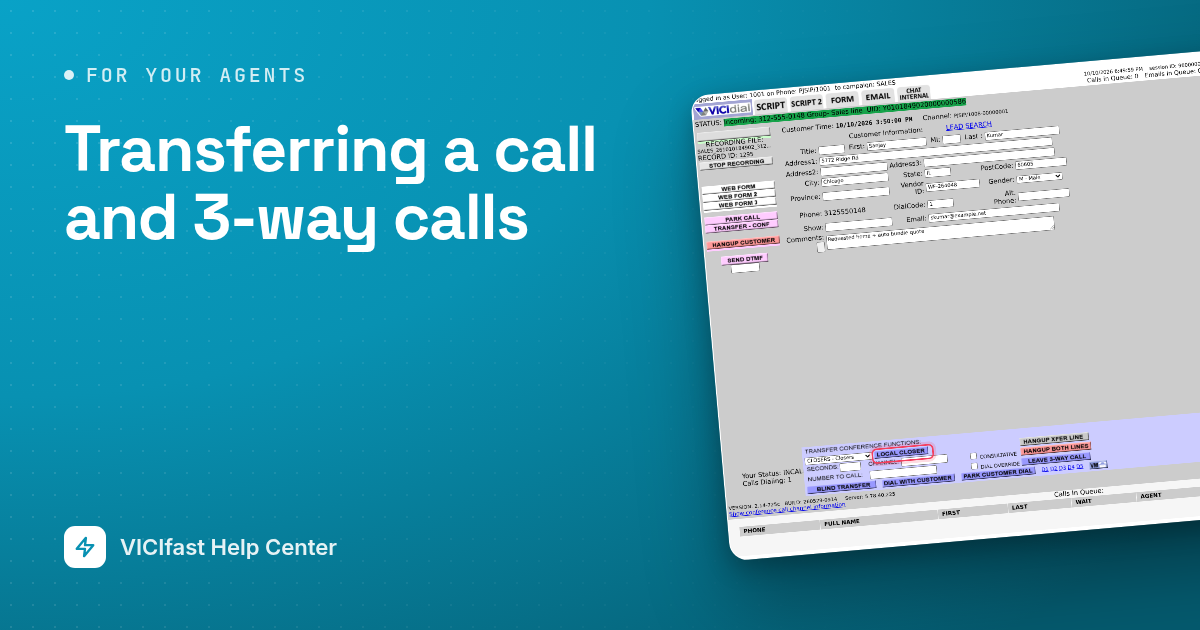
This is what you do all day: get ready, talk to customers, save the result of each call, and pause when you need a break. You need to be signed in first. See Signing in to the agent screen.
Step 1: Get ready for calls
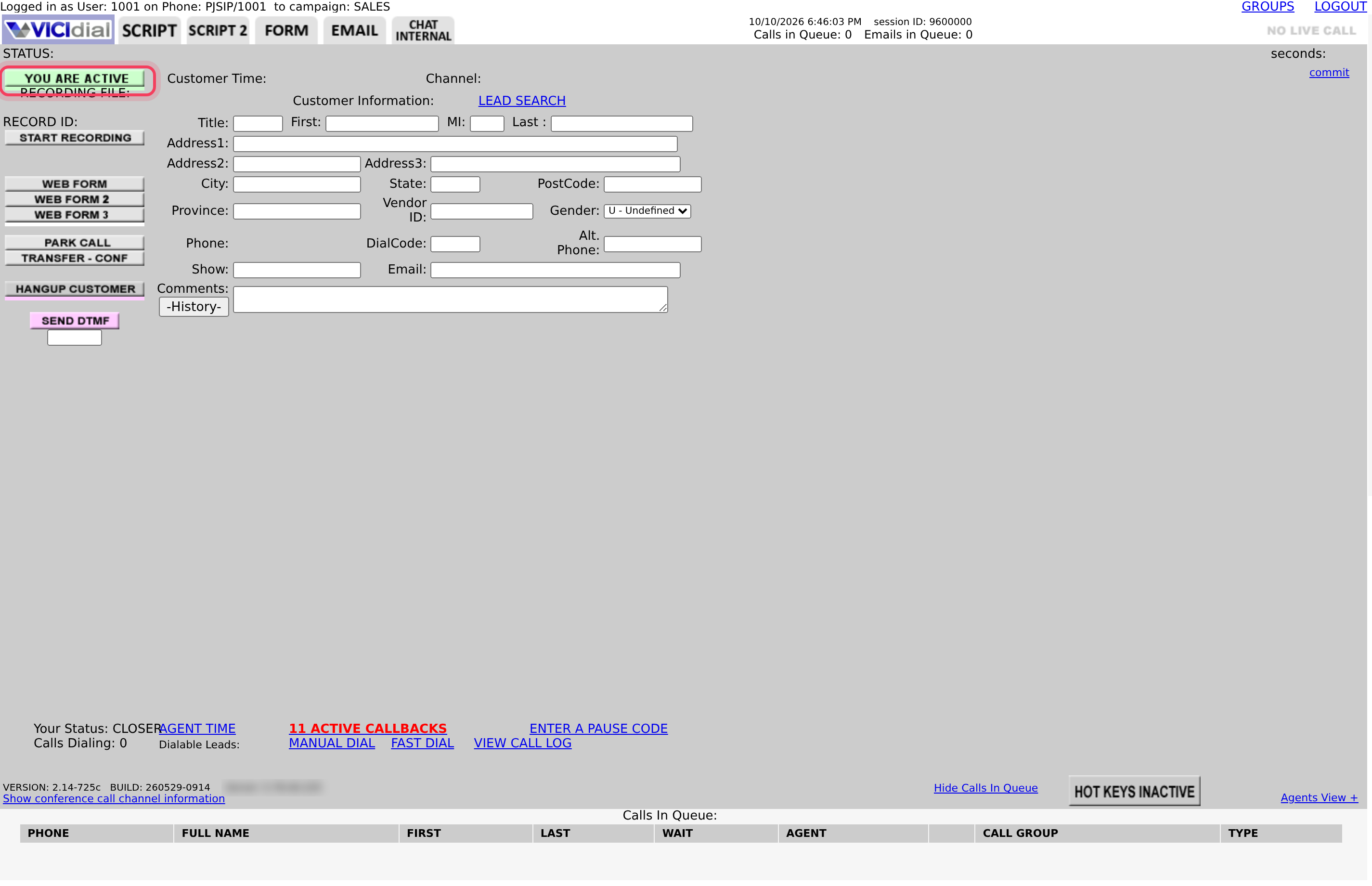
- Click YOU ARE PAUSED on the left side of the screen.
- It turns green and says YOU ARE ACTIVE. You are now ready.
Calls come to you by themselves. You don't dial and you don't answer: your phone picks up for you. Keep your headset on.
Step 2: Talk to the customer
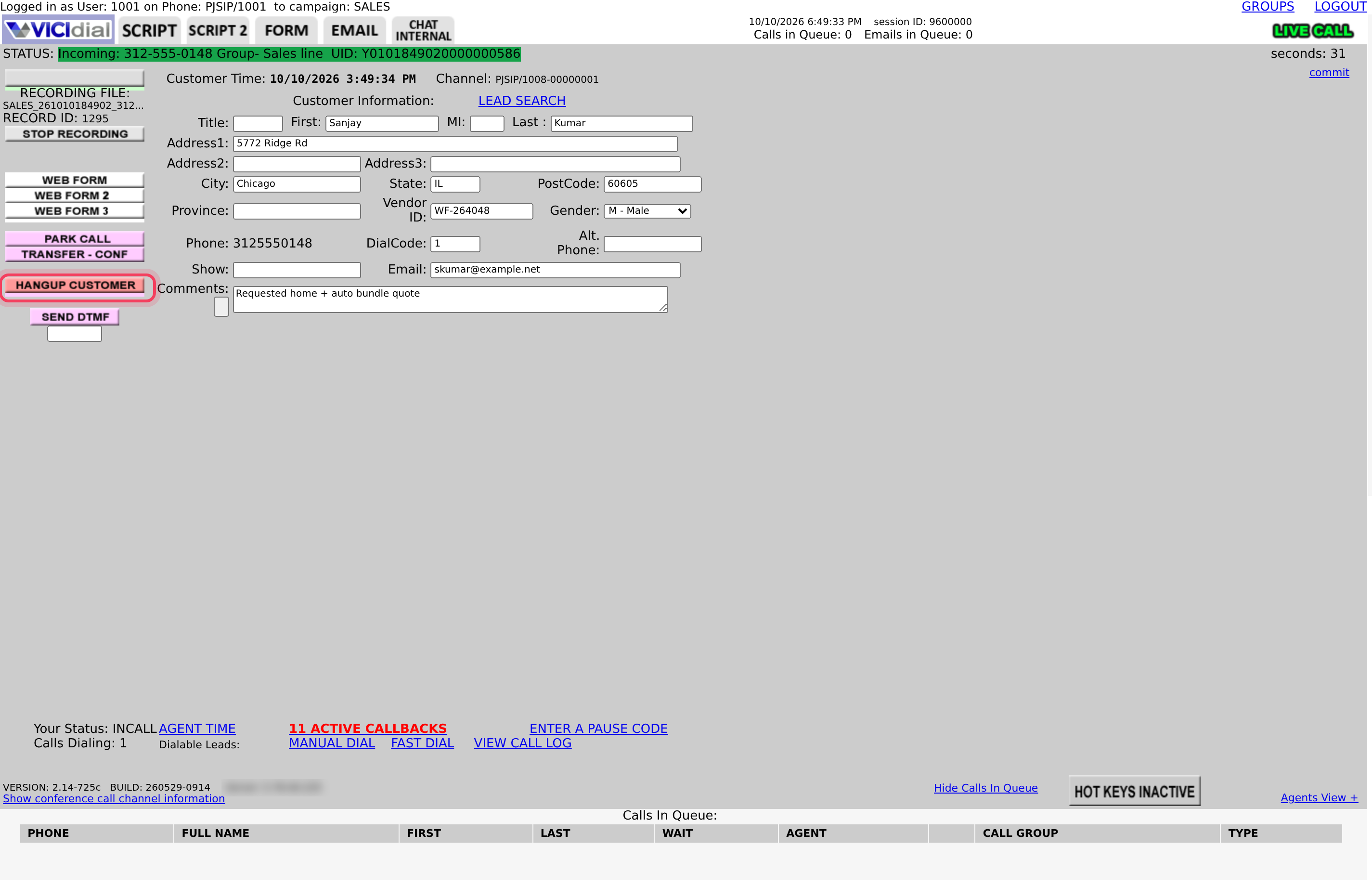
When a call reaches you, the customer's name, number and details fill the screen, and the light at the top says LIVE CALL. Say hello right away, the customer can already hear you.
- If your manager gave you a script, click the SCRIPT tab to read it. Click the logo tab at the top left, next to SCRIPT, to go back to the customer's details.
- Fix anything wrong in the customer's details before you hang up. The changes are saved with the call.
- Need to put the customer on hold? Click PARK CALL. They hear music. Click GRAB PARKED CALL to talk again.
Step 3: End the call
- Click HANGUP CUSTOMER.
- If the customer hangs up first, the light says CALL HUNGUP. Click HANGUP CUSTOMER anyway to finish.
The result screen opens next.
Step 4: Save the result
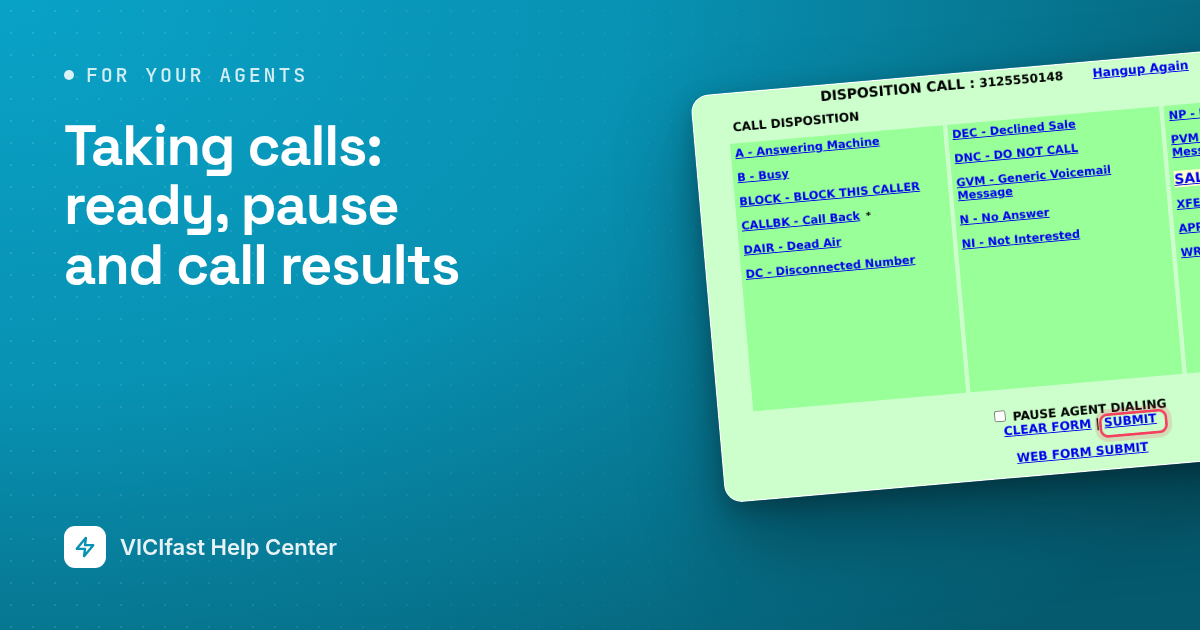
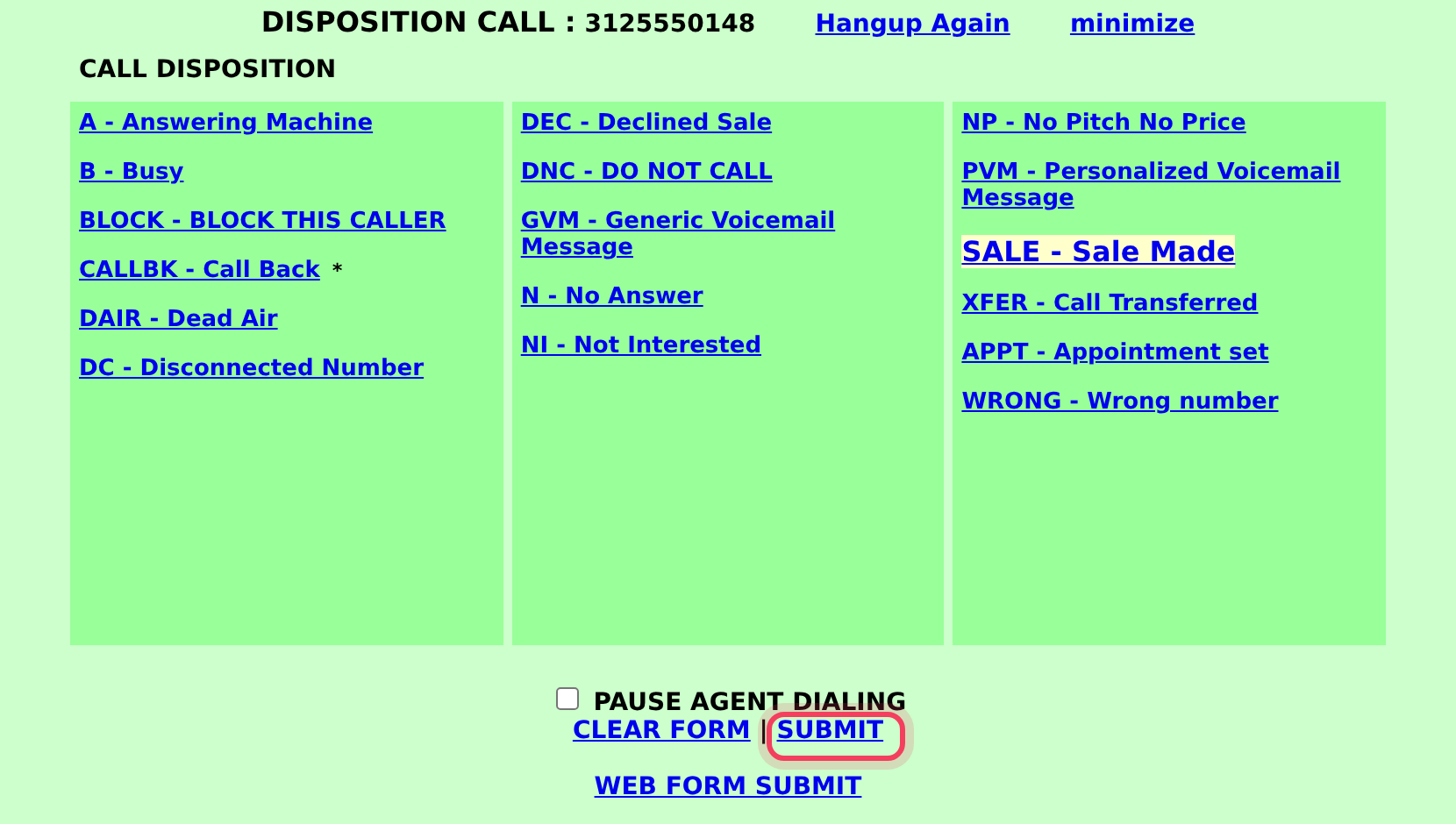
The DISPOSITION CALL : screen lists the results your company uses, for example SALE, NI (not interested), CALLBK (call back) or DNC (do not call).
- Click the result that matches the call.
- Want a break after this call? Tick PAUSE AGENT DIALING.
- Click SUBMIT.
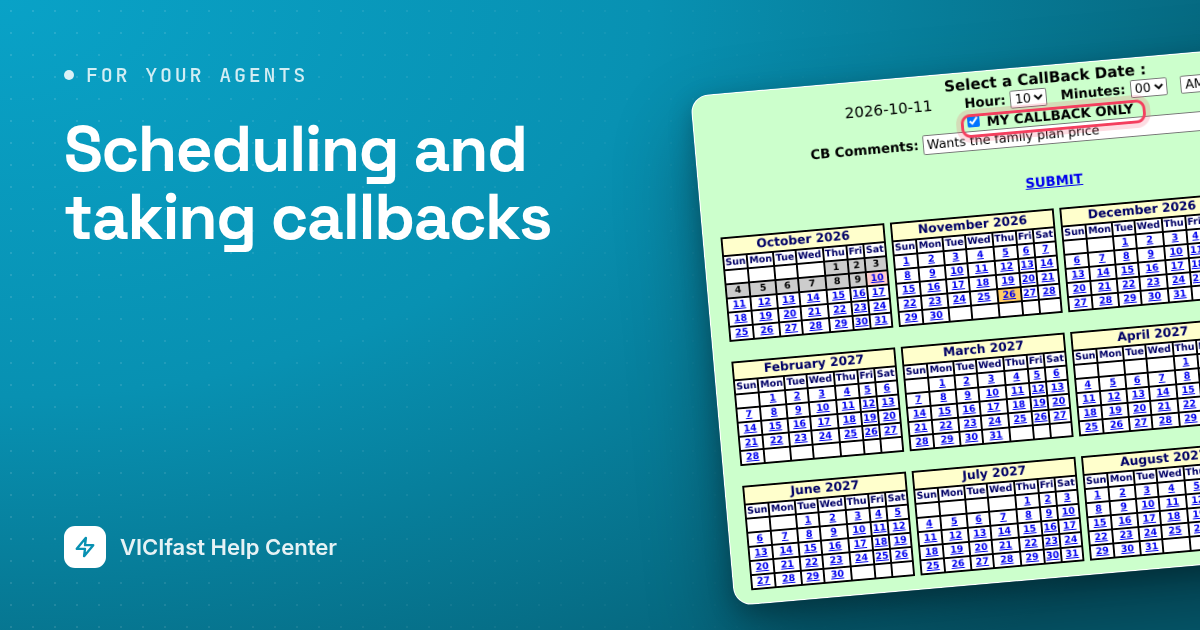
If you picked a callback result, a calendar opens to set the time. See Scheduling and taking callbacks.
If you are still active, the next call comes by itself.
Step 5: Take a break
- Between calls, click YOU ARE ACTIVE. It changes back to YOU ARE PAUSED and no calls come to you.
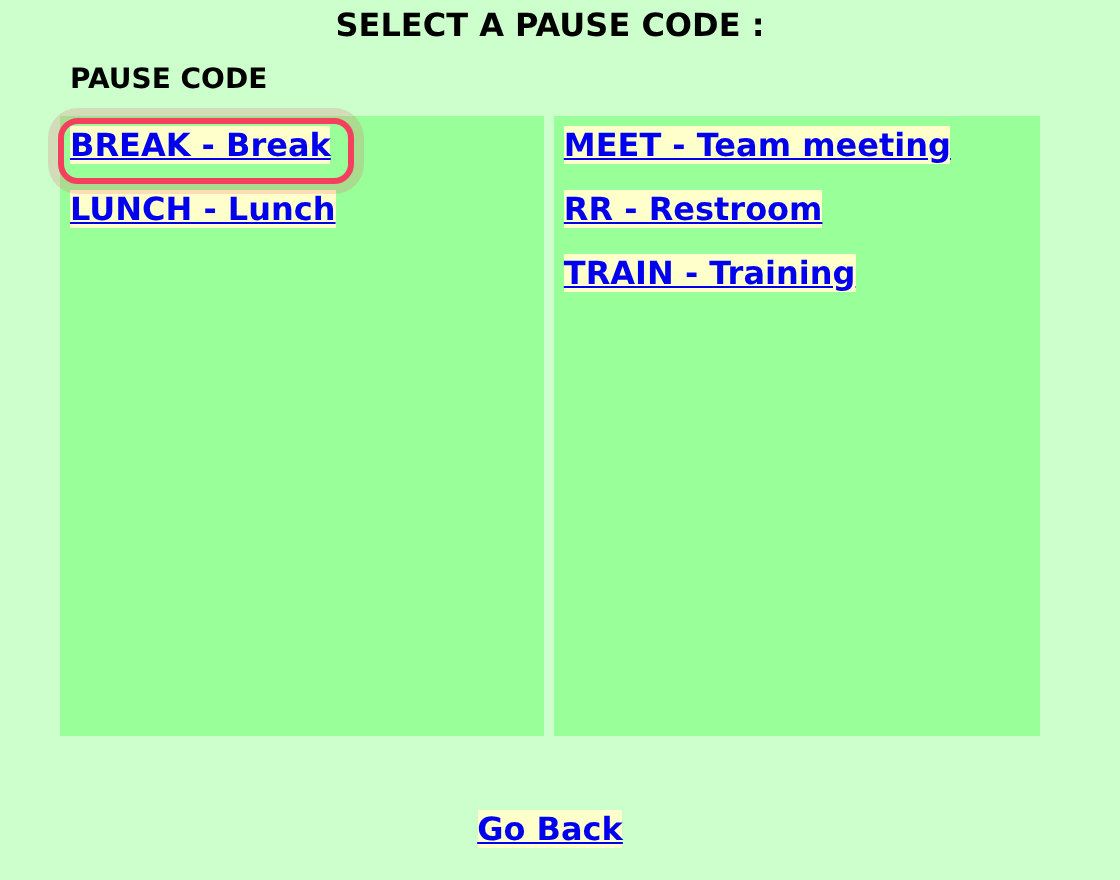
- To give a reason, click ENTER A PAUSE CODE at the bottom of the screen while you are paused. The SELECT A PAUSE CODE : list opens. Click the reason, for example BREAK - Break or LUNCH - Lunch. Your manager sees it. Go Back closes the list.
- If your company makes a reason compulsory, the same list opens by itself as soon as you pause.
- When you are back, click YOU ARE PAUSED to get ready again.
If something goes wrong
Frequently asked
- There may be no one left to call, or it is outside calling hours. Stay active and tell your manager if it lasts more than a few minutes.
- The screen was checking for a call at that moment. Click again.
- You are still on a call. Click HANGUP CUSTOMER first.
- The customer left the call. Click Finish and Disposition Call, then save the result.
- Pick the closest one and tell your manager. They can add results.
- Tell your manager with the customer's number. They can fix the lead.
- Check the phone on your screen says In call and Mute is off, and that the right headset is picked. See Your agents' webphone.