Call results (dispositions)
Add your own call results, choose what each one counts as, retire old ones, and give one campaign its own results and hot keys.
Campaigns & leads · 4 min read
Every call ends with a result that the agent picks: Sale, No answer, Call back, Do not call. VICIdial calls these dispositions (or statuses). Think of them as the label on a finished job. They feed your reports, decide which leads get called again, and keep your do-not-call list up to date. Your server comes with VICIdial’s standard set. This guide shows how to add your own and give one campaign its own extras.
What you need
- You are the account owner, or a team member allowed to make changes on the Campaigns tab.
- Deleting a result needs the owner or a team member with the Admin role.
Step 1: Open Dispositions
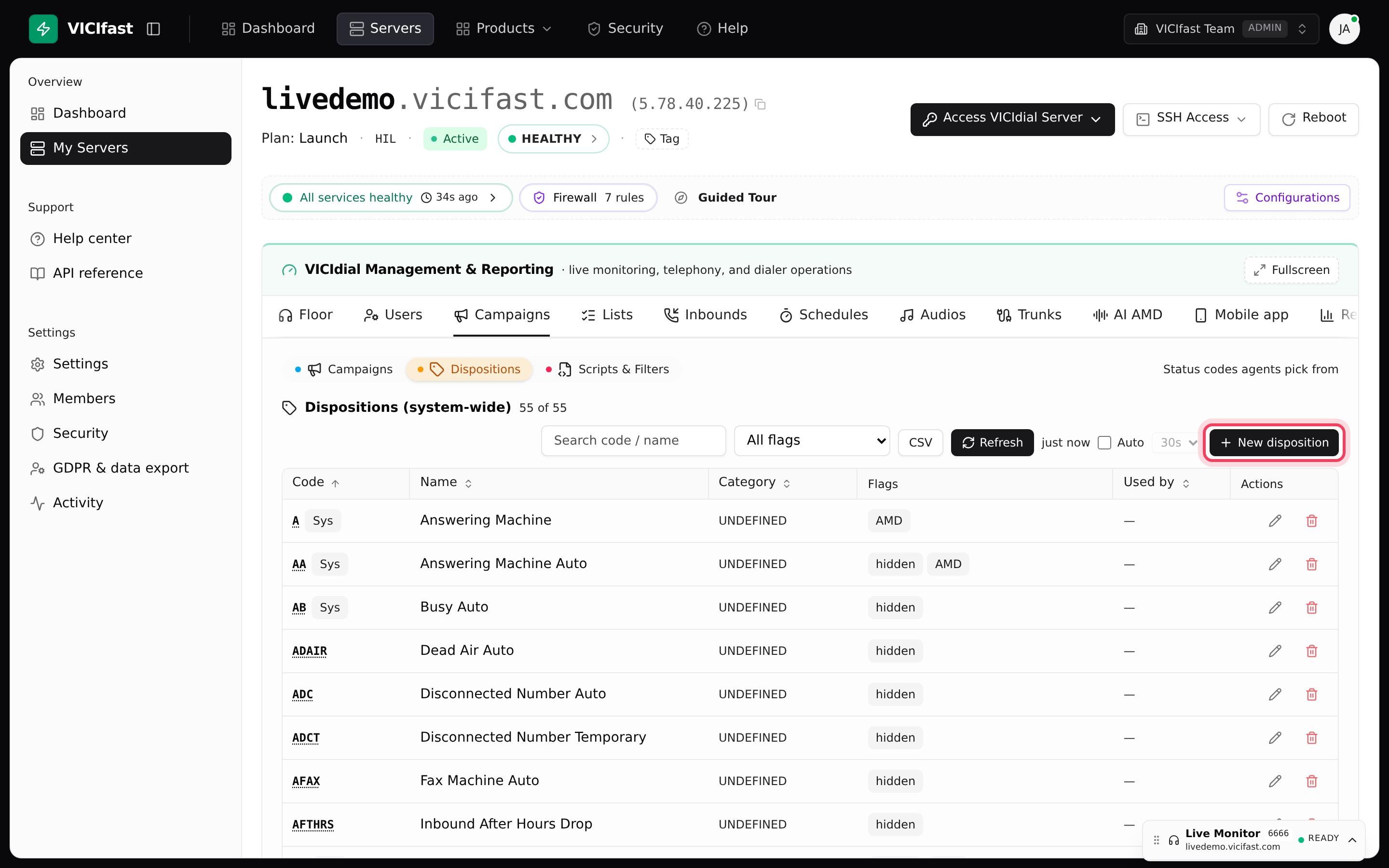
- Open your server from My Servers and click the Campaigns tab.
- Click the Dispositions pill.
The table Dispositions (system-wide) lists every result on your server: the Code, the Name agents see, a Category, its Flags and Used by (how many campaigns have their own version of it). VICIdial’s built-in results carry a Sys badge. Use Search code / name and the flag menu (Sales only, DNC only, Human-answered, Callback) to find one fast.
Step 2: Add a result
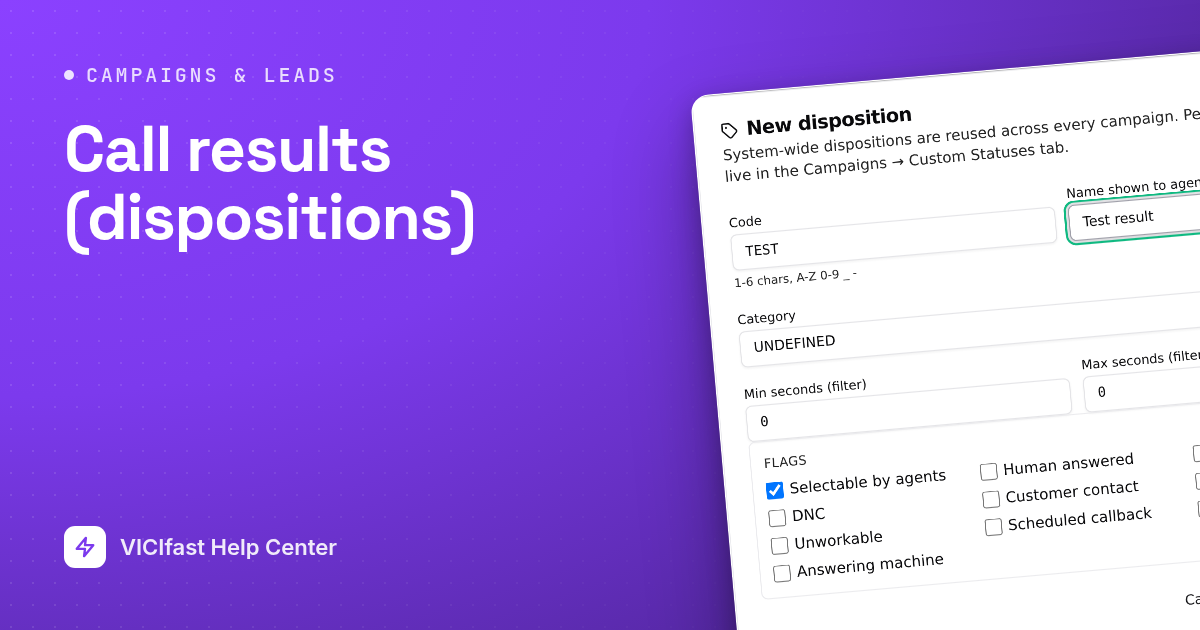
- Click New disposition.
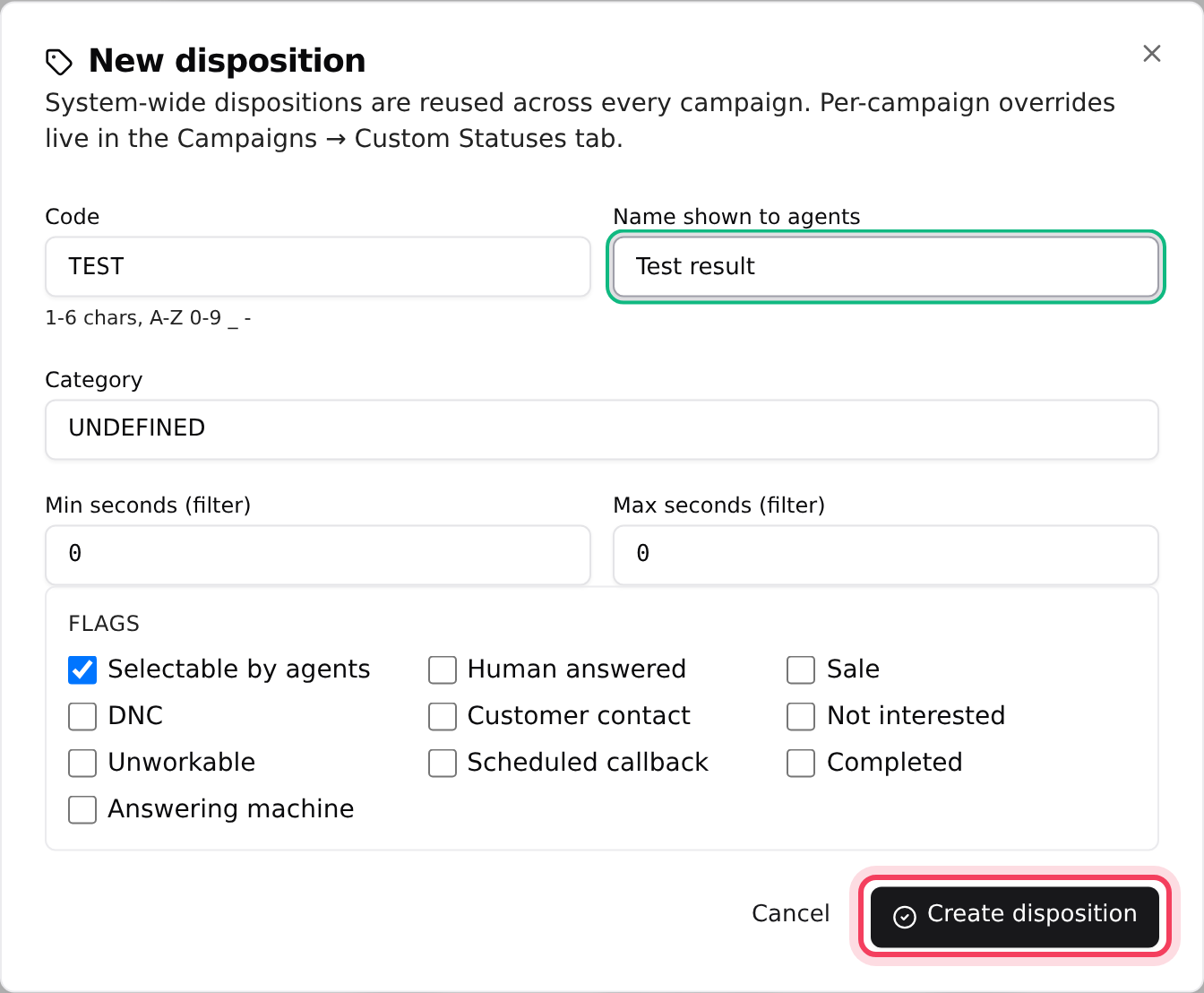
- Code: 1 to 6 characters, A-Z, 0-9, _ or -. For example APPT. The code cannot be changed later.
- Name shown to agents: the words agents read, for example "Appointment set".
- Category: an optional label for your own grouping.
- Min seconds (filter) and Max seconds (filter): leave both at 0, unless the result should only be allowed on calls of a certain length.
- Tick the flags that fit (Step 3), then click Create disposition.
Step 3: Pick the right flags
Flags tell the dialer and your reports what a result means:
- Selectable by agents: the result shows in the agent’s list. Untick it to retire a result; it then shows a "hidden" badge but stays in your history.
- Sale: counts as a sale in your stats.
- DNC: the number is added to the do-not-call list.
- Customer contact and Human answered: a real person was reached.
- Scheduled callback: the agent is asked when to call back. See How callbacks work.
- Not interested, Unworkable, Completed and Answering machine: for your own breakdowns of why a lead ended.
Step 4: Edit or retire a result
- Click a code in the table to open it. Change anything except the code, then click Save changes.
- To delete, click the trash icon and type the code when your browser asks. Built-in results warn you first. A result cannot be deleted while a campaign has its own version of it (see Used by).
Step 5: Give one campaign its own results
Results in the table above are shared by every campaign. When one campaign needs extra results, or its own wording for a shared code:
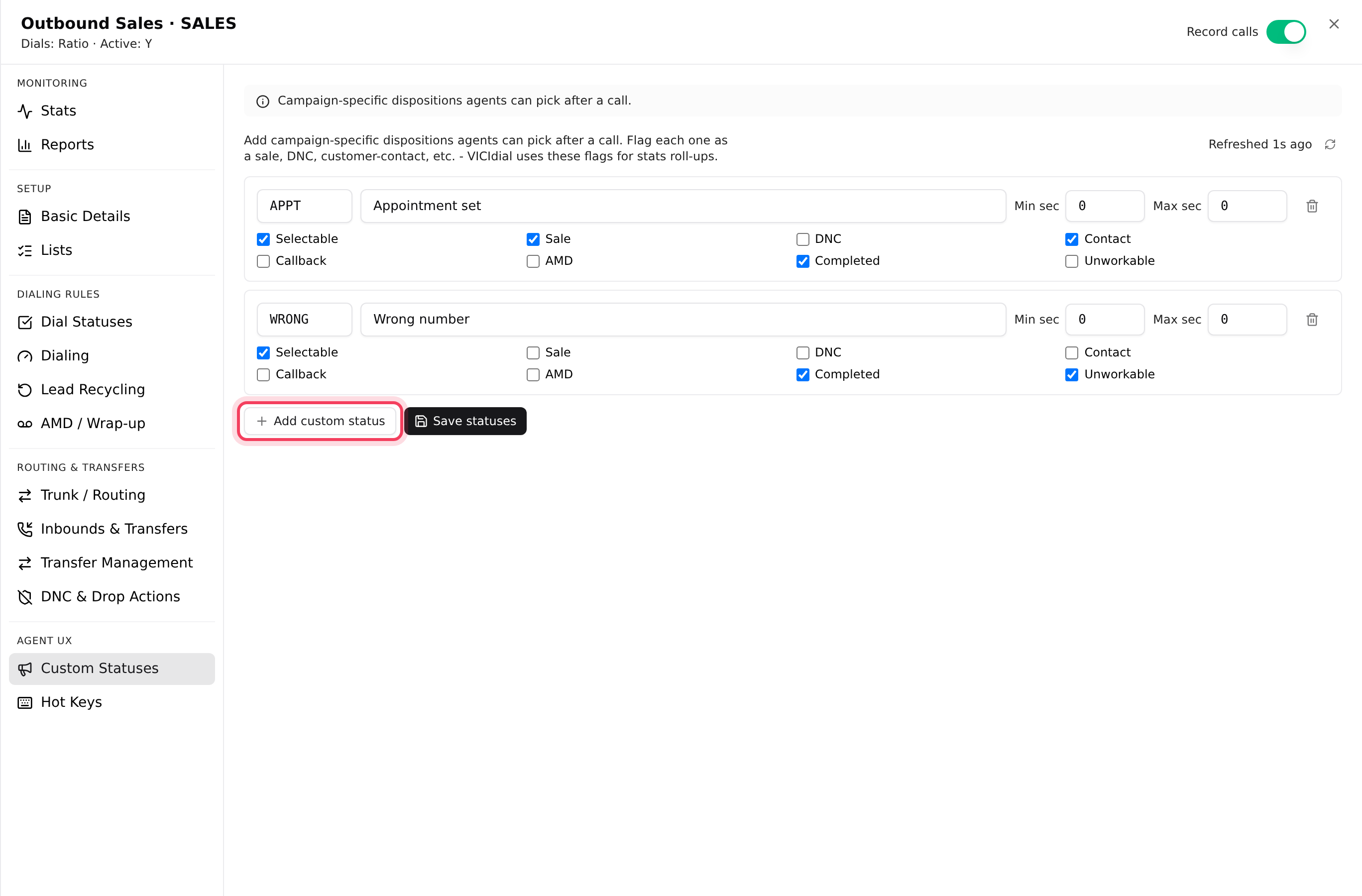
- On the Campaigns pill, click your campaign to open its settings.
- Click Custom Statuses (under Agent UX).
- Click Add custom status. Type a Code (A-Z and 0-9, up to 6) and the Status name agents see. Set Min sec and Max sec if needed, and tick the flags: Selectable, Sale, DNC, Contact, Callback, AMD, Completed, Unworkable.
- Click Save statuses.
If a campaign result uses the same code as a shared one, the campaign’s version wins on that campaign. A campaign with none shows "No custom statuses for this campaign. The default VICIdial set still applies."
Want agents to pick a result with one key? On the Hot Keys tab, click Add hot key, choose a key from 1 to 9 and a result, then Save hot keys. More detail for your IT person: Hot keys: save a call result with one key.
What agents see
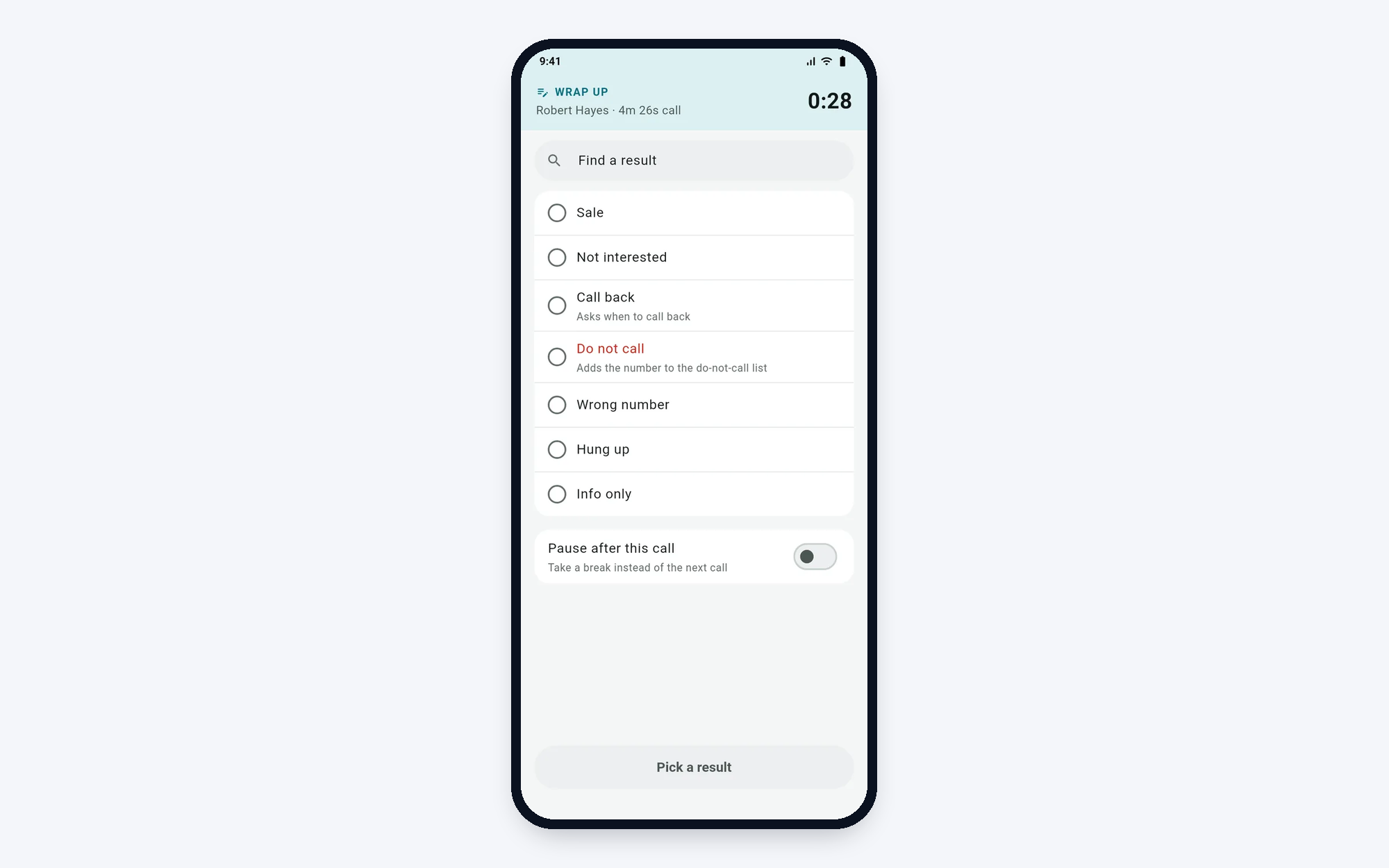
After each call, agents pick a result from the list on their screen. Results you unticked as selectable are not offered. On the VICIfast Phone app the list appears on the Wrap up screen, showing the names you set, with a Find a result search. Results flagged DNC say "Adds the number to the do-not-call list"; callback results say "Asks when to call back".
If something goes wrong
Frequently asked
- Check that Selectable by agents (or Selectable, for a campaign result) is ticked. A custom status only shows on the campaign it belongs to.
- One or more campaigns have their own version of that code. Remove it from their Custom Statuses tab first, then delete it here.
- No, codes are permanent. Create a new result with the code you want, use it, then retire the old one by unticking Selectable by agents.
- Shared results apply to every campaign. To change a result for one campaign only, add a custom status with the same code on that campaign instead.
- Which results get redialed is set on each campaign’s Dial Statuses tab, not here. See "Redials and lead recycling".