Answering-machine detection (AI AMD)
Answering-machine detection sends people to your agents and keeps voicemail away from them. Turn it on per campaign, connect AI AMD for your own carriers, and check how well it works.
Phone lines, numbers & caller ID · 4 min read
When your dialer calls a list, many calls are answered by voicemail, not a person. Answering-machine detection (AMD) listens to the first moments after a call is answered and decides: person or machine. People are put through to an agent. Machines are hung up, or get a message. Your agents spend their time talking to people instead of listening to greetings.
Which detection your calls use
- Calls on your VICIfast Voice line: detection is included with the line. You switch it on per campaign, and the results show on the AI AMD Stats page.
- Calls on your own carrier: you can connect your own AMDy account on the server's AI AMD tab. If AMDy ever can't answer, the call falls back to VICIdial's built-in AMD, so no call is lost.
Either way, a campaign only uses detection once you turn it on for that campaign (Step 1).
What you need
- Access to your server's Campaigns tab.
- For the AI AMD tab: the account owner, or Configurations access on that server, and an AMDy account. Setting it up is free on every plan; AMDy bills you directly for detections.
- For AI AMD Stats: the account owner, with an approved VICIfast Voice line.
Step 1: Turn detection on for a campaign
- Open My Servers, click your server, then click the Campaigns tab.
- Click the campaign's ID, for example SALES.
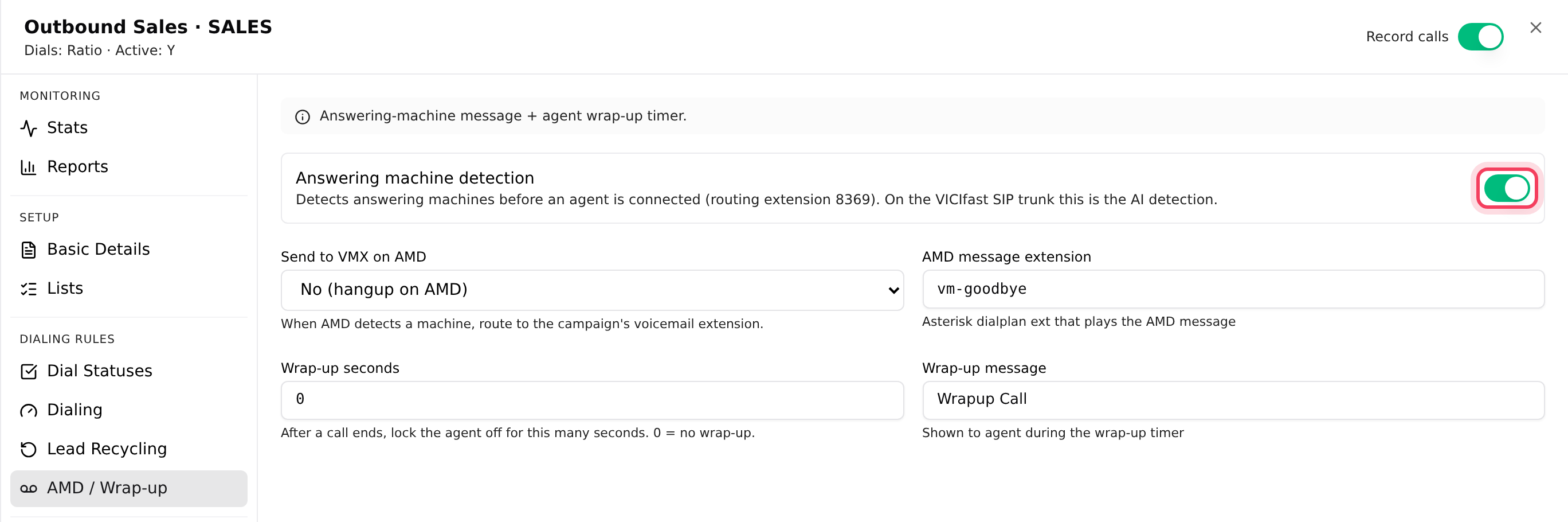
- Click the AMD / Wrap-up tab and switch on Answering machine detection.
- Choose Send to VMX on AMD: No (hangup on AMD) hangs up on machines; Yes (leave a message) sends them to the campaign's voicemail message instead.
- Click Save 1 change.
Step 2: Connect AI AMD for your own carriers
Skip this step if all your calls go over VICIfast Voice.
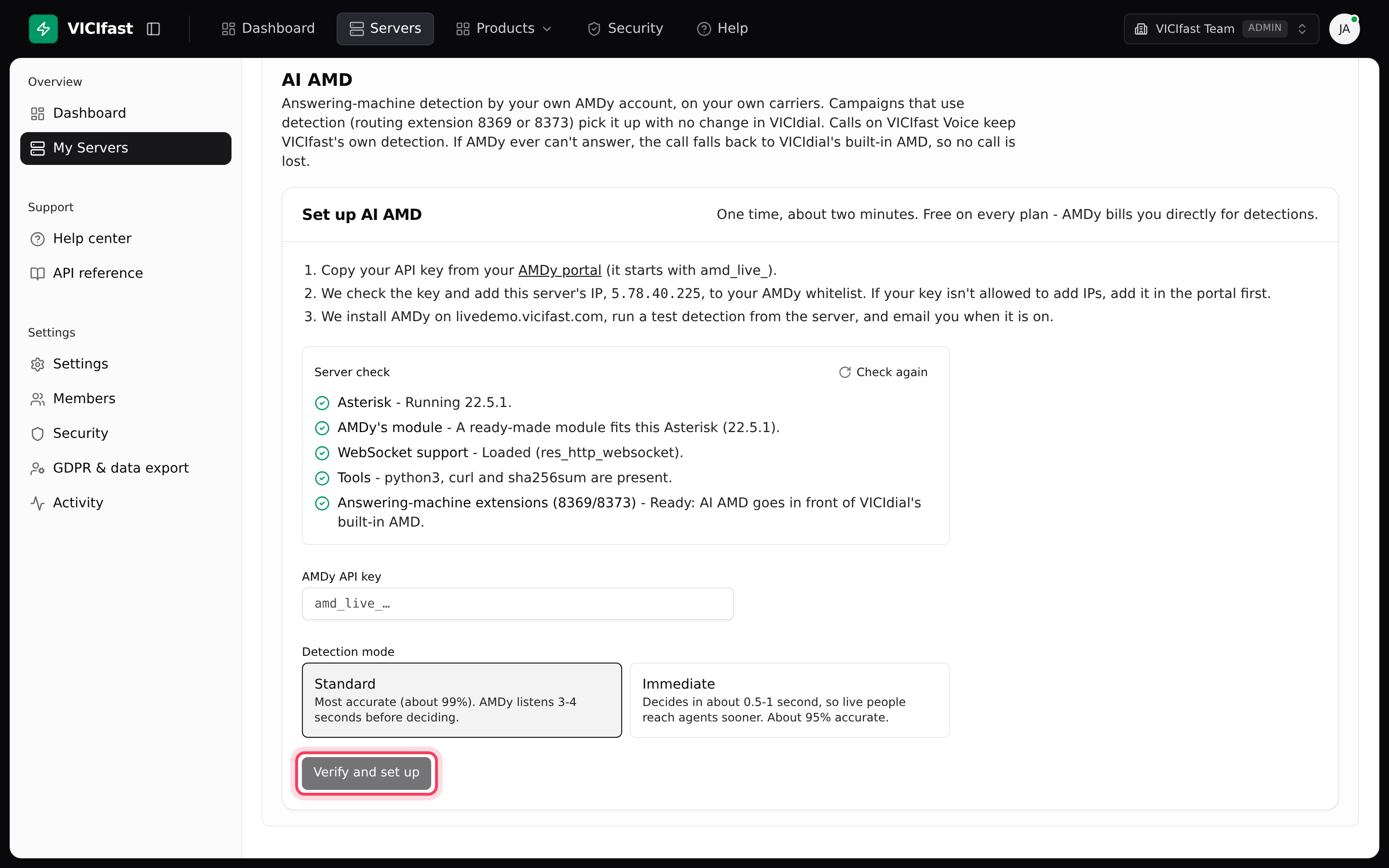
- On your server page, click the AI AMD tab.
- Wait for the Server check to finish. If it says the server isn't ready, setup stays off until the items listed are fixed.
- Copy your API key from your AMDy portal (it starts with amd_live_) and paste it into AMDy API key.
- Pick a Detection mode. Standard listens 3 to 4 seconds before deciding. Immediate decides in about half a second to a second, so people reach your agents sooner, but it is less accurate.
- Click Verify and set up. We check the key, add your server's IP address to your AMDy account, install AMDy on the server and run a test detection. The status shows Setting up, then On, and we email you when it is on.
Step 3: Choose what happens to silent calls
Once AI AMD is On, the same tab lets you change the Detection mode at any time, and choose what to do with Calls with no audio. These are calls that are answered, but no sound reaches the server for 10 seconds, so there is nothing to judge.
- Let built-in AMD decide: most of these reach an agent. Real people whose sound arrived late get through, along with some blank calls.
- Hang up as a machine: agents never get blank calls, but the occasional real person is lost.
The Detection on this server card below shows the last day, 7 or 30 days: calls Decided by AMDy, Live person, Machine, Not sure, how many Fell back to built-in AMD, and the Time to verdict. Use Check now to test the connection, and Turn off to stop using it.
Step 4: Read AI AMD Stats
- In the sidebar, under Trunks & DIDs, click AI AMD Stats.
- Pick a period: Today, Last 7 days, Last 30 days or Last 90 days. You can also narrow to one server or type a campaign name.
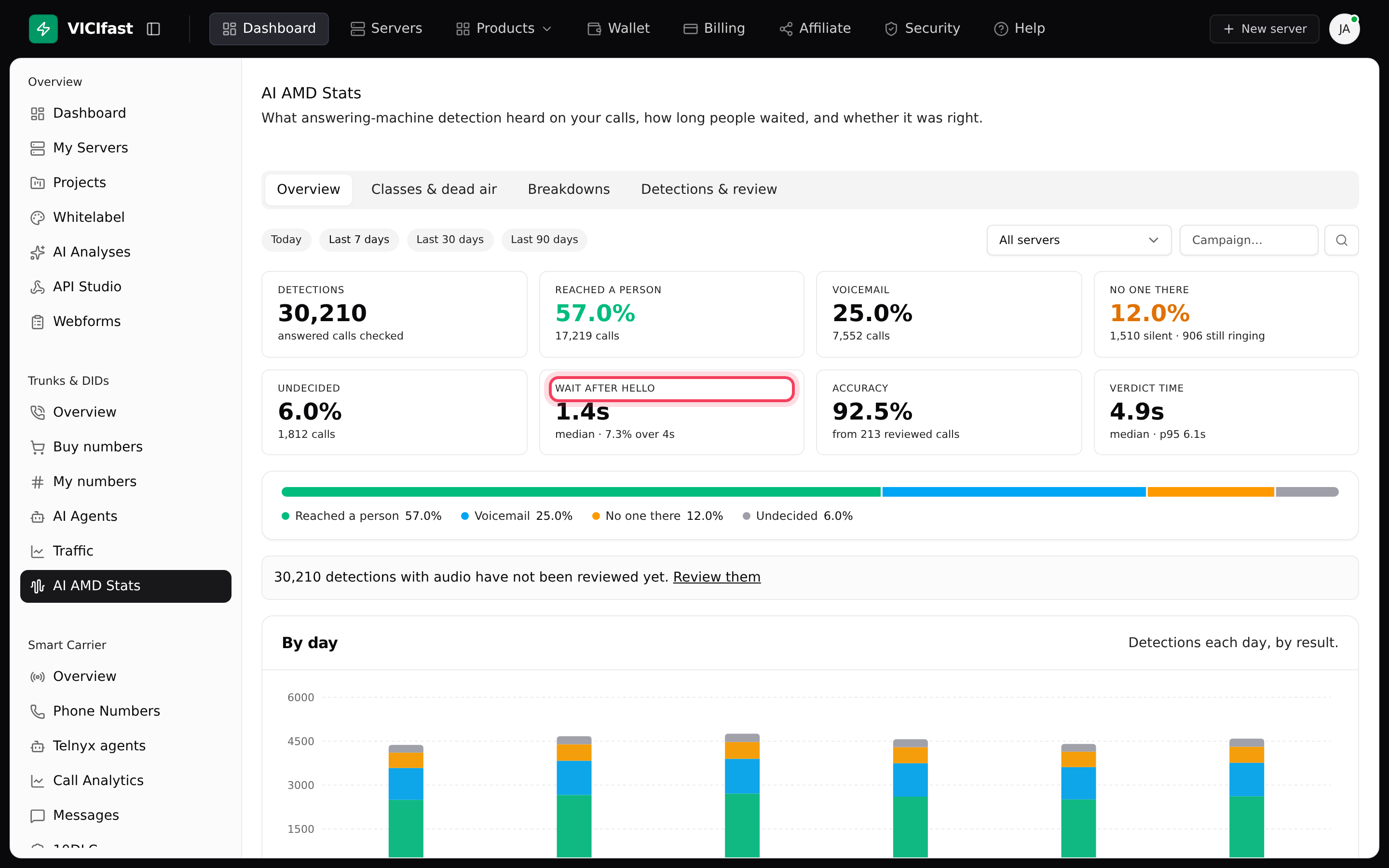
- On Overview, read the share of calls that Reached a person, went to Voicemail, had No one there (silence, or still ringing) or were Undecided.
- Check Wait after hello: how long a person waited while the detector listened. Past 4 seconds, many people hang up, so it turns amber.
- Use Classes & dead air for what the detector heard and how sure it was, and Breakdowns to compare campaigns, servers and states.
Step 5: Check the accuracy yourself
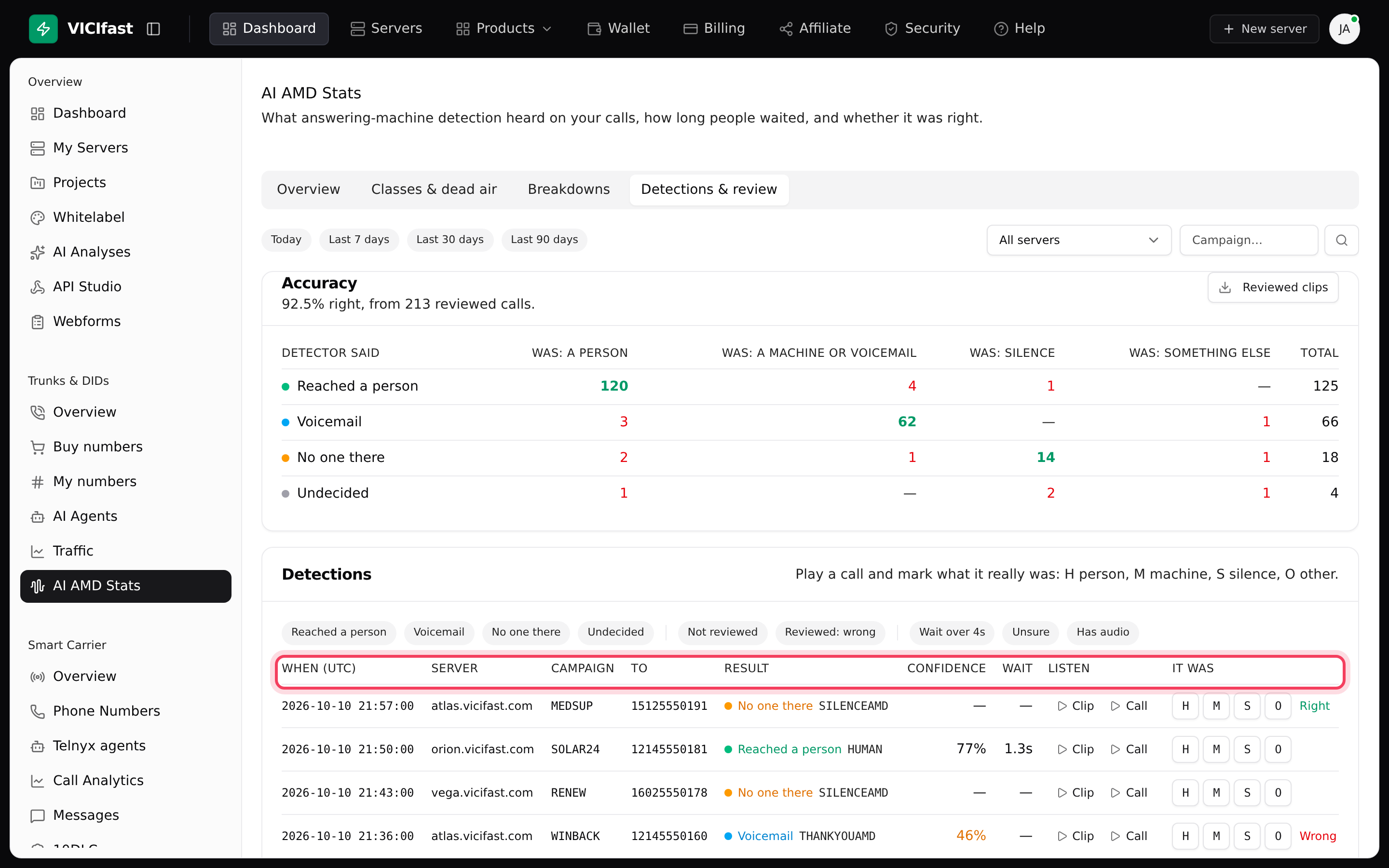
- Click the Detections & review tab.
- On a call, click Clip to hear what the detector heard, or Call to hear the whole call (when a recording exists).
- Mark what it really was: H person, M machine, S silence, O other.
- The Accuracy card fills in from the calls you have reviewed. Use the Not reviewed and Reviewed: wrong chips to work through the list, and Reviewed clips to download them.
If something goes wrong
Frequently asked
- Copy the key again from your AMDy portal and paste it without spaces. It starts with amd_live_.
- Your key isn't allowed to add addresses. Add your server's IP address (shown in the message) in your AMDy portal under IPs, then click Verify and set up again.
- Ask the account owner to set it up, or to give you Configurations access to this server.
- Calls are using VICIdial's built-in AMD for now, so none are lost. Click Check now. If it stays red, use Change key or chat with support.
- Detection is included with your line but has not been switched on yet. Chat with support and we will turn it on.
- Look at Wait after hello on AI AMD Stats. On your own carriers, Immediate mode decides faster. If the wait is high on VICIfast Voice, chat with support.