Dialing speed and dropped calls
How fast your campaign dials, what a dropped call is, and the settings that keep your drop rate under control.
Campaigns & leads · 4 min read
An automatic dialer calls more numbers than you have free agents, because many calls are never answered. Dial too slowly and agents sit idle. Dial too fast and people answer with nobody there to talk to. This guide explains the settings that control that balance.
Three words to know
- Dial level: lines dialed for each free agent. At 2.0 the dialer places two calls for every agent who is waiting. It is like a restaurant seating two parties per free waiter because some never show up.
- Dropped call: someone answers but no agent is free in time, so the dialer ends the call or plays a message.
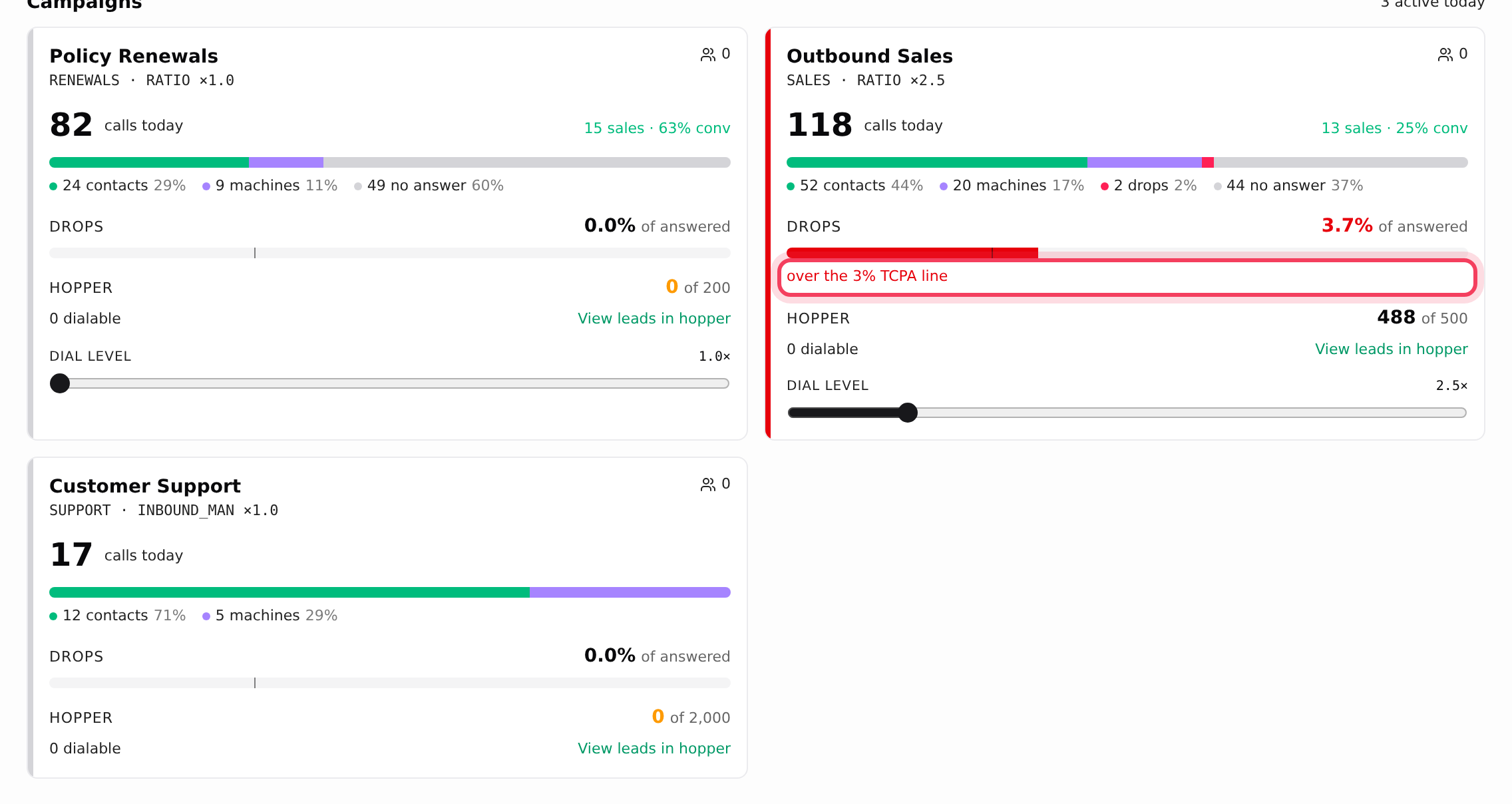
- Drop rate: dropped calls as a share of answered calls. In the US the limit is 3%. The campaign settings warn you above it, and the Floor flags "over the 3% TCPA line".
What you need
- A campaign that dials automatically (Ratio or Adaptive). Manual campaigns have no dial level.
- You are the account owner, or a team member allowed to make changes on the Campaigns tab.
Step 1: Choose how the campaign dials
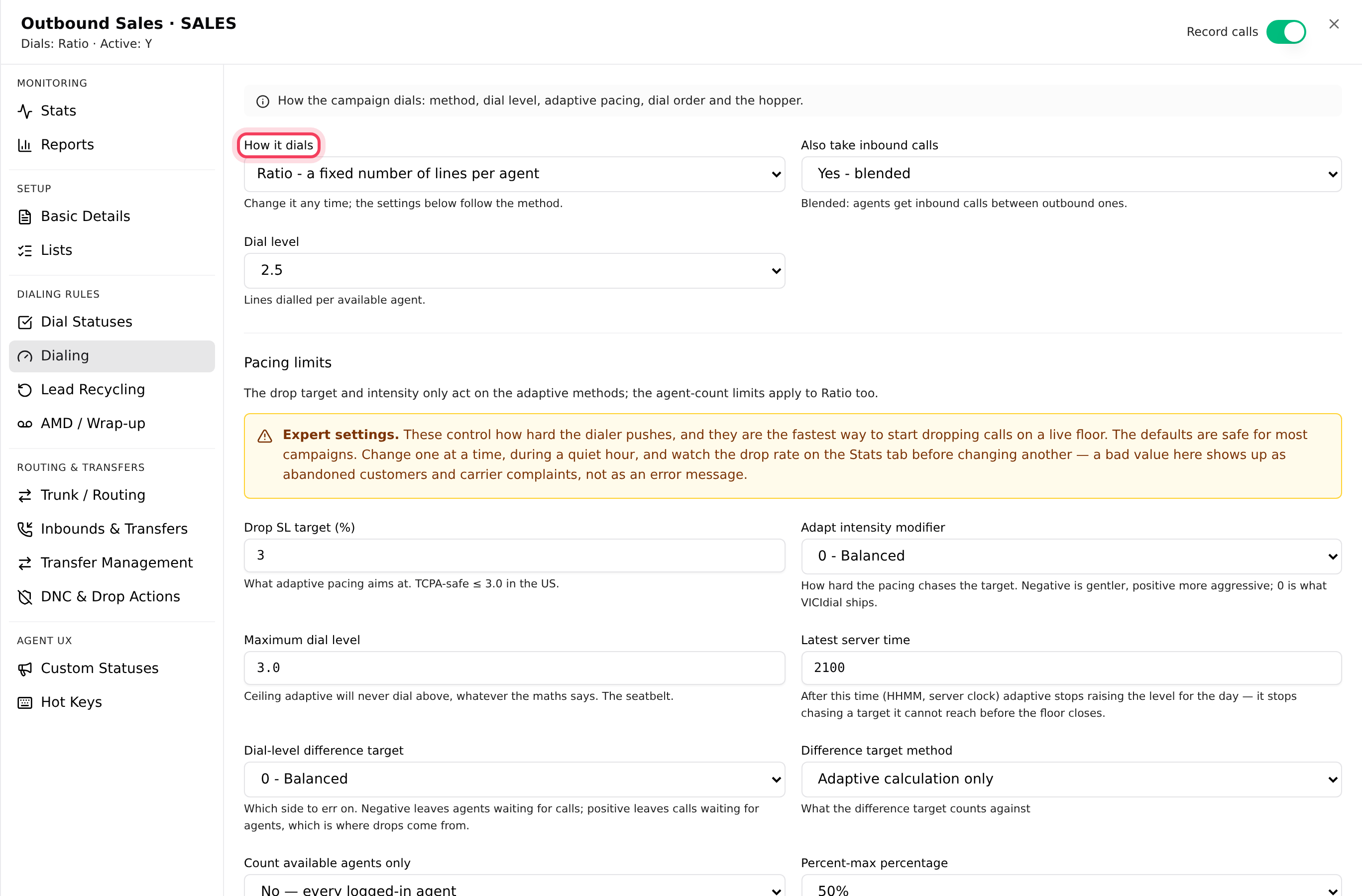
- On the Campaigns tab, click your campaign and open the Dialing tab.
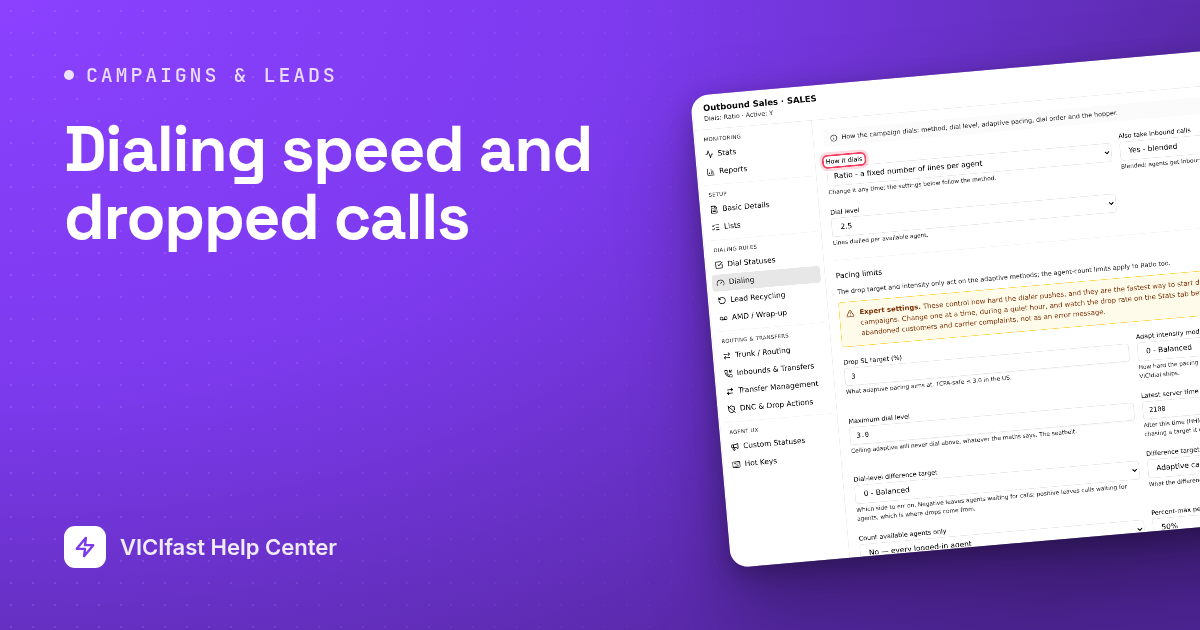
- Pick an option in How it dials. You can change it any time.
- Ratio - a fixed number of lines per agent: you set the dial level and it stays there.
- Tapered, Hard limit, Average and Percent-max are adaptive (predictive): the dialer raises and lowers the level itself to stay near your drop target. Hard limit never dials harder once the limit is reached. Tapered may run over early in the day and gets stricter as it ends. New campaigns start on Tapered.
- Click Save N changes at the top.
Step 2: Set the dial level (Ratio)
- On a Ratio campaign, pick a Dial level ("Lines dialled per available agent"). New Ratio campaigns start at 2.0.
- Raise it a step at a time if agents wait too long between calls. Lower it if drops climb.
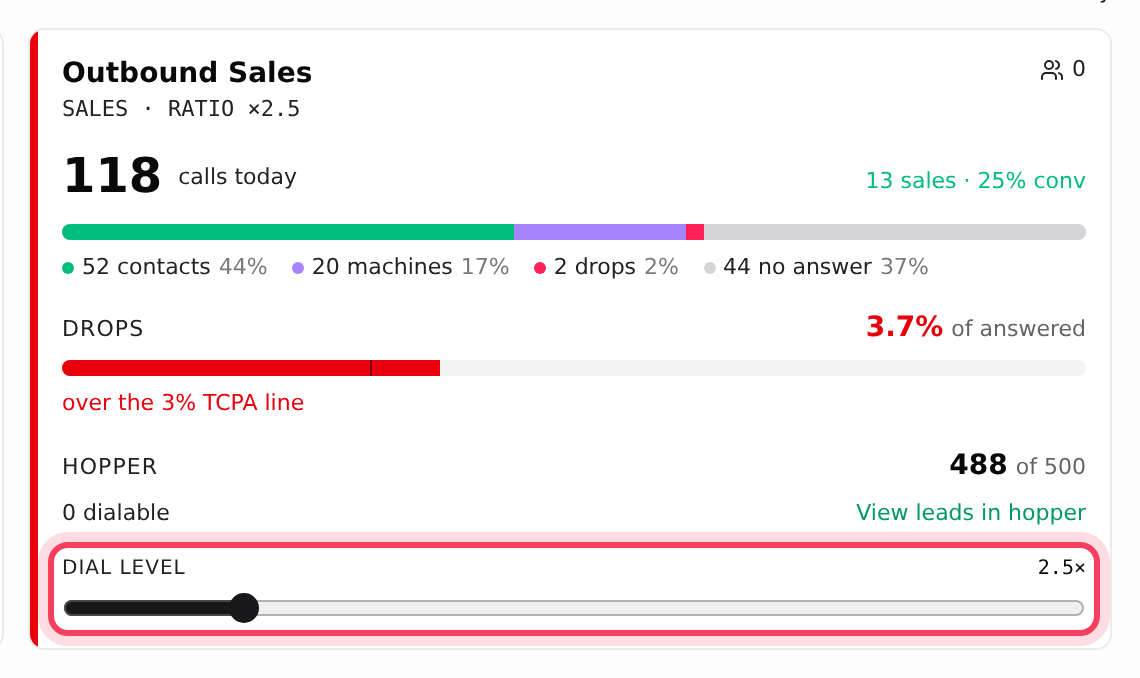
- During the day, you can also nudge a Ratio campaign live with the Dial level slider on its card on the Floor.
On an adaptive campaign, Dial level only shows the current value, because adaptive methods set it themselves.
Step 3: Tune adaptive pacing (optional)
On adaptive campaigns, the Dialing tab has an Adaptive pacing section marked Expert settings. The defaults are safe for most floors. If you change anything, change one setting at a time during a quiet hour and watch the drop rate. On a Ratio campaign the same section is called Pacing limits, and only its agent-count limits apply.
- Drop SL target (%): the drop rate adaptive aims for. New campaigns use 3. Above 3 the field shows a warning.
- Maximum dial level: a ceiling it never goes above. New campaigns use 3.0.
- Adapt intensity modifier: negative is gentler, positive more aggressive. 0 is the normal setting.
- Count available agents only: paces against agents who are actually free, not everyone signed in.
- Drop rate group: lets several campaigns share one drop target (Step 5).
- OFCOM UK drop calculation: only for UK floors.
Step 4: Decide what happens to a dropped call
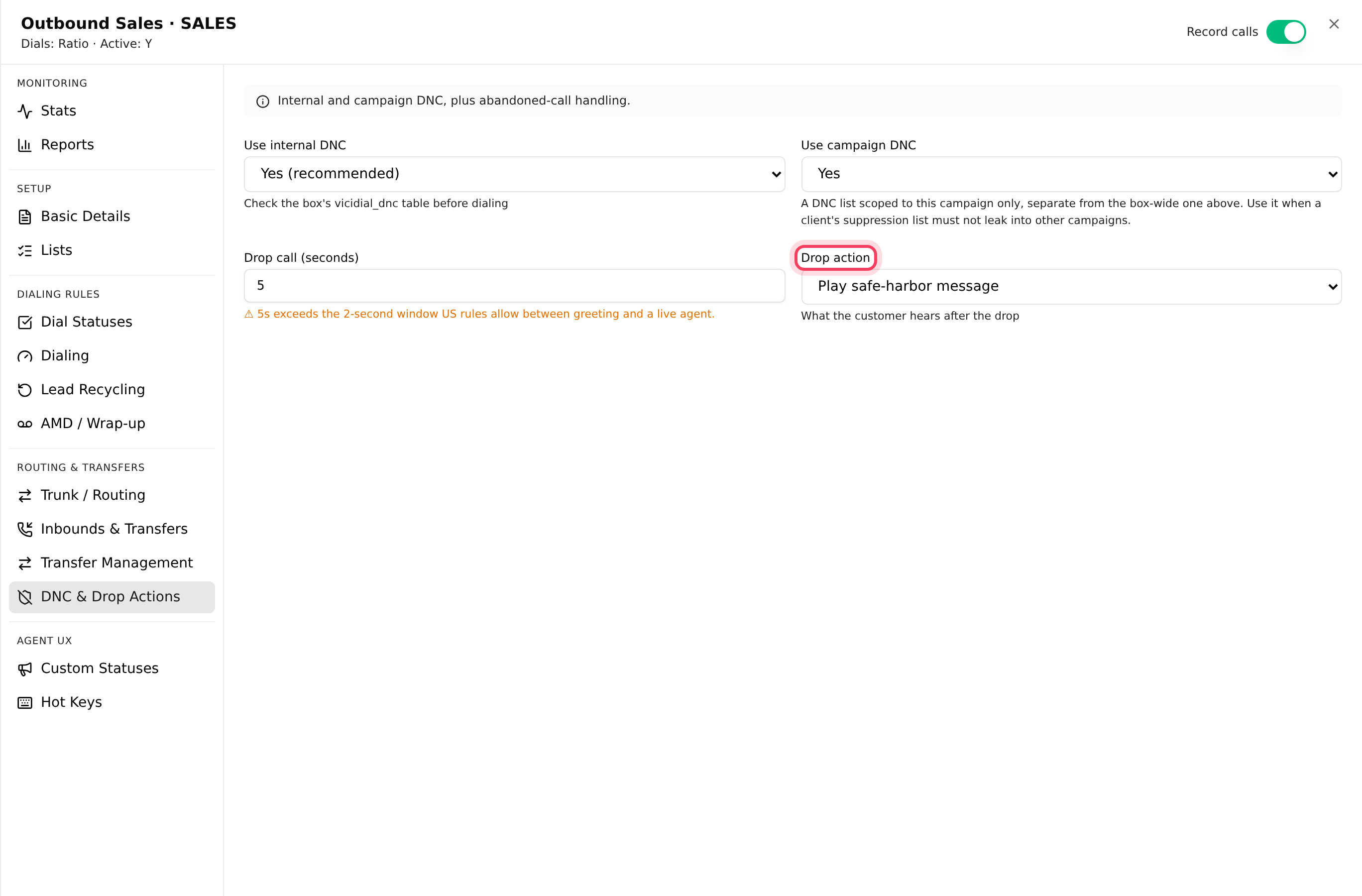
- Open the campaign’s DNC & Drop Actions tab.
- Drop call (seconds): how long an answered call waits for an agent before it is dropped. New campaigns use 5. The field shows an amber warning above 2 seconds, the window US rules allow between the greeting and a live agent.
- Drop action: Play safe-harbor message (the default), Hangup silently, Send to voicemail or Transfer to in-group.
- Click Save N changes.
On blended campaigns you can also set Drop-to in-group on the Inbounds & Transfers tab, so a call that would be dropped goes to a queue (in-group) instead.
Step 5: Watch the drop rate
- The campaign’s Stats tab shows Drops with a percentage for Today and the Last hour, in red above 3%. It refreshes every 30 seconds.
- Each campaign card on the Floor shows today’s drops "of answered" calls, and says "over the 3% TCPA line" when it is over.
- To measure several small campaigns together, create a pool: Campaigns tab, Scripts & Filters pill, Drop-rate pools, New pool. Type a Pool ID and click Create. Then pick it in Drop rate group on each campaign’s Dialing tab. Pool counters start at zero and reset daily.
If something goes wrong
Frequently asked
- On Ratio, raise the dial level one step. On adaptive, check Maximum dial level is not holding it back. Also check the campaign still has leads: In hopper and Dialable on the Campaigns tab.
- On Ratio, lower the dial level. On adaptive, lower Maximum dial level or the intensity, or switch to Hard limit. Make sure Count available agents only is set to Yes on floors where agents pause a lot.
- Adaptive methods set the level themselves, so the Dialing tab only shows it. Switch How it dials to Ratio if you want a fixed level.
- Check Drop action on the DNC & Drop Actions tab. Hangup silently ends the call without a message; Play safe-harbor message plays one.
- Pool counters start at zero and reset every day. They fill in once the campaigns in the pool place calls.