Branded webphone for VICIdial agents
The phone inside the VICIdial agent screen, in your brand. Design up to 3 looks in Whitelabel Packs, apply to a server, and agents take calls in the browser - nothing to install.
The branded webphone is the phone that sits inside the VICIdial agent screen. It replaces VICIdial’s stock webphone (ViciPhone) and desktop softphones like Zoiper: your agents take calls entirely in the browser, under your logo and your colors - no VICIfast name, no third-party name, nothing to install.
Nothing to switch on
Every new server gets the branded webphone automatically. When your server is created, the platform turns it on, wires it into the agent screen, and gives it a default look. There is no enable button and no per-agent setup: every agent you create through the VICIfast dashboard (the Users tab or the Setup Wizard) automatically gets a matching webphone. This guide is about making it look like your company.
Step 1 - Open Whitelabel Packs
- Click Whitelabel Packs in the left sidebar (under Products & Addons).
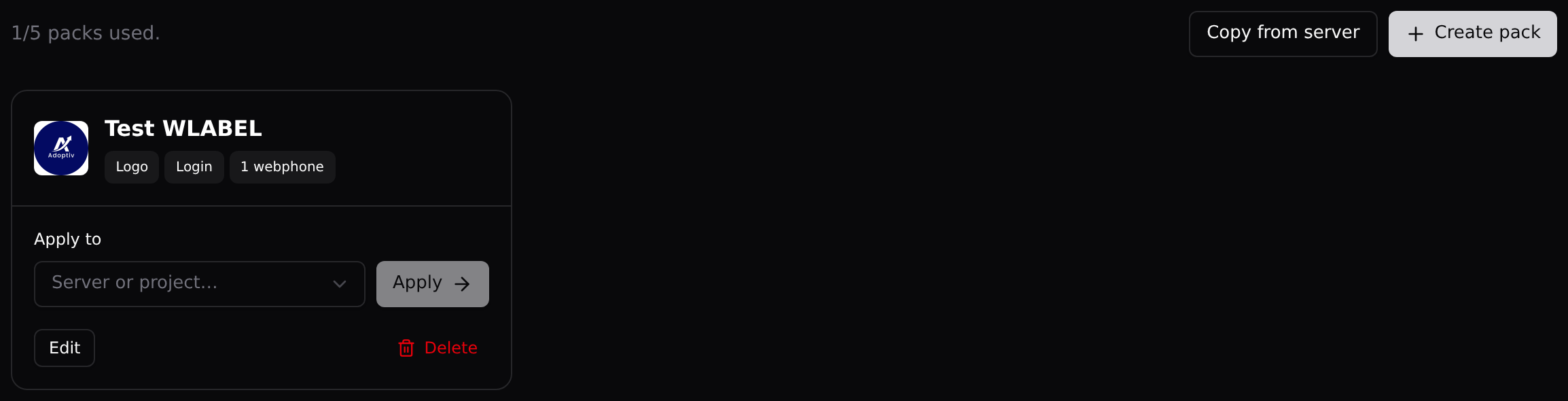
- You land on your pack list - up to 5 packs, each a saved bundle of your logo, agent login screen, and webphone look.
Branding is designed once as a “pack” and then applied to a server (or a whole project of servers) in one click. That is why the editor lives here and not on the server page.
Step 2 - Create a pack
- Click Create pack, top-right.
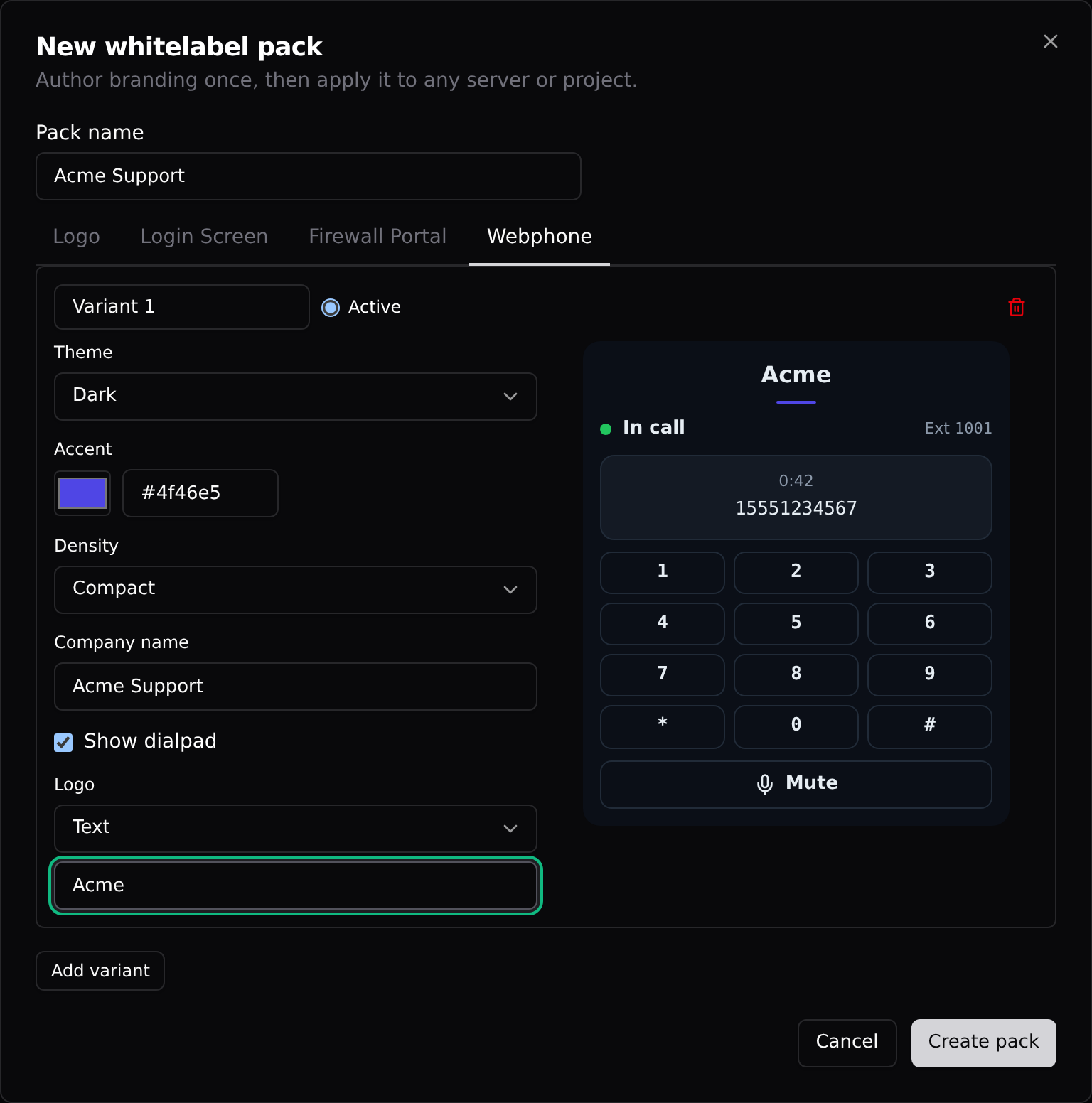
- In Pack name, type something your team will recognize, like "Acme Support".
- Notice the four tabs: Logo, Login screen, Firewall portal, Webphone. The Logo tab sets your shared logo (used on the agent screen, the firewall portal, and as the webphone’s fallback). This article covers the Webphone tab - the other tabs work the same way and all travel together when you apply the pack.
Step 3 - Design the phone (Webphone tab)
- Click the Webphone tab.
- Click Add variant. A variant is one complete look; you can keep up to 3 (for example a dark one and a light one).
- Give the variant a name in the box at the top-left of its card.
- Theme: Dark or Light.
- Accent: the highlight color used for the status rule, pressed keys, and buttons.
- Density: Compact or Comfortable - how much padding the phone uses.
- Company name: shown on the phone and used as its fallback wordmark.
- Show dialpad: tick it so agents can key in IVR menu choices; untick for a cleaner phone.
- Logo: Text (your wordmark) or Image - click Upload for a PNG, JPEG, SVG, or WebP up to 1 MB.
- Watch the preview on the right. It is the real phone, not a mockup - every change shows instantly.
- With more than one variant, the Active radio button picks the one your agents get.
- Click Create pack (or Save pack if you are editing one later).
Two shortcuts on the packs page: Copy from server snapshots a server you already branded into a new pack, and Edit reopens any pack for changes.
Step 4 - Apply it to your server (this is the “push live” moment)
- On the pack’s card, open the Apply to dropdown.
- Pick your server under Servers - or pick a project under Projects (all servers) to brand every server in that project at once.
- Click Apply.
That is it. The platform copies the logo, login screen, and webphone variants onto the server and pushes the phone to the box in the background - usually well under a minute, with automatic retries. Applying also switches the webphone on for that server if it was off. Your agents see the new phone the next time they log into the agent screen or reload it. The card’s Applied to line shows which servers currently carry the pack.
What your agents see
Agents change nothing in their routine. They log into the VICIdial agent screen as usual, and the phone is right there inside it - no separate window, no separate sign-in.
- It connects by itself: the status dot goes from amber "Connecting…" to green "Ready".
- It answers by itself. Incoming calls are picked up automatically - dialing, transfers, and hangups stay in the agent screen, exactly as before. The phone only carries the audio.
- On their very first login the browser asks once to allow the microphone. If an agent misses that prompt, an Enable microphone button appears on the phone to bring it back.
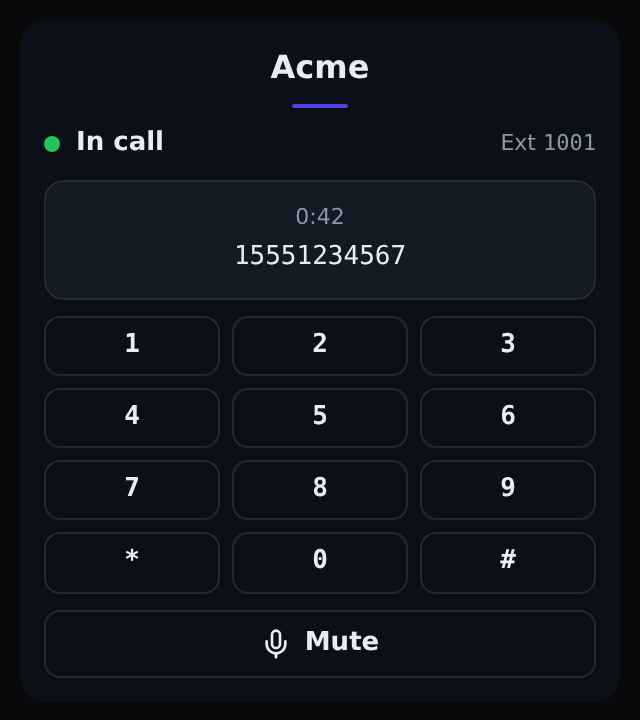
- During a call the phone shows the running timer and the other party’s number, a Mute button, and - if you left Show dialpad on - a keypad for IVR menus.
- With more than one microphone or speaker attached, small dropdowns appear so the agent can pick their headset.
- If the connection hiccups, the phone reconnects by itself. If it ever gets stuck, a Re-register button appears - one click and it is back.
How the audio travels
For the curious: the browser speaks SIP directly to your own server over a secure WebSocket (WSS on port 8089), and the call audio itself flows straight between the agent’s browser and your server. Nothing is relayed through VICIfast - lower latency, fewer moving parts. The firewall’s Agent access profile already opens port 8089, so agents you whitelist in Manage Firewall are covered (see the Manage Firewall guide).
Good to know
- The phone lives only inside the agent screen - there is no standalone page to bookmark and no app to install. If it disappears, the agent simply reloads the agent screen.
- The phone deliberately has no dial field and no hangup button; VICIdial owns the call, the phone owns the audio.
- Saving a pack does not change any server. Changes go live only when you click Apply again.
- Applying a pack replaces the server’s current webphone variants with the pack’s. Treat the pack as the source of truth and edit there.
- Only the account owner can create, edit, and apply packs - team members see a read-only notice on the Whitelabel Packs page.
- Limits: 5 packs per account, 3 variants per pack, logo images up to 1 MB (PNG, JPEG, SVG, or WebP).
- Browsers only allow microphone access on secure (HTTPS) pages - your server is HTTPS out of the box, so this is handled for you.
Tags: agents, vicidial, webphone, branding
You might also like
Agent Mobile App: enabling sign-in for your agents
The agent softphone app requires the Agent Mobile App add-on on your server. How to enable it, and what agents see when it is off.
Read article →Soundboards
One-click audio clips your agents play into a live call. Build a soundboard from your Audio Store, attach it to campaigns - click by click, no VICIdial admin needed.
Read article →Where are my trunks in VICIdial admin?
VICIfast manages trunks in the dashboard, not VICIdial admin → Carriers. Here's why.
Read article →