Record, find and play calls
Switch recording on for a campaign, find any call with Recording search, play or download it, and know how long recordings are kept.
Floor, recordings & reports · 4 min read
Your calls are recorded on your own VICIfast server. This guide shows how to switch recording on or off for a campaign, find a call, play it, download it, and how long recordings are kept.
What you need
- A campaign or inbound queue that records calls. Campaigns and queues you create in VICIfast record every call from the start.
- If you are a team member, the Reports tab (for searching) or the Users tab (for one agent's calls).
Step 1: Switch recording on or off for a campaign
- In the left sidebar, click My Servers, then your server's name.
- Click the Campaigns tab, then click the campaign's name, for example Outbound Sales.
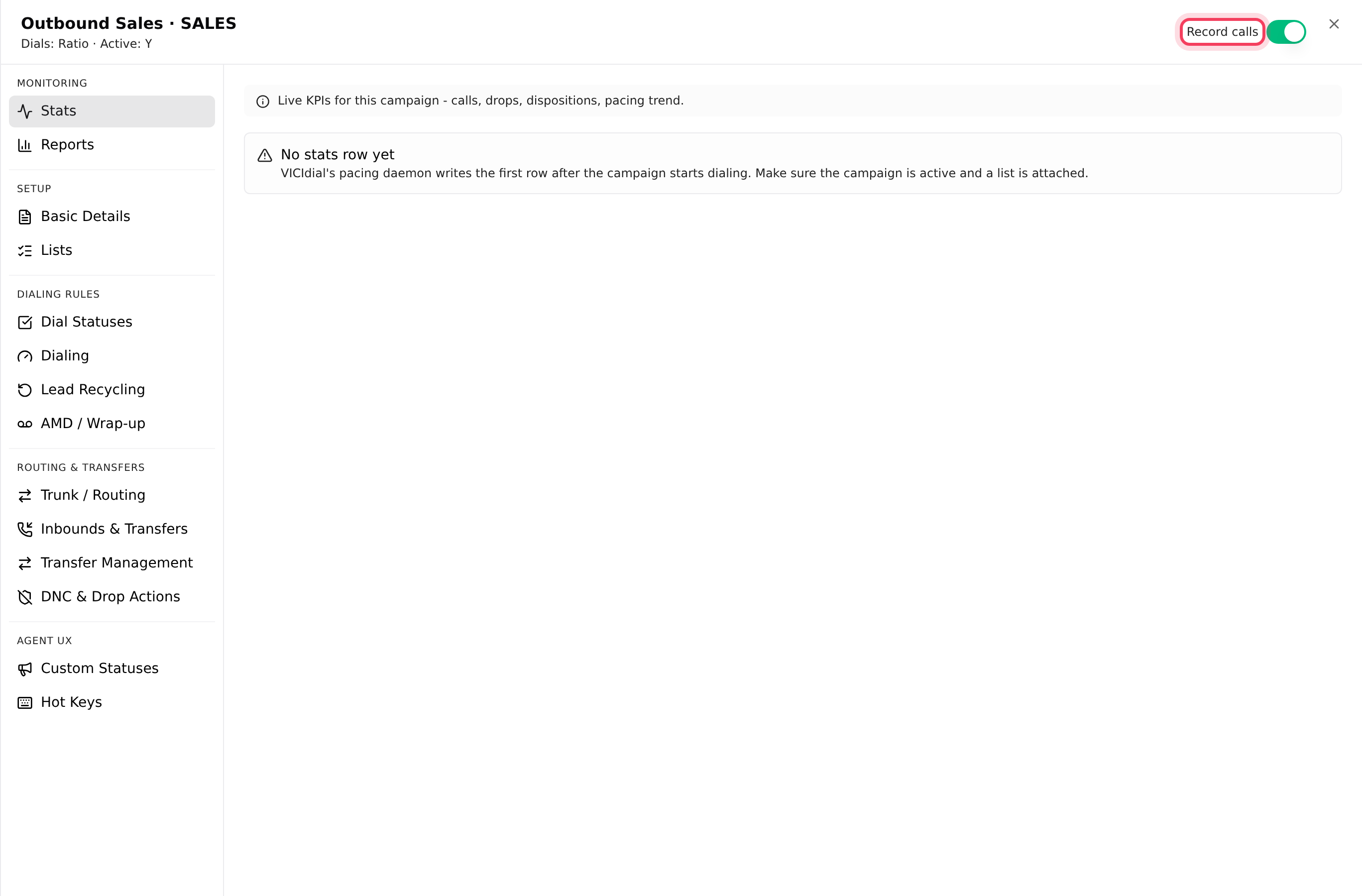
- At the top of the panel, the switch reads Record calls when recording is on and Recording off when it is off. Flip it.
- Click Save 1 change.
With the switch on, every call on the campaign is recorded and agents cannot stop it. If the label says Recording: agent decides, the campaign was set up in VICIdial admin to let agents start recordings themselves. Inbound queues (in-groups) have the same switch at the top of their settings: open the Inbounds tab, then In-groups. There it can also say Recording: follows campaign.
Step 2: Find a call with Recording search
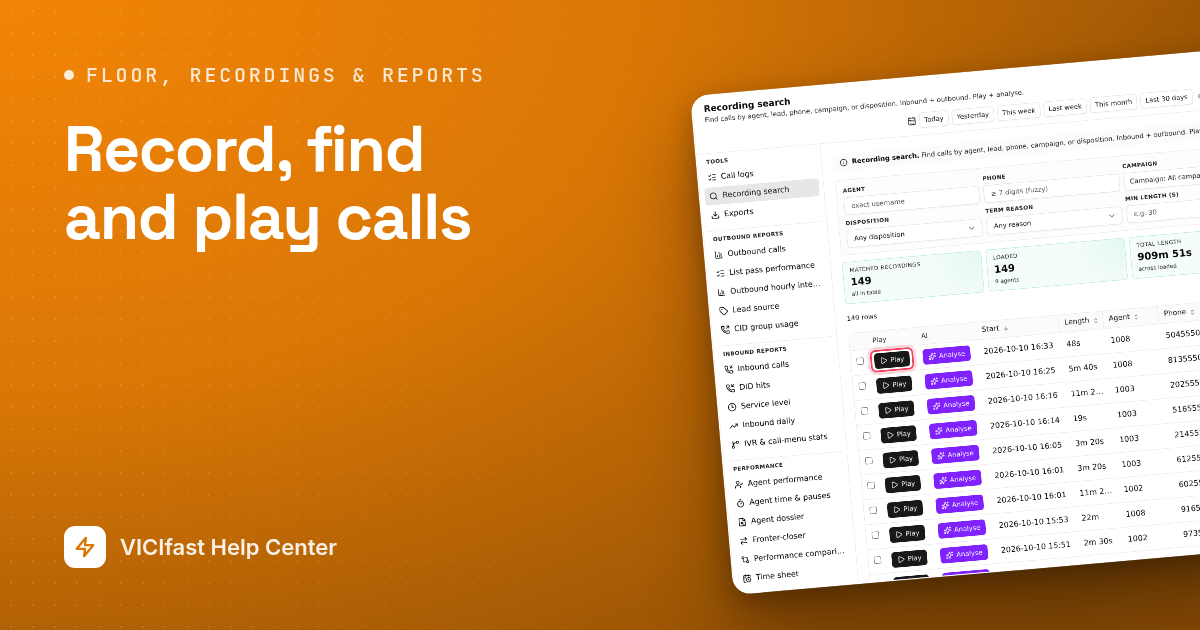
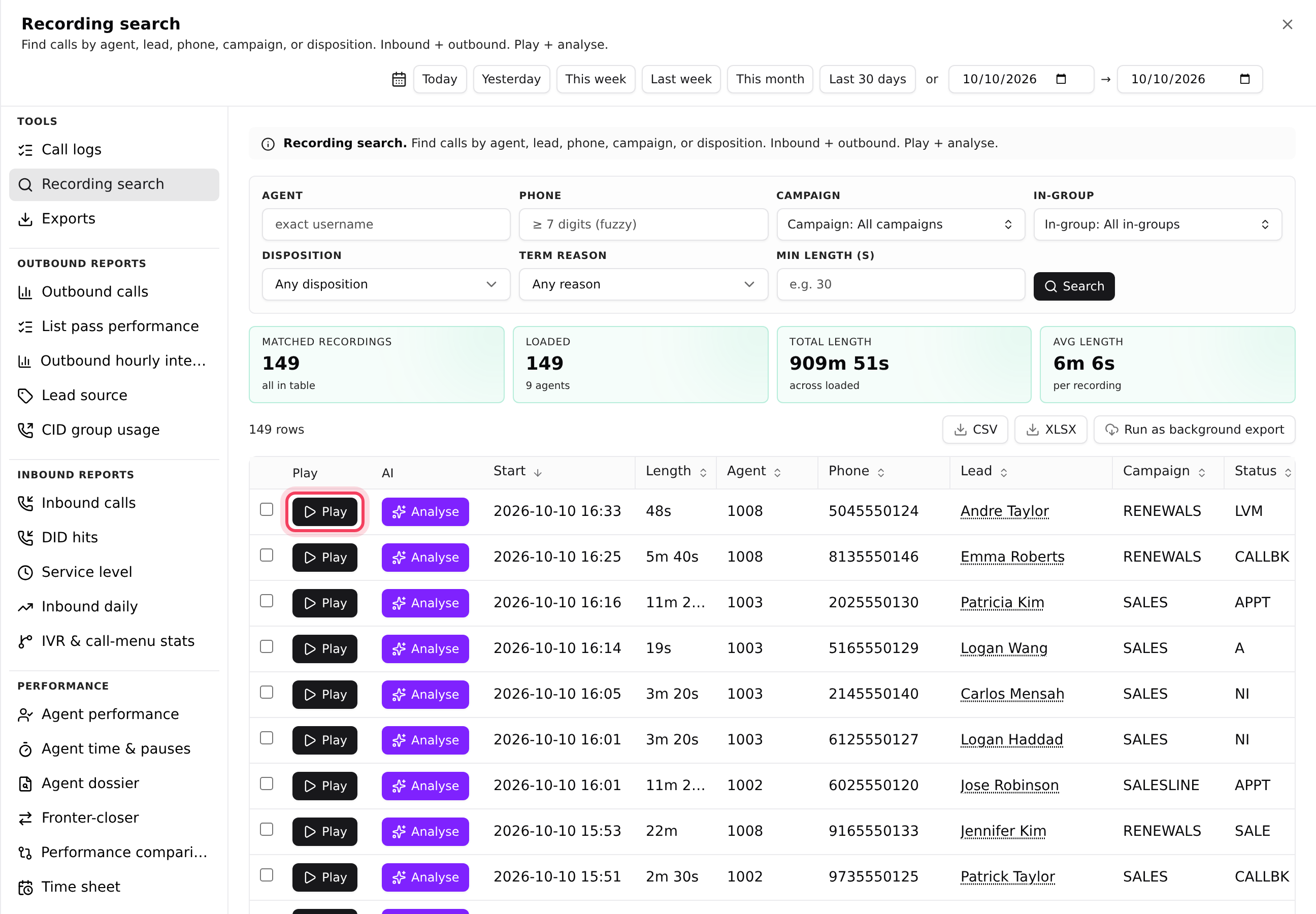
- Click the Reports tab. Under Tools, click Recording search. It opens in a panel on the right.
- Pick the dates: Today, Yesterday, This week, Last week, This month, Last 30 days, or type two dates.
- Narrow it down with Agent (the exact username, for example 1001), Phone (at least 7 digits), Campaign, In-group, Disposition, Term reason or Min length (s) to skip very short calls.
- Click Search, or press Enter.
Each row shows when the call started, its length, the agent, the phone number, the lead, the campaign and the call result. Click a lead's name to see everything that ever happened with that person, with a Play button on each recorded call.
Step 3: Play and download
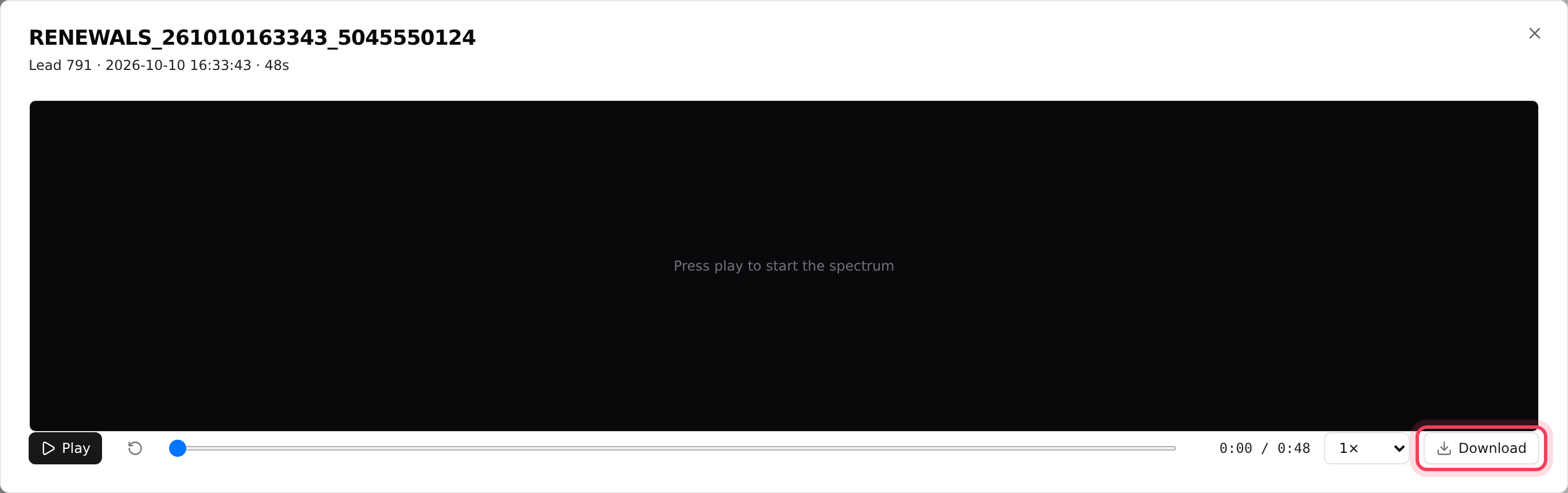
- Click Play on the row you want. The player opens.
- Use Play and Pause, the restart arrow, or drag the slider to jump ahead.
- Change the speed from 0.5× to 2×. Reviewing at 1.5× saves time.
- Click Download to save the MP3 file to your computer.
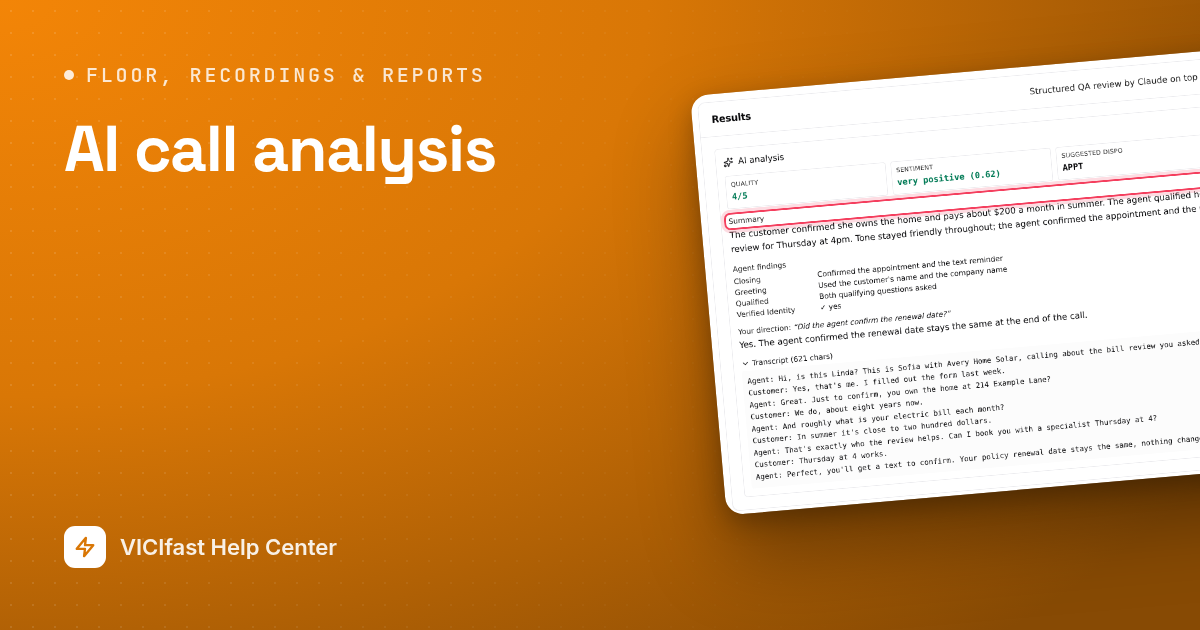
If the call has been through AI call analysis, the summary appears under the player.
Step 4: Find calls in other places
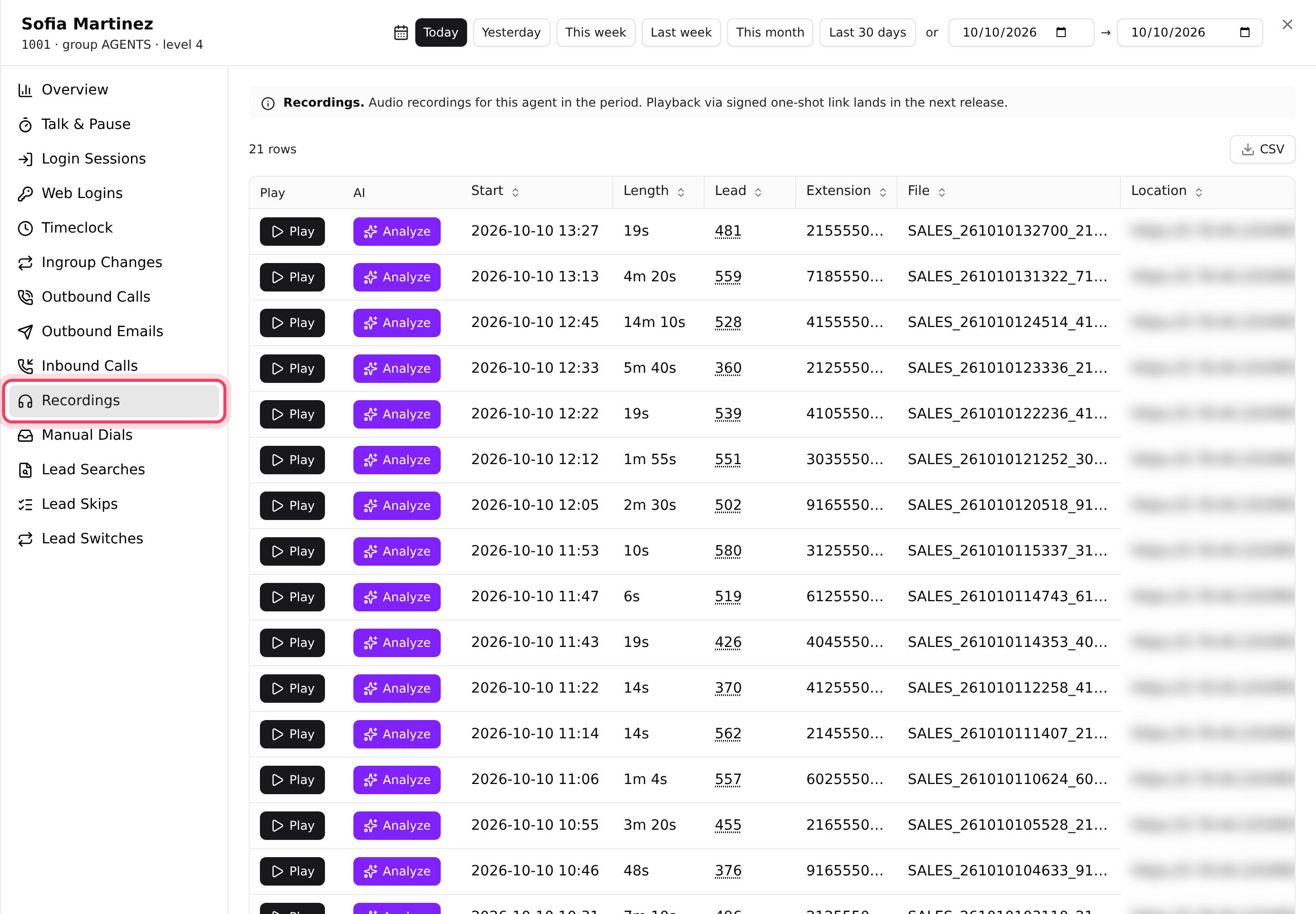
- One agent's calls: on the Users tab, click the agent's username or name, then the Recordings tab. Pick a period at the top.
- Call logs: on the Reports tab, under Tools, click Call logs. Rows with a recording have a Play button.
- One customer's history: click a lead's name in Recording search or Call logs.
Step 5: Export a list of recordings
- In Recording search, set your dates and filters.
- Click Run as background export. We email you a link to a CSV of every match, up to 250,000 rows.
- The file also appears under Reports, Tools, Exports for 7 days.
The CSV lists each recording's details (time, agent, phone, lead, campaign, result and file name). It does not contain the audio. For a quick copy of what is on screen, use the CSV or XLSX buttons above the table.

How long recordings are kept
A few minutes after each call, your server turns the recording into an MP3. The raw original is deleted after about a day; the MP3 stays on your server until someone deletes it or the disk fills. Nothing deletes MP3s after a set time.
- There is no delete button for recordings in the dashboard. Chat with support if you need old recordings removed.
- Recordings use your server's disk. Click the status chip near the top of your server page to open Server Health, which shows disk and recordings usage.
- For a copy off the server, the Platform 7-Day Backup add-on backs up your VICIdial data and call recordings every day at 04:00 UTC and keeps the last 7 days. See Backups and restore.
- To keep your own archive of every file, your IT person can copy them from the server over SSH: see Read your database and copy recordings over SSH.
If something goes wrong
Frequently asked
- Hover over it. "Recording file rotated off disk - playback unavailable" means the audio file is no longer on your server, even though the call is still listed.
- Type at least 7 digits of the number. Shorter searches are blocked so they do not slow down your dialer.
- The panel loads the first 2,000 matches. Pick fewer days or add a filter, or use Run as background export for the full list.
- Widen the dates or clear a filter. Also check the campaign's Record calls switch was on when the call happened.
- No. Playback links are private and expire after a few minutes. Click Download and send the file instead.