Set up transfers, 3-way calls and closers
Let agents pass a live call to your closers, to another queue or to an outside number, and set up a fronter and closer team.
Your agents · 3 min read
Many call centers split the work: fronters qualify the customer, then pass the live call to a closer. Agents can also send a call to another queue (in-group), or bring in an outside number for a 3-way call. This guide sets that up. In the example, agents on the SALES campaign transfer to a CLOSERS queue that your closers answer.
What you need
- Agent logins for your fronters and closers, ideally in separate user groups. See Add agents and user groups.
- A campaign your closers log in to that takes inbound calls, for example a blended or inbound campaign.
Step 1: Create the closers queue
- In the sidebar, click My Servers, then click your server.
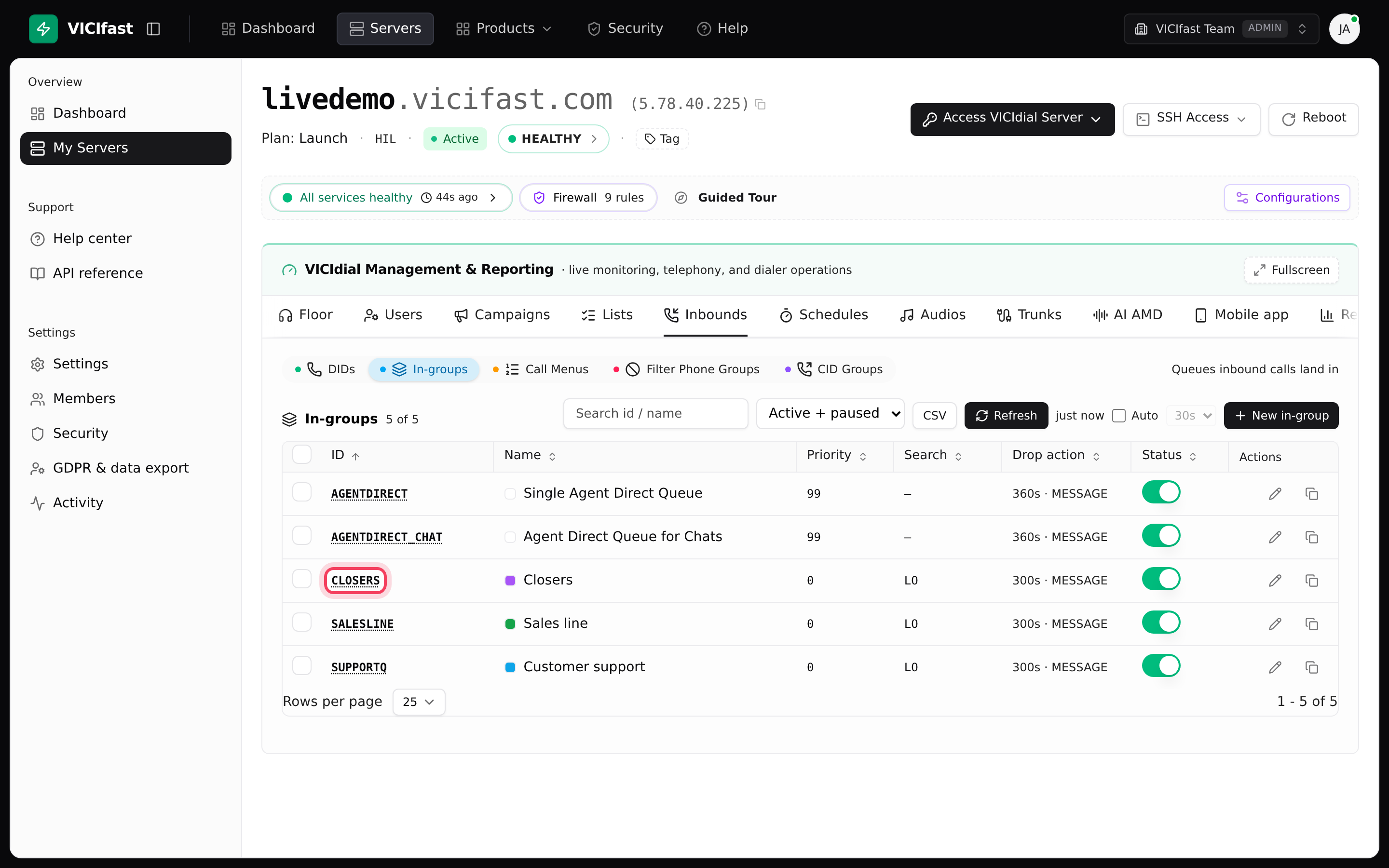
- Click the Inbounds tab, then In-groups, then New in-group.
- Create a queue such as CLOSERS, named "Closers". Set up inbound calls explains every field.
A transferred call waits in this queue until a closer is free, just like an inbound call.
Step 2: Let your closers take calls from it
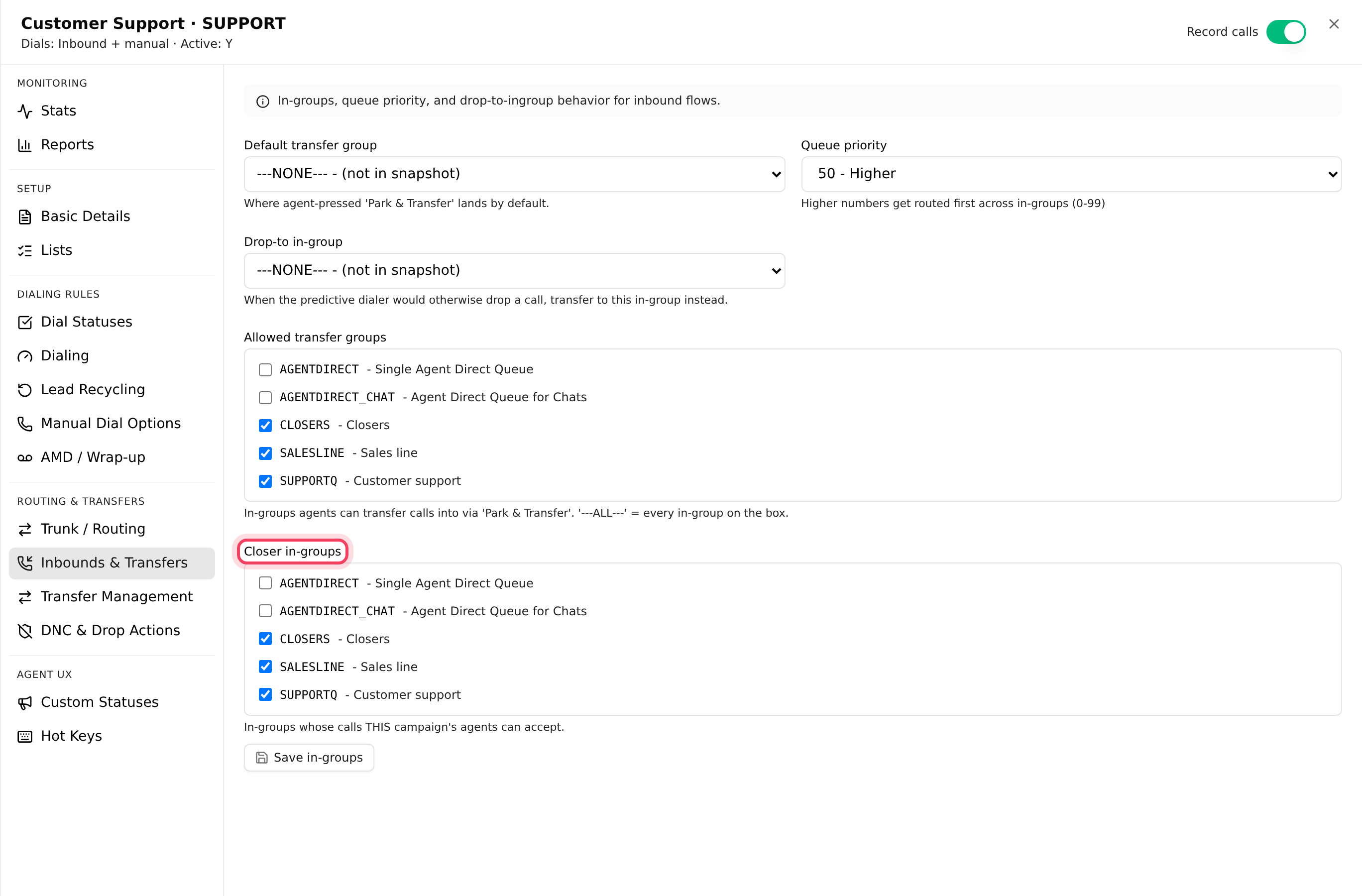
- Click the Campaigns tab, then click the campaign your closers log in to.
- In the settings menu on the left, click Inbounds & Transfers.
- Under Closer in-groups, tick CLOSERS, then click Save in-groups.
- Optional: on the Users tab, open User Groups, edit your closers' group and tick CLOSERS under Attached ingroups.
When closers sign in to that campaign, they tick CLOSERS in the list of queues. From then on they get transferred calls.
Step 3: Allow the fronters' campaign to transfer to a queue
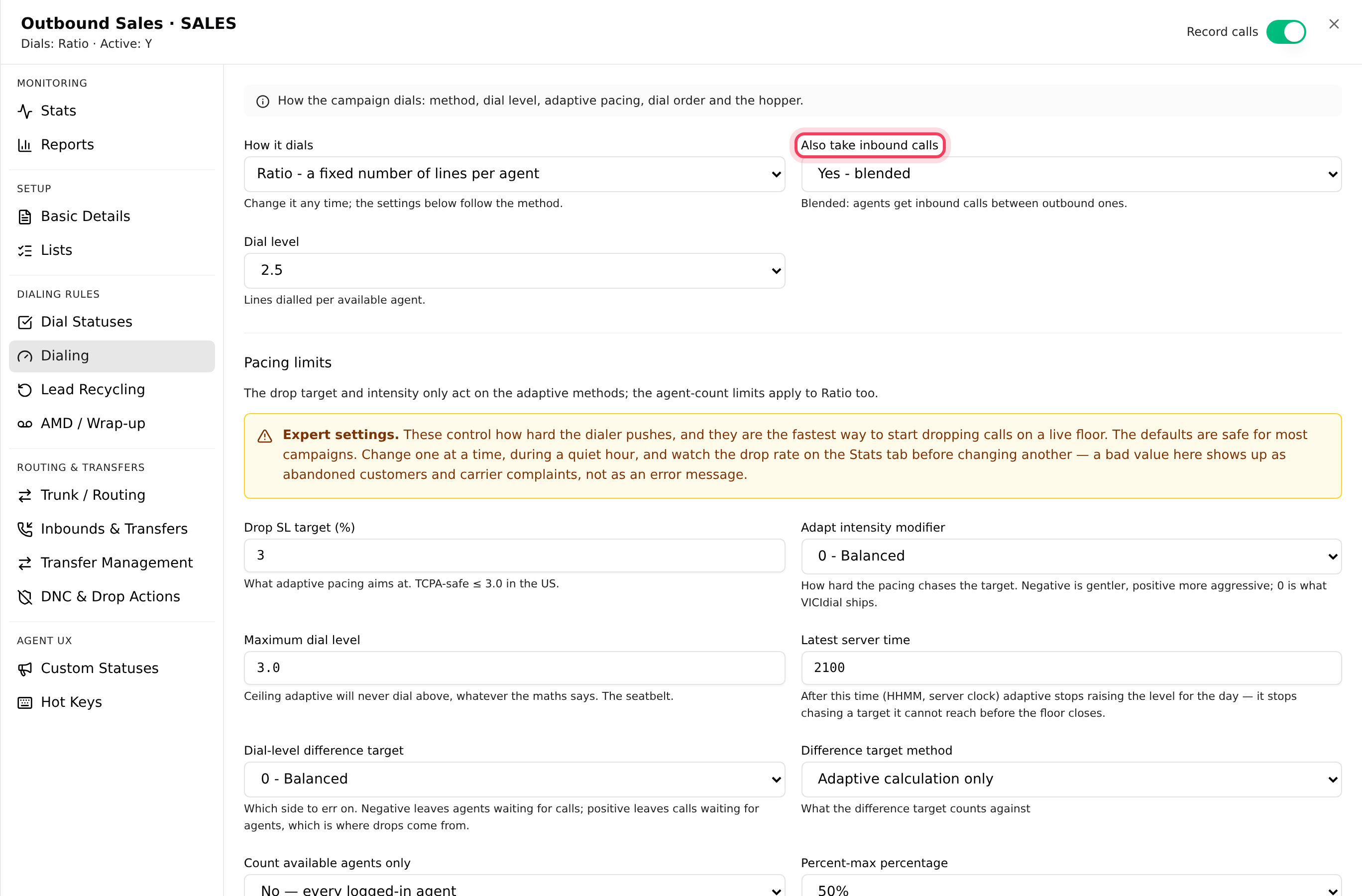
- On the Campaigns tab, click your fronters' campaign, for example SALES.
- Click Dialing.
- Set Also take inbound calls to Yes - blended.
- Click the Save button at the top of the settings. It shows how many changes you made.
This switch is what lets the campaign's agents send calls into a queue, and it adds the Inbounds & Transfers page to the menu. Campaigns using the Inbound + manual dial method already have it.
Step 4: Choose where agents can transfer to
- Still in the fronters' campaign, click Inbounds & Transfers.
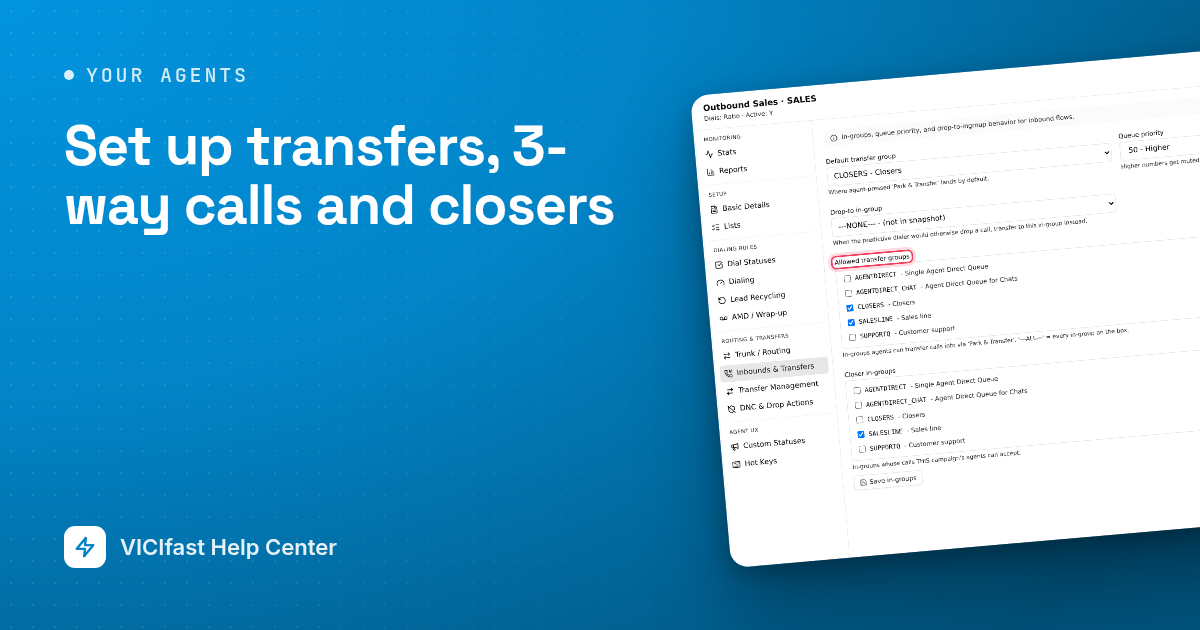
- Under Allowed transfer groups, tick CLOSERS and any other queue agents may send calls to.
- Set Default transfer group to CLOSERS, so it is already picked on the agent's transfer panel.
- Click Save at the top of the settings.
Agents get the new list the next time they sign in.

Step 5: How agents transfer
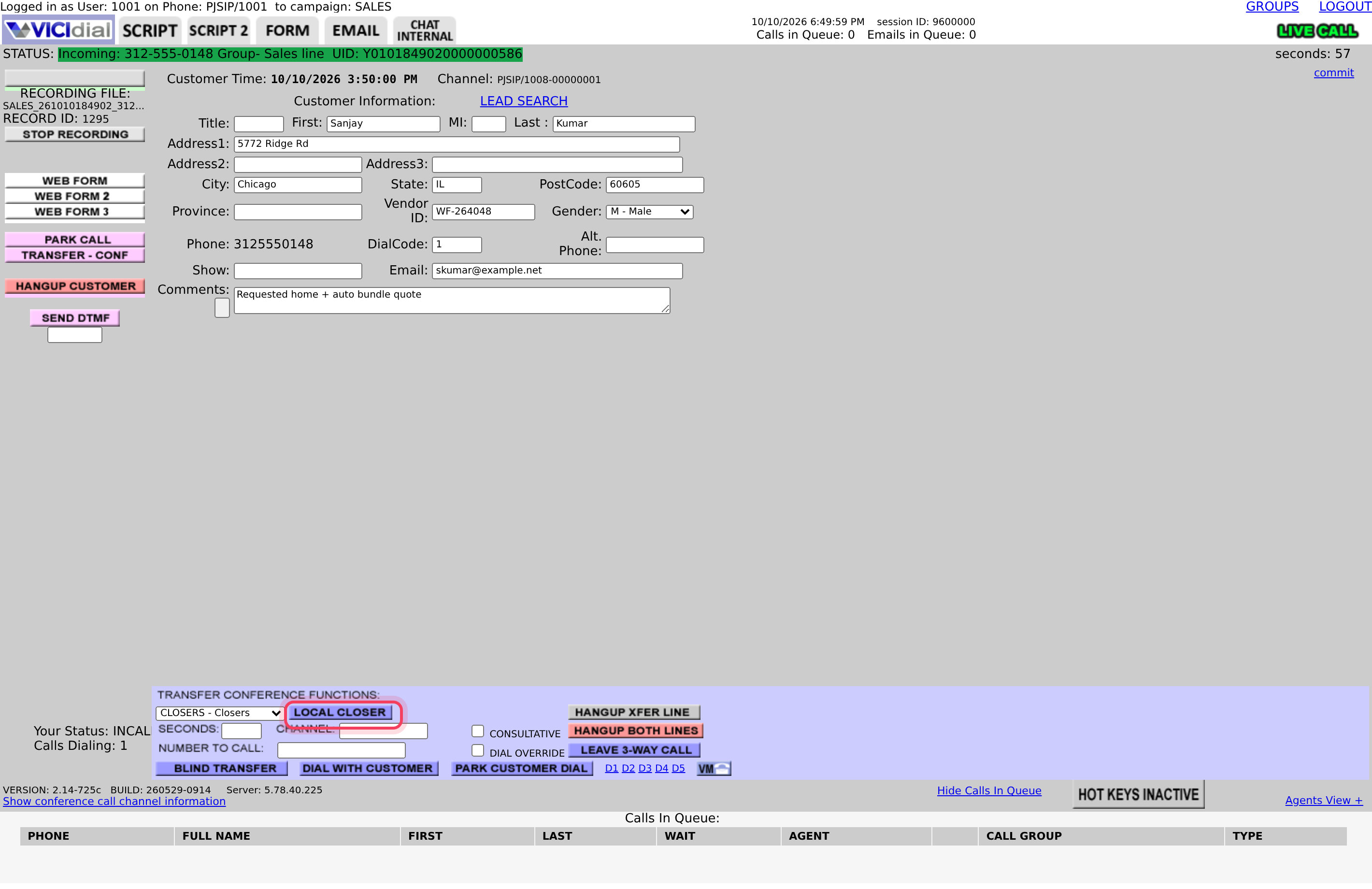
During a call, agents click TRANSFER - CONF on the agent screen. From there they can:
- Send the caller to a queue: pick it from the list and click LOCAL CLOSER. The call goes to the next free closer and the fronter moves on.
- Bring in an outside number for a 3-way call: type it and click DIAL WITH CUSTOMER, or PARK CUSTOMER DIAL to talk to the other person first while the customer hears hold music.
- Hand the call to an outside number and drop off: BLIND TRANSFER.
Send your agents Transferring a call and 3-way calls. It walks them through each button. On campaigns created in the dashboard, the person you add to a 3-way call sees the customer's number as the caller ID.
If something goes wrong
Frequently asked
- The campaign isn't allowed to transfer into queues. Set Also take inbound calls to Yes - blended on the Dialing page and save. Agents then sign out and back in.
- Tick it under Allowed transfer groups on the Inbounds & Transfers page and save. Agents see the change the next time they sign in.
- No closer is taking calls from the queue. Closers must be signed in to a campaign that lists the queue under Closer in-groups, have ticked it when signing in, and be ready. Check them on the Floor.
- That agent's login has transfers switched off in VICIdial admin. Contact us through the chat bubble and we'll help you switch it back on.
- Yes. Open the queue on the Inbounds tab, go to Advanced, and set Show fronter name to the closer.