Transferring a call and 3-way calls
Send a caller to another team, bring a third person into the call, or hand the call to an outside number.
For your agents · 2 min read
Sometimes a caller needs someone else: a closer, another team, or an outside number. You can pass the call on, or bring the other person in and talk all three together. Everything starts from one button during the call.
What you need
- A live call on your screen.
- Your manager decides where you can transfer to and which buttons you see. If a button below is missing, ask them.
Step 1: Open the transfer panel
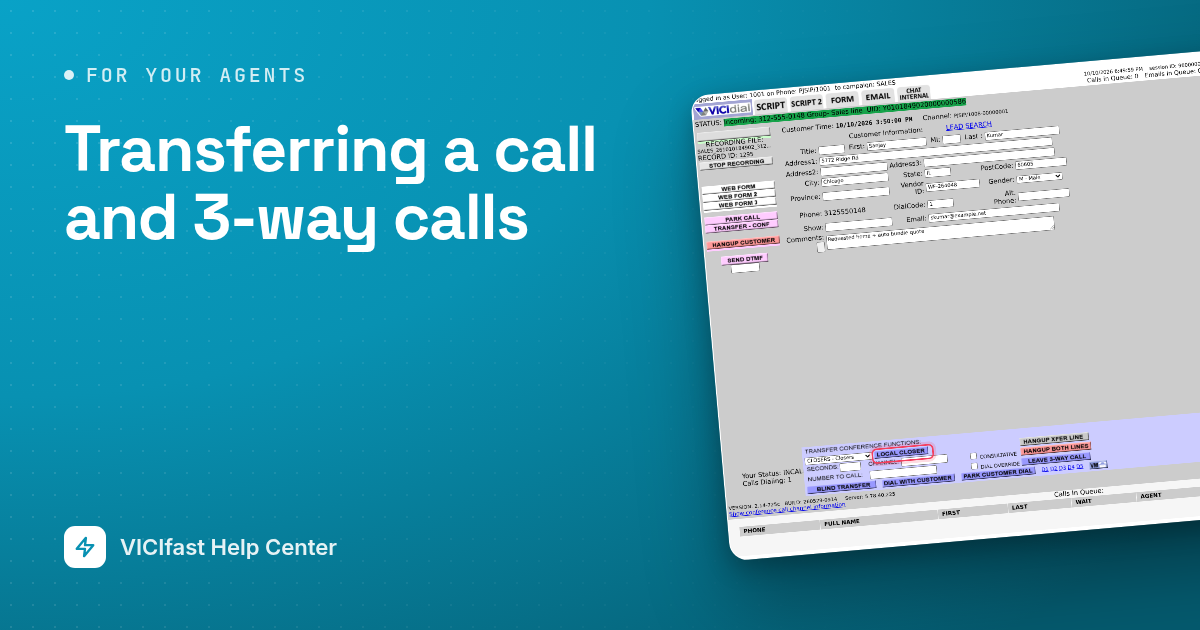
- During the call, click TRANSFER - CONF on the left.
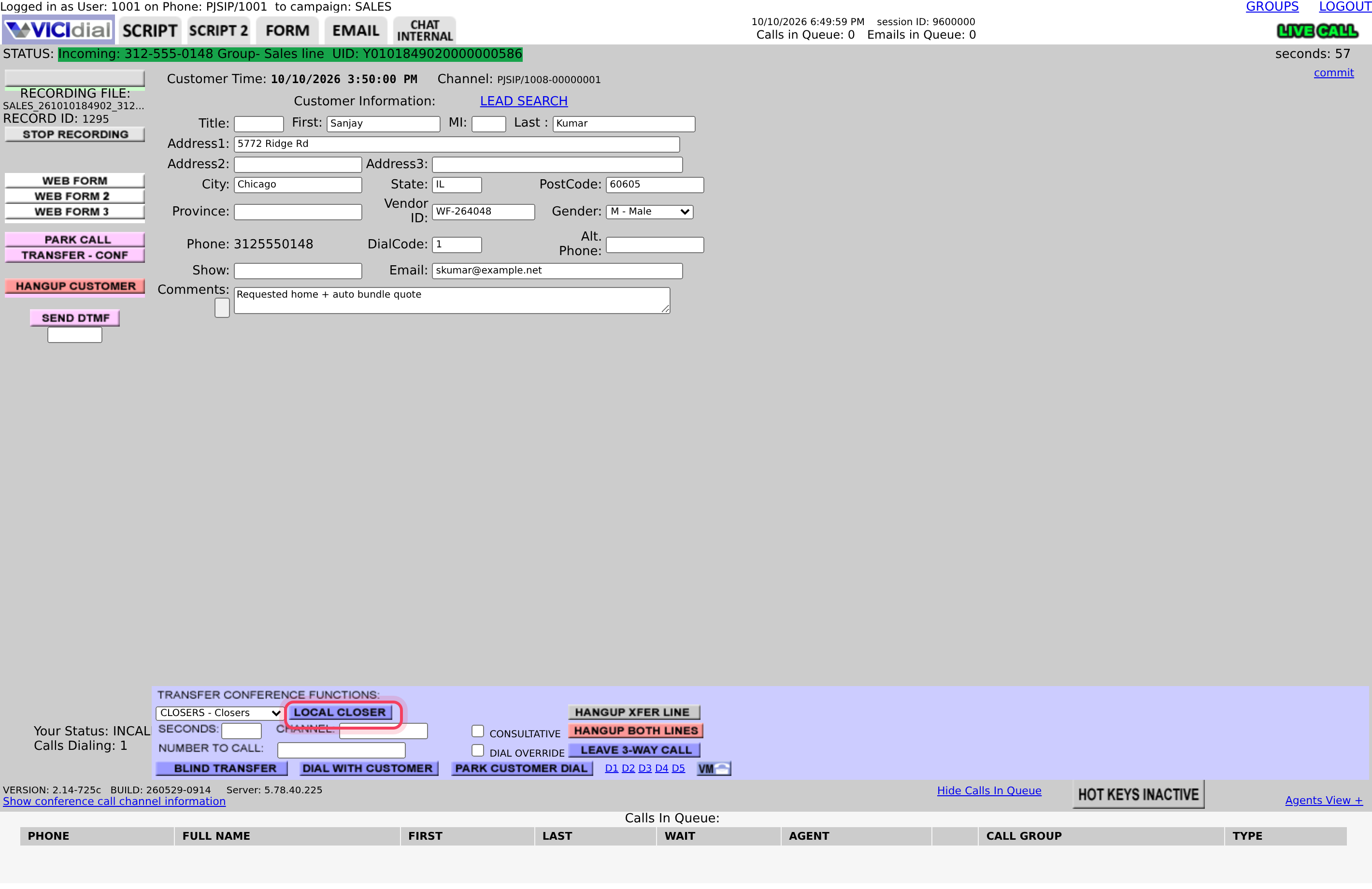
- The TRANSFER CONFERENCE FUNCTIONS panel opens at the bottom of the screen. It has a list of queues, a NUMBER TO CALL box and the transfer buttons.
Step 2: Pick how to pass the call
Send the caller to a queue (for example your closers)
- In the list next to LOCAL CLOSER, pick the queue, for example CLOSERS - Closers. Your company's main one may already be picked.
- Click LOCAL CLOSER.
- The caller goes to the next free person in that queue. You leave the call and the result screen opens. Pick the result your company uses for transfers, for example XFER, and click SUBMIT.
Talk to all three together (3-way call)
- Type the phone number in NUMBER TO CALL, with the area code.
- Click DIAL WITH CUSTOMER. The number is called while the customer stays on the line with you.
- When the other person answers, all three of you can talk.
Talk to the other person first
- Type the number and click PARK CUSTOMER DIAL. The customer hears hold music while you call.
- Explain the call to the other person.
- Click GRAB PARKED CALL to bring the customer back. Now all three of you are on the call.
Hand the call over and drop off
- Type the number and click BLIND TRANSFER. The customer goes to that number and you leave the call straight away.
Step 3: Finish a 3-way call
- LEAVE 3-WAY CALL: you drop off. The customer and the other person keep talking.
- HANGUP XFER LINE: the other person drops off. You keep the customer.
- HANGUP BOTH LINES: ends the call for everyone.
When you leave or end the call, the result screen opens. Save the result as usual.
On the newer VICIfast screen, the same buttons are called Transfer, Local closer, Dial with customer, Park customer, dial, Blind transfer, Leave 3-way call, Hang up transfer line and Hang up both lines.
On the phone app
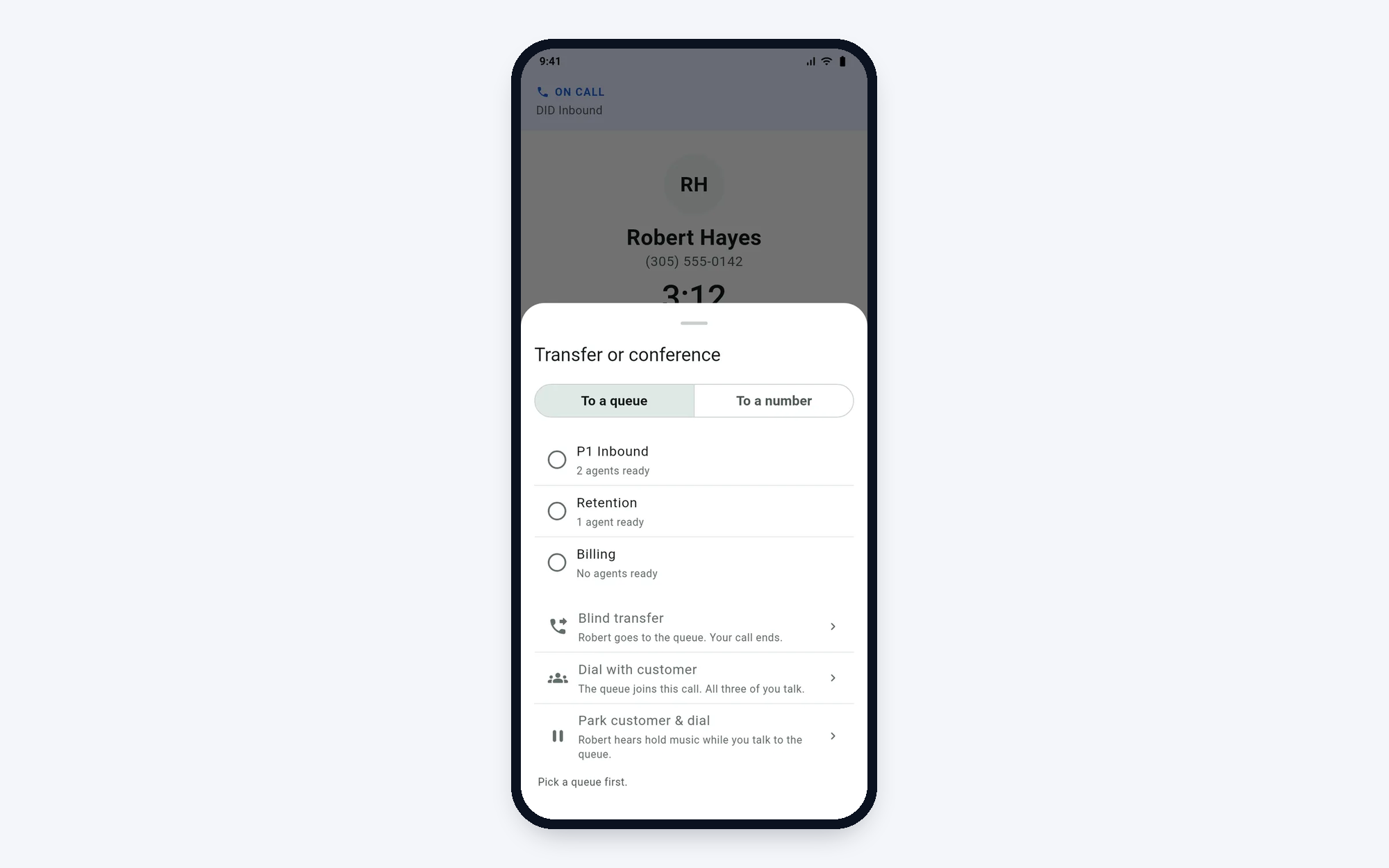
In VICIfast Phone, tap Transfer during a call. Choose To a queue or To a number, then Blind transfer, Dial with customer or Park customer & dial. Afterwards you get Leave 3-way call, Hang up xfer line or Grab parked call.
If something goes wrong
Frequently asked
- Your campaign isn't set up to send calls to queues. Ask your manager.
- Your manager has to add it for your campaign. After that, log out and back in.
- Transfers are switched off for your login. Ask your manager.
- Click HANGUP XFER LINE. If the customer is on hold music, click GRAB PARKED CALL to talk to them again.
- You are still talking to the other person. Finish, then click HANGUP BOTH LINES and save the result.