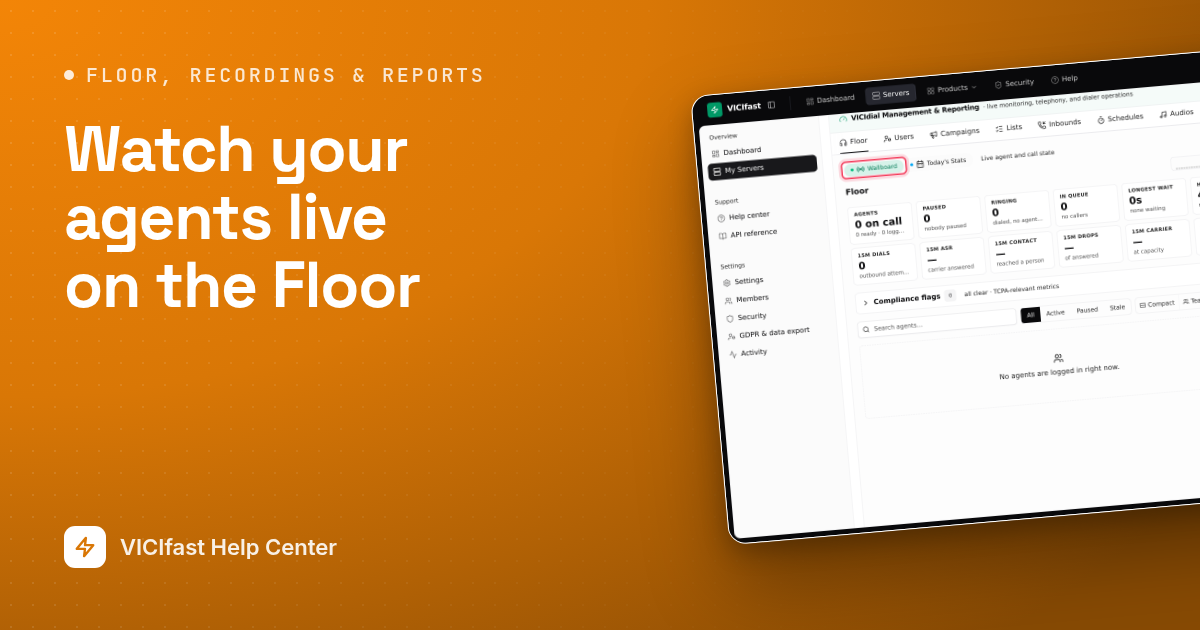
Watch your agents live on the Floor
Read the Floor tab: the sixteen tiles, the agent cards in VICIdial's Real-Time colours, campaign and queue cards, alerts, and wall-screen mode.
Floor, recordings & reports · 5 min read
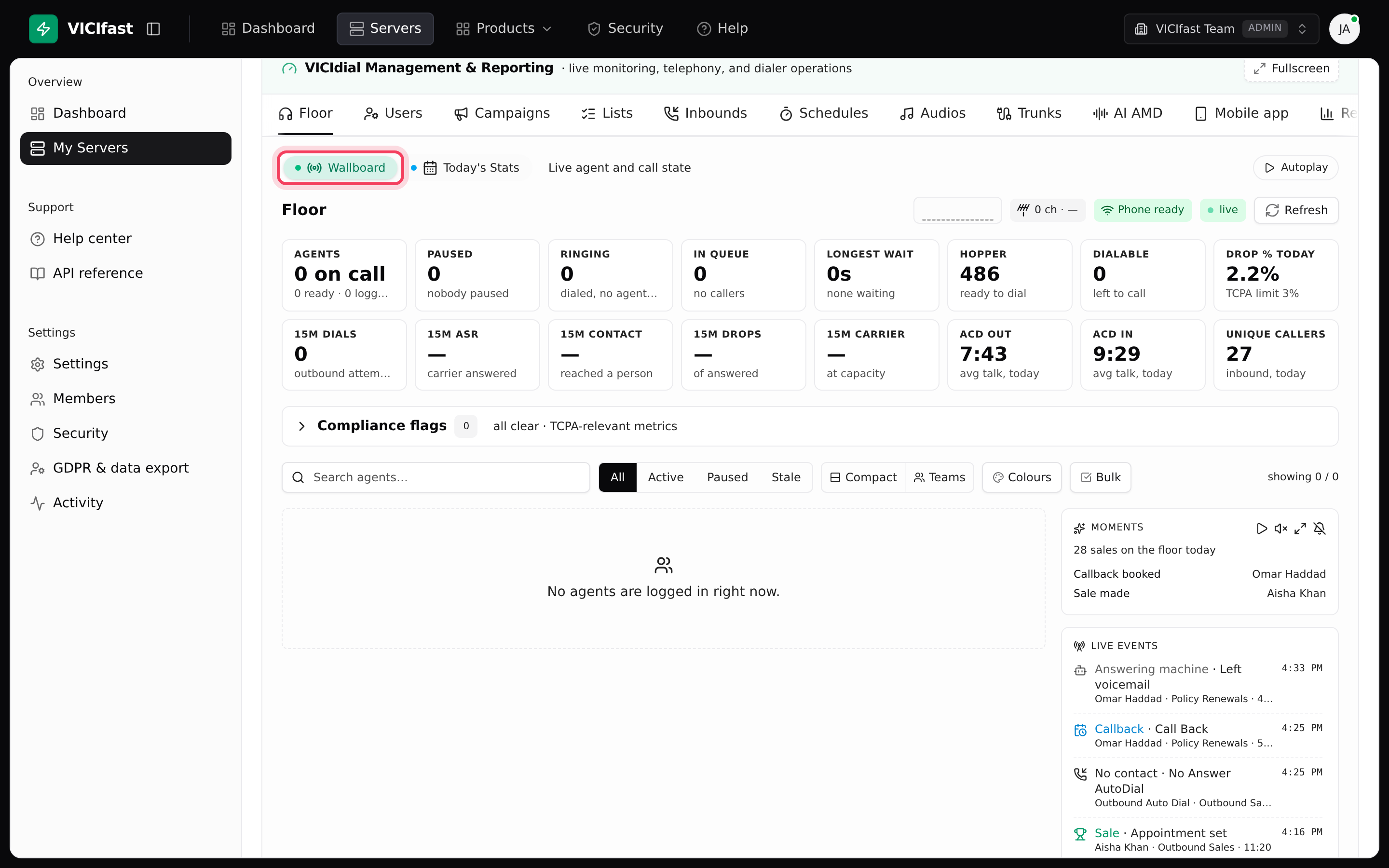
The Floor tab shows your call center as it is right now: a card for every logged-in agent, sixteen number tiles across the top, and your campaigns and inbound queues underneath. Keep it open during the shift to see who is waiting, who has been paused too long, and when something needs you.
What you need
- A server that is running. Until it is, the tab says the live floor view appears once the server reaches ACTIVE.
- If you are a team member rather than the account owner, the owner must give you the Floor tab.
Step 1: Open the Floor
- In the left sidebar, click My Servers.
- Click your server's name. The Floor tab opens first. From any other tab, click Floor or press the f key.
- Check that the Wallboard chip is selected. The Today's Stats chip next to it shows everything since midnight (see Reports and agent stats).
The page updates itself every 2 seconds. The pills at the top right show your phone line (for example 3 ch · 33% ASR: lines in use, and the share of dials answered in the last 15 minutes), Phone ready for listening in, and live or polling for the connection. Both are fine.
Step 2: Read the sixteen tiles
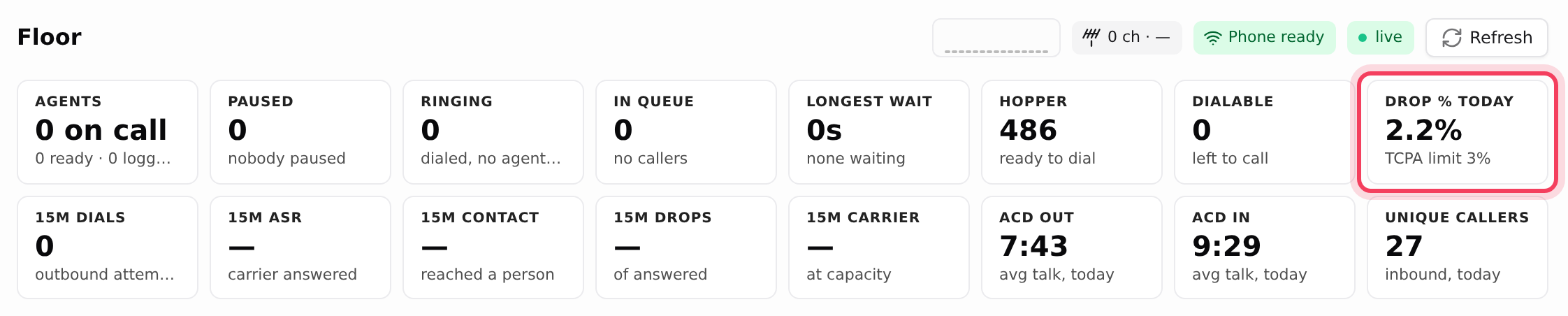
The tiles run from Agents (on call, ready, logged in) and Paused to Unique callers. Tiles starting with 15m cover the last 15 minutes. ACD out and ACD in are the average talk time per call today.
A tile turns amber or red when it crosses a line, and flashes once when it changes colour. It flashes green when it goes back to normal. The lines that matter most:
- Drop % today goes amber at 2.5% and red at 3%, the TCPA limit. It only starts judging once 50 calls have gone out.
- In queue goes amber above 5 callers and red above 10. Longest wait goes amber after 1 minute and red after 2.
- Hopper goes red when it is empty while agents are waiting. Dialable goes amber or red when a campaign is running low on leads, and names that campaign.
- 15m carrier is the share of calls your phone line turned away as at capacity: amber at 5%, red at 10%.
A dash with no outbound campaigns or no inbound groups means the tile does not apply to your server. When a campaign is about to run dry, a Leads running low or Out of leads row appears under the tiles.
Step 3: Read the agent cards
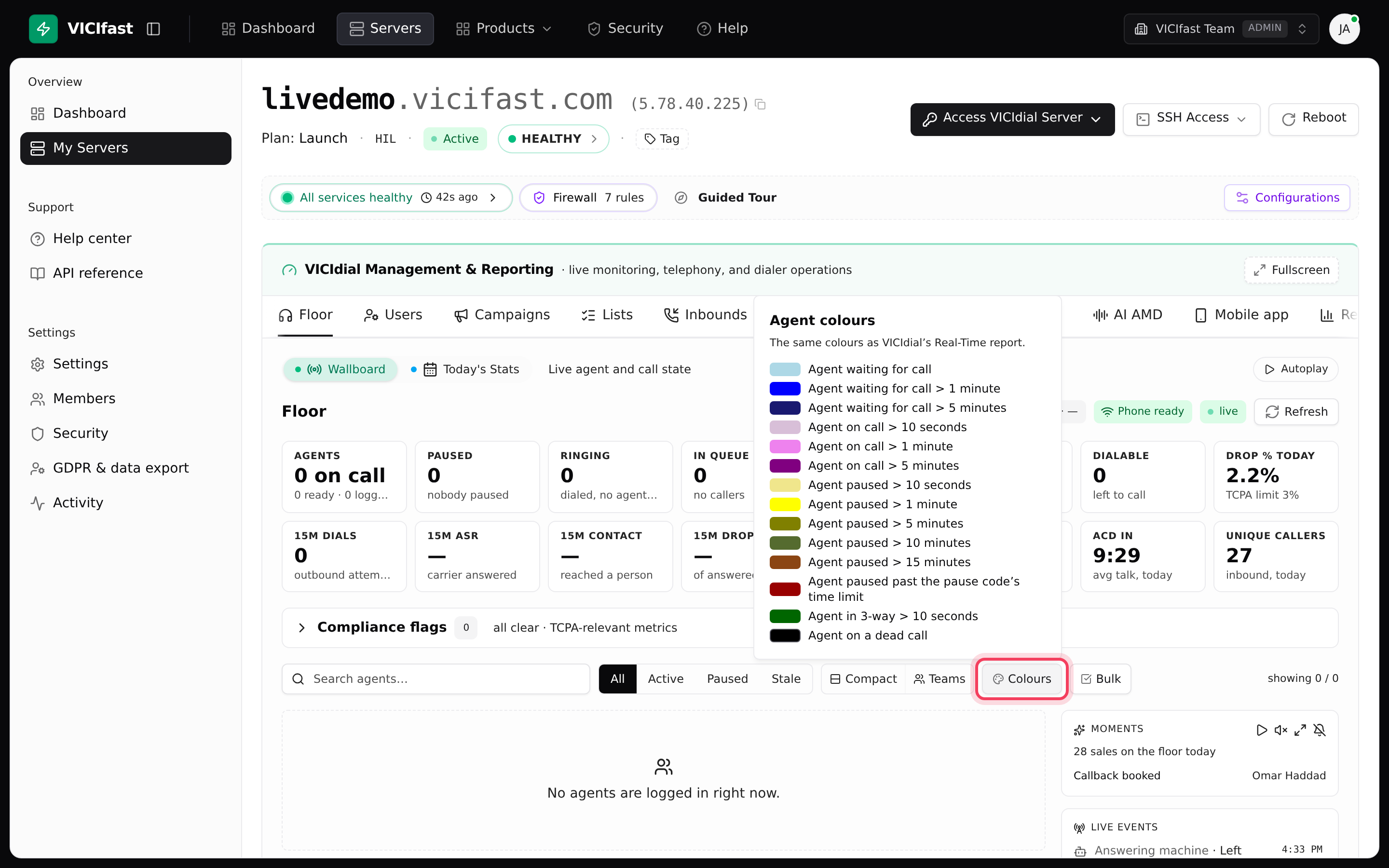
Each card shows the agent's name, state, time in that state, campaign and calls today (for example 12c). The colours match VICIdial's own Real-Time report:
- Light blue: waiting for a call. Blue after 1 minute, midnight blue after 5.
- On a call: thistle after 10 seconds, violet after 1 minute, purple after 5. A long call is not a problem.
- Paused, or in DISPO (choosing a call result): khaki after 10 seconds, yellow after 1 minute, olive after 5, dark olive green after 10 and saddle brown after 15. Dark red means the pause ran past its pause code's time limit.
- Black: a dead call. The customer has hung up but the agent is still on the line. DEAD 3-WAY is the same on a 3-way call.
Click Colours for the full key with your server's own times. Above the cards you can use Search agents…, filter by All, Active, Paused or Stale (cards in a colour worth checking), or switch on Compact and Teams for big floors.
Step 4: Click an agent to act
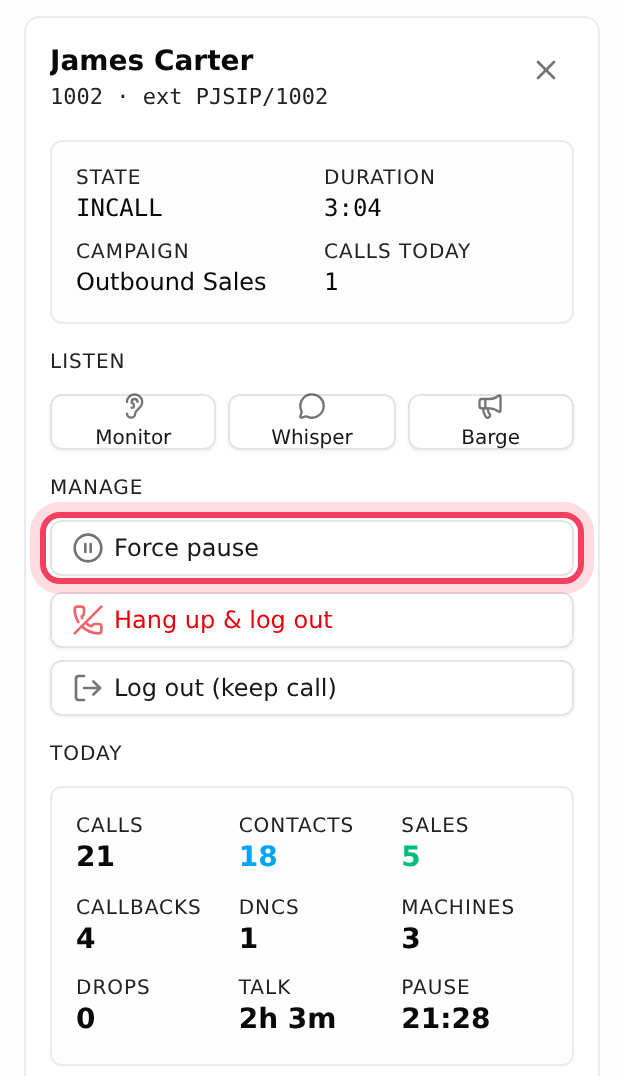
- Click an agent's card. A panel opens with their State, Duration, Campaign and Calls today.
- Under Listen, choose Monitor, Whisper or Barge to join their call. See Listen, whisper and barge.
- Under Manage, click Force pause to pause the agent, or Log out. If they are on a call you choose between Hang up & log out and Log out (keep call). You are asked to confirm first.
Lower in the panel you see the agent's day so far, Dispositions today and Recent calls. To pause several agents at once, click Bulk, tick their cards and click Pause selected, or click Pause idle > 2m.
Step 5: Watch campaigns and queues
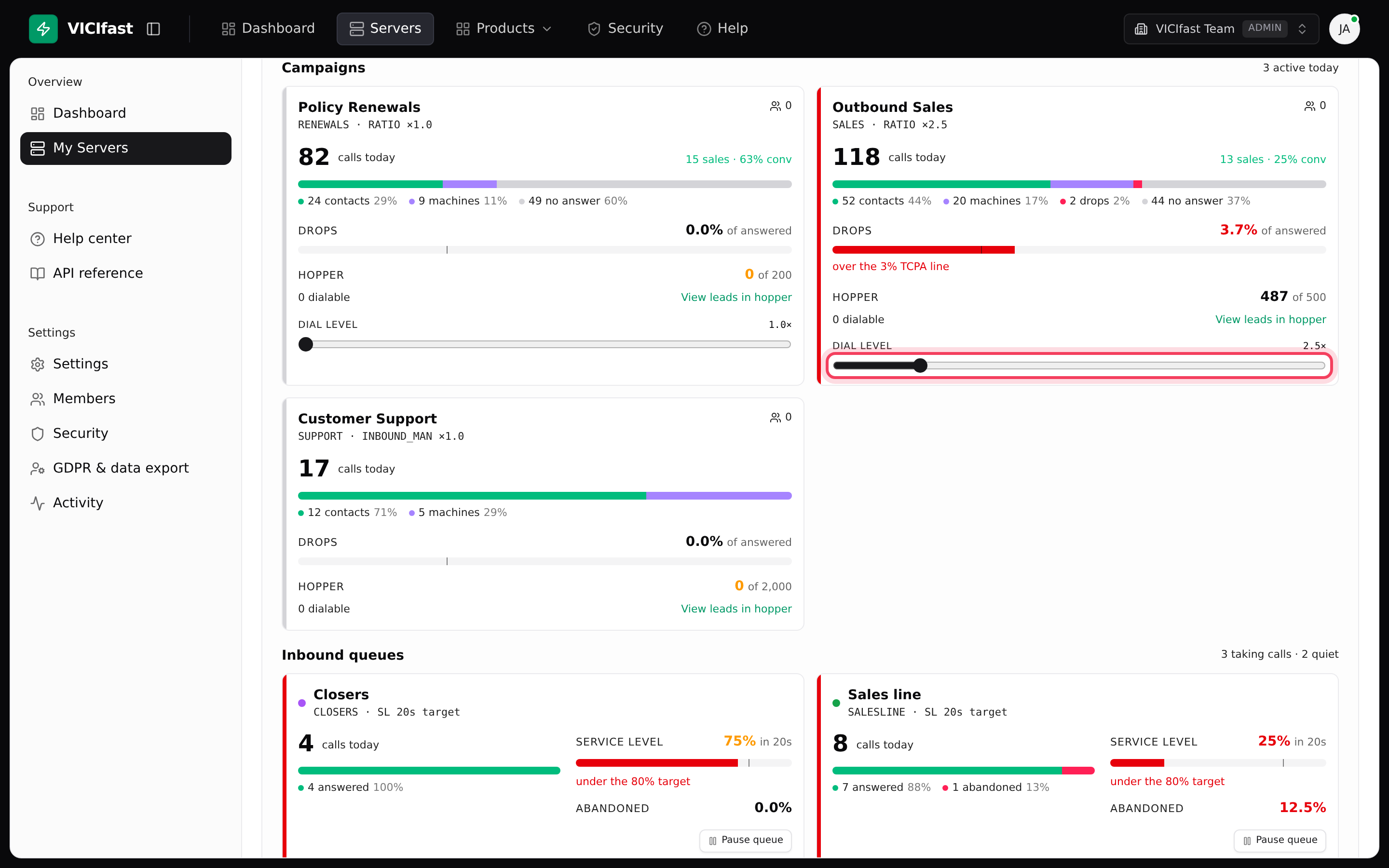
Scroll below the cards. Each Campaigns card splits today's calls into contacts, machines, drops and no answer, and shows Drops against the 3% line. Click View leads in hopper to see the leads ready to dial. Campaigns that dial on their own (ratio or adaptive dialing) get a Dial level slider: drag it to speed the dialer up or slow it down. It applies within seconds.
Each Inbound queues card shows answered and abandoned calls and Service level against the queue's own target. Pause queue stops new calls entering that queue; calls already in it finish normally.
Step 6: Act on alerts
The Needs attention strip appears only when something crosses a line: a dead call, an agent paused over 20 minutes, a caller waiting over 5 minutes, a drop rate over 3%, or your phone line turning away 5% or more of calls. Compliance flags below it shows the drop rate against the 3% limit, DNC additions, callbacks queued and answering machines detected. It opens by itself when one turns amber or red.

Step 7: Put it on a wall screen
- Click Fullscreen at the right end of the green VICIdial Management & Reporting bar, or press Shift+F. Click Exit Fullscreen or press Esc to leave.
- To swap between Wallboard and Today's Stats by themselves, click Autoplay and pick 5s, 10s, 30s or 1 min. Clicking a chip yourself stops autoplay.
- The Moments box celebrates sales as they land. Its buttons read them aloud, show them full screen, or mute them for this server.

If something goes wrong
Frequently asked
- Nobody is logged in to the agent screen or the mobile app. Cards appear as soon as an agent logs in.
- Hover over one to see why. They only work while the agent is on a call and the Phone pill says Phone ready. If it says Phone in other tab, close the other dashboard tab.
- The live connection dropped and the page is checking every 2 seconds instead. Click Refresh. If data stays stalled, check your internet connection, then chat with support.
- Your server needs a small update, or the dashboard could not read some numbers from your dialer. Chat with support and we will fix it.
- To save load on your server, the Floor pauses after your browser tab has been hidden for 30 seconds. It catches up as soon as you come back.