Root access (SSH) to your server
Add an SSH key to get a root command line on your server, why keys expire after 30 minutes, and how to revoke access.
Advanced · 5 min read
SSH gives you a command line on your server as root, the account that can change anything. Most customers never need it: day-to-day work happens in the dashboard and in VICIdial admin. It is for technical users who want to read logs, run their own scripts, or connect backup and monitoring tools. One wrong command can stop your dialer, so the dashboard makes you slow down before it lets you in.
What you need
- You are the account owner, or a team member whose role can make changes (Admin or Operator) with SSH and terminal ticked on the Members page. A Viewer cannot add keys, even with that box ticked.
- The computer you connect from is allowed through your firewall with the Admin profile. Step 1 shows how.
- An SSH key pair on that computer. The SSH keys page shows the two commands to create one if you have none.
Step 1: Let your computer through the firewall
- Click My Servers in the sidebar, then click your server.
- If you are the account owner, the page usually adds your current address for you. You see "Whitelisted your IP (…) on this server's firewall".
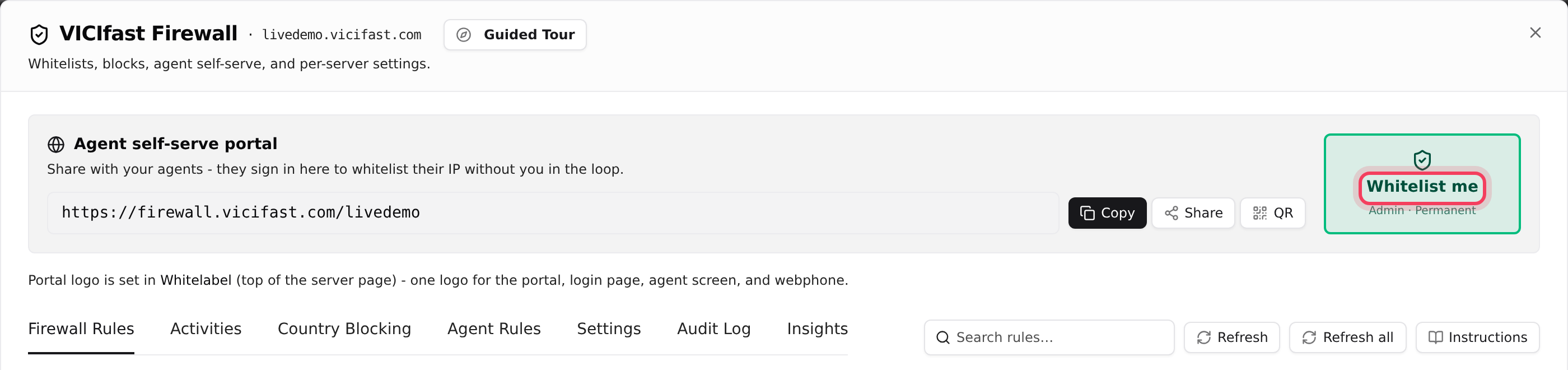
- To add it yourself (a new office, or you are a team member), click the Firewall chip in the tools strip, then click Whitelist me. It adds a permanent rule for your current address with the Admin · Permanent profile.
Step 2: Open the SSH keys page
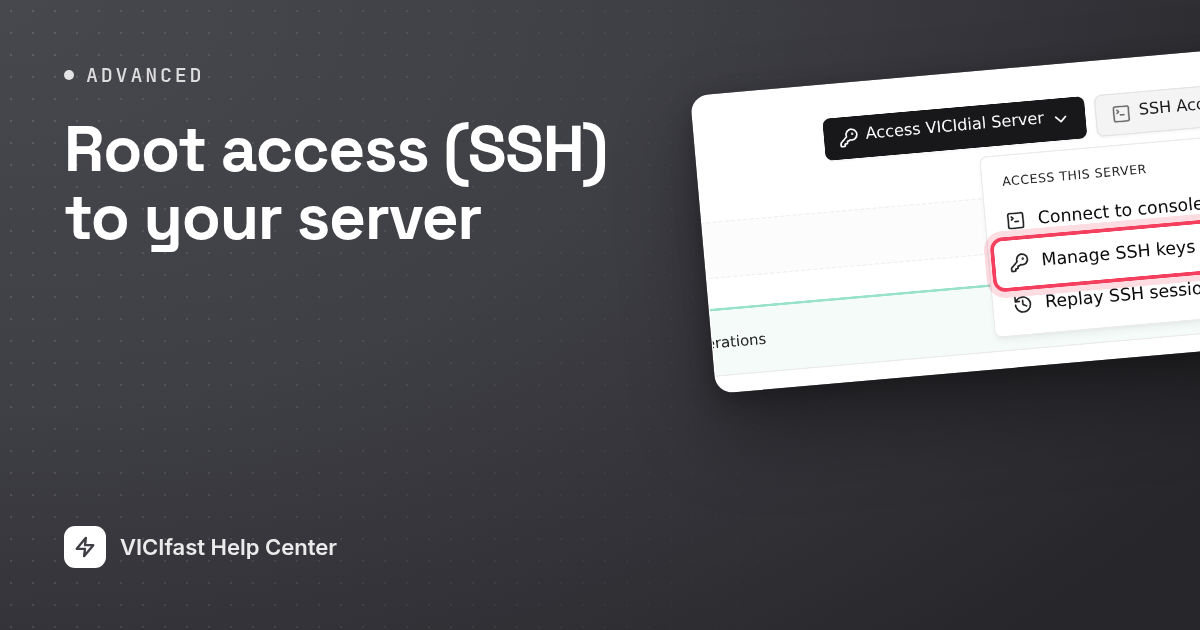
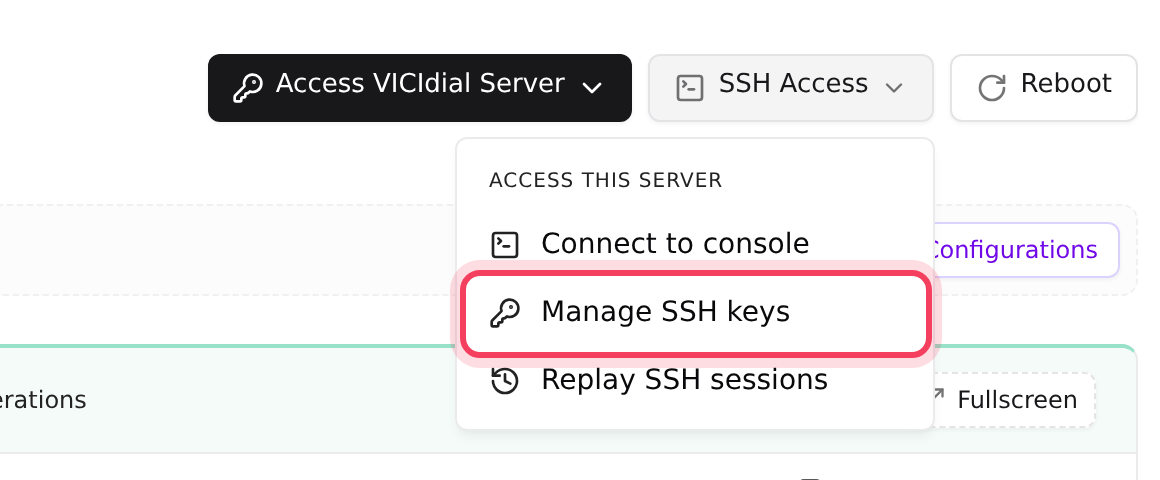
- At the top of the server page, click SSH Access.
- Click Manage SSH keys.
- Under Connect from your terminal you find the commands to create a key and print its public half, and the exact command to connect with.
Step 3: Read and accept the warning
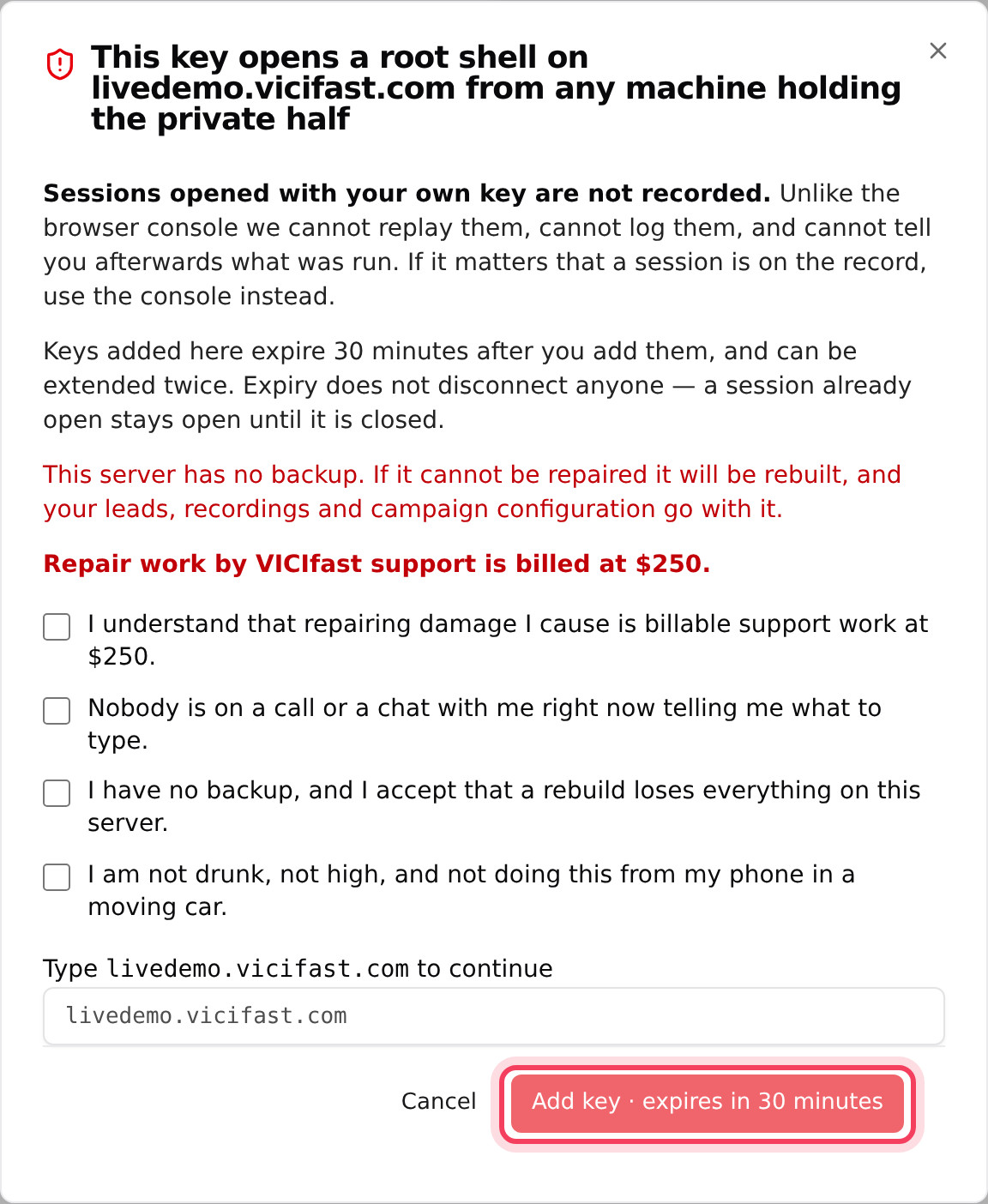
- Click Add public key. A warning opens: "This key opens a root shell on" your server "from any machine holding the private half".
- Read it. It tells you how recent your last backup is (or that you have none), and that repair work by VICIfast support is billed at $250.
- Tick every box. There are four, or five when agents are logged in and taking calls right now.
- Type your server's address in the box below the checkboxes, exactly as the dialog shows it.
- Click Add key · expires in 30 minutes.
Step 4: Paste your public key
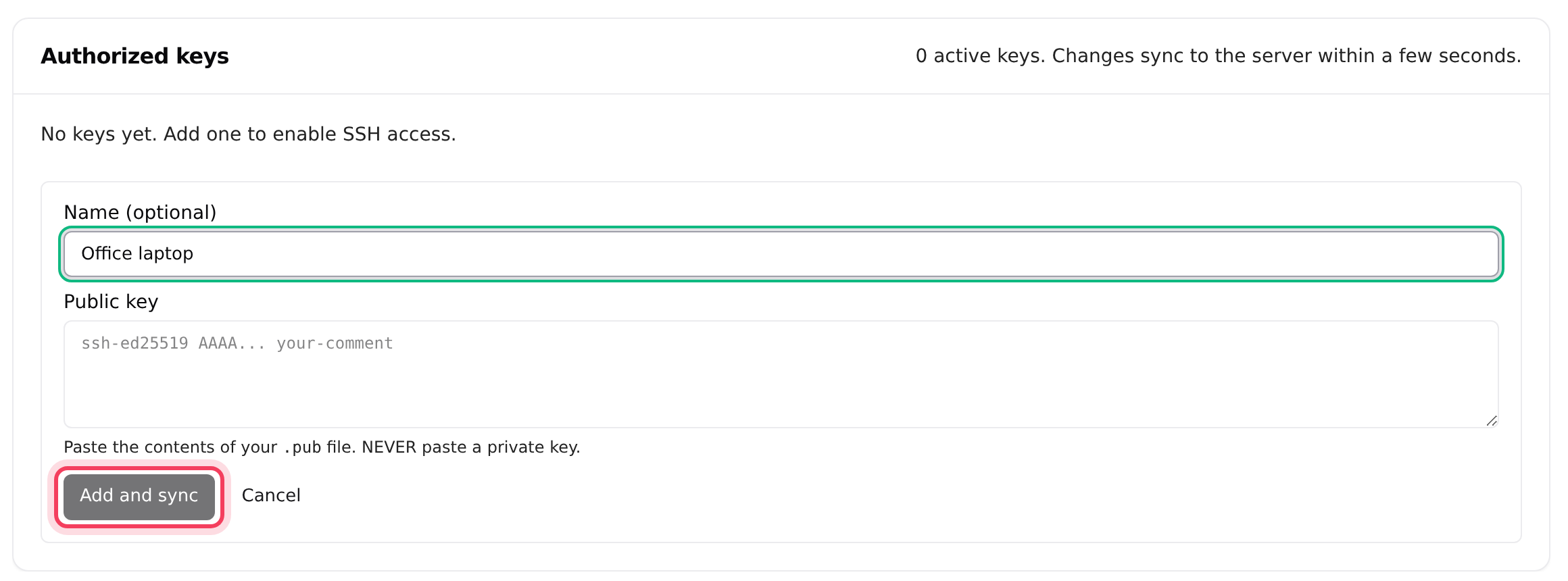
- In Name (optional), type something you will recognise, for example "Office laptop".
- In Public key, paste the contents of your .pub file. It starts with ssh-ed25519 or ssh-rsa. Never paste a private key.
- Click Add and sync. You see "Key added — expires in 30 minutes." Changes reach the server within a few seconds.
Step 5: Connect, and extend if you need longer
- In your terminal, run the connect command shown under Connect from your terminal.
- Each key in Authorized keys shows when it expires. Click Extend 30m for another 30 minutes from now. You can extend a key twice.
- When time runs out, the key is taken off the server and its row reads "Expired — no longer on the server". To keep working, add the key again: you pass the warning again and get a fresh 30 minutes.
Step 6: A key for backups or monitoring (owner only)
Tools that connect on their own, like a backup job, cannot use a key that dies after half an hour. The account owner can add one key that never expires:
- In the add form, tick This is an automation key.
- Type automation in the box that appears, to confirm a key that never expires.
- Click Add and sync. The row reads "Automation key — never expires".
Team members cannot create, extend or revoke an automation key. Their keys always expire.
Step 7: Revoke a key
- Click Revoke key on the key's row.
- Read the dialog: an SSH session that is already open stays open until it is disconnected. If someone is on the server right now and should not be, reboot the server as well.
- Click Revoke key to confirm, or Keep the key.
Revoked keys stay in the list, greyed out and marked Revoked, so you can always see who had access.
The browser console instead of SSH
SSH Access > Connect to console opens a root terminal in your browser, with no key needed. You tick the same kind of warning boxes first (no typing the address), then click Accept and open console. Every keystroke in a console session is recorded and kept. Watch past sessions from SSH Access > Replay SSH sessions. If Connect to console is missing from the menu, the console is not available on your account.
If something goes wrong
Frequently asked
- You need to be the owner, or a team member whose role can make changes with "SSH and terminal" ticked. Ask the account owner to change your access on the Members page. The button is also greyed out while the server is not running.
- Your computer's address is not allowed with the Admin profile. Click the Firewall chip on the server page, then Whitelist me, and try again. Your address changes when you change network or office.
- The key has probably expired ("Expired — no longer on the server") or you pasted a different key. Add the key again. If the add said "Saved, but couldn't sync to server", click Re-sync to server.
- A key can be extended twice. Add the key again for a fresh 30 minutes, or ask the account owner about an automation key if a tool needs permanent access.
- Automation keys are owner-only. Team members add keys that expire after 30 minutes.
- There isn't one. Password login is switched off on your server, so SSH works with keys only. Anyone who needs access adds their own public key.