Calling hours, shifts and holidays
Set when your dialer may call each lead, close or shorten days for holidays, and set the shifts agents can sign in to.
Campaigns & leads · 4 min read
Three settings set the rhythm of your call center. Call times decide when the dialer may call. Holidays are dates that change those hours. Shifts decide when agents may sign in. All three live on the Schedules tab.
How calling hours work
A call time is a named weekly window, such as 9am-9pm. It is checked against each lead’s own local time, not yours: a New York lead and a California lead are each called inside their own 9 to 9. The dialer learns each lead’s time zone when the list is imported. Outside the window, a lead simply waits.
The dialer works this out from your server’s clock, so your server’s time zone must be right. New servers are set to US Eastern. To change it, see Change your server’s time zone.
What you need
- You are the account owner, or a team member allowed to make changes on the Schedules tab.
Step 1: Open Schedules
- Open your server from My Servers and click the Schedules tab.
- Three pills sit at the top: Call Times, Holidays and Shifts.
Your server comes with ready-made windows such as 9am-9pm and 24hours. The table shows each Default window and its After-hours audio.

Step 2: Create or edit a call time
- Click New call time, or click an ID to edit one.
- ID: a short lowercase tag of up to 10 characters, for example weekdays. It cannot be changed later.
- Name: the label people see in menus, for example "Weekdays 8am-6pm".
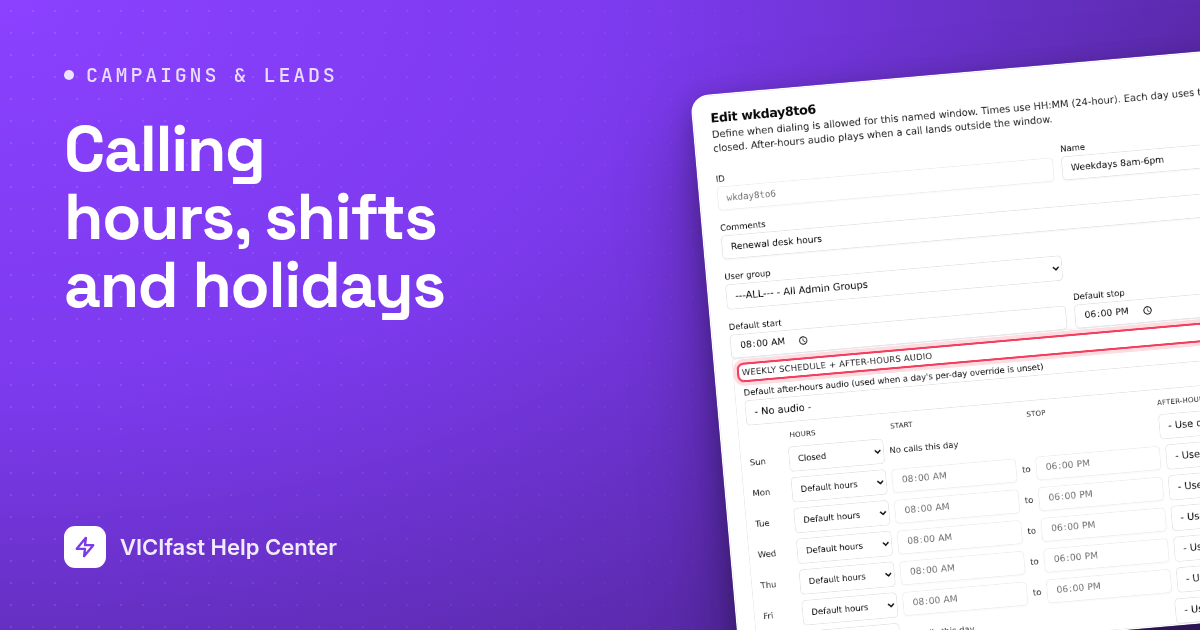
- Default start and Default stop: your everyday hours, in 24-hour time.
- Under Weekly schedule + after-hours audio, set each day to Default hours, Own hours (then type that day’s start and stop) or Closed ("No calls this day").
- Optional: pick an after-hours recording, for the whole week or per day. It plays when an inbound call arrives outside the window.
- Optional: tick dates under Holidays that apply (Step 4).
- Click Create call time (or Save changes).

Step 3: Use it on a campaign or list
- On the Campaigns tab, click your campaign and open the Dialing tab.
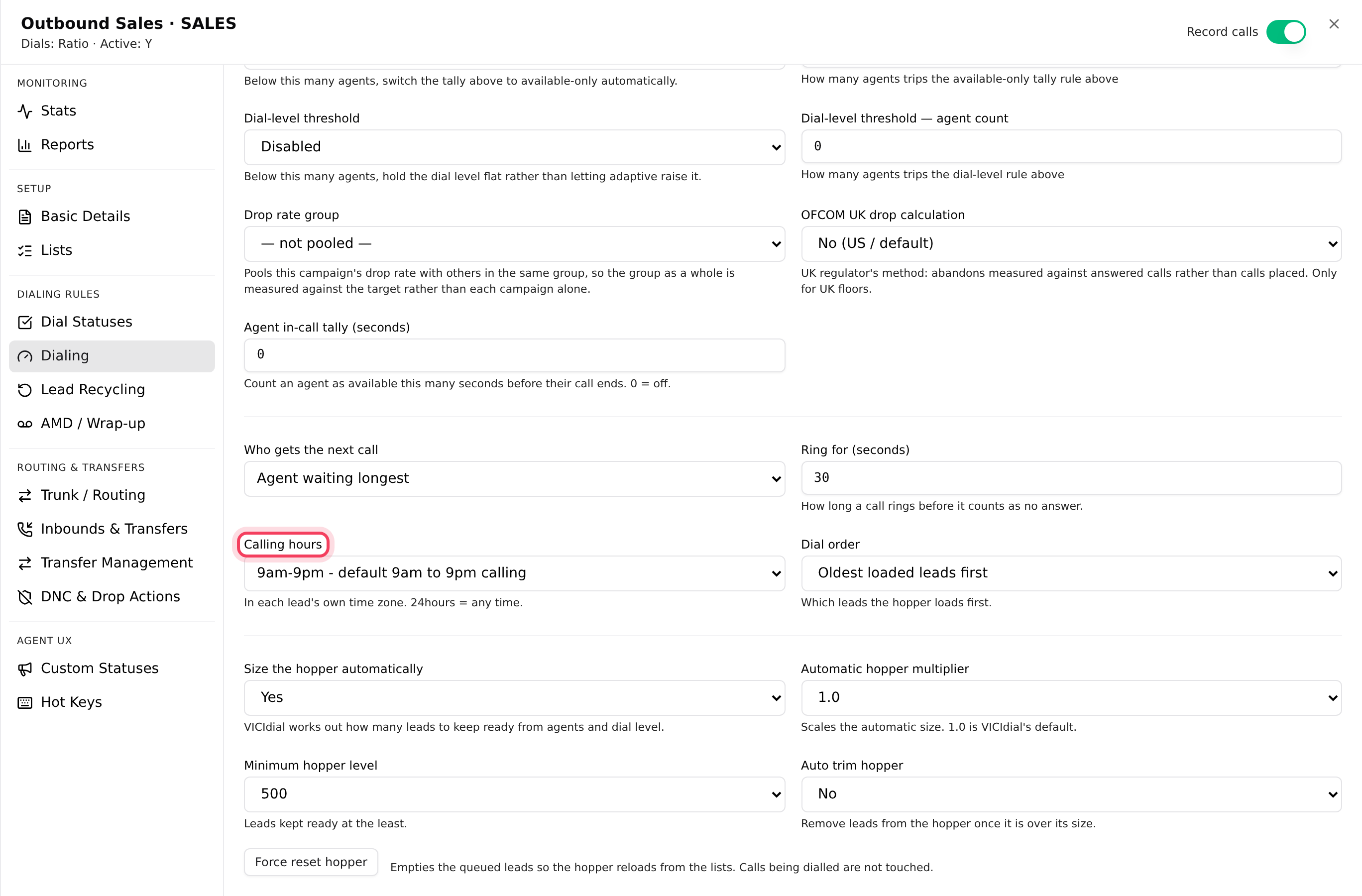
- Pick the window in Calling hours ("In each lead’s own time zone. 24hours = any time.") and click Save N changes.
- One list needs different hours? Open the list and set Local call time on its Basic Details. campaign - Inherit from campaign follows the campaign again.
Inbound queues (in-groups) have their own open hours on the queue’s After hours tab. See Set up inbound calls.
Step 4: Add a holiday
- Click the Holidays pill, then New holiday.
- ID: lowercase, for example christmas_2026 (spaces become underscores). Pick the Date and type a Name.
- Set Status to Active.
- Method: Replace (use times below) swaps in the holiday’s own Start (when REPLACE) and Stop (when REPLACE) times for that day, for example a short day. Addition reverse (inbound only) keeps the normal hours but treats the holiday’s start-to-stop as after hours for inbound calls.
- Optional: pick an After-hours audio, such as a closed-for-the-holiday greeting.
- Click Create holiday.
- Open each call time that should follow it, tick it under Holidays that apply and click Save changes.

Step 5: Add a shift
A shift is a work window for people, not for the dialer. Agents whose user group is limited to a shift can only sign in during it.
- Click the Shifts pill, then New shift.
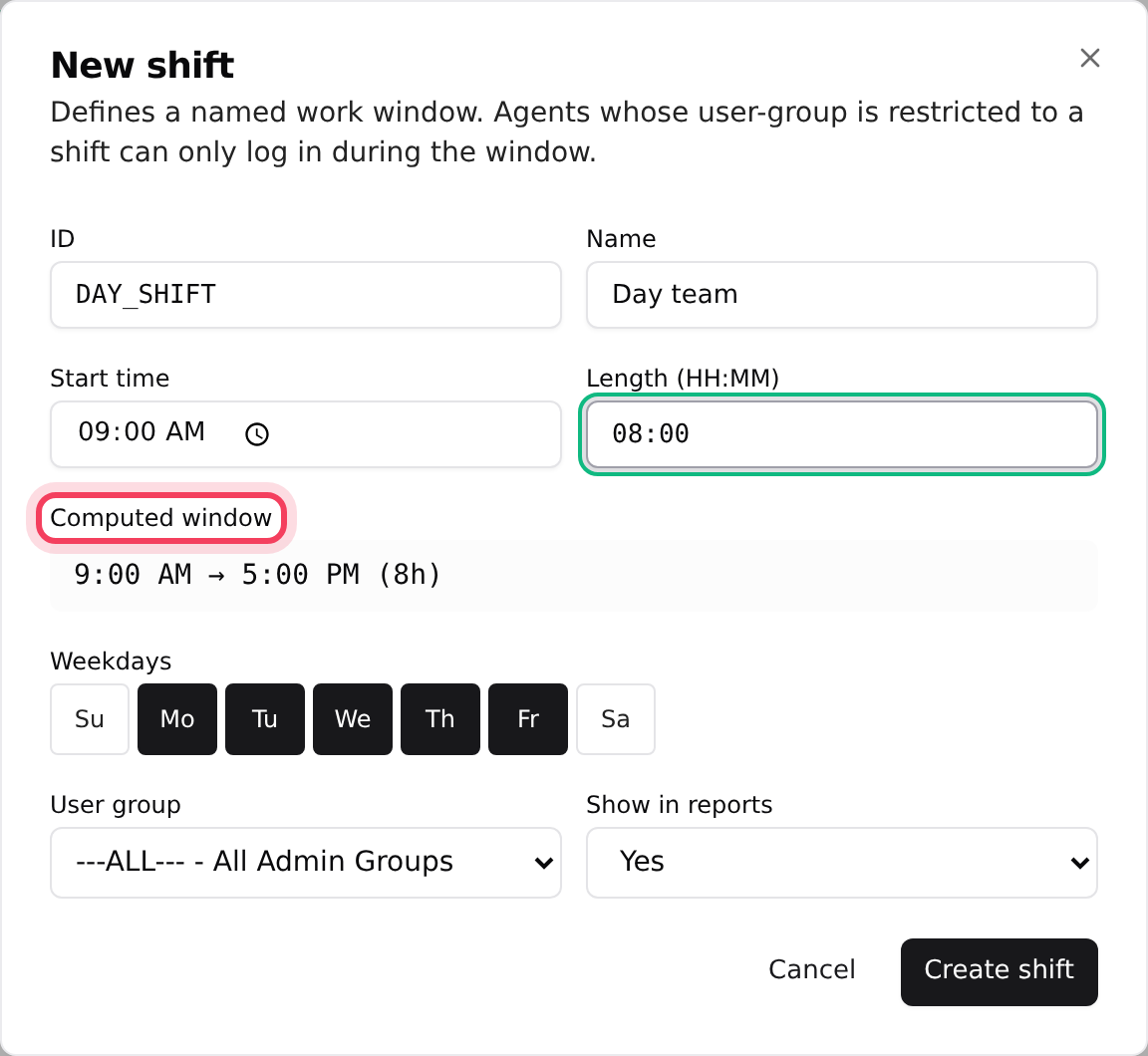
- Type an ID (for example DAY_SHIFT) and a Name.
- Set the Start time and Length (HH:MM). The Computed window line shows the result.
- Click the Weekdays the shift runs, leave Show in reports on Yes, and click Create shift.
To see which shifts a user group may use, open the group on the Users tab and look at Allowed shifts. Changing that link is not in the dashboard yet; ask us in the chat.
Delete a call time, holiday or shift
Click the trash icon on its row and type the ID to confirm. Anything that still uses that ID (a campaign, queue or call menu) needs a new value picked afterwards.
If something goes wrong
Frequently asked
- Check how the leads were imported: with no time-zone lookup they are treated as GMT. Also check your server’s time zone under Configurations, Change Timezone.
- Tick it under Holidays that apply in each call time, set its Status to Active and check the Date.
- Shifts only control when agents may sign in. Use the campaign’s Calling hours to stop dialing.
- No, IDs are permanent. Create a new call time, point your campaigns at it, then delete the old one.
- Set that day back to Default hours or Own hours in the call time and save.