Redials and lead recycling
Decide which call results get dialed again, start a fresh pass by resetting a list, and retry no-answers sooner with lead recycling rules.
Campaigns & leads · 4 min read
Most calls don’t reach anyone the first time. This guide shows how to decide which leads are called again, when, and how often, so you work your lists without burning them out.
How the dialer picks the next lead
The dialer works through a list in passes. Picture a mail carrier’s round: every door once, then the round is over. During a pass, a lead is called once. A lead can be called when:
- its list is attached to the campaign and Active,
- its result (status) is ticked on the campaign’s Dial Statuses tab,
- it has not been called since the list was last reset, and
- the calling hours are open where the lead lives.
The ready-to-call leads wait in a short queue called the hopper, like a hand of cards dealt from the full deck. Resetting a list starts a new round. Lead Recycling lets you retry certain results sooner, within the same day.
What you need
- You are the account owner, or a team member allowed to make changes on the Campaigns tab (and the Lists tab, to reset lists).
Step 1: Choose which results are called again
- On the Campaigns tab, click your campaign to open its settings.
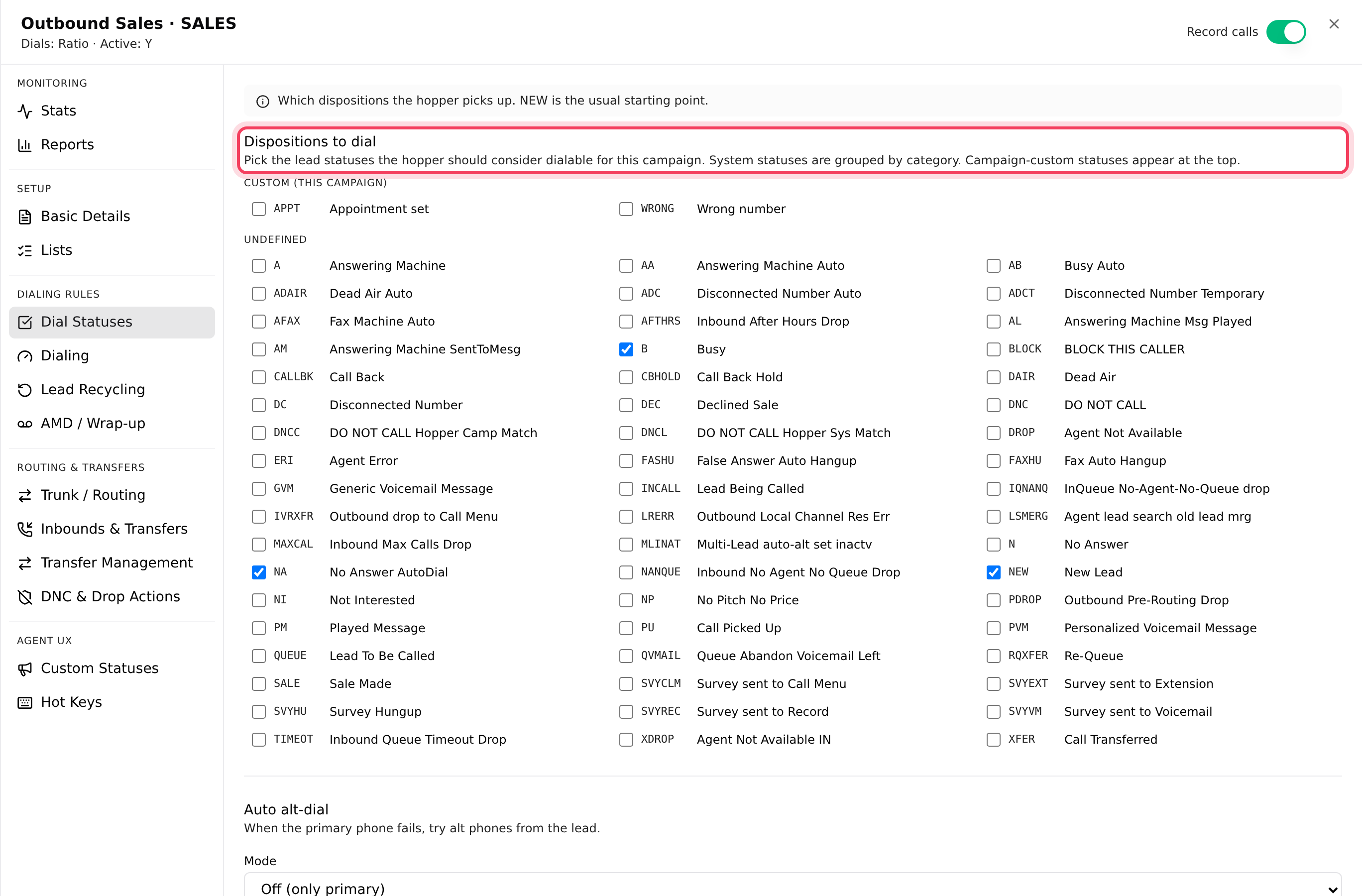
- Click Dial Statuses.
- Under Dispositions to dial, keep NEW ticked and tick the results worth another try, for example NA (no answer), B (busy) or A (answering machine).
- Click Save N changes at the top.
Step 2: Start a new pass by resetting the list
A lead that was already called this pass waits until the list is reset. You can reset by hand or on a timer.
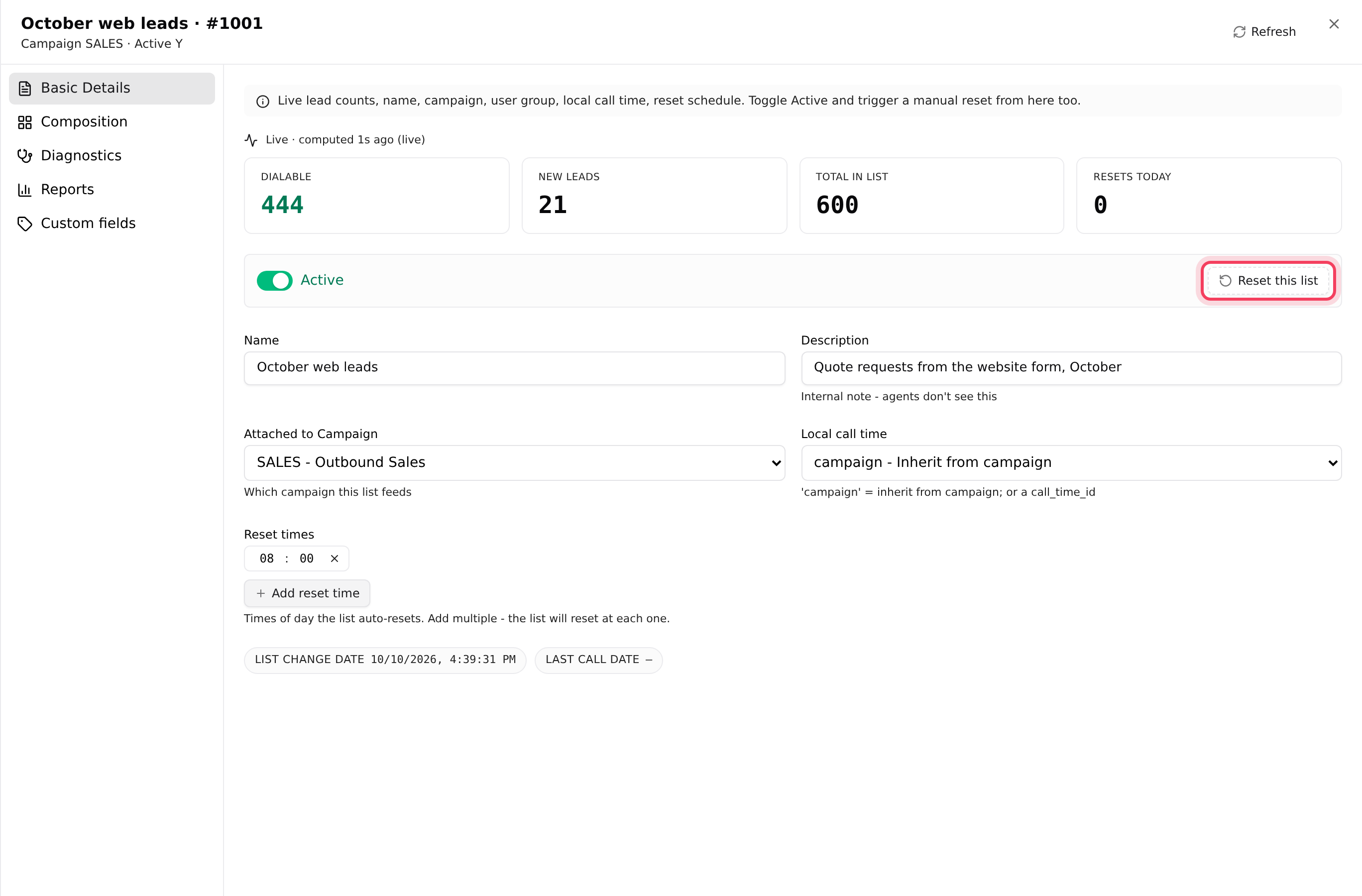
- On the Lists tab, click your list’s ID to open it. You land on Basic Details.
- To reset now, click Reset this list. It runs at once, without asking, and shows how many leads were marked uncalled.
- To reset automatically, go to Reset times, click Add reset time and enter the hour and minute. Add more times if you want several resets a day. Click Save N at the top.
The Resets today tile counts today’s resets. It turns amber after 5, a sign the list is being worked very hard.
Step 3: Retry some results sooner with Lead Recycling
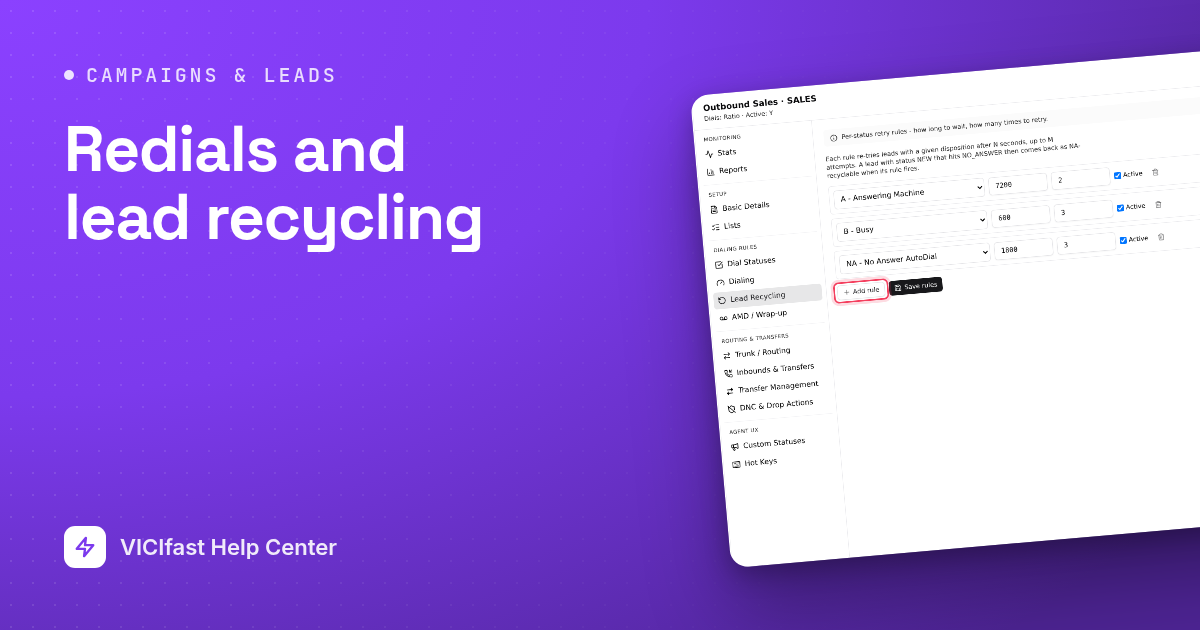
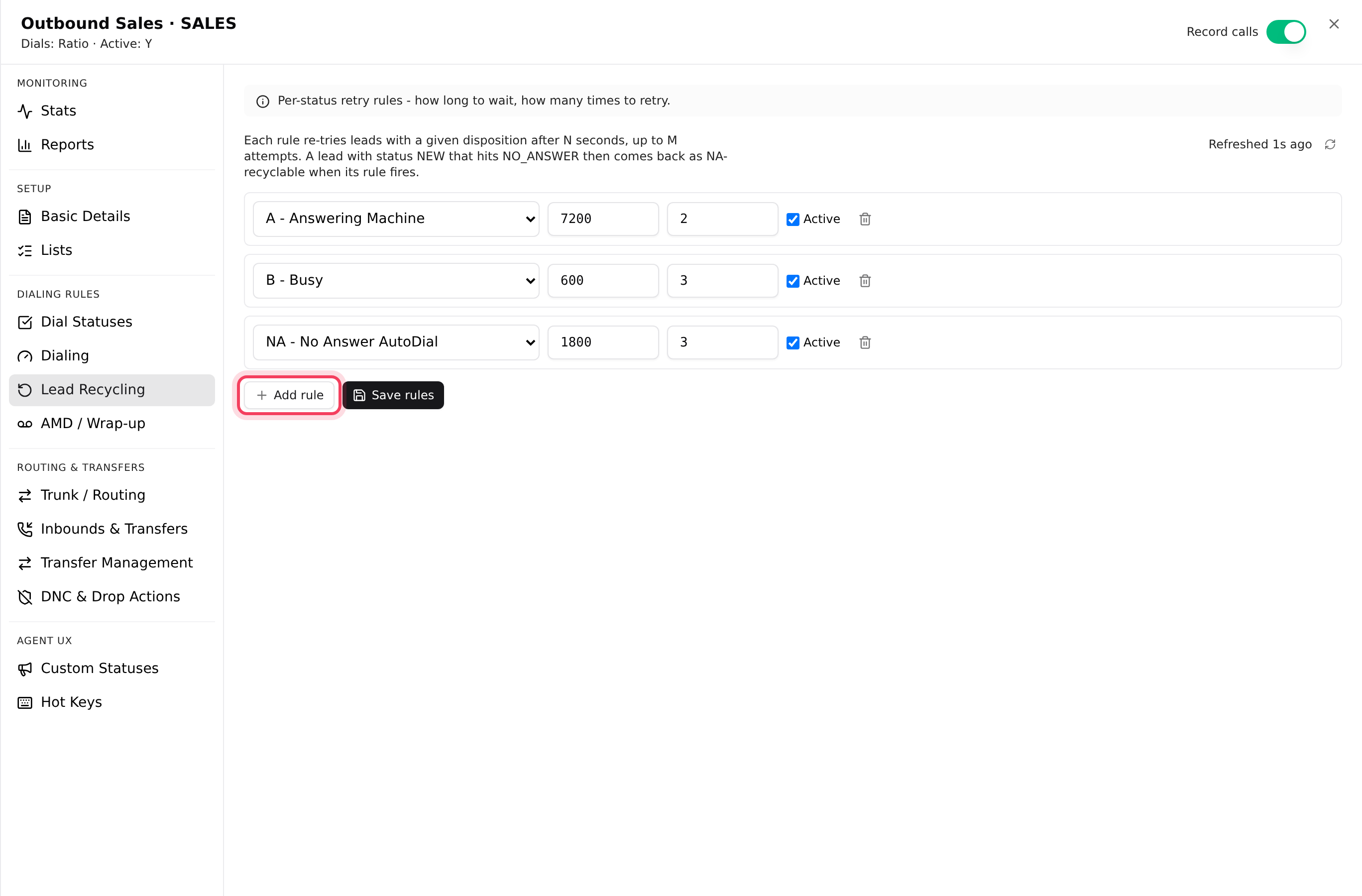
A recycle rule says: when a lead gets this result, try it again after this long, up to this many times. For example, "no answer: try again in 30 minutes, up to 3 times".
- In the campaign settings, click Lead Recycling.
- Click Add rule.
- Pick the result in the first menu. Only results this campaign uses are listed.
- Enter the delay in seconds (120 to 43199; 1800 is 30 minutes) and the most tries (1 to 10).
- Keep Active ticked and click Save rules.
Step 4: Try a lead’s other numbers
If your leads have an alternate phone number, the dialer can try it when the main number fails.
- On Dial Statuses, scroll to Auto alt-dial.
- Set Mode to Alt phone only (or another option that includes the numbers you have). Off (only primary) is the default.
- Under Apply on statuses, tick the results that should trigger it, or leave all unticked to use it on every no-answer.
- Click Save N changes.
Step 5: Check it is working
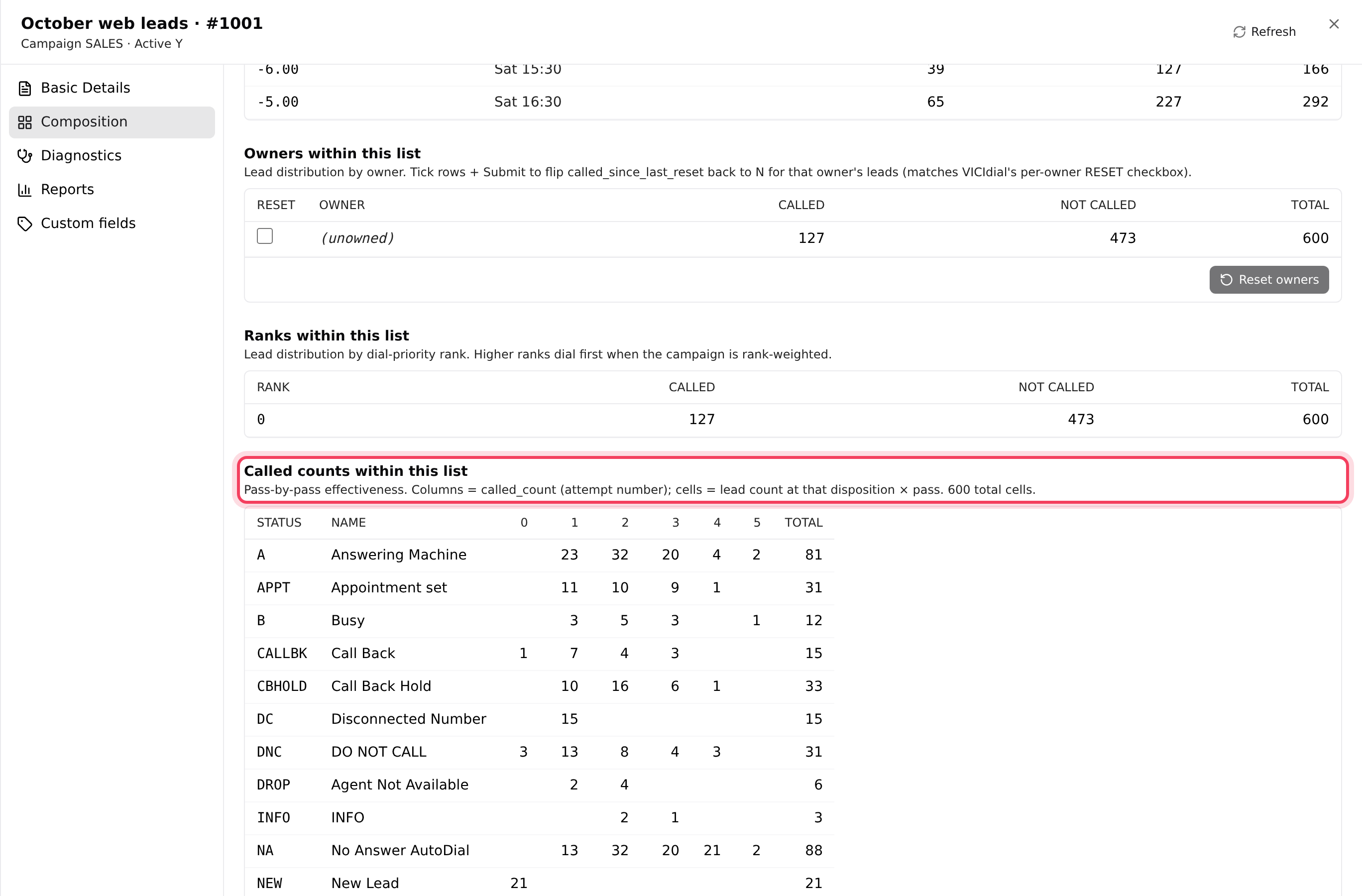
- In the list’s settings, Composition shows Called counts within this list: how many leads reached each result on the first, second, third try and so on.
- Diagnostics shows the Reset history of the list: when it was reset, by whom and how.
- The Dialable column on the Campaigns tab shows how many leads are still left to call.
More on these in What’s left in a list.
If something goes wrong
Frequently asked
- Those leads were already called in this pass. Reset the list, add reset times, or add a Lead Recycling rule for NA.
- Check the rule is Active, the delay is in seconds (at least 120), and the result is one this campaign uses. A result marked "(not in this campaign)" no longer exists on the campaign; pick another.
- A reset makes every lead in the list callable again, but only leads whose result is ticked on Dial Statuses are actually dialed. Untick SALE and similar results there.
- Add more leads, add reset times later in the day, or use recycle rules with shorter delays for no-answers. The Dialable column and the Floor warn you before a campaign runs out.
- Callbacks are scheduled for a set time and are handled separately from passes and recycling. See "How callbacks work".