Who changed what: Logs and Activity
Find out who changed a setting with the server's Logs tab, and see account-wide events like reboots, firewall changes and listen-ins on the Activity page.
Floor, recordings & reports · 2 min read
When a setting changes and nobody remembers doing it, two places tell you who did what. The Logs tab on each server lists the changes made to that dialer through the VICIfast dashboard in the last 7 days. The Activity page lists events across your whole account, such as reboots, firewall changes, payments and listen-ins.
What you need
- For the Logs tab: you are the owner, or a team member with the Logs tab. Admins have it by default; Operators do not.
- For the Activity page: any sign-in. Team members only see events for the servers they can access.
Step 1: Open the Logs tab
- Click My Servers, then your server's name.
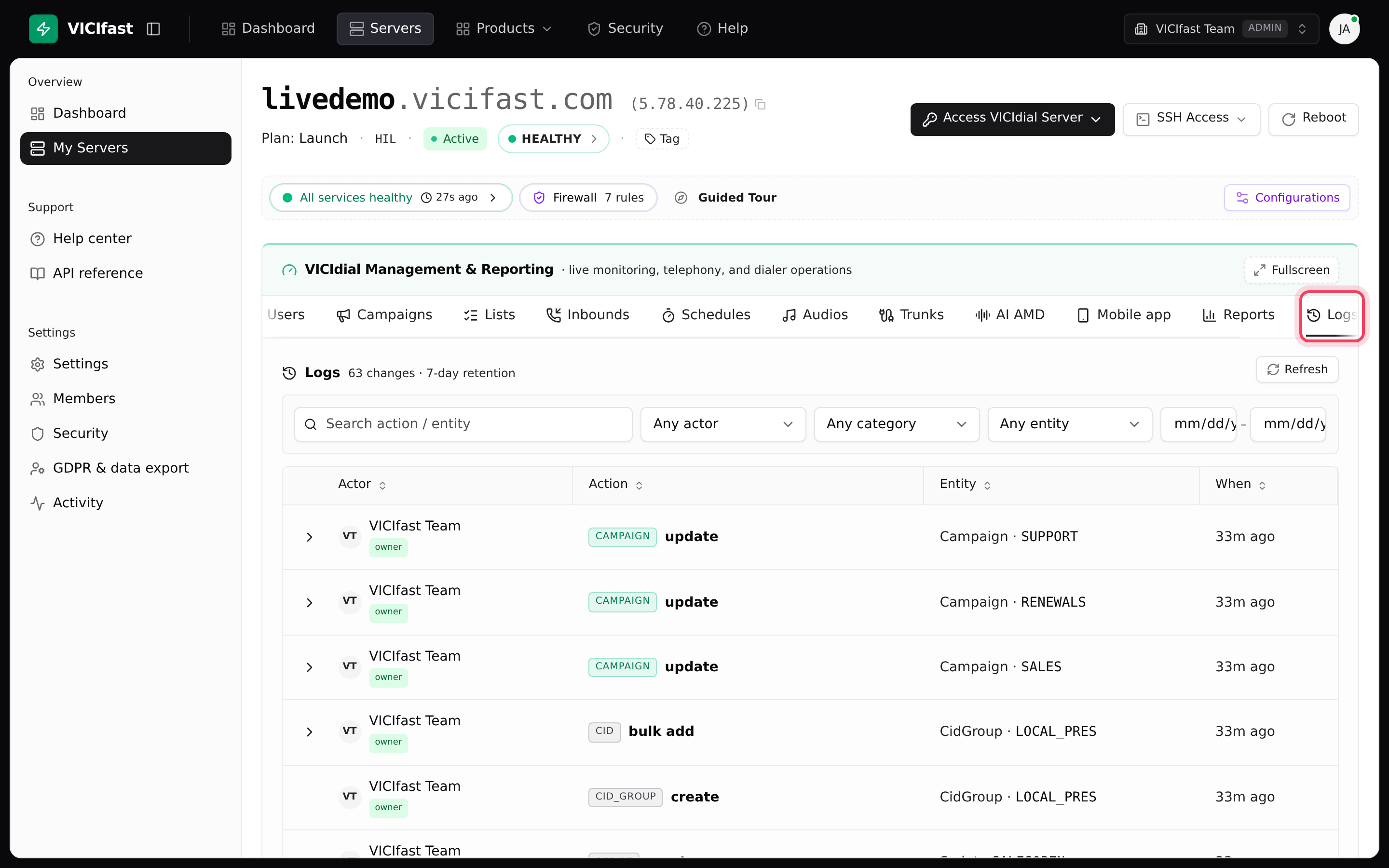
- Click the Logs tab, or press g.
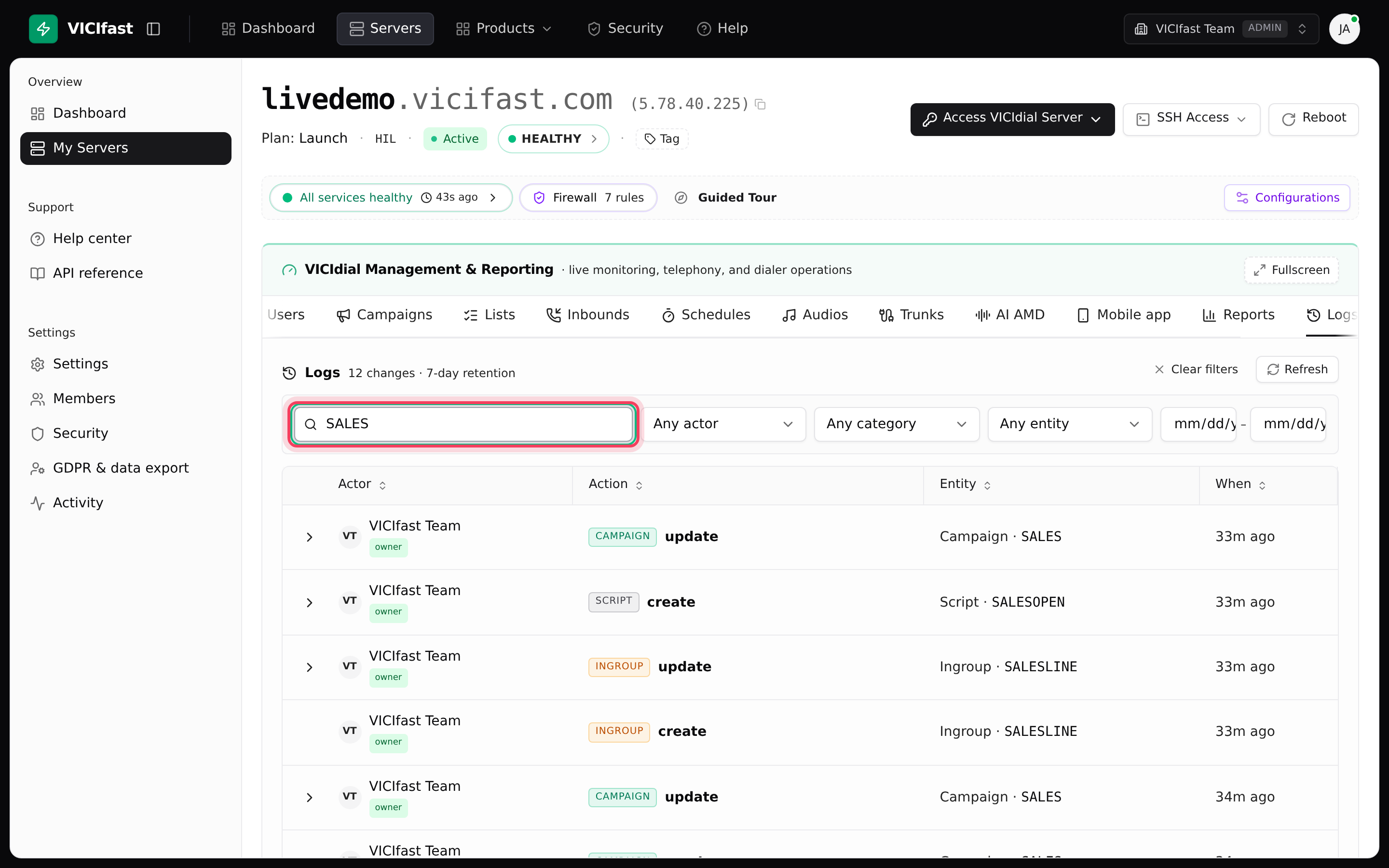
The heading shows how many changes there are, for example 42 changes · 7-day retention. Each row shows the Actor (who made the change, marked owner, sub user or platform), the Action (a coloured category such as campaign or user, and what was done), the Entity that changed, and When.
Step 2: Narrow it down
- Type in Search action / entity, for example SALES to find changes to the Outbound Sales campaign.
- Use Any actor to pick a person, Any category to pick a type (such as campaign or user), and Any entity to pick what was changed.
- Set a date range with the two date boxes.
- Click Clear filters to start again, or Refresh to load new changes.
Step 3: See exactly what changed
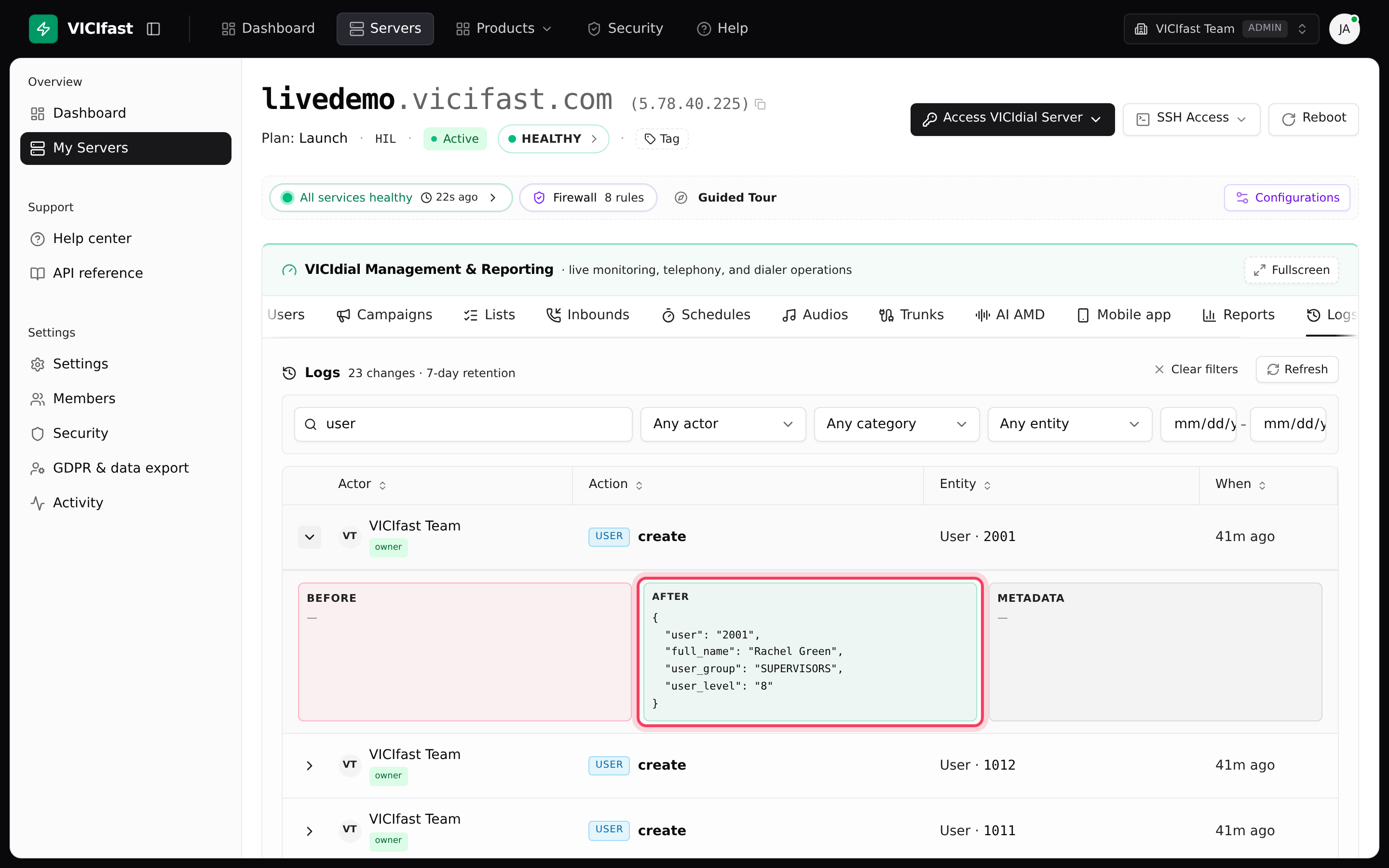
- Click the arrow at the start of a row.
- Read Before, After and Metadata. After shows the values that were saved, and Metadata shows extra details, such as which settings were changed. Before often shows a dash (—): many changes only record the new values.
Passwords are never written to the log.
Step 4: Check the Activity page
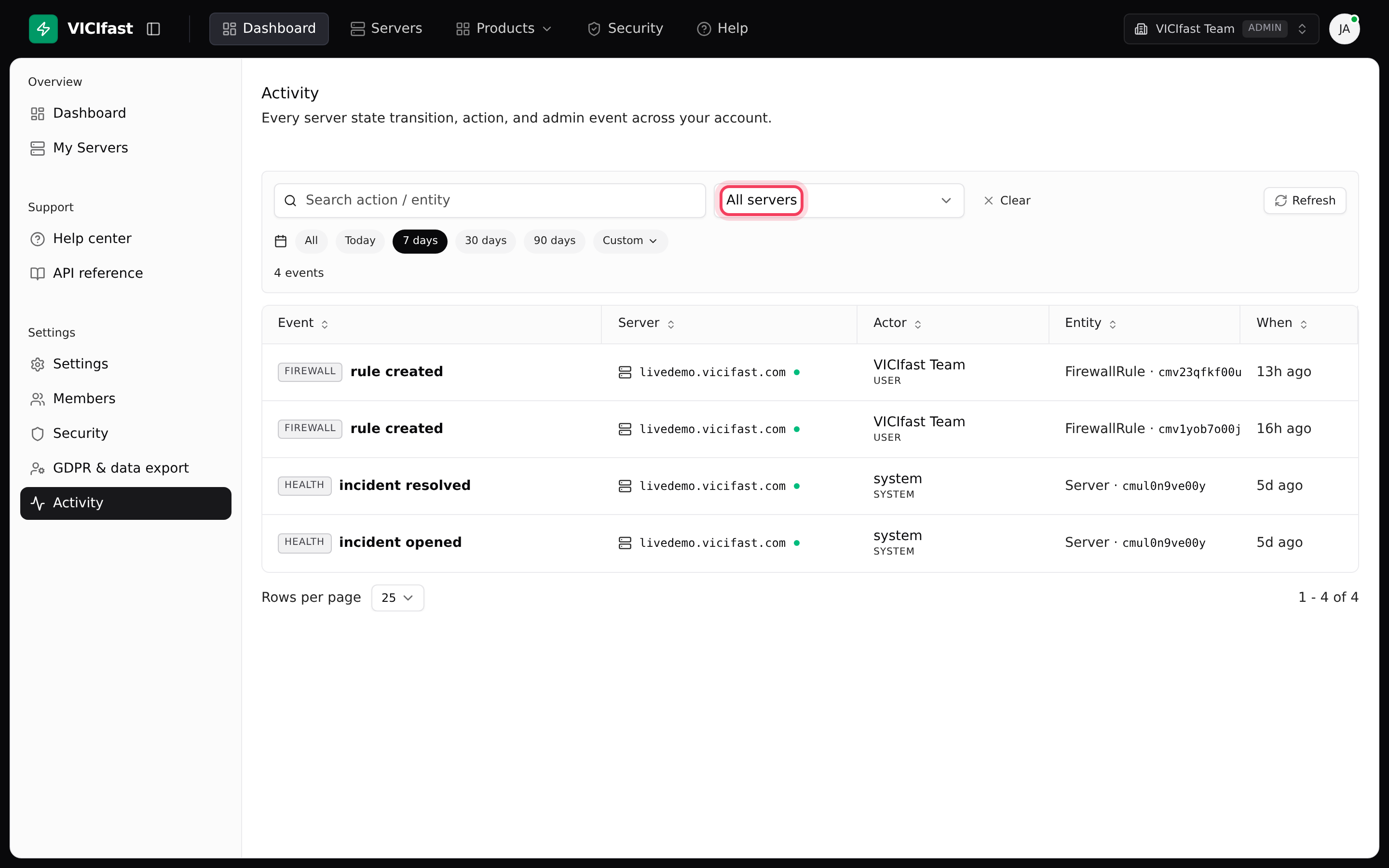
- In the left sidebar, under Settings, click Activity.
- Pick a server (or leave All servers), a period (Today, 7 days, 30 days or 90 days), or type in Search action / entity.
- Read each row's Event, Server, Actor, Entity and When. The list shows 25 events per page.
Activity covers things the Logs tab does not: server state changes and reboots, firewall changes, payments, team invites, and every Monitor, Whisper or Barge on a call (listed as agent silent, agent whisper or agent barge).
Which one should I use?
- "Who changed the SALES campaign yesterday?" Use the Logs tab on that server.
- "When did my server restart, or who listened in on a call?" Use the Activity page.
If something goes wrong
Frequently asked
- Your team role does not include it. Operators do not get it by default. Ask the account owner to add the Logs tab on the Members page.
- Nothing was changed through the dashboard on this server in the last 7 days.
- The Logs tab keeps 7 days. Older changes are removed.
- If it was made directly in VICIdial admin rather than in the VICIfast dashboard, it is not in the Logs tab.
- Team members only see their own servers' events, and only see payments if they have the billing permission.