AI call analysis
Turn a recorded call into a transcript, summary, quality score and red flags. See the cost first, pay from your wallet, and find every analysis in one place.
Floor, recordings & reports · 3 min read
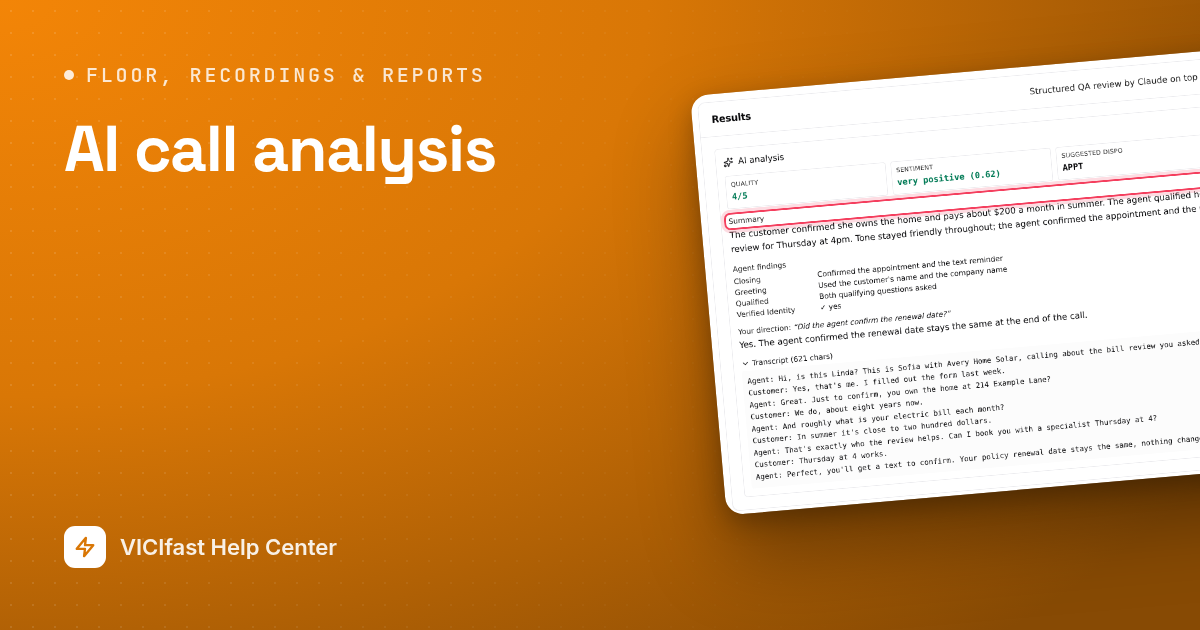
AI call analysis turns a recorded call into a written transcript, a short summary, a quality score and a list of red flags. You can review a call in a minute instead of listening to all of it. Each analysis is paid from your wallet, and you see the estimated cost before you confirm.
What you need
- You are the account owner, or a team member with the Admin or Operator role.
- Money in your wallet, unless your plan includes analysis minutes. See How wallet billing works.
- A recorded call. See Record, find and play calls.
Step 1: Find the call
- Click My Servers, then your server's name.
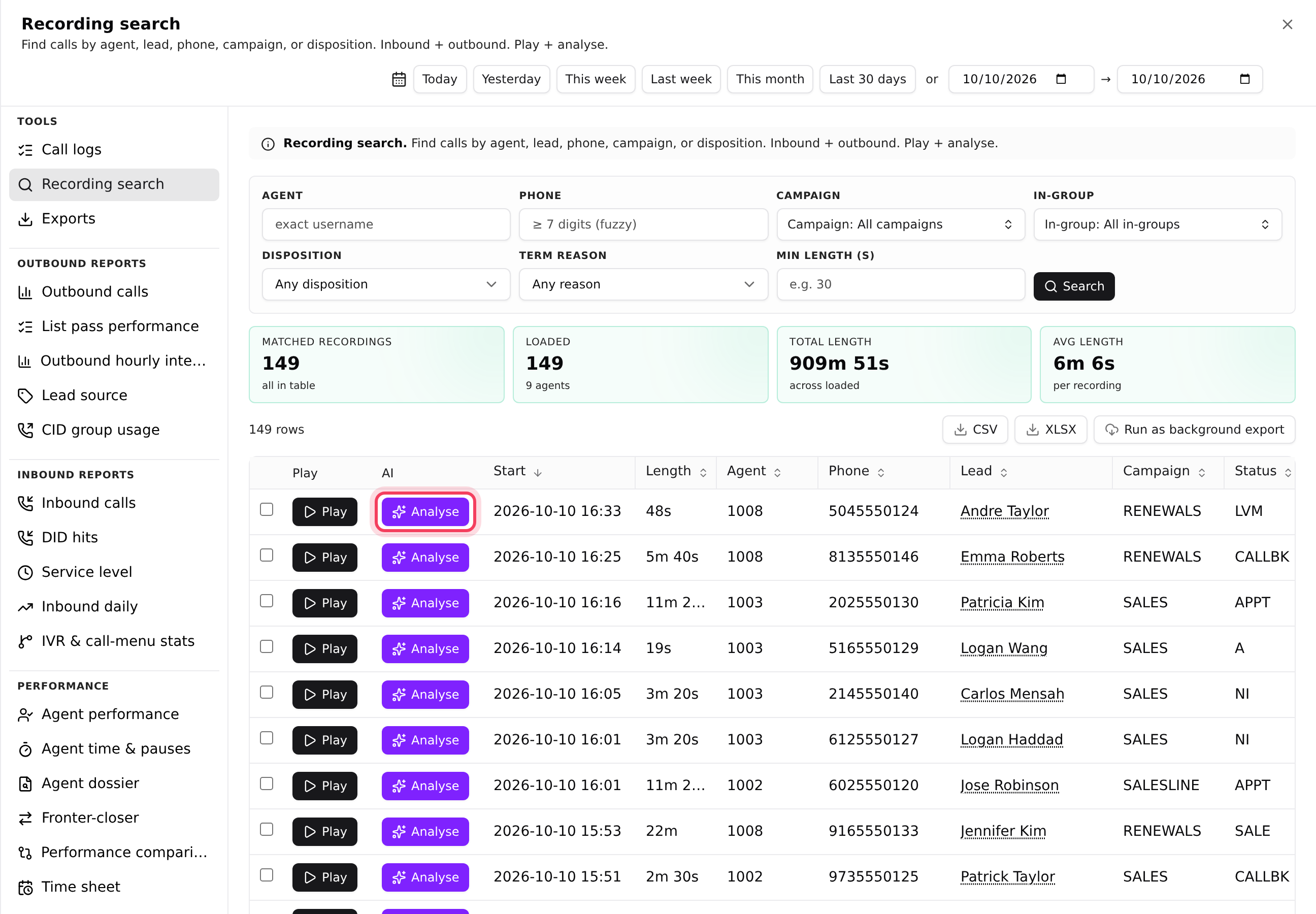
- Click the Reports tab. Under Tools, click Recording search.
- Pick a period, add filters if you like (for example Agent 1001), and click Search.
The violet Analyse button sits next to Play on every recorded call. You also find it in Call logs, in a lead's call history, and on an agent's Recordings tab (there it reads Analyze). If a call has already been analysed, the button says View and opening it costs nothing.
Step 2: Check the cost and start
- Click Analyse on the call.
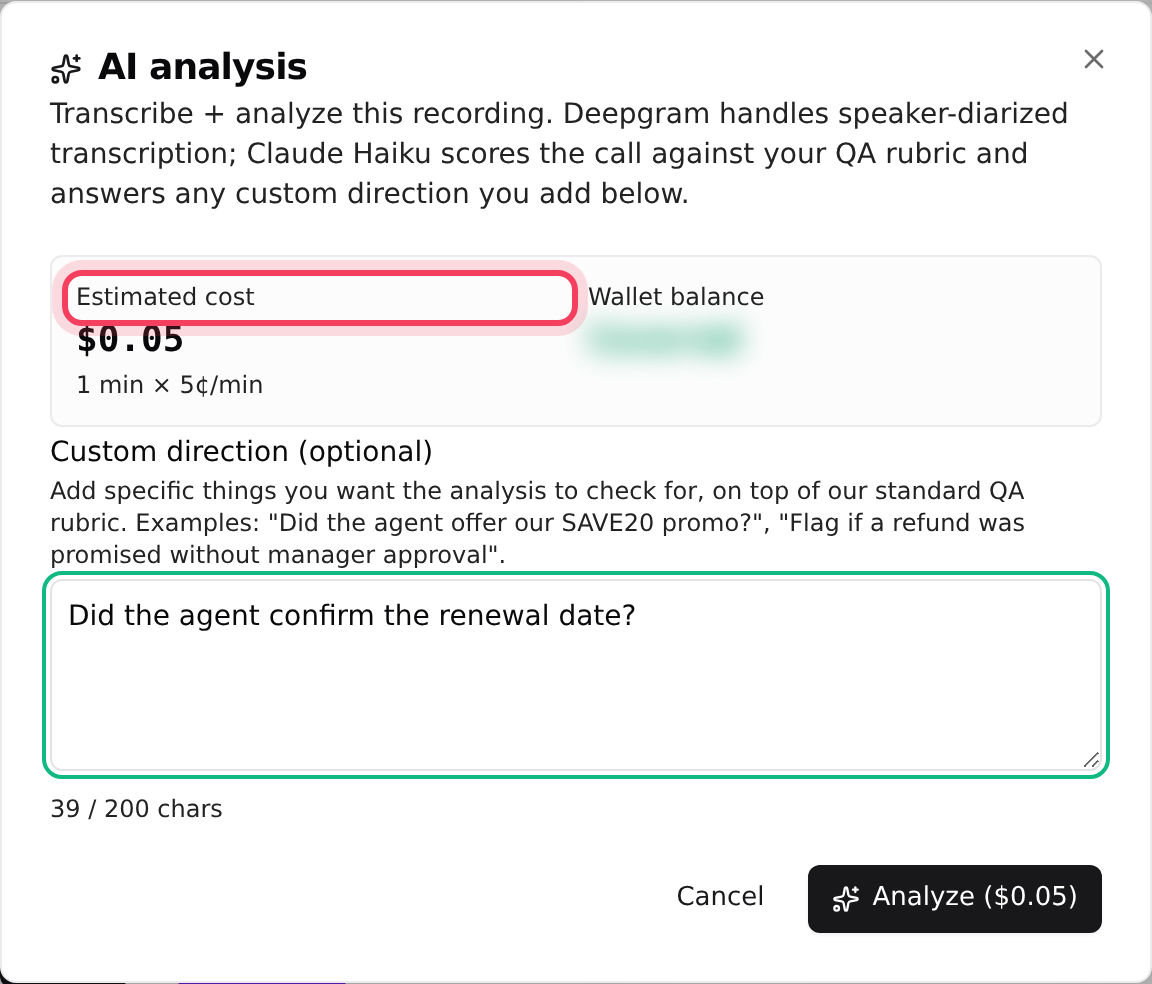
- The AI analysis window shows the Estimated cost and your Wallet balance. The cost is the call's minutes times the price per minute shown under it. Minutes are the call length plus 10%, rounded up, with a minimum of 1.
- Optional: under Custom direction (optional), type something you want checked on this call, for example "Did the agent confirm the renewal date?". The counter below shows how many characters you may use.
- Click Analyze. When the call is charged to your wallet, the button also shows the amount.
If your plan includes analysis minutes, the cost line says (covered by plan quota). If the wallet does not cover the cost, the button changes to Add funds to wallet.
Step 3: Read the result
While it works, the window shows Analyzing recording…. The transcription step usually takes 30 to 90 seconds for a typical call. Then you see:
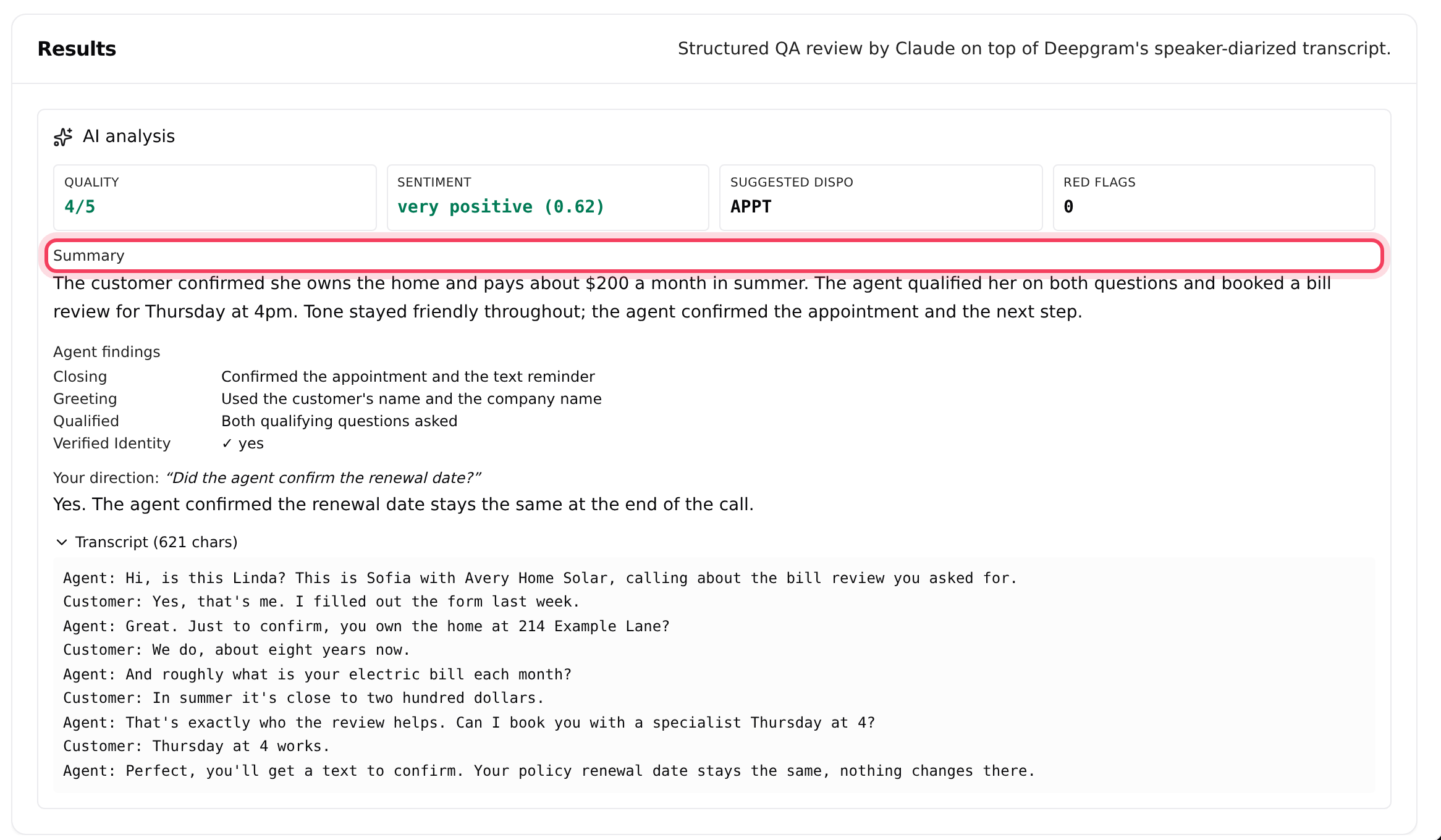
- Quality (out of 5), Sentiment, Suggested dispo (the call result the AI would pick) and the number of Red flags.
- Summary: what happened on the call, in a few sentences.
- Agent findings and the list of Red flags.
- Your direction: the answer to anything you typed in step 2.
- Transcript: click it to open the full text.
Step 4: Analyse several calls at once
- In Recording search, tick the box at the start of each call you want.
- Click Analyse N selected (N is how many you ticked).
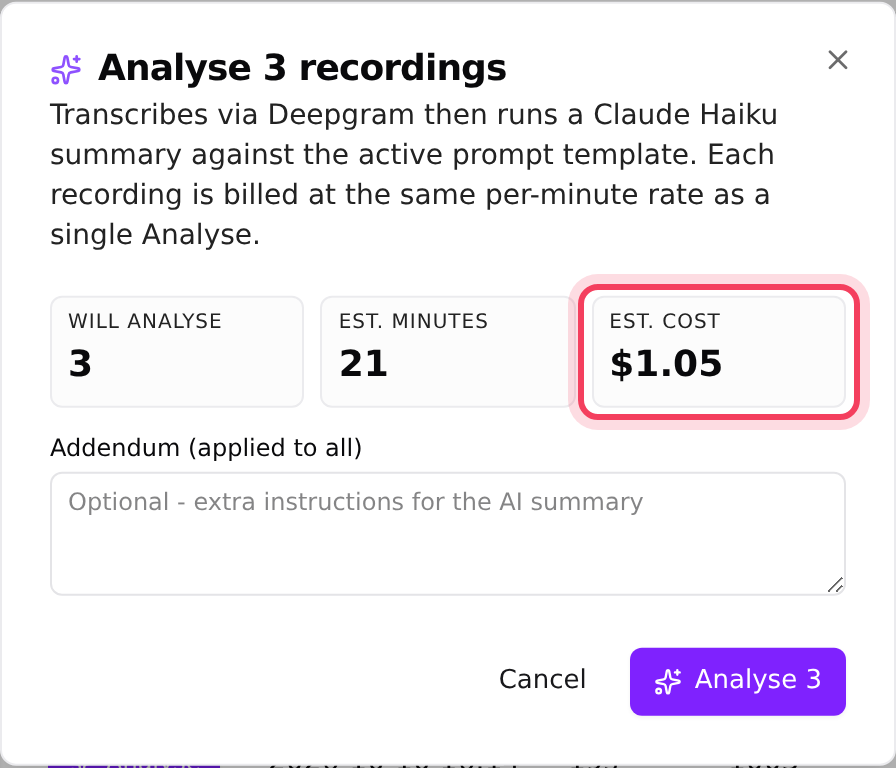
- Check Will analyse, Est. minutes and Est. cost. Add an Addendum (applied to all) if you want the same question checked on every call.
- Click Analyse N.
Each call is charged the same per-minute rate as a single analysis. Up to 50 calls run per batch. If the wallet runs out partway, the remaining calls are skipped and not charged.
Step 5: See all your analyses
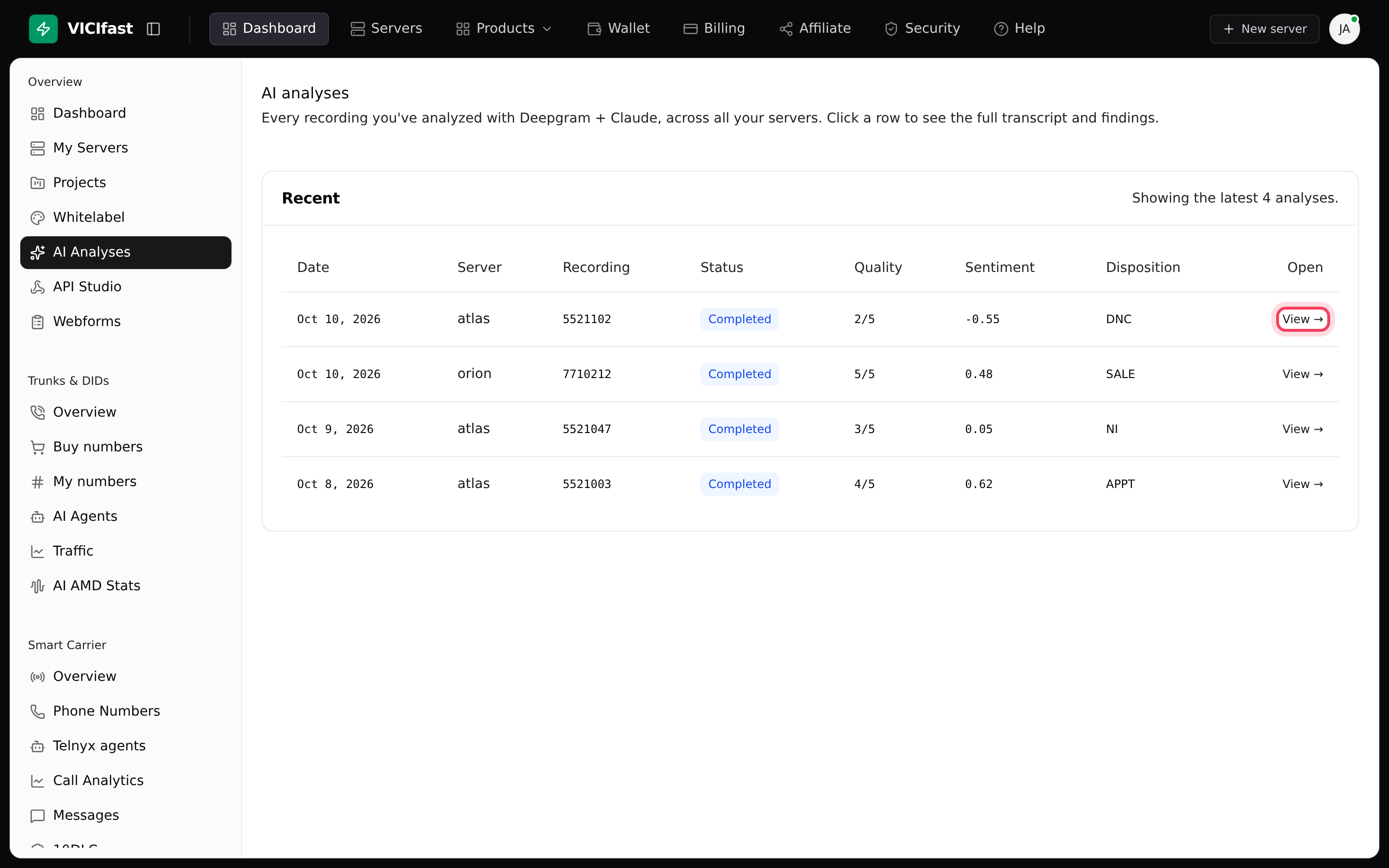
- In the left sidebar, click AI Analyses.
- The AI analyses page lists your latest 200 analyses across all servers: Date, Server, Recording, Status, Quality, Sentiment and Disposition.
- Click View → on a row to open the full result.
This page is for the account owner. Team members see analyses next to the recordings instead.
If something goes wrong
Frequently asked
- That row has no recording, so there is nothing to analyse.
- The recording has no audio, so there is nothing to analyse. Pick another call.
- The recording is no longer on your server. It cannot be analysed or played.
- Your wallet cannot pay for this analysis. Top it up from Wallet in the sidebar, or chat with support if it is frozen.
- Your team role cannot run analyses. Ask the account owner for the Admin or Operator role.
- It is only for the account owner. As a team member, open the call in Recording search and click View.