Nightly maintenance
A small clean-up runs on your server once a night while it is idle. What it removes, what it never touches, and how to read its last report.
Your server & troubleshooting · 2 min read
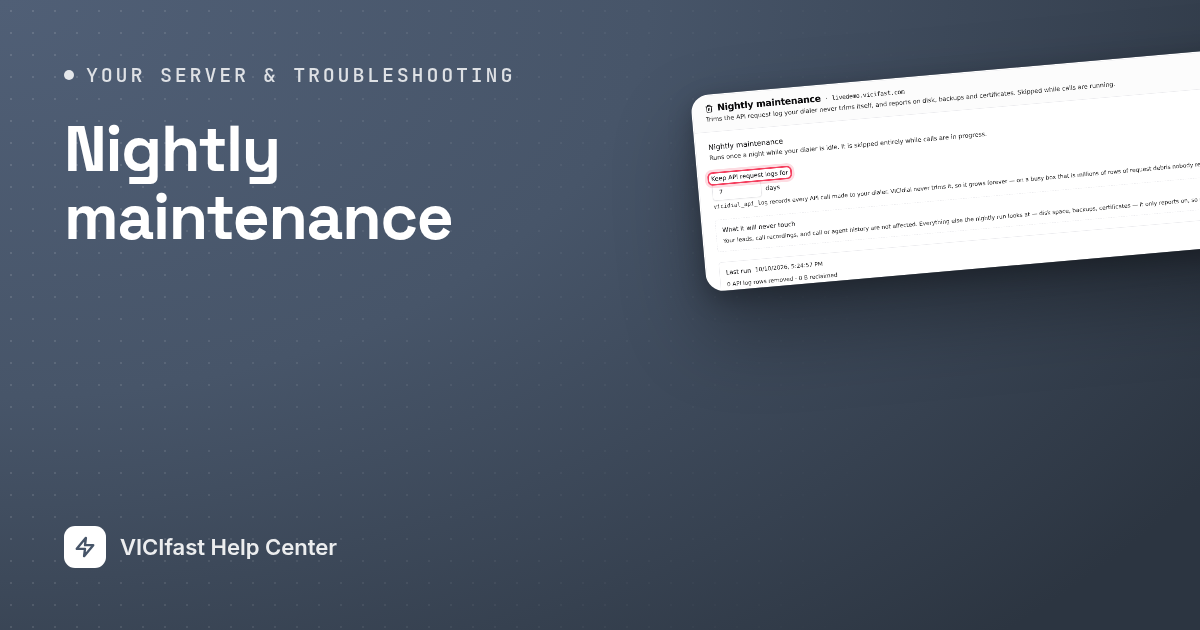
Once a night, while your dialer is idle, a small clean-up runs on your server. It is on by default. This page explains what it does, what it never touches, and how to read what it found.
What it does
- Trims one log. VICIdial keeps a record of every request other software sends to your dialer, for example a lead vendor posting leads or a CRM looking up a call. VICIdial never trims this log, so on a busy server it grows forever. The nightly run deletes entries older than the number of days you choose (7 by default).
- Checks your server and reports. It looks at disk space, when your last backup was, and your security certificate. It only reports what it finds, so you can decide what to do.
- Stays out of the way. If calls are in progress, it skips the clean-up and tries again the next night.
What it never touches
Your leads, call recordings, and call or agent history are not affected.
What you need
- You are the account owner, or a team member with the Server settings permission.
Step 1: Open Nightly maintenance
- In the sidebar, click My Servers, then open your server.
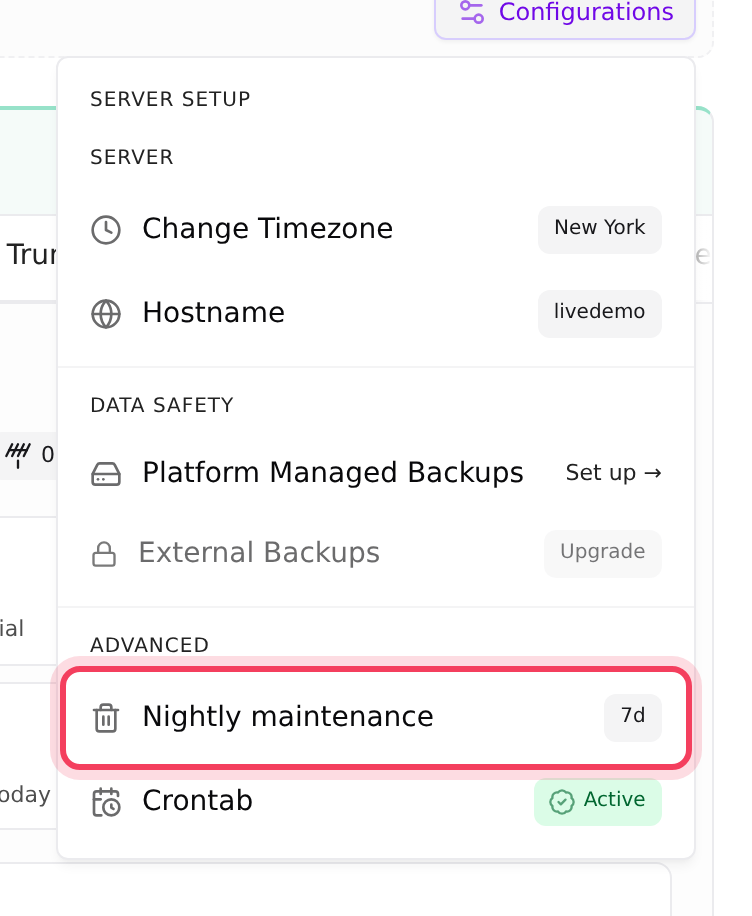
- Click Configurations. Under Advanced, the Nightly maintenance row shows how many days of logs you keep, for example 7d, or off.
- Click Nightly maintenance.
Step 2: Choose how long to keep the log
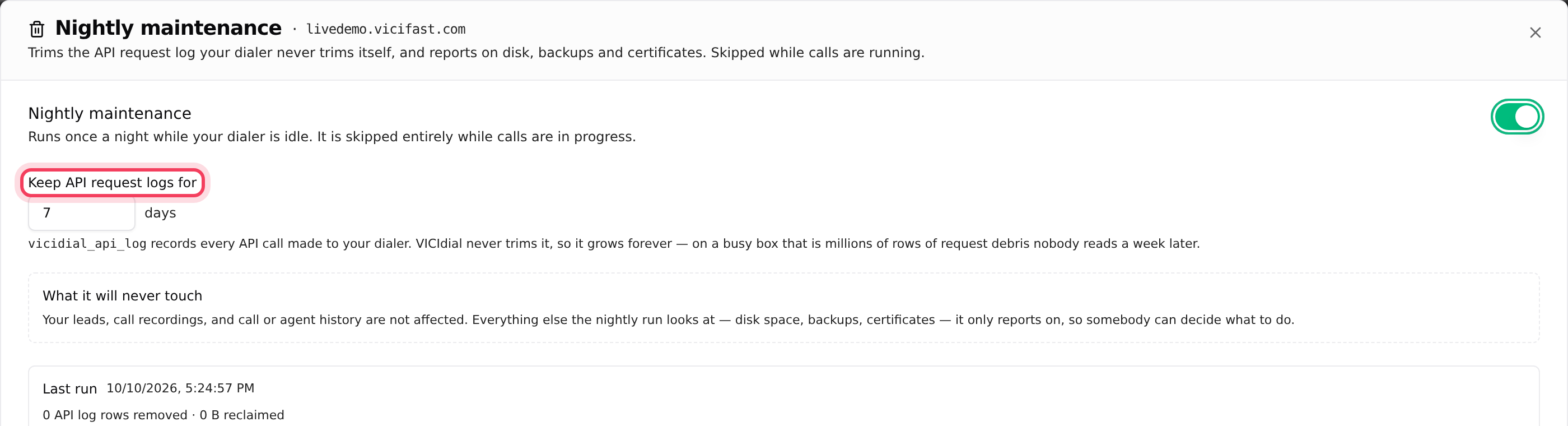
- Make sure the switch next to Nightly maintenance is on.
- In Keep API request logs for, type a number of days from 1 to 365.
- Click Save. You see Saved.
Step 3: Read the last run
Once the clean-up has run on your server, a Last run box shows the date and time and what happened:
- How many API log rows were removed and how much space that freed.
- Skipped: and the reason, for example calls were in progress. It tries again the next night.
- Anything worth a look, for example "Disk is 87.0% full.", "No backup has ever been taken for this server." or a certificate that has not renewed.
If something is flagged, see the related articles below, or chat with support and paste the line.
Turning it off
Switch off Nightly maintenance and click Save. The row then shows off. The log will keep growing, and the nightly checks stop too.
If something goes wrong
Frequently asked
- The clean-up has not run on this server yet. Check again tomorrow. If it never appears, chat with support.
- That is on purpose: it never runs while calls are up. It tries again the next night. If your server takes calls around the clock, chat with support.
- Type a whole number of days from 1 to 365, then click Save again.
- You have no backups yet. Add Platform 7-Day Backup, or download a backup yourself. See Backups and restore.
- Recordings are usually what fills a disk. Chat with support so we can look at it with you before calls or recordings start failing.
- No. It only removes old entries from the API request log.