Change your plan or add-ons
Move a server to a bigger plan, or add and remove add-ons, and see what you pay today before you confirm.
Billing & account · 4 min read
When your floor grows, move the server to a bigger plan. When you need an extra, such as daily backups or Managed Floor, add it from the same menu. Both show what you pay today before anything is charged.
What you need
- You are the account owner. Members, Admins included, don't see these options.
- The server is Active. A server that is past due or suspended can't change plan until it is paid.
- A server you host yourself (bring your own server) has no plan or add-on options.
Step 1: Open Change plan
- Click My Servers in the left sidebar, then click your server.
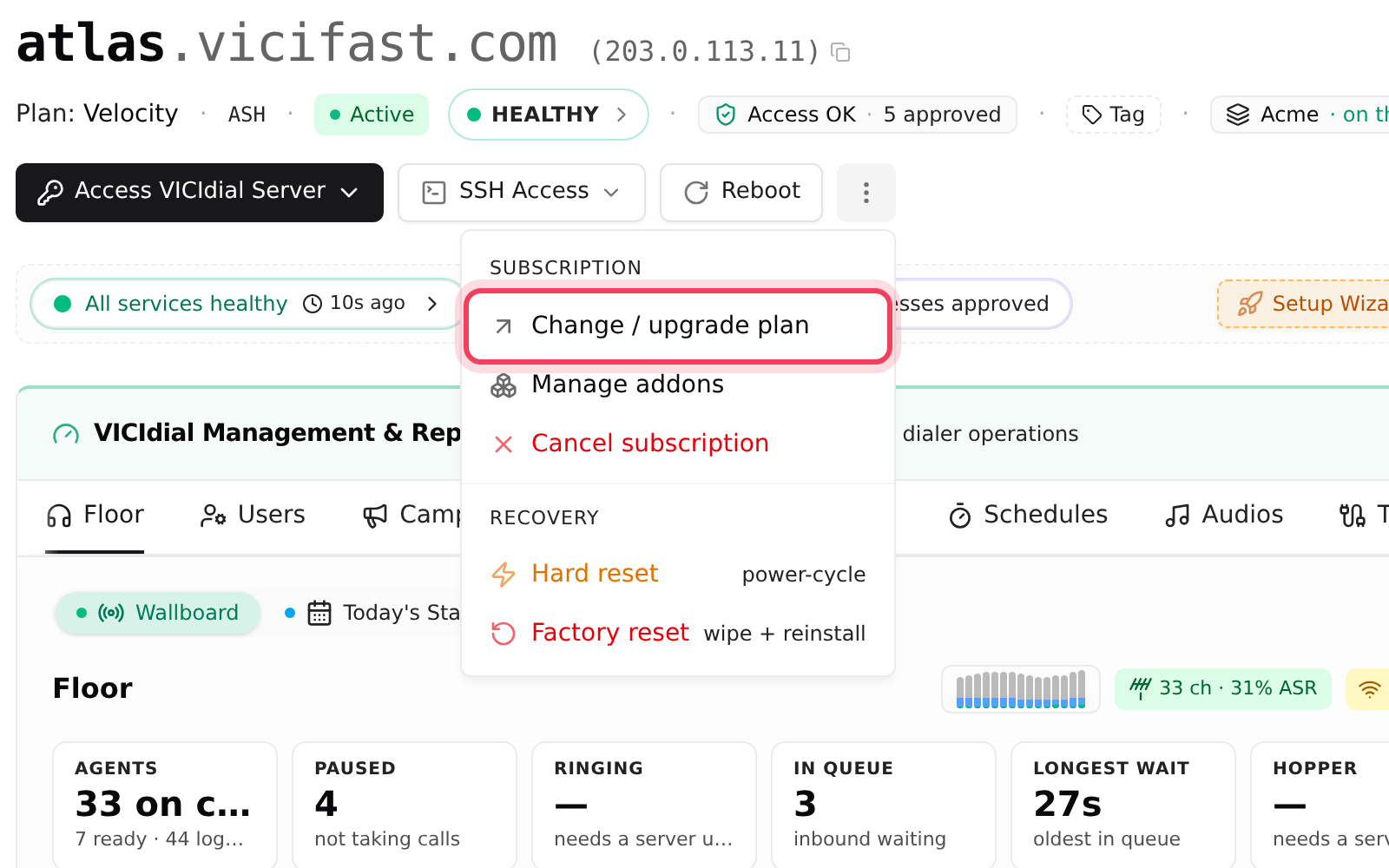
- Click the ⋮ button (More server actions) at the top right of the server page.
- Under Subscription, click Change / upgrade plan. The Change plan window opens.
Step 2: Pick a bigger plan and check the price
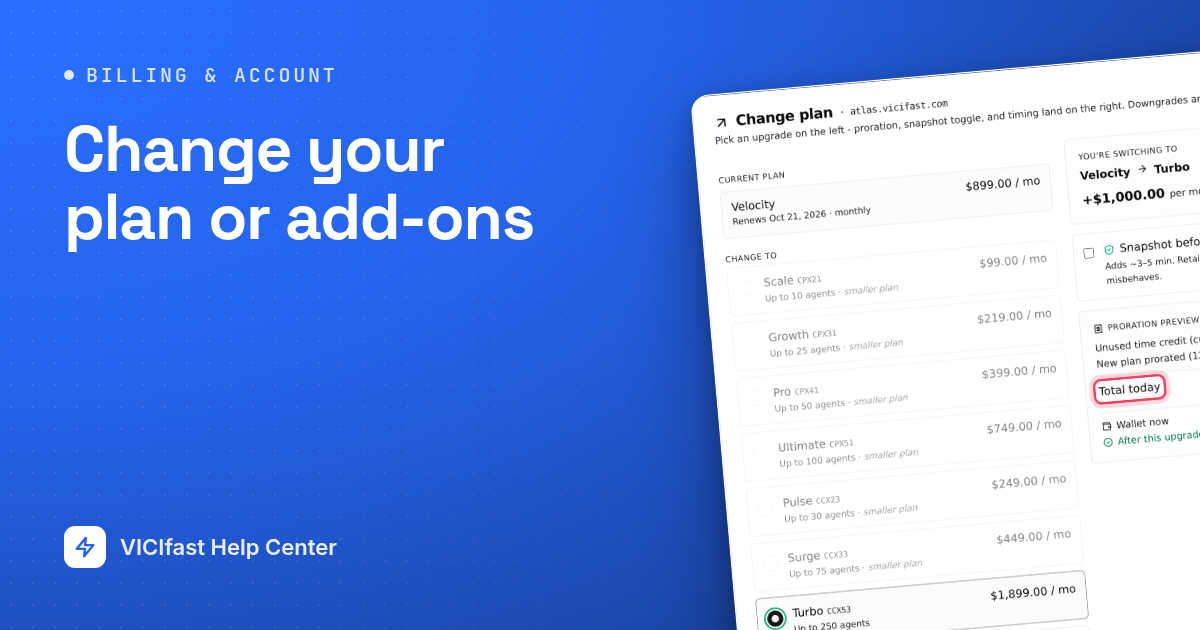
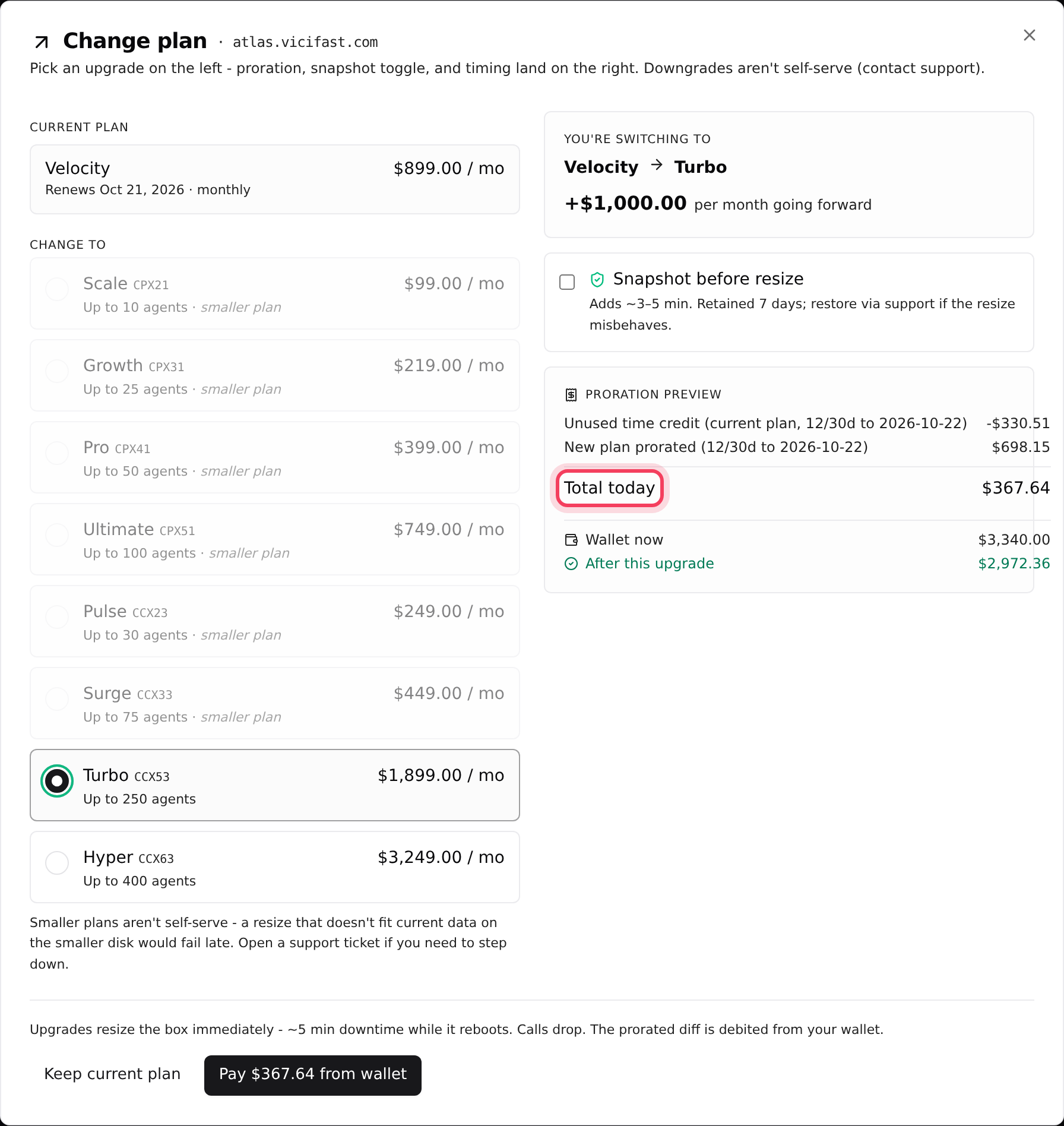
- On the left, Current plan shows your plan, its price and when it renews.
- Under Change to, pick a plan. Each one shows its price and how many agents it is built for. Smaller plans are greyed out.
- On the right you see the price change per month (or year), and the Proration preview: a credit for the unused time on your current plan, the new plan for the same days, and the Total today.
- On a wallet-billed server you also see your wallet balance now and after the upgrade.
- Optional: tick Snapshot before resize for a restore point. It adds 3 to 5 minutes and is kept for 7 days.
Step 3: Confirm the upgrade
- Pick a quiet time. The upgrade restarts the server.
- Click Change plan now (card billing) or Pay … from wallet (wallet billing). To back out, click Keep current plan.
- The server is resized straight away, with about 5 minutes of downtime. It keeps the same IP address and the same web address.
How you pay for it: you pay the difference for the days left in the current period, today. A card-billed server is charged on your saved card; a wallet-billed server is charged from your wallet. Your renewal date stays the same, and from the next renewal you pay the new plan's full price.
If your wallet is short, you see Wallet top-up needed with the amount missing. Click Top up wallet →, add the money, then try again.
Step 4: Add an add-on
- Click the ⋮ button again and choose Manage addons. The Addons page opens.
- Billing context shows your billing cycle, your renewal date and how you pay. Below it are Active on this server and Available.
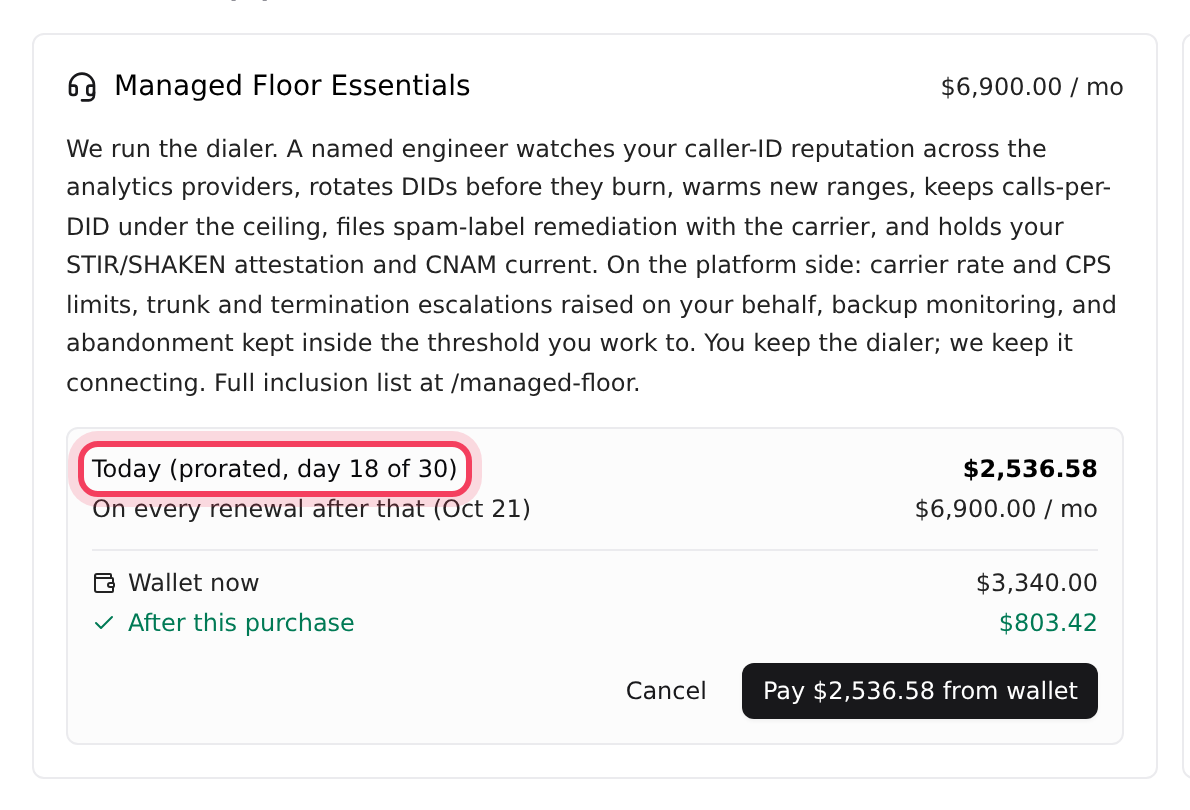
- On the add-on you want, click Add now. A price check opens on the card: Today (prorated, day … of …) and On every renewal after that. One-time options, like onboarding, show Today (one-time charge, not monthly) instead.
- Click Pay … (card) or Pay … from wallet (wallet) to add it, or Cancel to close the check.
What you may find there:
- Platform 7-Day Backup: a daily backup of your database and call recordings, kept for 7 days. See Backups and restore.
- Onboarding help, charged once. See Onboarding help: what each option includes.
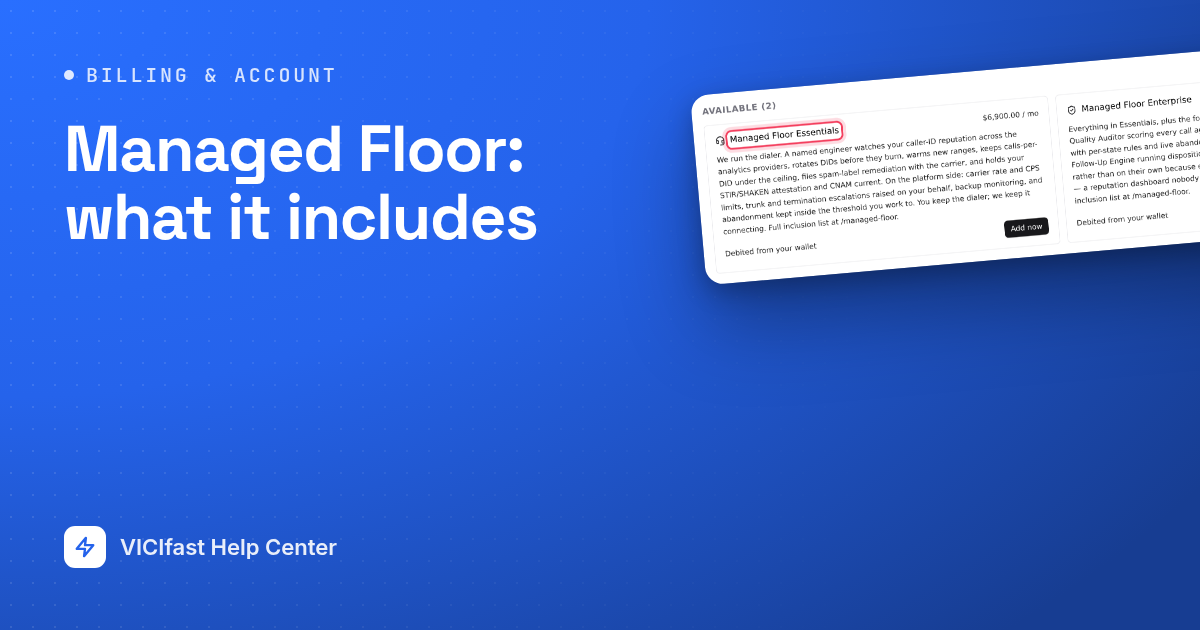
- Managed Floor Essentials and Managed Floor Enterprise. See Managed Floor: what it includes.
On a yearly plan, an add-on costs 12 times its monthly price at each renewal. Extra storage is chosen when you order; to add it later, ask us in chat.
Step 5: Remove an add-on
- On the Addons page, find the add-on under Active on this server.
- Click Cancel at period end.
- The card now reads that it cancels on your renewal date, with no refund, and that you keep it until then. Changed your mind? Click Keep it.
One-time options, such as onboarding, show Purchased and have nothing to cancel.

Moving to a smaller plan
Smaller plans aren't self-serve, because a server can only be shrunk safely when its data fits the smaller disk. Click your avatar, then Chat with support, and we will plan it with you.
If something goes wrong
Frequently asked
- Only the account owner sees the ⋮ menu. On a server you host yourself, the plan and add-on items are not offered.
- The server is past due, suspended or still being set up. Pay any open bill first (see the Billing page), then try again.
- Close the window and try again in a minute. On a card-billed server you can still go ahead: the charge uses the amount Stripe works out.
- Add at least the amount shown with Top up wallet, then come back and click Add now again.
- The two tiers replace each other. Use Upgrade to Enterprise on the Enterprise card, or ask us in chat to move down a tier.
- No. It stays until your renewal date, and you are not charged for it after that.