Billing, invoices and payment methods
See what you pay for, download invoices and receipts, change your card, and fix a payment that failed.
Billing & account · 4 min read
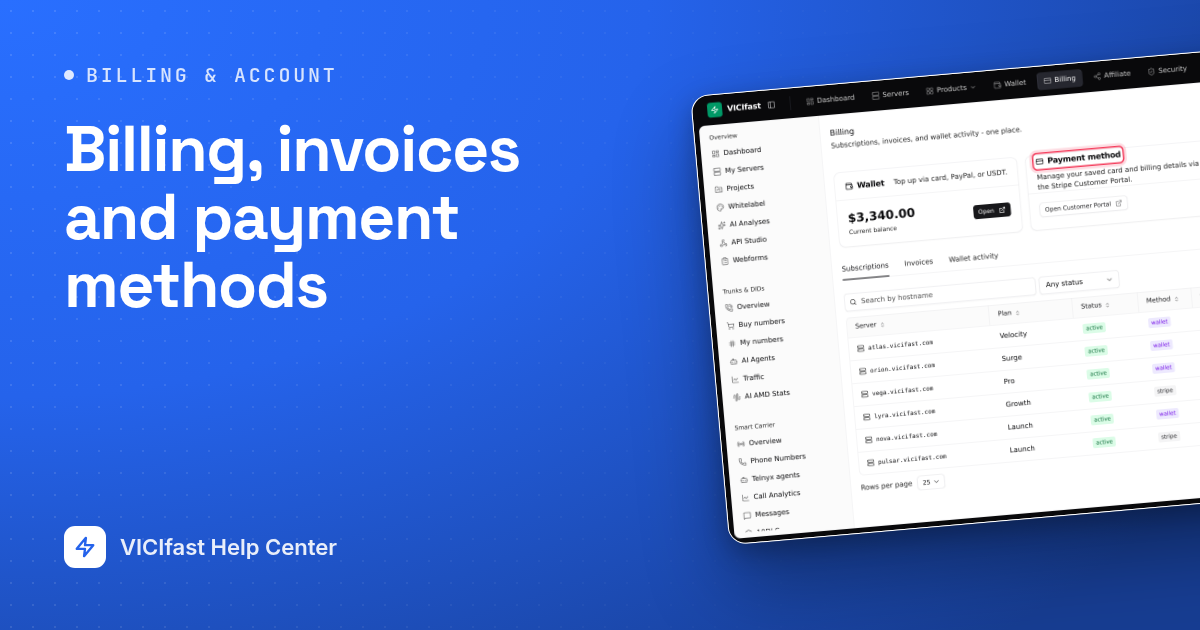
The Billing page shows every server you pay for, every invoice, and every move in your wallet. Use it to download an invoice for your accountant, change the card on file, or pay a bill that failed.
What you need
- You are the account owner, or a member with the Billing role. A member who was given the Billing permission with another role can look, but only the Billing role can pay or change the card.
- To change a card, you must have paid by card at least once.
Step 1: Open Billing
- In the left sidebar, under Account, click Billing. You can also click your avatar at the top right and choose Billing.
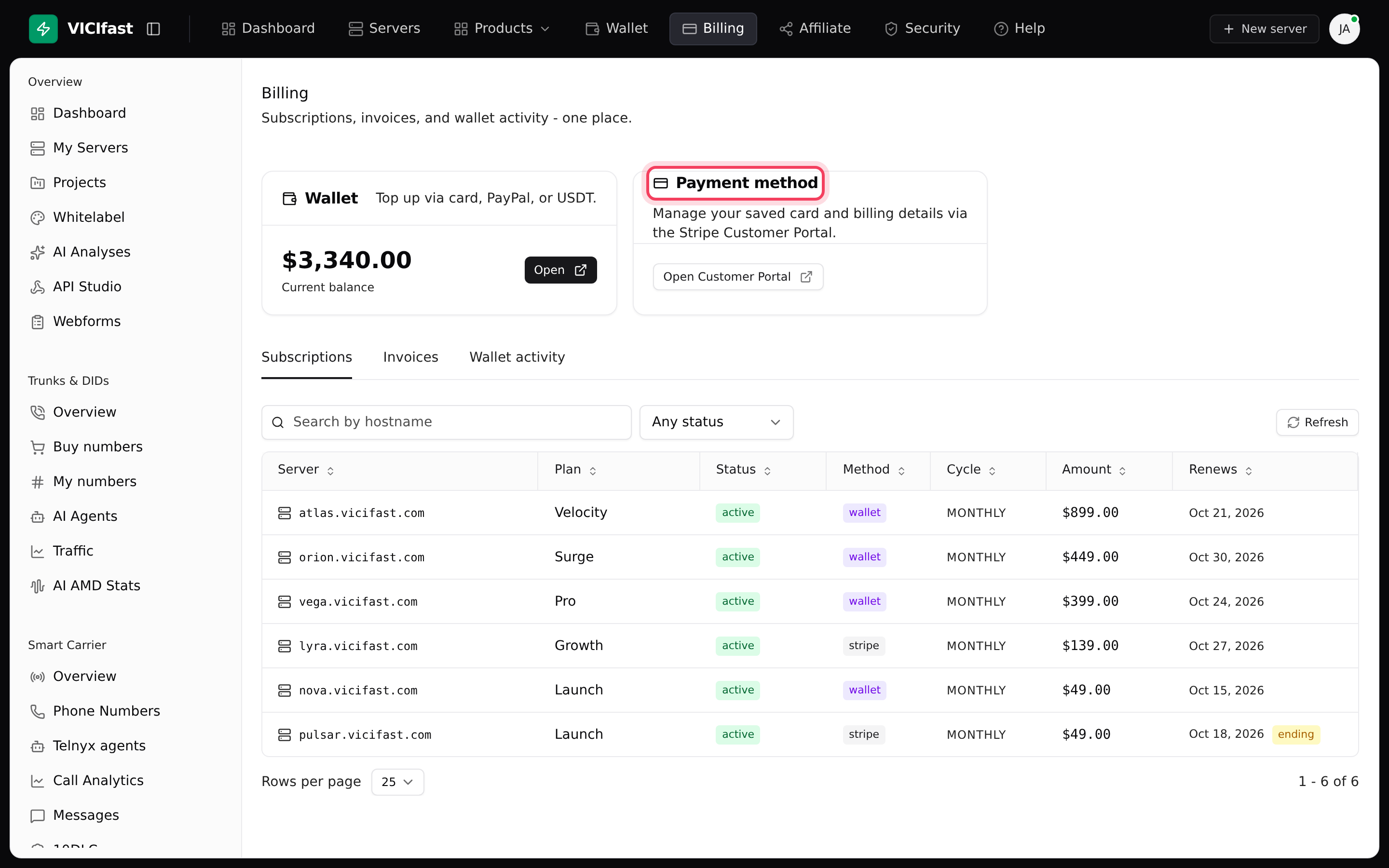
- At the top you see up to three cards: Wallet (your balance, with Open to go to the Wallet page), Payment method (with Open Customer Portal) and PayPal subs (only if a recurring PayPal payment funds your wallet).
- Below them are three tabs: Subscriptions, Invoices and Wallet activity.
Step 2: Check what you pay for
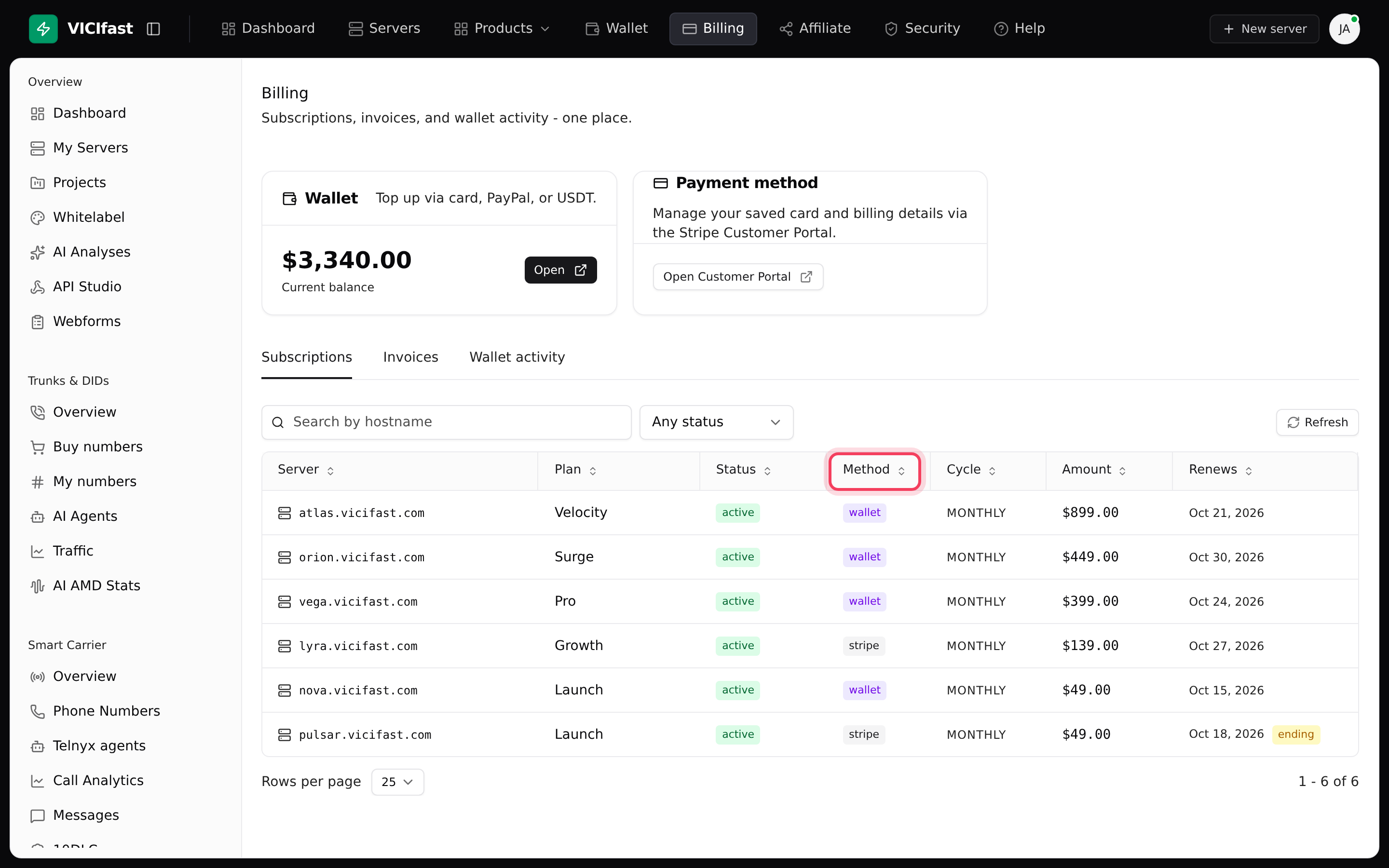
- The Subscriptions tab opens first. There is one row per server, with its Plan, Status, Method, Cycle, Amount and Renews date.
- Method reads stripe for a server billed to your card, and wallet for a server that renews from your wallet balance.
- An ending badge next to the date means the server is set to cancel on that date.
- To find one server, type in Search by hostname or pick a status: Active, Trialing, Past due, Suspended or Cancelled.
Step 3: Download an invoice or a receipt
- Click the Invoices tab.
- Find the invoice with Search invoice # / hostname, the status filter (Paid, Open, Draft, Void, Uncollectible) or the date buttons (Today, 7 days, 30 days, 90 days).
- Click the link icon on a row to open the invoice page, or click PDF to download it.
- Wallet top-ups are listed here too, as Wallet top-up rows. Their PDF opens a receipt. Click Print / save as PDF to keep a copy.

Step 4: Change your card or billing details
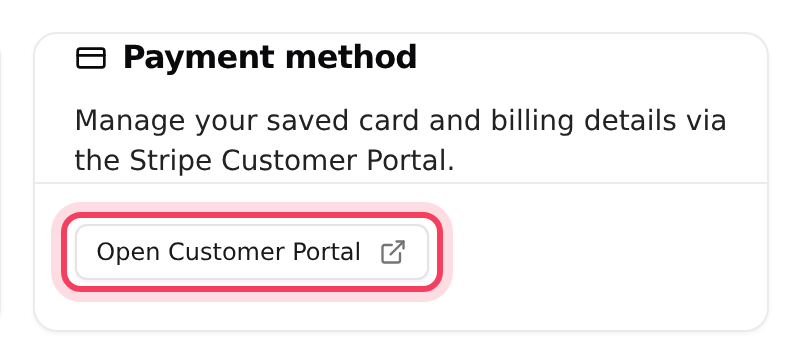
- On the Payment method card, click Open Customer Portal.
- A secure Stripe page opens. Update your card or your billing details there.
- When you are done, use the link on that page to come back to your Billing page.
The card on file pays the renewals of servers billed to your card, and any plan upgrade or add-on you buy for them.
Step 5: See every wallet movement
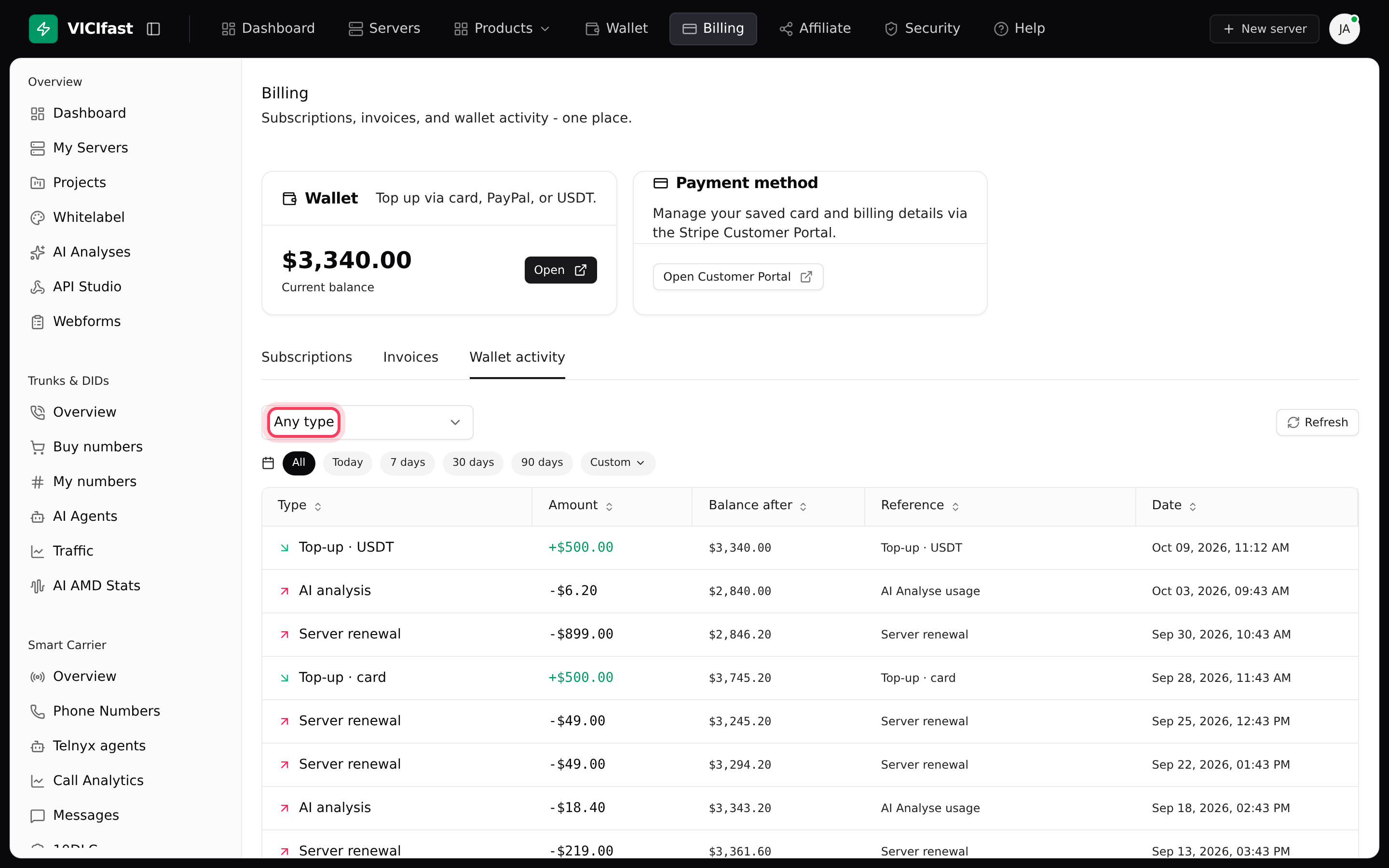
- Click the Wallet activity tab.
- Every top-up and every charge is listed with its amount. Filter by type with Any type, or use the date buttons.
- To add money, click Open on the Wallet card. The wallet is explained in How wallet billing works.
If a payment fails
When a renewal can't be paid, the server is suspended: it is switched off, and your data stays on it. You see a banner on your Dashboard, and the top of the Billing page tells you what to pay:
- Unpaid invoice (card billing): click Pay with Stripe to pay the open invoice with your card on Stripe's secure page.
- Payment needed (wallet billing): it names the servers and the amount to add. Click Top up wallet.
A card payment switches the server back on by itself within minutes. A wallet top-up does it at the next daily renewal run. If nothing is paid within 7 days, the server is deleted. The full timeline is in Cancel, resume or delete a server.
Refunds
- If a new server fails while it is being built, within an hour of your payment, the charge is refunded automatically: to your card for a card payment, or to your wallet for a wallet payment.
- Wallet top-ups are service credit. They are not refundable, and the balance never expires.
- Cancel now deletes a server early and does not refund the unused days. Cancelling at the end of the billing period lets you use the time you paid for.
- Charged twice, or charged by mistake? Click your avatar, then Chat with support, and tell us which invoice.
If something goes wrong
Frequently asked
- You are a member of someone else's account without billing access. Ask the account owner to give you the Billing role, or the Billing permission, on the Members page.
- It appears after your first card payment. If you have only ever paid from your wallet, there is no card to manage. A member also needs the Billing role to see it.
- On the Invoices tab, as a Wallet top-up row. Click PDF on that row to open the receipt, then Print / save as PDF.
- No. Cancel from the server page: click the ⋮ button at the top right and choose Cancel subscription. Only the account owner can do this.
- Its last renewal charge failed. Click Pay with Stripe on the Unpaid invoice banner at the top of the Billing page. The server switches back on by itself once the payment goes through.