VICIfast Phone: take VICIdial calls on your Android phone
Set up the free VICIfast Phone app for an agent in about five minutes: find your company code, install the app, sign in and take calls. Plus what you control from the dashboard, and how to fix common sign-in messages.
Mobile app · 6 min read
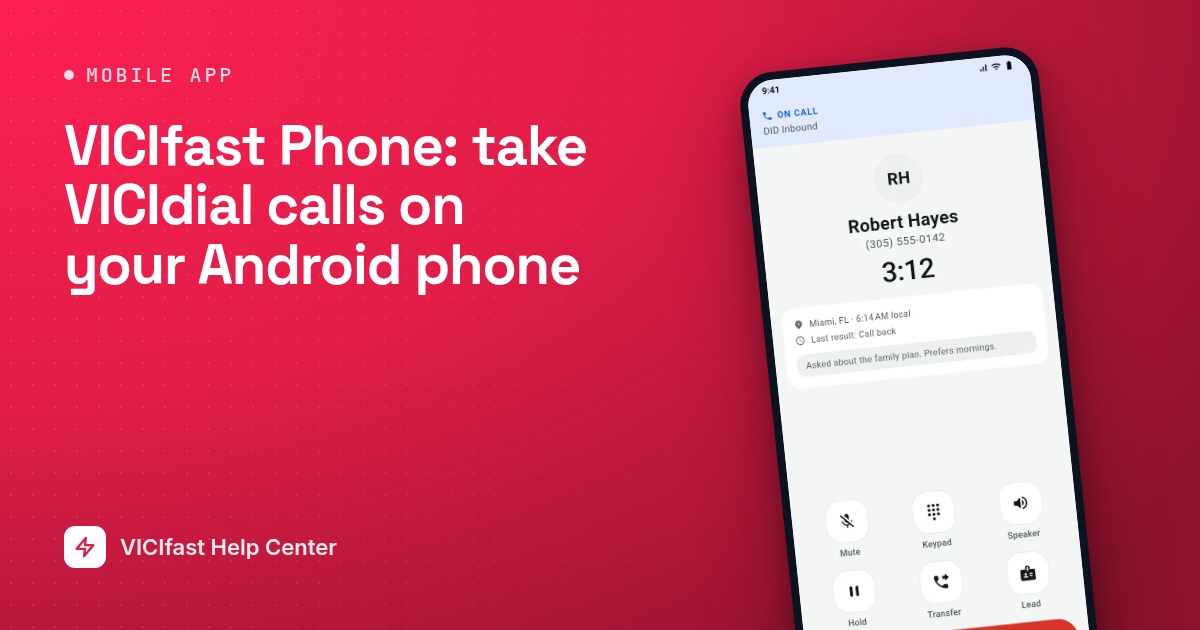
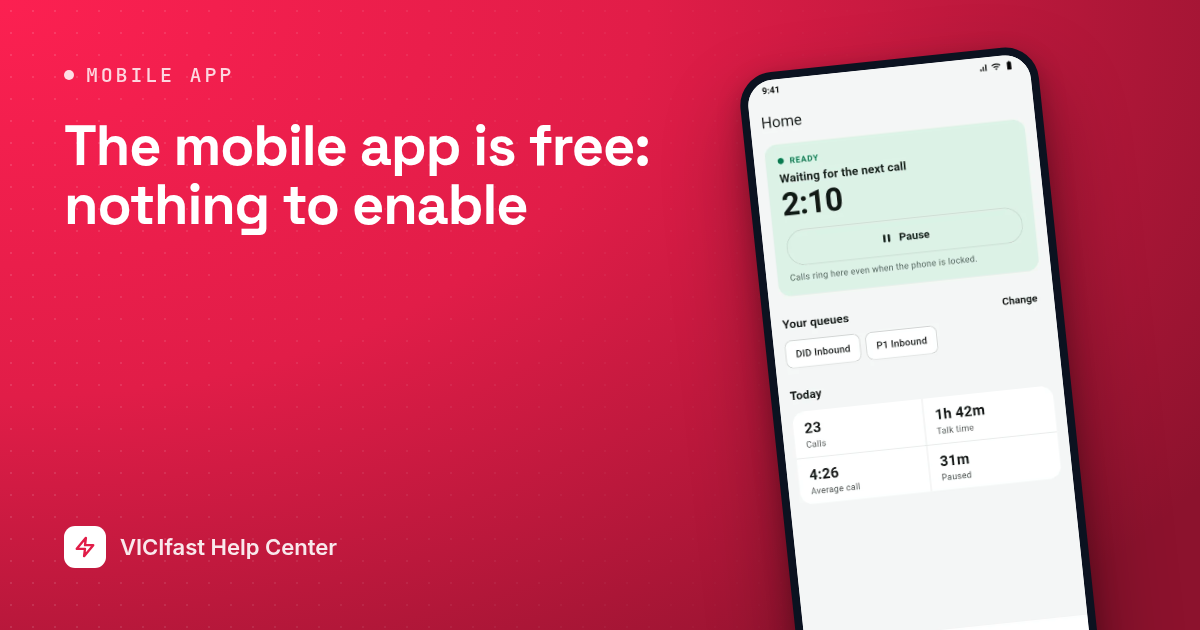
VICIfast Phone is the VICIdial mobile app. Your agents can take and make VICIdial calls on their Android phone, even when the phone is locked, with the customer’s details, call results, callbacks and transfers right in the app. No computer and no extra phone setup.
It’s free on every VICIfast server, trials included. There’s nothing to buy and nothing to switch on.
What you need
- An Android phone with Android 8.0 or newer. The iPhone app is coming soon.
- Your company code. Every agent on the same server uses the same code. Step 1 shows where to find it.
- The agent’s usual VICIdial username and password, the same ones they use on the web agent screen. This is not your dashboard login.
Step 1: Find your company code
- In your dashboard, click Servers, then click your server.
- Open the Mobile app tab.
- Under How agents sign in, click the copy button next to your company code and send it to your agents.
The company code is the short name at the start of your server’s address. For example, if your server is dialer123.vicifast.com, the code is dialer123.
Step 2: Install the app
- On the agent’s phone, open vicifast.com/downloads in the browser.
- Tap the Android download button.
- If the phone asks, allow your browser to install apps. Then open the downloaded file and tap Install.
The app comes straight from vicifast.com rather than the Play Store, so Android asks for permission once. That’s normal.
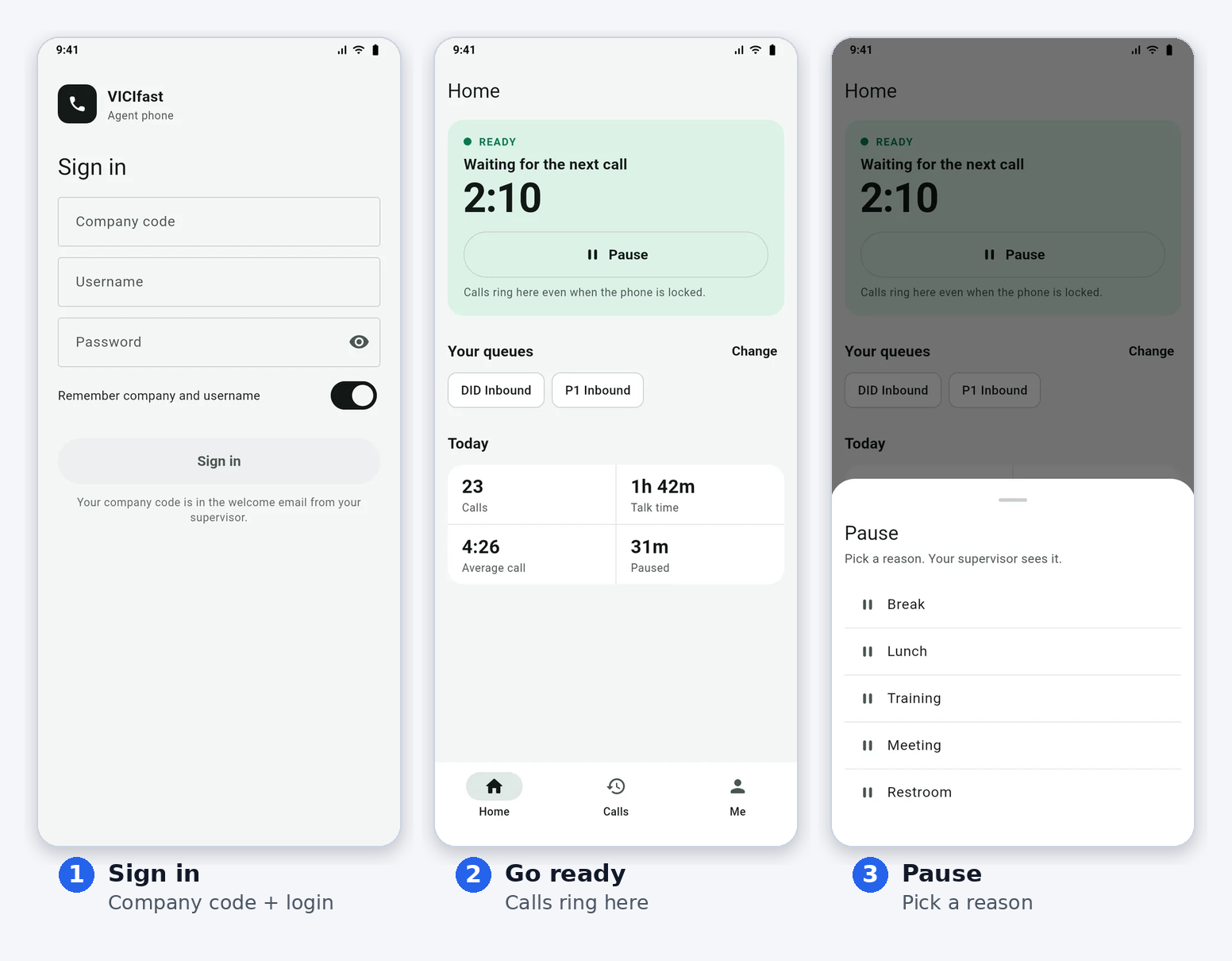
Step 3: Sign in
- Open VICIfast Phone.
- Enter the Company code, the Username and the Password.
- Leave Remember company and username on if only this agent uses the phone.
- Tap Sign in.
If your company uses two-factor codes, the app then asks for the 6-digit code from the agent’s authenticator app. Type or paste it and tap Verify.
Still signed in on a computer? An agent can be signed in in one place at a time. If they’re still on the web agent screen, the app offers Continue here, which moves them to the phone and signs the computer out. If that computer is on a call, the app warns first, because continuing ends that call.
Step 4: Finish phone setup
The first time, the app shows Phone setup. These settings make sure calls reach the agent:
- Microphone (required): so customers can hear the agent.
- Notifications: shows the agent’s status and missed calls.
- Calls on lock screen: rings even when the phone is locked.
- Unrestricted battery: stops the phone from putting the app to sleep during the shift.
Turn them all on and tap Continue. If you skip any, you can finish later from the Me tab under Phone setup.
Step 5: Start the shift
- Pick the Campaign.
- Pick the Queues the agent should take calls from, or tap Select all.
- Tap Start shift.
If the app says “No campaigns are set up for you yet”, the agent’s VICIdial user doesn’t have access to a campaign yet. Give them access in VICIdial, then try again. To change campaign or queues later, use Change next to Your queues on the Home screen.
Step 6: Take calls
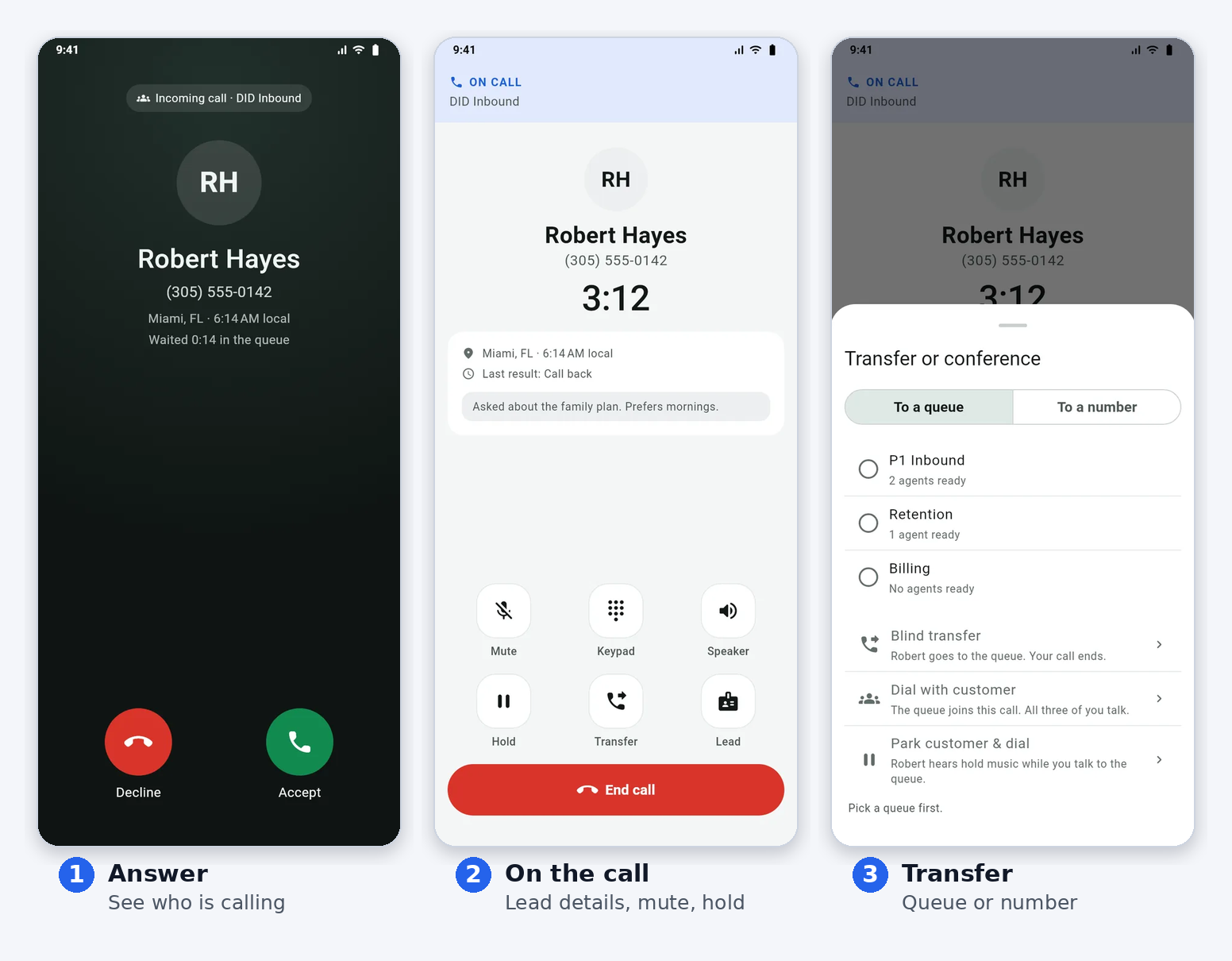
On the Home screen the agent is either Ready (waiting for the next call) or Paused. Tap Pause to take a break and pick a reason; supervisors see it. Calls ring like a normal phone call, even when the phone is locked.
On a call, the agent sees the customer’s name, number, city and local time, with their details and notes one tap away. They can mute, hold, use the keypad, transfer to a queue or a number, or bring in a third person.
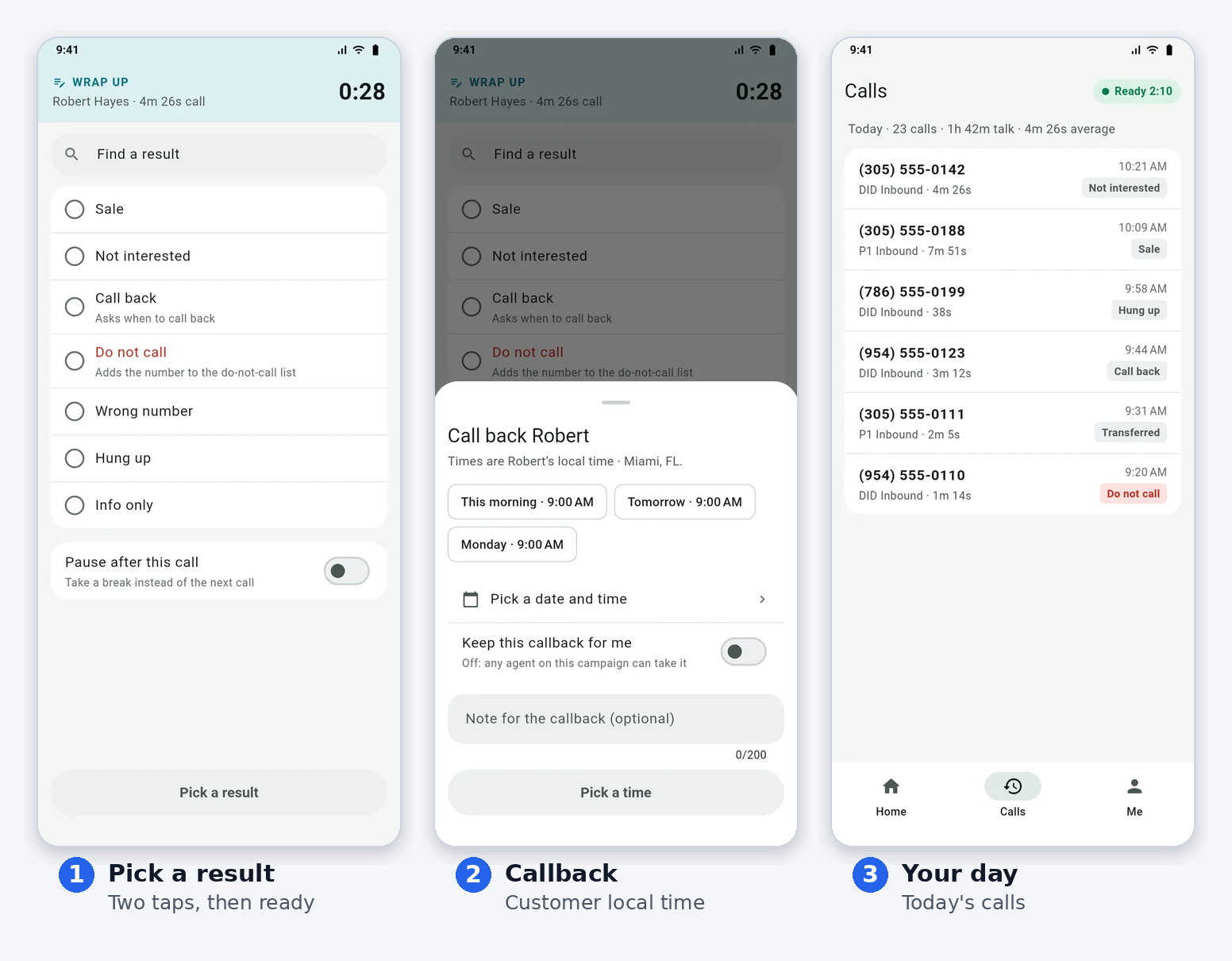
When the call ends, the agent picks a result. If the customer wants a call back, choose the callback result and pick a time: times are shown in the customer’s local time. Turn on Pause after this call to take a break instead of the next call. The Calls tab lists today’s calls with their results.
What you control from the dashboard
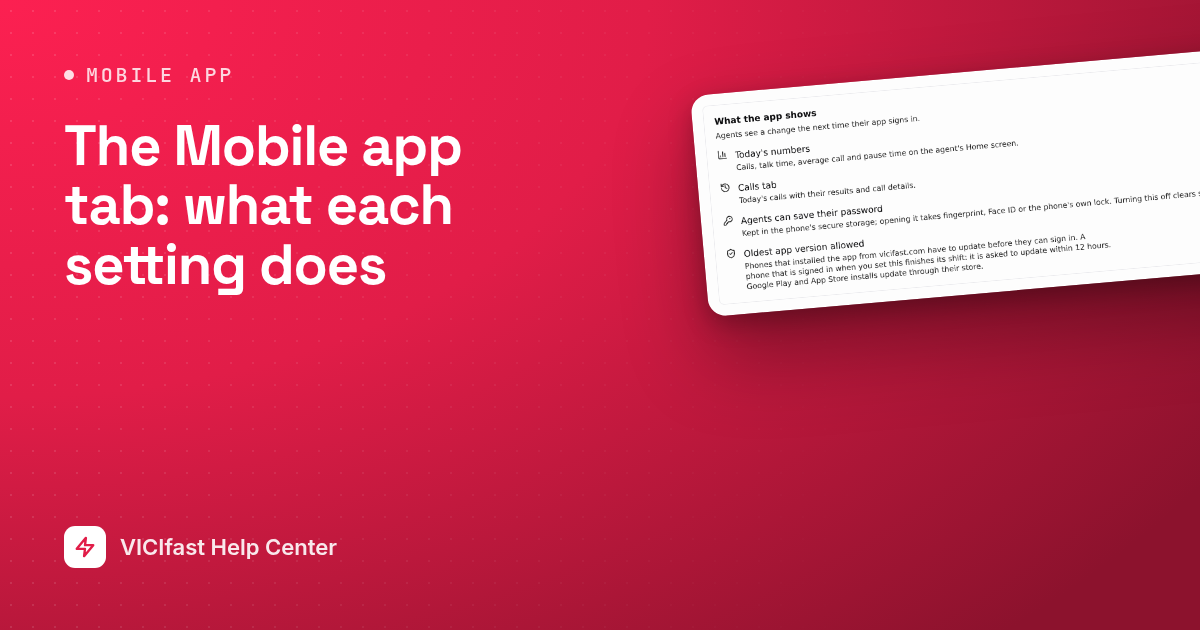
Everything the app does goes through VICIdial, so calls, results, callbacks, recordings and reports show phone agents just like any other agent. On your server’s Mobile app tab you can:
- See which agents are signed in on a phone right now, and sign a phone out.
- Choose what the app shows: Today’s numbers on the Home screen, and the Calls tab.
- Set a minimum app version, so agents on an older version are asked to update.
- See who has used the app, and when.
Agents see your changes the next time their app signs in.
Updating the app
When a new version is out, the Me tab shows Update to the new version. Tap it, then Download and install, and follow the installer. Updating keeps the agent signed in and keeps their shift settings. Calls can’t ring while the installer is open, so update on a break.
If something doesn’t work
- “That username or password didn’t match.” Use the agent’s VICIdial username and password, not your dashboard login.
- “We couldn’t find that company code.” Copy the code again from your server’s Mobile app tab.
- “That code didn’t work.” The 6-digit code changes every 30 seconds. Wait for a new one and try again.
- “Your account is turned off.” The agent’s VICIdial user is switched off. Turn it back on in VICIdial.
- “Mobile sign-in is turned off for your company.” In your dashboard, open Manage Firewall, go to Settings and turn on Agent self-serve portal. The app uses the same switch.
- “Too many tries.” The phone was blocked for a short time after several wrong attempts. Wait a few minutes and try again.
- “You signed in on another phone, so this one was signed out.” Each agent can use one phone at a time.
- “Your network has no IPv4 address.” Switch to another Wi-Fi network or to mobile data.
- “Update the app to keep working.” Your minimum app version is newer than the agent’s app. Update from the Me tab, or download the app again from vicifast.com/downloads.
- Calls don’t ring when the phone is locked. On the Me tab, open Phone setup and turn everything on, especially Calls on lock screen and Unrestricted battery.
Good to know
- One agent, one phone. Signing in on a second phone signs the first one out.
- Moving between Wi-Fi and mobile data is fine. The app reconnects by itself.
- The phone can reach your server only while the agent is signed in, so you don’t need to add agents’ phones to your firewall.
- The iPhone app is coming soon. Get notified when it’s out.
- The app is open source and free.