Passkeys, two-factor and sign-in sessions
Protect your VICIfast login with a passkey or two-factor codes, and sign out devices you don't recognise.
Billing & account · 3 min read
Your VICIfast login controls your servers and your billing, so it deserves more than a password. Add a passkey, turn on two-factor codes, or both, and check where you are signed in. It takes about five minutes.
What you need
- Your VICIfast password.
- For a passkey: a phone or computer with a fingerprint reader, Face ID or a screen lock, or a security key.
- For two-factor: an authenticator app such as 1Password, Authy or Google Authenticator.
These settings are for your own login. Each member of your team sets up their own.
Step 1: Open Security
- In the left sidebar, under Settings, click Security. You can also click your avatar at the top right and choose Security.
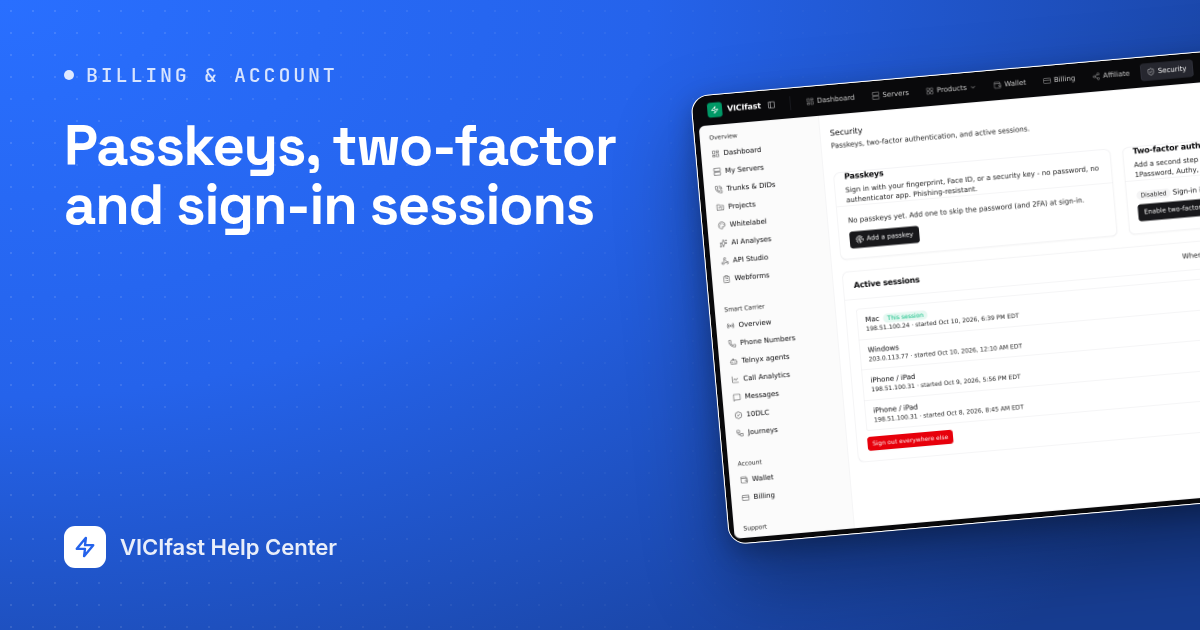
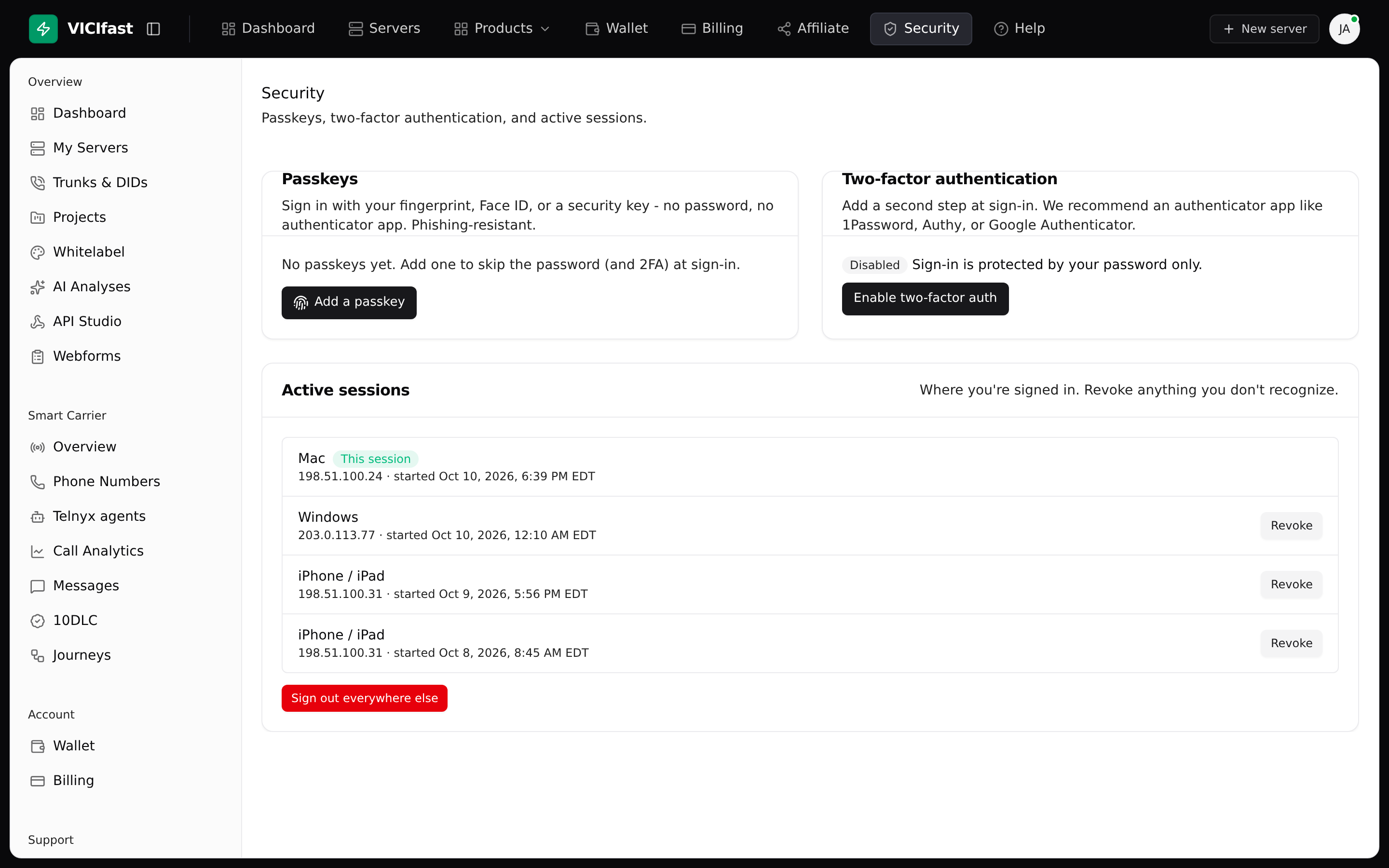
- The page has three cards: Passkeys, Two-factor authentication and Active sessions.
Step 2: Add a passkey
A passkey lets you sign in with your fingerprint, Face ID or a security key, with no password and no code to type.
- On the Passkeys card, click Add a passkey.
- In Name this passkey, type something you will recognise, such as “Work laptop”.
- Click Continue. Your browser asks for your fingerprint, Face ID or security key. Confirm it.
- You see “Passkey added.” The passkey is listed with the date it was added and when it was last used.
Next time, click Sign in with a passkey on the sign-in window. A passkey skips the two-factor code too.
Step 3: Turn on two-factor authentication
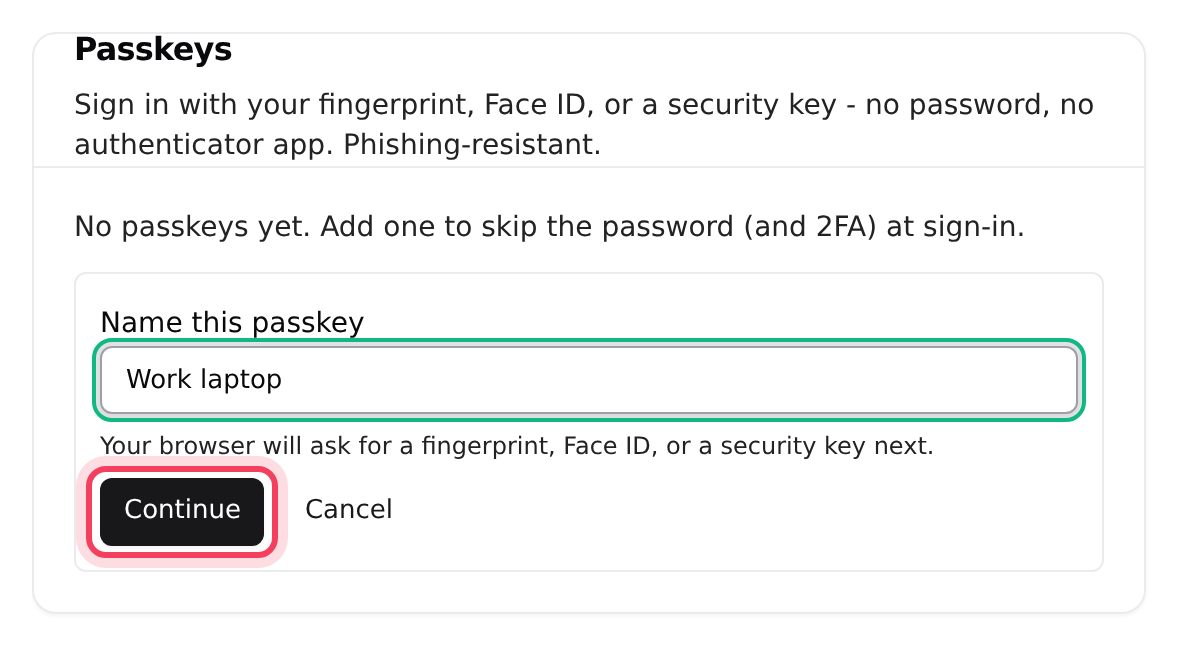
- On the Two-factor authentication card, click Enable two-factor auth.
- Type your password in Confirm password and click Continue.
- Scan the QR code with your authenticator app (or type the key shown under it).
- Under Save these backup codes, click Copy all or Download .txt and keep the codes somewhere safe. Each code works once, and you won't see them again after this step.
- Type the 6-digit code from your app in Verification code and click Confirm and enable.
The card now reads Enabled. From now on you are asked for a code at every sign-in. If your phone isn't with you, click Use a backup code instead on the code screen.
Step 4: Check where you are signed in
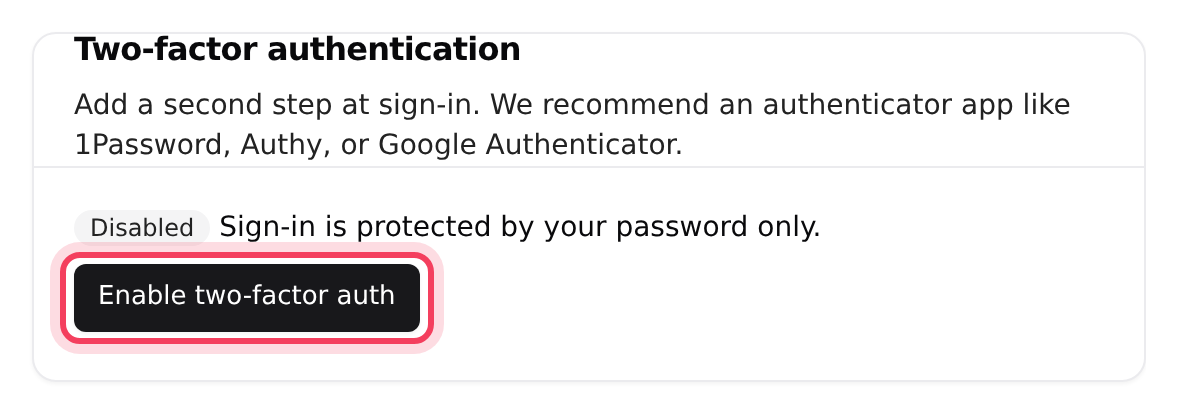
- Look at Active sessions. Each row shows the device, its IP address and when the session started. Your current one is marked This session.
- Don't recognise one? Click Revoke on that row.
- To sign out everywhere except here, click Sign out everywhere else.
As the account owner, you can also see your members' sign-ins on the Members page, under Sign-in activity, and end one with Force logout.
Change or remove later
- New backup codes: on the two-factor card, type your Password and click Regenerate backup codes. The old codes stop working at once.
- Turn off two-factor: type your Password, click Turn off two-factor, then Turn it off. Your sign-in goes back to password only.
- Remove a passkey: click Remove on its row, then Remove passkey. If it is your last one, you go back to password sign-in (and two-factor, if it is on).
If something goes wrong
Frequently asked
- Type the newest code from the app, before it changes. If it keeps failing, check that your phone sets its clock automatically.
- Sign in with your password, click Use a backup code instead, and type one of your backup codes. Then turn two-factor off and on again with your new phone.
- Open the chat bubble on vicifast.com (it works without signing in) and tell us what happened.
- Your browser doesn't support passkeys. Use another browser, or sign in with your password.
- The request was cancelled or timed out. Click Add a passkey and try again, and confirm with your fingerprint, face or key when asked.