10DLC: register before you text
Register your business and your texting campaign with US carriers through your Telnyx account, then attach your numbers so your texts are not filtered.
AI & automation · 3 min read
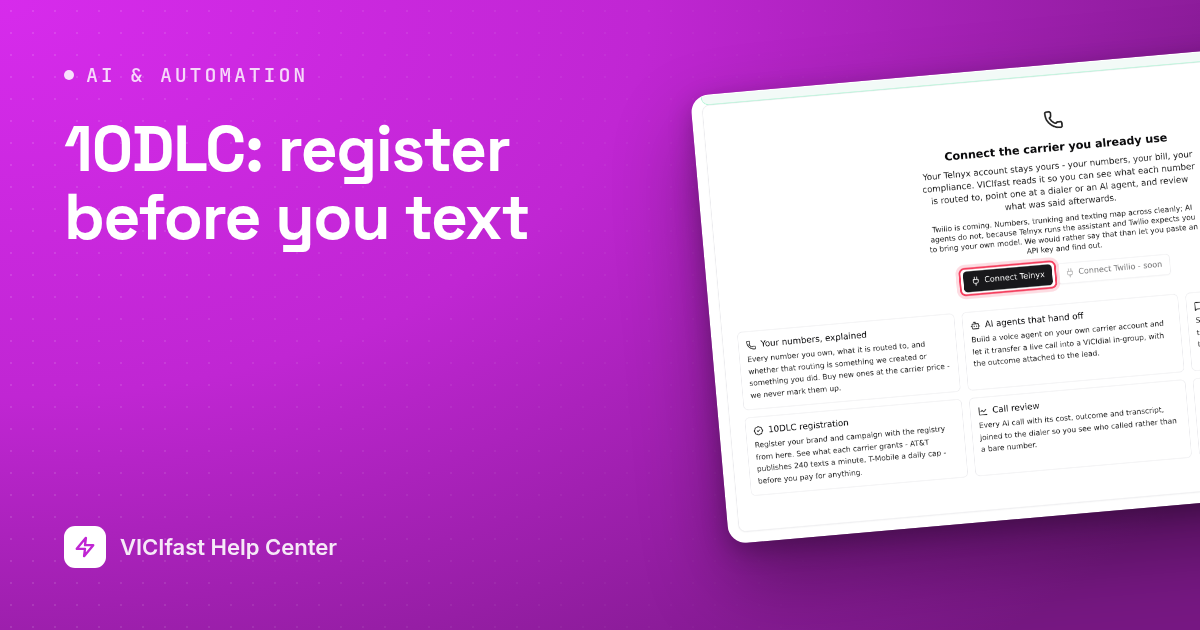
US carriers filter business texts sent from ordinary local numbers that are not registered, often silently: the text looks sent and never arrives. Registering is called 10DLC. You register your business (the brand) and what you send (the campaign) on your own Telnyx account, then attach your numbers to the campaign. Attaching the numbers is the step that actually stops the filtering.
What you need
- A Telnyx account connected on Smart Carrier, with write access on.
- Your company's legal details exactly as registered: legal name, address, and EIN (sole proprietors do not need one).
- A clear description of how people agree to receive your texts.
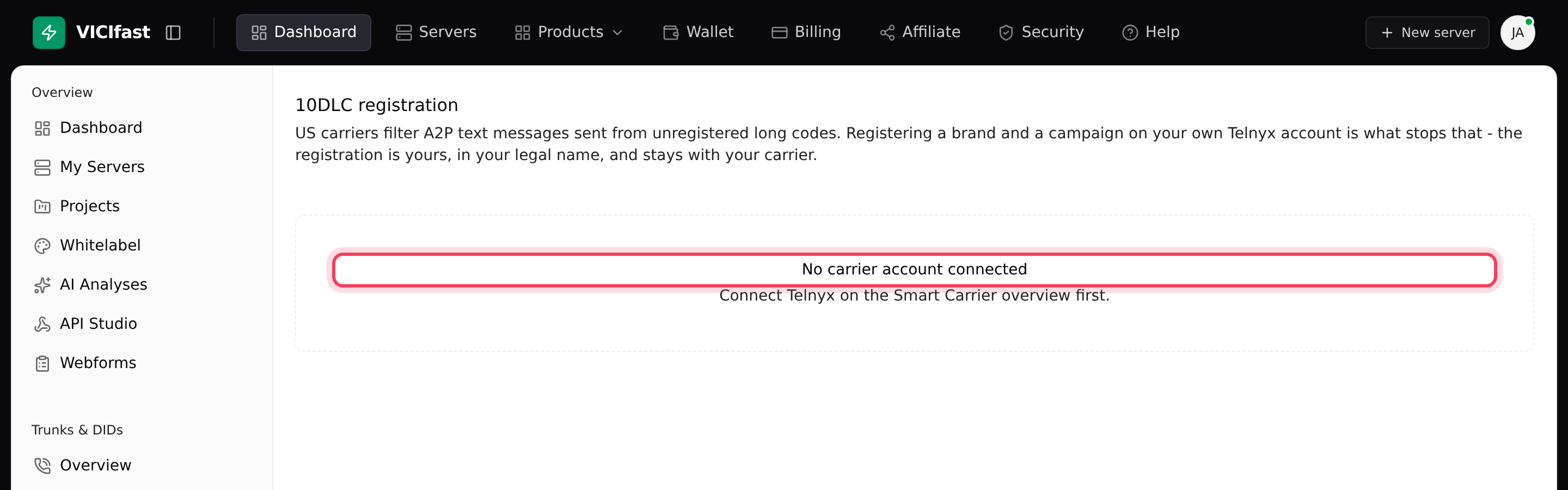
Until a Telnyx account is connected, the 10DLC page says No carrier account connected. Connect it on the Smart Carrier Overview first.
Registration fees are charged by Telnyx to your Telnyx account, not by VICIfast. Some are monthly and recur. A rejected registration costs the vetting fee again, so take your time with the details.
Step 1: Register your brand
- In the sidebar, under Smart Carrier, click 10DLC.
- Click Register a brand.
- Fill in Entity type, Industry, Legal company name, Brand name people will recognise, EIN / company number, Support email, Support phone, Website and your address.
- Click Submit for verification.
The details go to The Campaign Registry and must match your business records exactly. A mismatch is the most common reason a brand fails.
Step 2: Wait until the brand is Verified
- Your brand appears as a card marked Pending review. Verification usually takes a few minutes.
- Click Refresh status to check again. The badge changes to Verified, or to Rejected with the registry's reason underneath.
Step 3: Register a campaign
- On the verified brand, click New campaign.
- Pick a Use case. VICIfast asks Telnyx for the price and shows the Monthly fee, what is Charged up front, and Telnyx's own terms. A table shows what each carrier allows: Texts/min, MMS/min, Daily cap and what it Requires. A dash means that carrier does not publish a limit, not that it is zero.
- Fill in What this campaign is for and How people opt in. Name where people give consent and what they are told; this is the field campaigns are most often rejected on.
- Add Sample messages that look like what you really send, pick any Sub-use-cases it asks for, and tick the Content boxes that apply (links, phone numbers, affiliate marketing).
- Click the Register for button, which shows the monthly price. If the price changed since you opened the window, it stops and says "The price changed" with the new price, instead of registering.
Step 4: Attach your numbers to the campaign
- When the campaign shows Active, look under it for Attach a number:.
- Click each number that should send texts. A message confirms "A2P traffic from it is now registered."
- Check the Numbers row on the brand card: registered numbers show a green tick and the use case; the others say unregistered.
When every texting number is attached, the box at the top reads "Every messaging-enabled number is attached to an active campaign."
If something goes wrong
Frequently asked
- The page says "This carrier account is connected read-only. Grant write access to register a brand or campaign." Turn on write access on Smart Carrier Overview.
- Fill in your EIN, or choose Sole proprietor as the entity type if that is what you are.
- The brand must be verified first. Click Refresh status and wait for Verified.
- Say where people give consent (for example the form on your website) and what they are told about texts.
- Those numbers are not attached yet, so their texts can be filtered. Attach them under your active campaign (Step 4).
- Open the conversation in Messages and click Details. If the sending number says "Not registered - carriers may filter these", attach it to your campaign here.