The reseller program
New reseller sign-ups are paused until early 2027. How to join the waiting list, and for existing resellers: how the money works and a tour of the Reseller pages.
Partners · 5 min read
The reseller program lets a business sell our servers to its own customers, under its own brand and prices. Your customers pay you; you pay us a wholesale price from your reseller wallet. Most of this page is for resellers who are already on the programme.
Want to become a reseller?
You can join the waiting list, and we will email you when the programme reopens.
- On vicifast.com/resellers, click Register interest, then sign in or create an account.
- The Reselling — on pause page opens. Fill in Business name, and if you like Business jurisdiction and Tell us about your business.
- Click Register interest. You see You’re on the list and we email you a copy. There is nothing else to do.

In the meantime, the affiliate program is open: you earn commission on customers you send us, with no wallet to fund.
How the money works
- Your customers pay you your retail prices, using the payment methods you set up (Step 5).
- You pay us wholesale. Each time one of your customers’ orders is paid, and each time their server renews, the wholesale price comes out of your reseller wallet. If your wallet can’t cover a new order, the order is refused and your customer is not charged. If it can’t cover a renewal, the server still renews for your customer and we contact you about the wholesale owed.
- Your customers pay you. They renew at the price you set for them, and they can’t add funds through VICIfast: their wallet page tells them you top them up. Add credit for them from Customers with Wallet adjustment.
- Stay above your floor. Your Wallet page shows your Min order floor. Below it, new customer orders are paused until you top up.
- Monthly retainer. If your tier has a monthly retainer, it is also taken from your wallet.
Step 1: Check your Overview
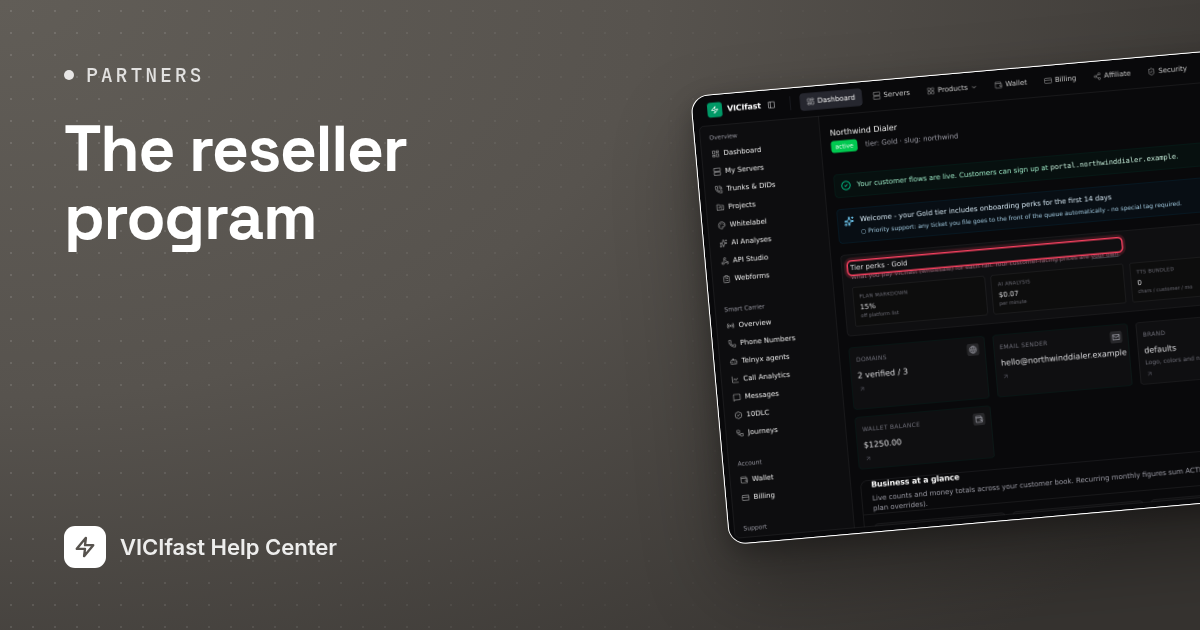
- In the sidebar, under Reseller, click Overview.
- Read the banner. Your customer flows are live. means customers can sign up on your domain. If it says Customer flows are paused until setup completes., its checklist shows what is missing: a verified domain or a verified email sender.
- The Tier perks card shows what you pay us: your Plan markdown, the AI analysis rate, the TTS bundled characters and your Trial budget.

Step 2: Set your brand
- Click Brand.
- Fill in what your customers see: App name, Primary color (#hex), Support email, Email from name, Email from address, your logos and Favicon, and your Terms URL and Privacy URL. Empty fields use the platform default.
- Click Save brand.

Step 3: Check your domains and email sender
The Domains and Email sender pages are read-only. Both say Managed on your behalf: your VICIfast account team sets up your domains, certificates and sending domain. You can see each domain’s status and certificate expiry, and copy the email DNS records to give to whoever runs your DNS.
To add a hostname, change your sender domain or rotate a key, chat with support (Chat with support in the account menu).

Step 4: Fund your wallet
- Click Wallet. You see your Current balance, your Lifetime margin captured and your recent transactions.
- Under Top up, click a quick amount ($100 to $2,500, paid by card), or type a custom amount (minimum $100) and click Pay with card, Pay with PayPal or Pay with USDT.
- For USDT, send the exact amount shown to the address shown, before the quote expires. Any other amount is not matched automatically and goes to manual review.

Step 5: Choose how your customers pay you
- Click Customer payments. The page is called Customer payment methods.
- For USDT: under USDT-TRC20 addresses, add your Tron address and click Add address. Prove you own it by sending the small test amount shown, from a wallet you control. We check hourly and mark the address verified when it arrives. The test expires after 7 days.
- For PayPal: enter your PayPal Client ID, Client secret, Environment and Merchant name, then click Save credentials. These are one-time payments only.
- Manual payment (bank transfer, cash and so on) is switched on by your account team, not from this page. When it is on, you confirm each manual order from Orders with Mark paid & provision server, or turn it down with Reject order.

Step 6: Set your prices
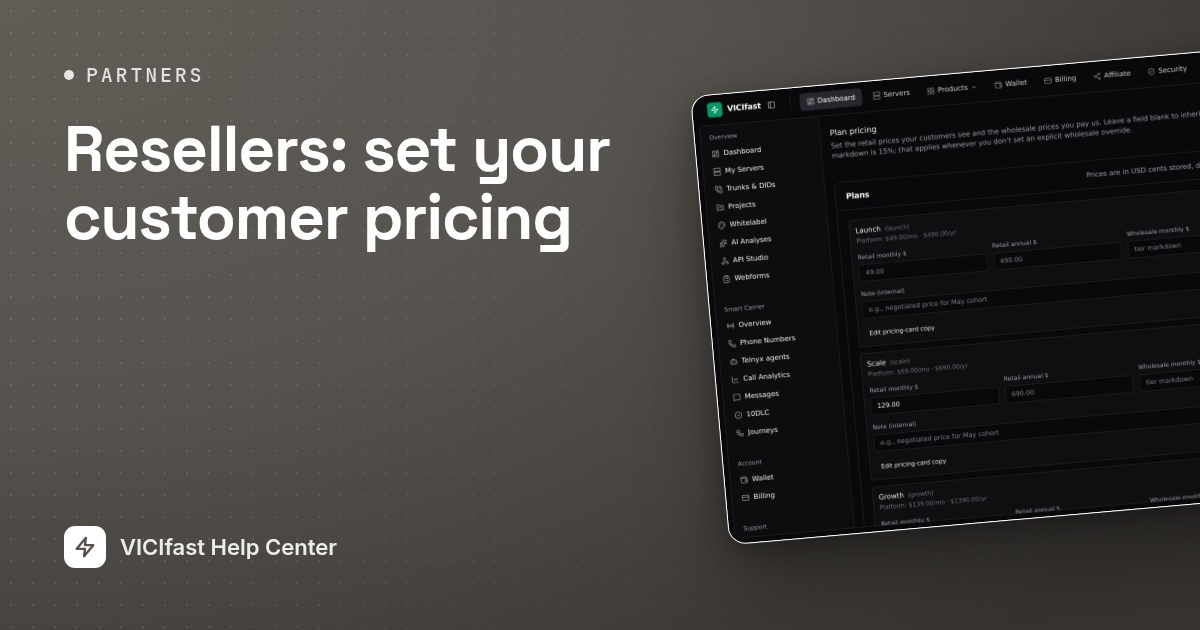
Click Plan pricing to set your retail prices and see your wholesale cost for each plan. See Resellers: set your customer pricing.
Other pages in the Reseller section
- Customers: everyone who signed up under your brand. Open one to see their wallet and servers, or to add balance with Wallet adjustment.
- Orders: your customers’ orders, including manual-payment orders waiting for you.
- Approvals: if your account holds paid orders for your approval, each held server waits here.
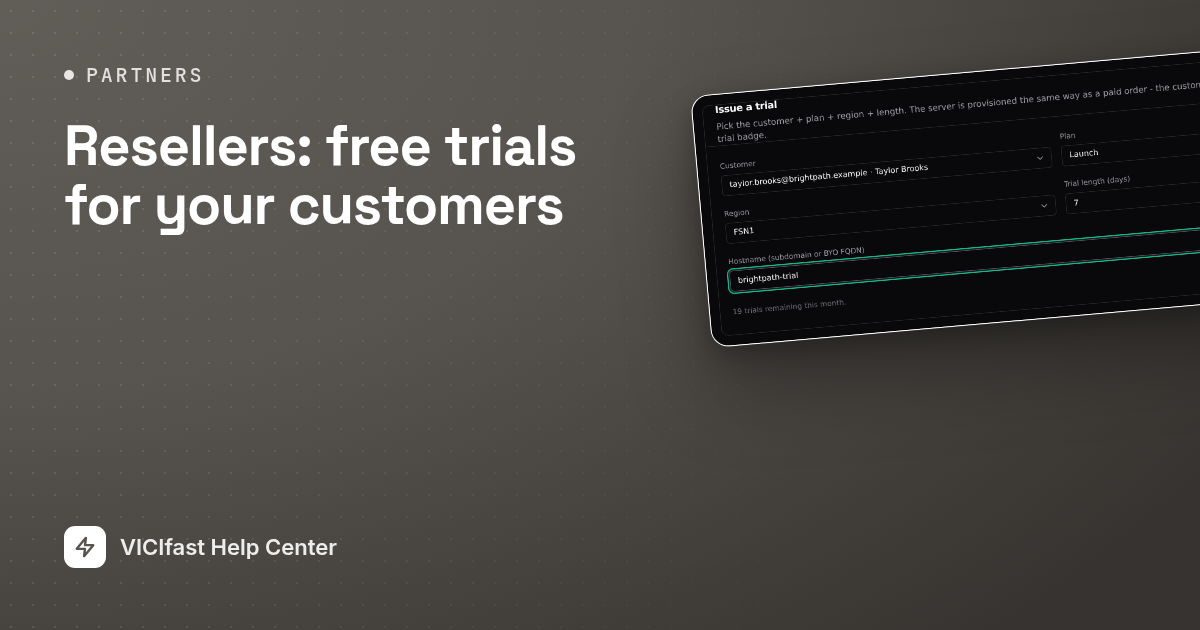
- Trials: free trials for your customers. See Resellers: free trials for your customers.
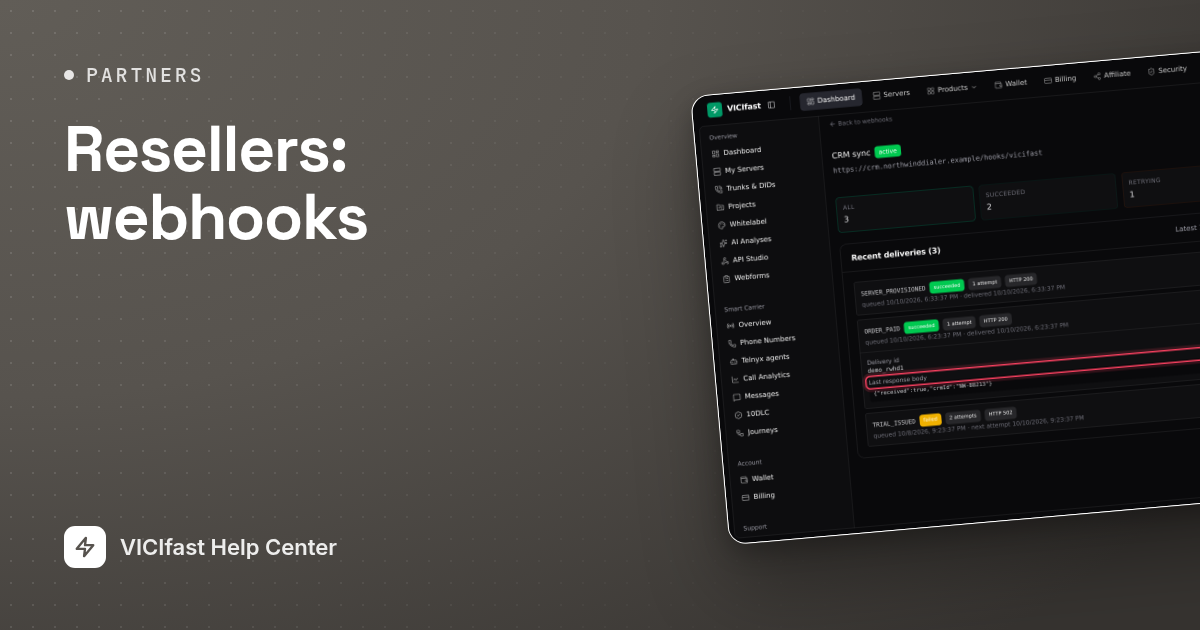
- Webhooks: send customer events to your own systems. See Resellers: webhooks.
- Tab visibility: hide server tabs from your customers.
- Landing pages and Addon pricing: what your public pages show.
If something goes wrong
Frequently asked
- Your reseller wallet did not cover the wholesale price, or your balance is below your minimum order floor. The customer was not charged. Top up from Wallet and ask them to order again.
- Your reseller wallet reached $0. Top up straight away, then chat with support to get the servers running again; topping up alone does not restart them.
- Your email sender may not be verified yet. Open Email sender to check its status, and chat with support if it is not verified.
- Domains are managed for you. Chat with support with the hostname you want and what it is for.
- The reseller business belongs to the account owner. Team members are sent back to the dashboard.
- Nothing for now. We will email you when the programme reopens, which we expect in the first quarter of 2027. There is no need to register again.
› A customer’s order was refused.
› All my customers’ servers were suspended.
› My customers aren’t receiving emails from us.
› How do I add another domain?
› A team member can’t open the Reseller pages.
› I registered interest. What happens next?
Related articles
Tags: overview, reseller