The Mobile app tab: what each setting does
Give agents the company code, choose what VICIfast Phone shows them, set the oldest app version allowed, and see or sign out the phones signed in now.
Mobile app · 4 min read
Every server has a Mobile app tab. It is where you give agents the company code for VICIfast Phone, choose what the app shows them, set the oldest app version allowed, and see which agents are signed in on a phone right now. The app is free on every server; there is nothing to buy or switch on.
What you need
- To change the settings: you are the account owner, or a team member with the Configurations permission.
- To sign an agent's phone out: you are the owner, or an Admin or Operator with the Floor tab.
- Agents with a VICIdial agent login. See Add agents and user groups.
Step 1: Open the Mobile app tab
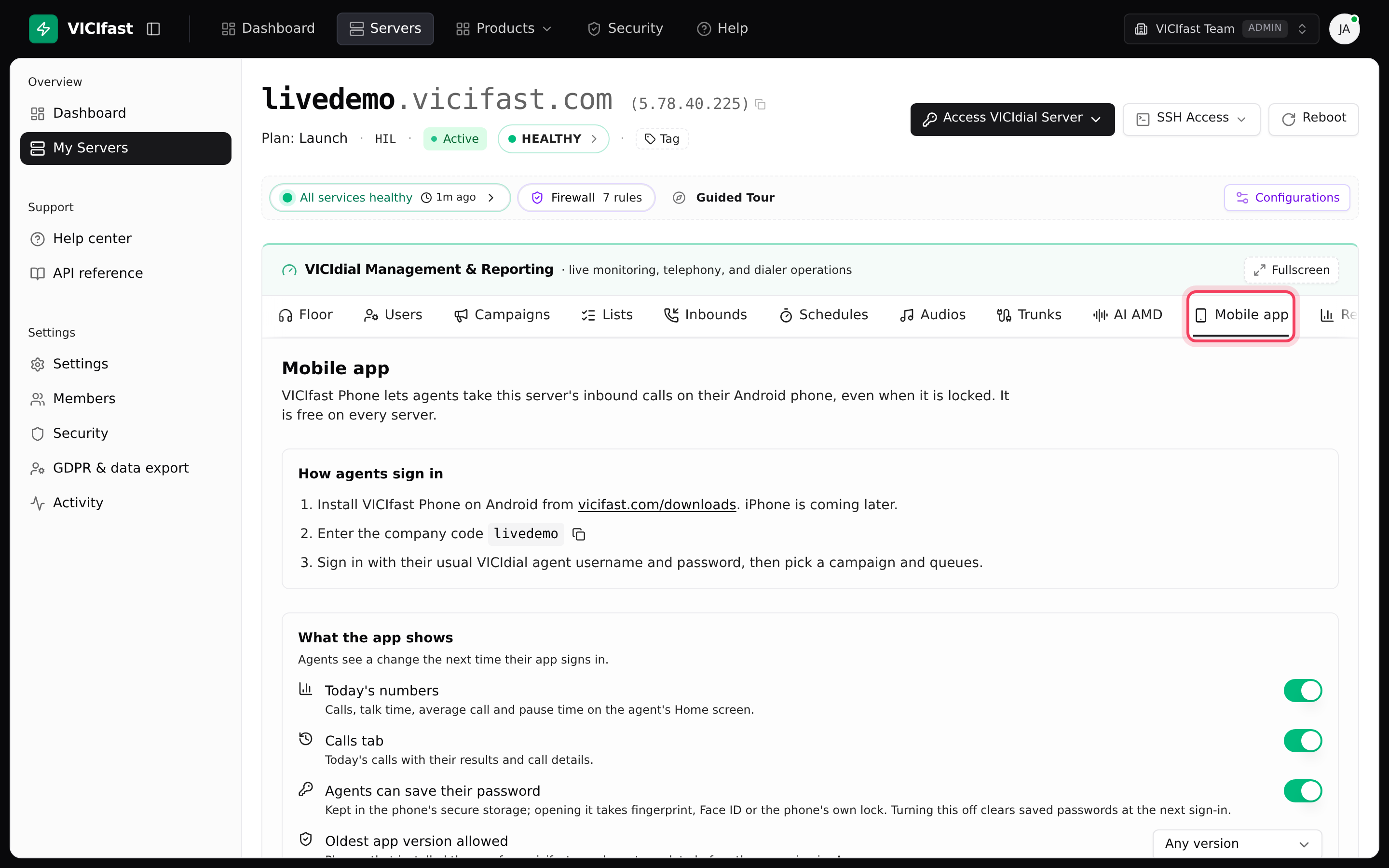
- In the left sidebar, click My Servers, then your server's name.
- Click the Mobile app tab, or press p.
Step 2: Give agents the company code
Under How agents sign in you see the three things an agent does:
- Install VICIfast Phone on Android from vicifast.com/downloads. iPhone is coming later.
- Enter the company code. Click the copy icon next to the code to copy it, then send it to your agents. On our demo server the code is livedemo.
- Sign in with their usual VICIdial agent username and password, then pick a campaign and queues.
Every agent on the same server uses the same company code. For a step-by-step guide to give your agents, see Using VICIfast Phone (for agents).

Step 3: Choose what the app shows
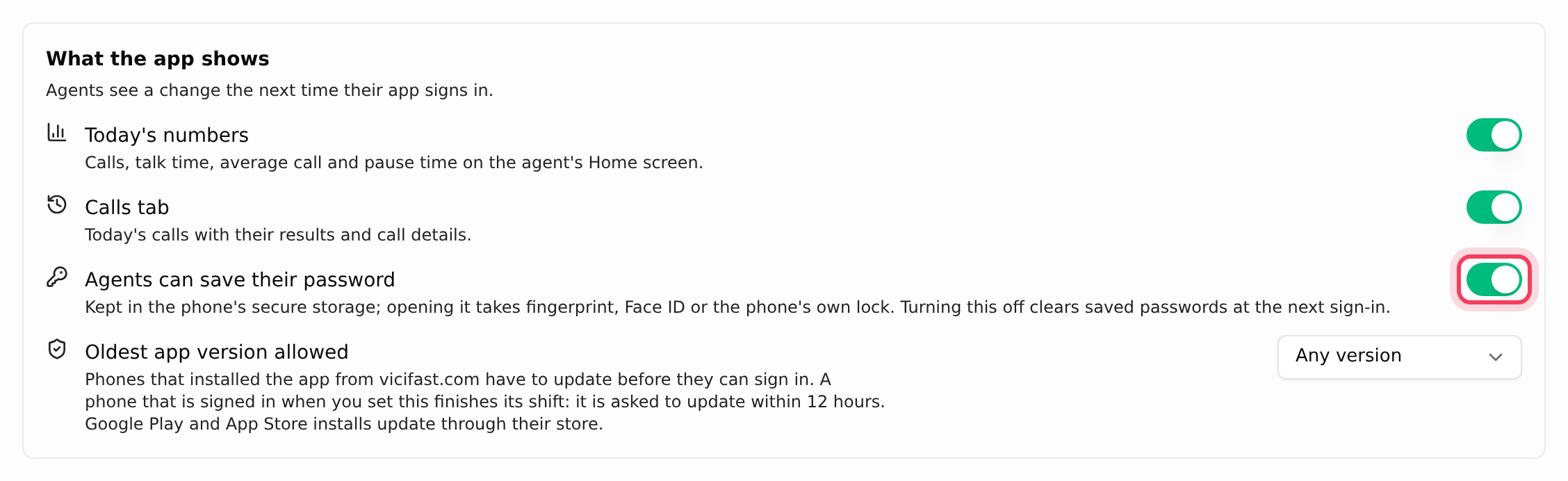
Under What the app shows, each switch saves as soon as you flip it. Agents see a change the next time their app signs in.
- Today's numbers: calls, talk time, average call and pause time on the agent's Home screen. Switch it off to hide them.
- Calls tab: today's calls with their results and call details. Switch it off and the app stops listing today's calls.
- Agents can save their password: available in the next app update. When it arrives, agents can keep their password in the phone's secure storage, opened with fingerprint, Face ID or the phone's own lock. Turning the switch off clears saved passwords at the next sign-in. The current app remembers the company code and username only.
- Oldest app version allowed: choose Any version or a released version. Phones that installed the app from vicifast.com must update before they can sign in again. A phone already signed in when you change this finishes its shift: it is asked to update within 12 hours. Google Play installs update through the store instead.
Step 4: See who is signed in on a phone
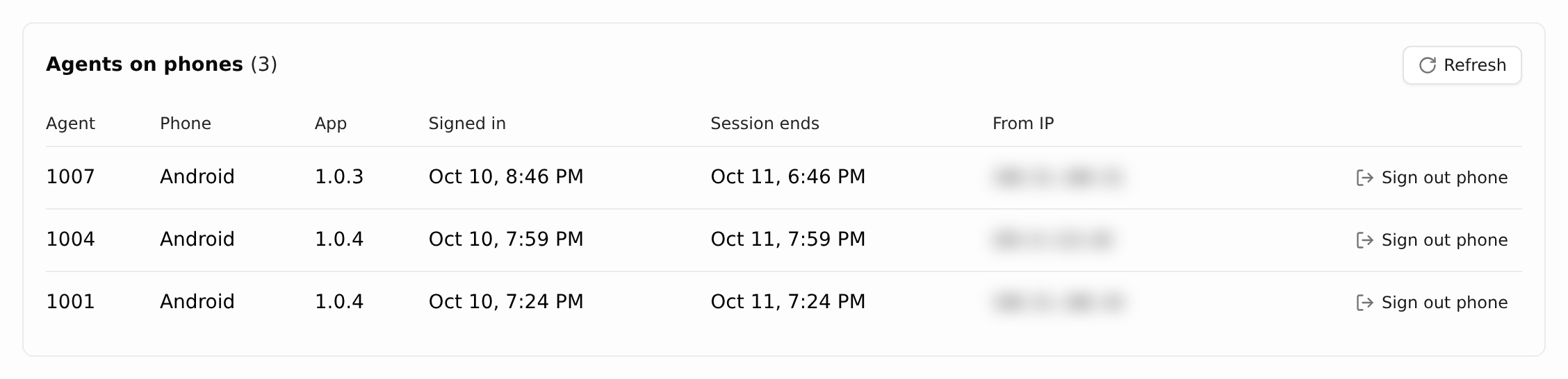
Agents on phones lists every agent signed in on the app right now, with the number in brackets. For each one you see:
- Agent, Phone (Android or iPhone) and App (the app version). Needs an update appears when the version is older than the one you allow. Not known yet means the phone has not told us its version; it fills in at its next sign-in.
- Signed in, Session ends (No end if the session does not expire) and From IP, the internet address the phone signed in from.
Click Refresh to update the list.
Step 5: Sign a phone out
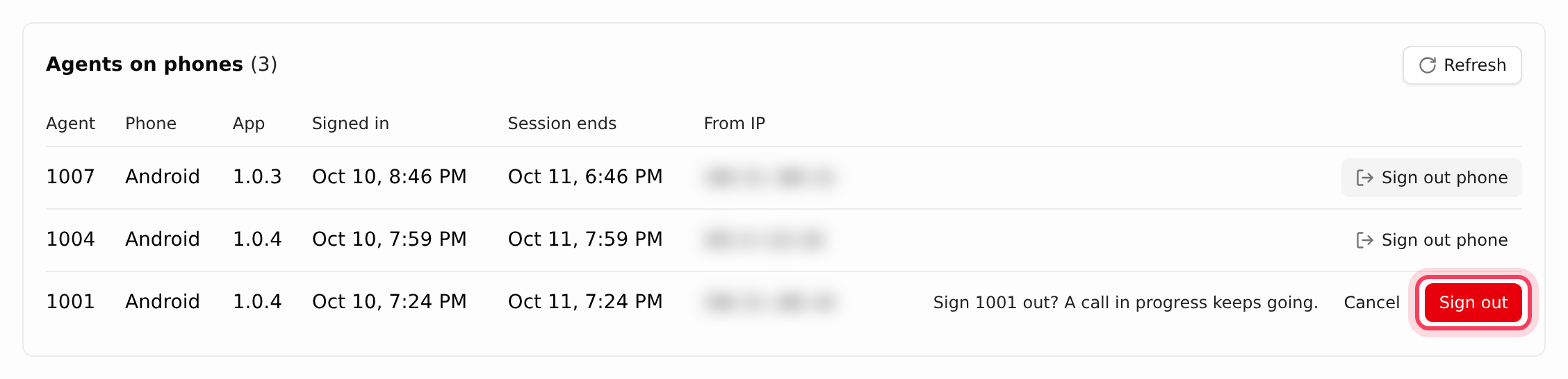
- On the agent's row, click Sign out phone.
- Read the check, for example Sign 1001 out? A call in progress keeps going.
- Click Sign out, or Cancel to keep them signed in.
The agent is logged out of the dialer and has to sign in again to take calls. Use this when a phone is lost or an agent has left a shift without signing out.
Step 6: Check app usage
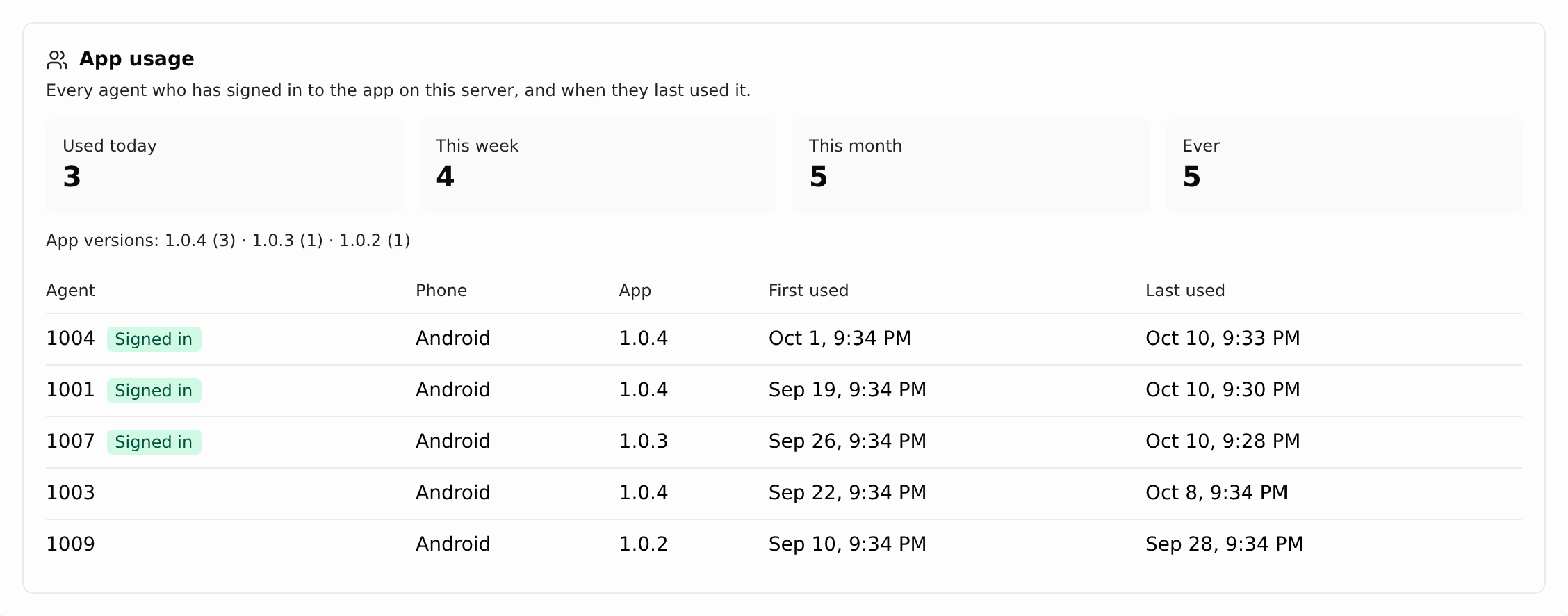
App usage lists every agent who has ever signed in to the app on this server. The tiles count agents who Used today, This week, This month and Ever. Below them, App versions shows how many agents are on each version, and the table shows each agent's Phone, App, First used and Last used. Agents signed in right now are marked Signed in.
If something goes wrong
Frequently asked
- Your server is still being set up. The code appears once the server has its address.
- Changing them needs the Configurations permission. Ask the account owner.
- Changes reach the app the next time it signs in. Ask the agent to sign out and back in.
- You set an Oldest app version allowed that their phone is below. Have them update from vicifast.com/downloads, or set Any version.
- The phone has not reported its version yet. It shows after the phone's next sign-in.
- Signing phones out needs the owner, or an Admin or Operator with the Floor tab.