How to Record a Safe-Harbor Message by Phone
Dial 8168 from a VICIdial-attached phone, record your FTC-compliant safe-harbor disclosure, then enter the filename in the Safe Harbor Exten field on the Campaigns screen.
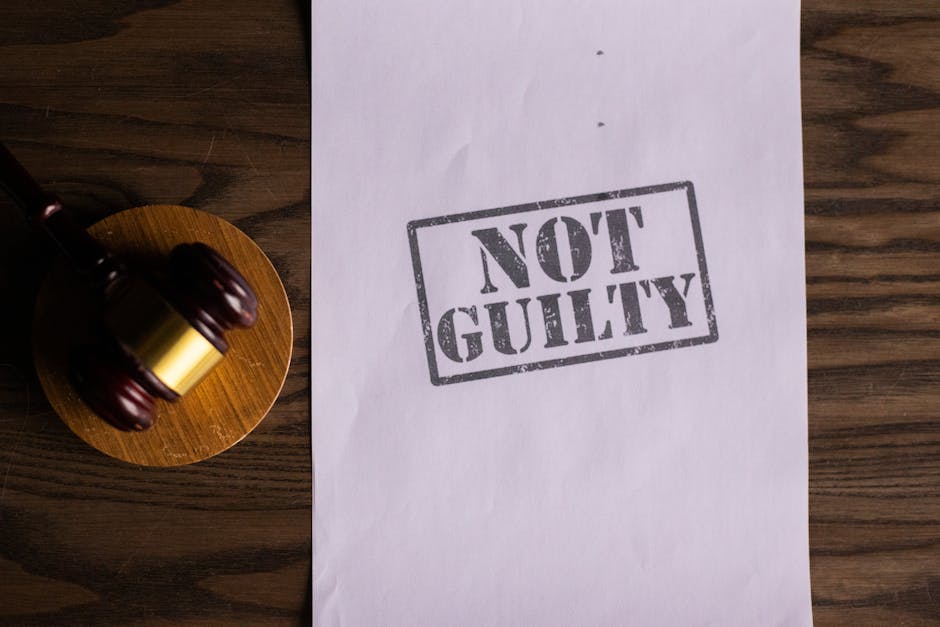
The FTC's safe-harbor rule for prerecorded telemarketing calls FTC Safe Harbor requires that the recorded message identify who is calling, give a phone number the consumer can call to opt out, and provide a way to be placed on the company's internal do-not-call list. In VICIdial, the message that plays this disclosure is stored in the Safe Harbor Exten field on the Campaigns screen. You can record that audio file from any phone connected to your VICIdial server using extension 8168.
Getting this recording right matters for compliance. The FTC requires the message to play within two seconds of the consumer answering. It must include an automated opt-out mechanism - typically a prompt to press a key to be added to your do-not-call list Safe Harbor message. Recording the audio by phone gives you the clearest, most consistent result because the audio path matches what callers will actually hear.
What belongs in a safe-harbor message
Before you dial 8168, write out the script and have someone with authority review it. At minimum, the recording must: state the name of the business or individual on whose behalf the call is being made; provide a telephone number that the called party can use to opt out during business hours; and explain that the consumer may press a key to be removed from future calls. Keep it under 30 seconds. A sample opening: "This is a message from [Company Name]. To be removed from our call list, press 1 now, or call us at [number] during business hours." Check your state regulations as well - some states have additional disclosure requirements beyond the federal minimum.
flowchart TD
  A[Dial 8168] --> B[Enter 4321 then pound]
  B --> C[Record safe-harbor message]
  C --> D[Press pound to stop]
  D --> E{Review options}
  E --> F[Press 1 to save]
  E --> G[Press 2 to listen]
  E --> H[Press 3 to re-record]
  F --> I[Note the filename]
  I --> J[Paste into Safe Harbor Exten field]
Recording the message via 8168
Pick up a phone that is registered to your VICIdial server and dial 8168. The system will prompt you for an ID. Enter 4321 followed by the pound (#) key. You will hear a brief set of recording instructions. After the beep, read your prepared script at a clear, moderate pace. When you reach the end, press the pound key to stop.
You will then hear three options. Press 2 to listen to the playback on the phone before committing - this is the step most managers skip and later regret. If the audio has background noise, if a word was garbled, or if the opt-out number was mispronounced, press 3 to re-record from scratch. When the take is clean, press 1 to save it. The system will read back the filename it assigned. The first file on a fresh system starts at 85100001 and increments by one for each new recording.
Entering the filename in the Campaigns screen
Log in to the VICIdial admin panel and open the Campaigns screen. Click Modify on the campaign that needs the safe-harbor disclosure. Scroll down to find the Safe Harbor Exten field and enter the filename exactly as heard - for example, 85100003. Save the campaign record. From that point on, when the campaign plays a prerecorded message to a live answer, VICIdial will use this file as the safe-harbor disclosure Campaign.
One thing to watch: the Safe Harbor Exten field and the Answering Machine Message field are separate. The safe-harbor message plays to live answers who receive a prerecorded call. The answering-machine message plays when AMD AMD (answering machine detection) detects a voicemail system. You may want different audio in each field, or the same file in both, depending on your campaign design. Each accepts a separate 8168 filename.
If you are setting up an after-hours disclosure for an In-Group rather than a Campaign, the process is identical - dial 8168, record, note the filename - but you enter it in the In-Group's after-hours message field instead. That scenario is covered in How to Record an After-Hours Message by Phone. For the complete list of fields that accept 8168 filenames, see Where to Use VICIdial Phone-Recorded Prompts or the VICIdial Phone-Based Functions Guide.
Compliance recordings are one of the first things a new dialer team sets up. Every VICIfast plan ships a fully configured VICIdial server in under 40 seconds, so you can have the 8168 recorder available and your safe-harbor message in place before your first campaign goes live.
Related from VICIfast
- Check your drop rate against the 3% ceilingPut your own numbers in and see where you sit.
- Predictive dialing, explained end to endRatios, pacing, abandonment, and where teams get it wrong.
- AI call analysis on your recordingsTranscription, sentiment, and objection markers with bundled minutes.
- See it running on a callA real server provisioned in front of you. No slide deck.
About VICIfast
We run VICIdial servers for call centres, so you don’t have to. You get the dialer set up, secured and kept running — we handle the server, the updates and the backups. Bring your own phone carrier at no markup, or use VICIfast Voice, our own US calling and numbers, from $0.0085 a minute. From $49 a month per server.
Questions? Call +1 636 556 0022 and talk to someone who runs dialers.
Citing this article
VICIfast Engineering. “How to Record a Safe-Harbor Message by Phone”. VICIfast LLC, June 28, 2026. Retrieved from https://vicifast.com/blog/how-to-record-safe-harbor-message-by-phone
Have questions?
Related posts



You might be interested in


VICIfast newsletter
Liked this? Get the next one in your inbox.
We ship the kind of stuff you just read - concrete, numbers-first, no drip. One email when a new post goes live. Unsubscribe in one click.
Comments
No comments yet - be the first.