How to Record a VICIdial Audio Prompt by Phone
Step-by-step walkthrough for recording a new audio prompt in VICIdial by dialing extension 8168 from any phone connected to your server.
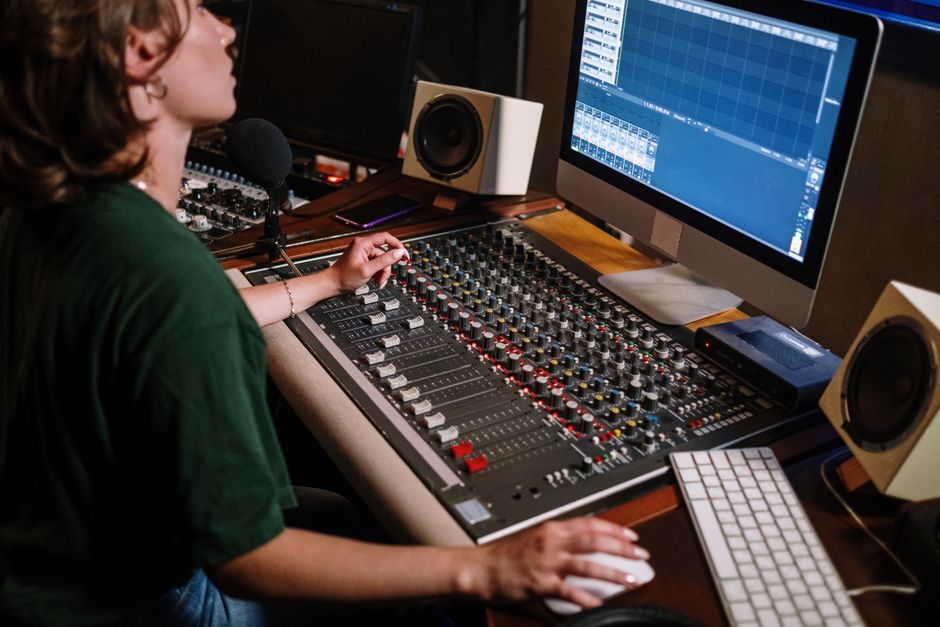
VICIdial lets you record audio prompts from any phone connected to your server - no audio editor, no file upload, no SSH session required. You dial one extension, speak your message, and the system files it automatically. The recording becomes available immediately in every part of VICIdial that plays audio to callers. This post walks through the entire process from the first dial to the moment the filename is confirmed.
Before you pick up the phone
You need a phone that is registered to your VICIdial server - a SIP extension, an analog line through an FXS adapter, or a softphone that has dialed in as an agent extension Extension. The phone does not need to be logged into a campaign Campaign; it just needs to be able to place calls through Asterisk on that box. If you can dial internal extensions and hear audio, you are ready.
Have a quiet room available. Asterisk records whatever the microphone picks up, and background noise - air conditioners, open office chatter, hold music from another line - will end up in your prompt. You can listen back before committing, so you are not stuck with a bad take, but starting quiet saves time.
The full recording flow
flowchart TD
  A[Dial 8168] --> B[Enter ID 4321 then hash]
  B --> C[Hear recording instructions]
  C --> D[Record message after beep]
  D --> E[Press hash to stop]
  E --> F{Choose option}
  F --> G[Press 1 to save]
  F --> H[Press 2 to listen]
  F --> I[Press 3 to re-record]
  G --> J[Filename played back]
  I --> D
  H --> F
Dial 8168 on the connected phone. Asterisk picks up and asks for an ID. Enter 4321 followed by the pound key #. That combination authenticates you to the prompt-recording dialplan context. Once logged in, you hear a short set of instructions explaining the record/save/listen/re-record options. Listen to the end, because the instructions also tell you the ID that will be assigned to your new file.
After the beep, start speaking your message. Speak at a normal pace, slightly louder than conversation if the room has any echo. When you are done, press # (pound/hash). Recording stops immediately. You are then presented with three options: press 1 to save the prompt, press 2 to listen to what you just recorded, or press 3 to re-record from scratch. There is no time limit on how many times you can cycle between listen and re-record before saving, so take as many takes as you need.
Once you press 1 to save, Asterisk writes the file and plays back the filename it assigned. Write that name down. It is the value you will paste into VICIdial admin fields like the Answering Machine Message field in the Campaigns screen or the Drop Exten field in the In-Groups screen. Without the filename, you have to look it up in the admin UI or on the filesystem, which takes longer.
What gets created on disk
The system starts numbering prompt files at 85100001 and increments by one for each new recording. So your first file is 85100001, the second is 85100002, and so on. These are GSM-format audio files stored in Asterisk's sounds directory. VICIdial fields that accept a prompt filename expect you to enter the number only - for example 85100001 - without the file extension. Asterisk appends the codec automatically when it plays the file.
Where to use the recording
Once saved, that filename works in multiple places across VICIdial admin. In the Campaigns screen you can drop it into the Answering Machine Message field (the message played when the dialer detects a voicemail system AMD (answering machine detection)) or the Safe Harbor Exten field (the FTC-required message for calls that would otherwise be abandoned Safe Harbor message). In the In-Groups screen it works in the Drop Exten field, the after-hours message slot, and the agent alert message field. It also appears in several Campaign Survey configuration options for interactive surveys.
For the complete breakdown of every field that accepts a phone-recorded prompt, see Where to Use VICIdial Phone-Recorded Prompts. For the full picture of phone-based dialer functions beyond just recording, see the VICIdial phone-based functions guide.
If you want a VICIdial server that is ready for phone-based prompt recording from the first day - no manual Asterisk setup required - every VICIfast plan provisions a fully configured VICIdial box in under 40 seconds, with the 8168 extension already in the dialplan.
Related from VICIfast
- Transcription and sentiment per recordingTranscription, sentiment, and objection markers with bundled minutes.
- Full server access, nothing locked awayYour crontab, your recordings, every file on the machine.
- Upload prompts or generate them with TTSGreetings, AMD messages, and IVR prompts in 12 TTS voices.
- When you need dedicated coresAMD EPYC dedicated cores for steady volume or visible CPU steal.
About VICIfast
We run VICIdial servers for call centres, so you don’t have to. You get the dialer set up, secured and kept running — we handle the server, the updates and the backups. Bring your own phone carrier at no markup, or use VICIfast Voice, our own US calling and numbers, from $0.0085 a minute. From $49 a month per server.
Questions? Call +1 636 556 0022 and talk to someone who runs dialers.
Citing this article
VICIfast Engineering. “How to Record a VICIdial Audio Prompt by Phone”. VICIfast LLC, June 28, 2026. Retrieved from https://vicifast.com/blog/how-to-record-vicidial-audio-prompt-by-phone
Have questions?
Related posts




You might be interested in


VICIfast newsletter
Liked this? Get the next one in your inbox.
We ship the kind of stuff you just read - concrete, numbers-first, no drip. One email when a new post goes live. Unsubscribe in one click.
Comments
No comments yet - be the first.