How to read the Inbound DID Detail Report to trace a single inbound call
Use the Inbound DID Detail Report to follow one inbound call by DID and tell where it actually routed versus where the number points today.
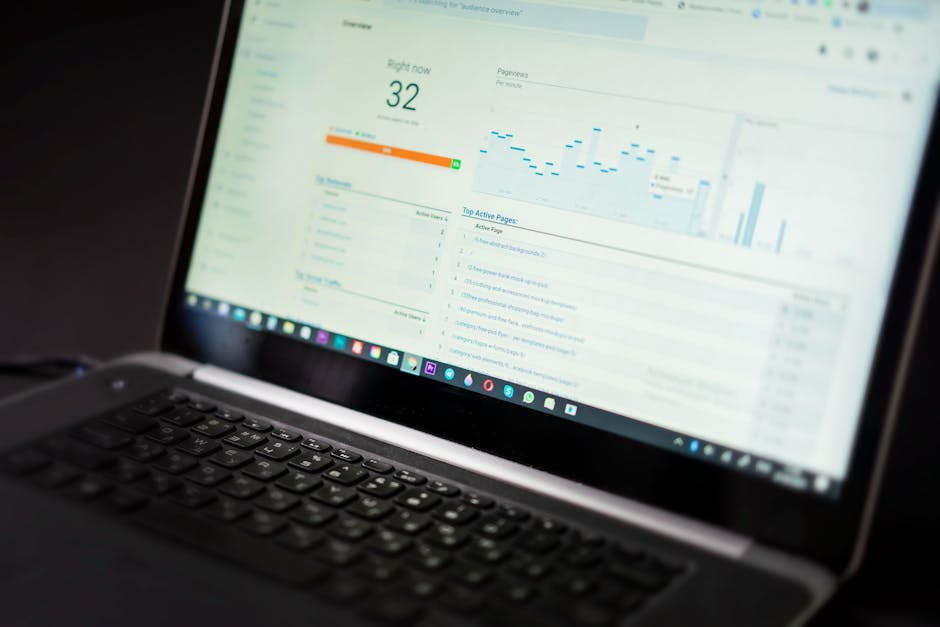
A customer says they called your number and got dead air, or landed in the wrong queue. To prove what happened you need one specific inbound call, by the number they dialed. The Inbound DID Detail Report lists every call received on a DID (direct inward dialing) over a time window, with enough columns to follow that one call from the carrier's handoff to wherever it ended up.
A DID is the phone number your carrier delivers calls to. This report has one row per inbound call, and the trick is reading two columns together: where the call actually went, and where the number points right now.
The columns that matter
- CALL DATE - when the call arrived. Pin this first to the exact minute the customer reported.
- DID EXTEN - the number the carrier actually sent the call to.
- DID PATTERN - the pattern your system matched to route the call. A wildcard pattern catching more than you intended is a common cause of calls landing somewhere odd.
- CALL ROUTE - where the call was routed, with a prefix that tells you why.
- DID ROUTE - where this DID points right now. Compare it to CALL ROUTE.
- CID NUMBER / CID NAME - the caller ID your carrier sent. Useful when you're matching a single caller.
- CHANNEL - the channel ID, your anchor if you need to dig into raw logs for the same call.
Decoding the CALL ROUTE prefix
The prefix on CALL ROUTE is the single most useful field. It tells you which decision the system made before sending the call on.
flowchart TD
  A[Inbound call hits DID] --> B{CALL ROUTE prefix}
  B -->|F_ PF_ PFR_| C[Matched a DID filter]
  B -->|MQ_| D[Max Call Queue triggered]
  B -->|NA_| E[No Available Agents triggered]
  B -->|no prefix| F[Default DID route used]
  C --> G[Routed per filter rule]
  D --> H[Overflow handling]
E --> H- F_, PF_, PFR_ - the call matched a Filter set on the DID and was routed by that rule, not the default. If a call went somewhere unexpected, a filter match is the usual reason.
- MQ_ - the DID's Max Call Queue setting triggered. The queue was full, so the call hit your overflow path. This is the fingerprint of a Queue overflow event.
- NA_ - No Available Agents triggered. Nobody was logged in or ready, so the call took the no-agents path instead of an Ingroup.
Tracing one call
- Filter the report to the DID and the time window of the complaint.
- Match the row by CALL DATE and CID NUMBER.
- Read the CALL ROUTE prefix. That tells you whether a filter, full queue, or empty floor decided the destination.
- Compare CALL ROUTE to DID ROUTE to see if today's setup matches what happened then.
- If the prefix is NA_ or MQ_, the routing was fine - the problem was staffing or queue depth, and the fix is on the DID route overflow settings, not the carrier.
That walk turns a vague complaint into a single row with a clear cause. Keep it next to the troubleshooting playbook, and when the trail points back at the carrier handoff itself, follow it with the Carrier Log Report. On VICIfast, your DIDs and routing live on a single tenant box we manage, so the report reflects exactly your traffic - see plans and pricing.
Related from VICIfast
- Reporting, agent stats, and exportsOutbound, inbound, agent, QA - with date presets and CSV/PDF export.
- Templated PJSIP trunk setupTemplated configs for Twilio, Bandwidth, Telnyx, Skyetel, and generic IP auth.
- The SIP trunking guideChoosing carriers, routing, and what breaks in production.
- BYOI: your hardware, our dashboardYour VPS or on-prem hardware; we install and manage VICIdial over SSH.
About VICIfast
We run VICIdial servers for call centres, so you don’t have to. You get the dialer set up, secured and kept running — we handle the server, the updates and the backups. Bring your own phone carrier; we never resell minutes. From $49 a month per server.
Questions? Call +1 636 556 0022 and talk to someone who runs dialers.
Citing this article
VICIfast Engineering. “How to read the Inbound DID Detail Report to trace a single inbound call”. VICIfast LLC, June 25, 2026. Retrieved from https://vicifast.com/blog/how-to-read-the-inbound-did-detail-report
Have questions?
Related posts


You might be interested in



VICIfast newsletter
Liked this? Get the next one in your inbox.
We ship the kind of stuff you just read - concrete, numbers-first, no drip. One email when a new post goes live. Unsubscribe in one click.
Comments
No comments yet - be the first.