Personalizing VICIdial after a fresh install
A fresh VICIdial install boots generic. Set the timezone, server IP, passwords, branding, and a first campaign before you ever dial a live number.
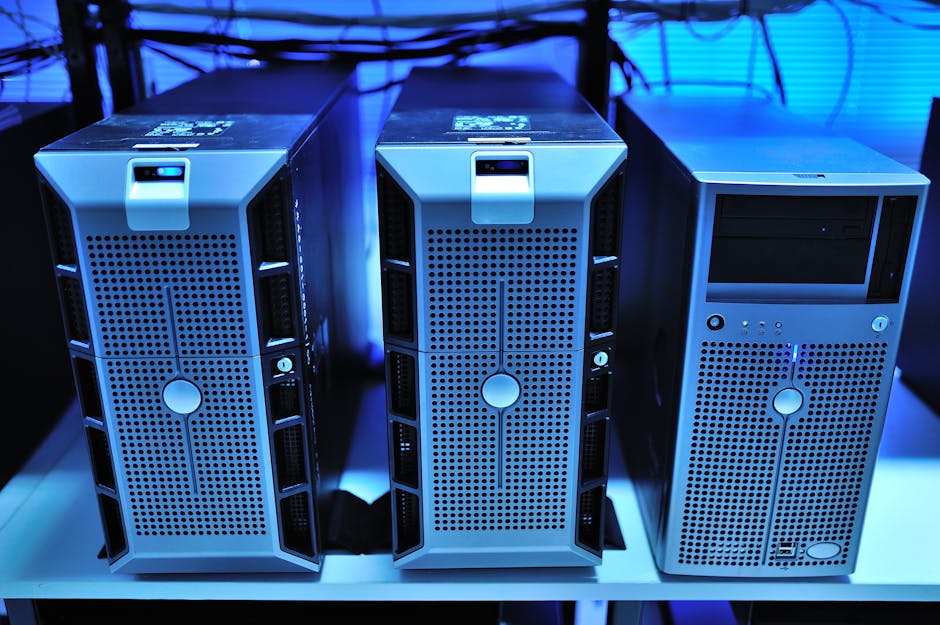
A fresh VICIdial install boots with default passwords, no campaigns, and a server IP that may not match the box it is running on. None of that is wrong - it is just generic. Before the dialer makes a single live call, a handful of personalization steps turn the stock install into your install. Do them in order and you avoid the broken-audio and login-failure traps that catch first-timers.
Set the server IP first
VICIdial records the server's own IP address in the database and uses it to build Asterisk config and to route RTP audio. If that value is wrong - left at an installer default or set to a private address the Carrier cannot reach - calls connect but you get one-way or no audio, because the far end is told to send media to an address that does not point back at your box. Set the real IP in the server admin, then rebuild the conf files so the Dialplan and peer entries pick it up. This is the single most common reason a brand-new box has silent calls.
Timezone and call times
Set the box's system timezone and VICIdial's GMT offset to match where you actually dial. Get this wrong and your call-time rules fire at the wrong hour, which is both an annoyance and a calling-hours compliance risk. Reports, recordings, and the dialer's pacing all read from this clock, so fix it before any lead loads.
flowchart TD
  A[Fresh install] --> B[Set real server IP]
  B --> C[Set timezone and GMT offset]
  C --> D[Change default passwords]
  D --> E[Apply branding]
  E --> F[Load carrier and trunk]
  F --> G[Build first campaign]
  G --> H[Test call]
Change the default passwords
Stock VICIdial ships with well-known default logins for the admin user, the database, and the SIP secrets. Change all of them before the box touches the public internet. Default credentials on an internet-facing dialer are how strangers end up placing calls on your SIP trunk and running up a bill overnight. Set strong secrets, lock the firewall, then move on.
Branding and the first campaign
With the infrastructure right, make it yours. Apply your logo and colors to the agent and admin screens, configure your outbound caller ID, and add your Carrier as a Server trunk. Then build the first Campaign: set its dial method, point it at a Lead list, and place a test call to your own phone before any real lead loads. A test call proves the IP, the trunk, the audio path, and the dialplan all agree. The post-install checklist walks every box to tick, and the VICIdial install guide covers the install itself.
What we personalize for you
On VICIfast the boring, error-prone parts are already done when your Single tenant box comes up in under 40 seconds: the real server IP is set, passwords are unique per box, the firewall is locked, and your Branded subdomain is live over HTTPS. You keep root SSH and you bring your own Carrier, so the carrier, campaign, and lead steps are yours. That is the right split - we handle the parts that break boxes, you handle the parts that are your business.
Do the IP, clock, and passwords before you dial, then build one campaign and test it. Spin up a pre-personalized box from our pricing page and skip straight to your carrier and first campaign.
Related from VICIfast
- The branded agent webphoneYour logo, your colours, your subdomain - served to your agents.
- Sub-users, roles, and SSH key syncOperator, viewer, and billing roles with every action audit-logged.
- From order to admin URL in under a minuteMeasured wall-clock from paid order to a working admin URL.
- The free VICIdial field guideArchitecture, sizing, storage and cost. No email wall on the contents.
About VICIfast
We run VICIdial servers for call centres, so you don’t have to. You get the dialer set up, secured and kept running — we handle the server, the updates and the backups. Bring your own phone carrier at no markup, or use VICIfast Voice, our own US calling and numbers, from $0.0085 a minute. From $49 a month per server.
Questions? Call +1 636 556 0022 and talk to someone who runs dialers.
Citing this article
VICIfast Engineering. “Personalizing VICIdial after a fresh install”. VICIfast LLC, June 29, 2026. Retrieved from https://vicifast.com/blog/vicidial-personalize-after-install
Have questions?
Related posts



You might be interested in




VICIfast newsletter
Liked this? Get the next one in your inbox.
We ship the kind of stuff you just read - concrete, numbers-first, no drip. One email when a new post goes live. Unsubscribe in one click.
Comments
No comments yet - be the first.