How to read the Agent Latency Report
The Agent Latency Report shows per-agent HTTP response times for the agent screen throughout a shift. This post explains each column and chart, what healthy numbers look like, and which patterns signal a problem worth investigating.
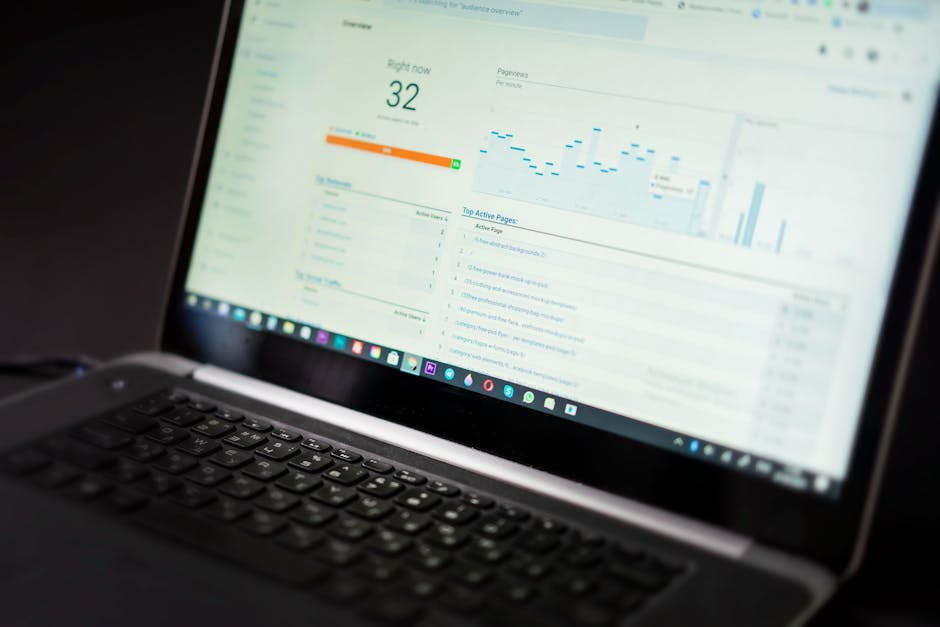
The Agent Latency Report answers a specific question: how long did it take for each Agent's browser to get a response from the server during their shift? It shows that information for agents currently logged in, or recently logged in, across a single day. If you know how to read it, you can distinguish server-side slowdowns from individual connection problems within a few minutes.
How the report is scoped
The report is scoped to a single day. You can view one specific user's Latency details - which gives you a fine-grained timeline for that person - or you can view all users at once for the same day. The all-users view is more useful for diagnosing whether an issue is isolated to one agent or affecting the whole team.
Along with the data table, the report includes a chart of latency over the course of the day. The chart is what makes time-based patterns visible - a gradual rise through the morning, a spike at noon, or a sustained high plateau during the peak dialing window all appear as shapes in the line rather than numbers buried in a table.
What the data table shows
Each row in the table represents one latency measurement for one Agent at one point in time. The key fields are:
- User ID and name - which agent this reading belongs to.
- Server IP - the dialer server the agent is connected to. On a multi-server system this helps you tell apart server-level problems from agent-level ones.
- Event time - the timestamp when this latency reading was recorded.
- Latency value - the measured round-trip time in milliseconds for the agent screen keep-alive request.
- Campaign and user group - useful context for cross-referencing against call volume at that time.
What healthy latency looks like
On a well-resourced server with agents on reliable connections, most readings will be in the range of a few dozen milliseconds. There will be occasional spikes - a browser garbage collection pause, a momentary network hiccup - but those appear as isolated points rather than sustained patterns.
When the average reading for an agent is consistently high across their whole shift, the problem is persistent and worth investigating. When the average is high for every agent during the same window, look at the server rather than the agents.
flowchart TD
  A["Open Agent Latency Report"] --> B{"One agent high or all agents high?"}
  B -->|"One agent"| C["Check agent network and browser"]
  C --> D["VPN overhead, slow router, CPU load"]
  B -->|"All agents"| E["Server-side bottleneck"]
  E --> F{"When did it start?"}
  F -->|"Peak hours"| G["Dial level too high for server"]
  F -->|"Whole day"| H["Background process or DB issue"]
  G --> I["Lower dial ratio or resize box"]
  H --> J["Check process list and DB query load"]
Using the chart effectively
The chart plots latency on the vertical axis against time on the horizontal axis. When looking at all users on the same chart, you can see whether spikes are isolated to one user's line or whether multiple lines rise together. Multiple lines rising together is the clearest sign of a server-side event.
Look for these patterns in the chart: a gradual climb over several hours (load accumulating, possibly a slow memory leak or a query that gets heavier as data grows), a sharp spike and recovery (a burst event, usually a backup job or a large report run), or a flat line for an Agent that should be active (which indicates a gap in the log rather than good latency - covered by the Latency Gaps Report).
Combining this report with other health checks
The Agent Latency Report gives you agent-facing response time. To understand what the server was doing at the same moments, correlate it with the Server Performance Report, which tracks system load, process count, and Channel count at five-second intervals. The combination tells you whether a latency spike coincided with a load spike, a process count explosion, or something else entirely.
For the full monitoring workflow, see the server health and capacity guide. For the complementary view of what the server's performance graphs look like over time, see how to read server performance graphs.
Running latency checks on a server that was already undersized? See what a managed VICIfast box costs - sized for your call volume and live in under 40 seconds.
Related from VICIfast
About VICIfast
We run VICIdial servers for call centres, so you don’t have to. You get the dialer set up, secured and kept running — we handle the server, the updates and the backups. Bring your own phone carrier; we never resell minutes. From $49 a month per server.
Questions? Call +1 636 556 0022 and talk to someone who runs dialers.
Citing this article
VICIfast Engineering. “How to read the Agent Latency Report”. VICIfast LLC, June 28, 2026. Retrieved from https://vicifast.com/blog/how-to-read-agent-latency-report
Have questions?
You might be interested in



VICIfast newsletter
Liked this? Get the next one in your inbox.
We ship the kind of stuff you just read - concrete, numbers-first, no drip. One email when a new post goes live. Unsubscribe in one click.
Comments
No comments yet - be the first.