Fronter Display: what the agent sees on an inbound call
Fronter Display puts the first agent's name in the Status field when a call is transferred, so the closer knows exactly who fronted it. Here is when to turn it on and what it changes.
When a call gets passed from one agent to another inside VICIdial, the second agent often has no idea what just happened on the call. Fronter Display is a small toggle that fixes that for transferred inbound calls, putting the first agent's name right in front of the agent who is about to take over.
Fronter and closer, briefly
sequenceDiagram
  participant C as Caller
  participant F as Fronter agent
  participant V as VICIdial
  participant Cl as Closer agent
  C->>F: Inbound call answered
  F->>V: Transfer to closer in-group
  V->>Cl: Route call
  V->>Cl: "Set Status field to fronter name"
  Cl->>C: Takes the call knowing who fronted
In a two-stage setup, the first agent is the Fronter: they qualify the caller, confirm interest, and then hand the call on. The second agent is the Closer: they pick up where the fronter left off and finish the job. The handoff is usually a Warm transfer, where the fronter introduces the caller before dropping out.
That works smoothly only if the closer knows who fronted the call. Without it, the closer is starting cold and the caller has to repeat themselves, which is exactly the friction the two-stage model is supposed to remove.
What the toggle does
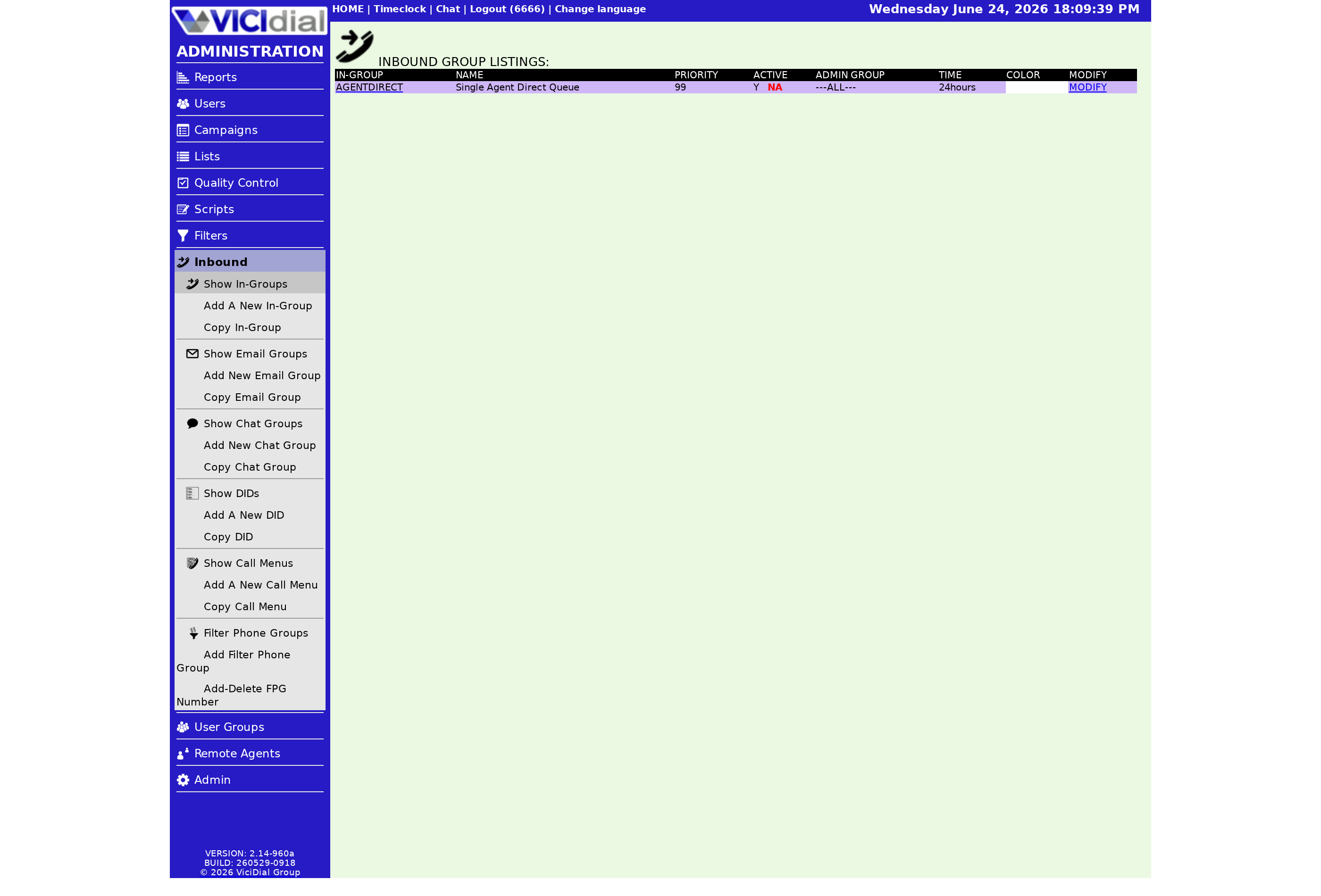
Fronter Display is a yes-or-no setting on the Ingroup. Turn it on and, when a transferred call lands on the receiving agent, the fronter's name appears in the Status field of their agent screen. Leave it off and that field stays generic.
It is a display-only setting. It does not change routing, recording, or Disposition behavior. It simply surfaces a piece of context the closer would otherwise have to ask for.
When to turn it on
Switch it on for any in-group whose calls regularly arrive via a fronter. Good candidates:
- Sales closing queues that receive qualified transfers from a fronting team.
- Tiered support, where tier-one hands off harder cases to a specialist.
- Any flow where a warm transfer is the norm rather than the exception.
If an in-group only ever receives raw, untransferred inbound calls, the setting has nothing to show and you can leave it off. For the bigger picture on how these calls reach the agent in the first place, see our inbound call handling guide, and pair this with the default transfer group setting so warm transfers land in the right closer queue every time.
The Status field is prime real estate on the agent screen, so use it for context that helps the agent talk to the customer. Fronter Display is one of the cheapest wins there. If you are setting up a closer queue from scratch, our plans get you a working dialer in under a minute to test the handoff end to end.
Frequently asked
- Either Fronter Display is turned off for that in-group, or the call did not actually pass through a fronting agent first. A cold inbound call with no prior agent has no fronter name to show.
- No. This is purely on the closer agent's screen. The customer never sees any of the internal status text.
› Why is the Status field blank on a fronter transfer?
› Does the customer see the fronter name?
Related from VICIfast
About VICIfast
We run VICIdial servers for call centres, so you don’t have to. You get the dialer set up, secured and kept running — we handle the server, the updates and the backups. Bring your own phone carrier; we never resell minutes. From $49 a month per server.
Questions? Call +1 636 556 0022 and talk to someone who runs dialers.
Citing this article
VICIfast Engineering. “Fronter Display: what the agent sees on an inbound call”. VICIfast LLC, June 20, 2026. Retrieved from https://vicifast.com/blog/vicidial-ingroup-fronter-display
Have questions?
Related posts
You might be interested in
VICIfast newsletter
Liked this? Get the next one in your inbox.
We ship the kind of stuff you just read - concrete, numbers-first, no drip. One email when a new post goes live. Unsubscribe in one click.
Comments
No comments yet - be the first.